
Features /
Process architecture
Business architecture modeling that never goes stale
Business architecture modeling lets you draw diagrams of how your organization works — landscape maps, process houses, value chains, SIPOC — and link every shape to a live Process, Category, Group or user in your Gluu account. Each link points to the entity itself, not its name, so it keeps working after you rename or restructure.
 Links to Processes, Categories, Groups and Users
Renaming never breaks a link
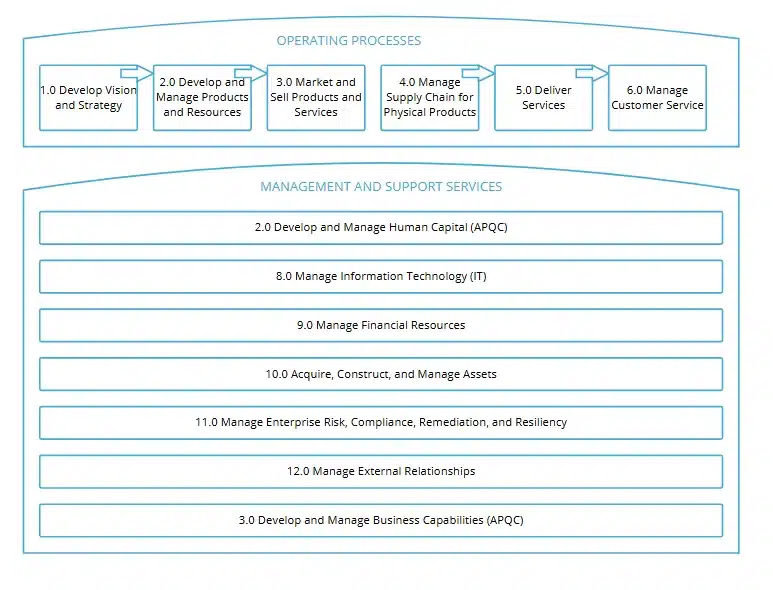
What it is
Drawings are a freeform canvas in Gluu for building a visual guide to your process hierarchy — an interactive diagram you publish so people navigate by picture instead of by menu. A shape can represent anything from a single activity to a whole division, and each one can carry a link to a Category, Group, Process, another Drawing, an external site, or the user responsible for that area.
Business architecture modeling sits alongside the process hierarchy itself, not in place of it — the numbering, ownership and level structure come from the wider capability this belongs to: see how the full structure works, level by level.
Why it matters
Why keep a picture of the business?

One structure, as many maps as you need
Build a shop-floor view, an IT systems map, a compliance overview — as many drawings as your organization needs, each one a different way into the same process hierarchy. Colleagues navigate by picture instead of learning the menu structure first.

No more stale architecture diagrams
Static architecture diagrams drift from reality the day someone reorganizes. A drawing’s links point at the Process, Category or Group itself — not a name typed onto the shape — so navigation still resolves correctly after you rename or restructure, and the model doesn’t quietly go out of date.

Roles, processes and systems in one picture
Add the responsible user to a shape to show who’s accountable for that part of the architecture, then drill from the landscape view straight into the process, category or group behind it. One drawing carries the structure that used to live in three separate documents.
How it works
How do business architecture drawings work in Gluu?
A drawing is built from simple shapes — rectangles, lanes, chevrons, connectors — so any framework your organization already uses translates onto the canvas. The four examples below use a process house, a SIPOC scope, a value stream and the published gateway view, but the canvas itself doesn’t limit you to these. Step-by-step instructions live in the guide to drawing business architectures.
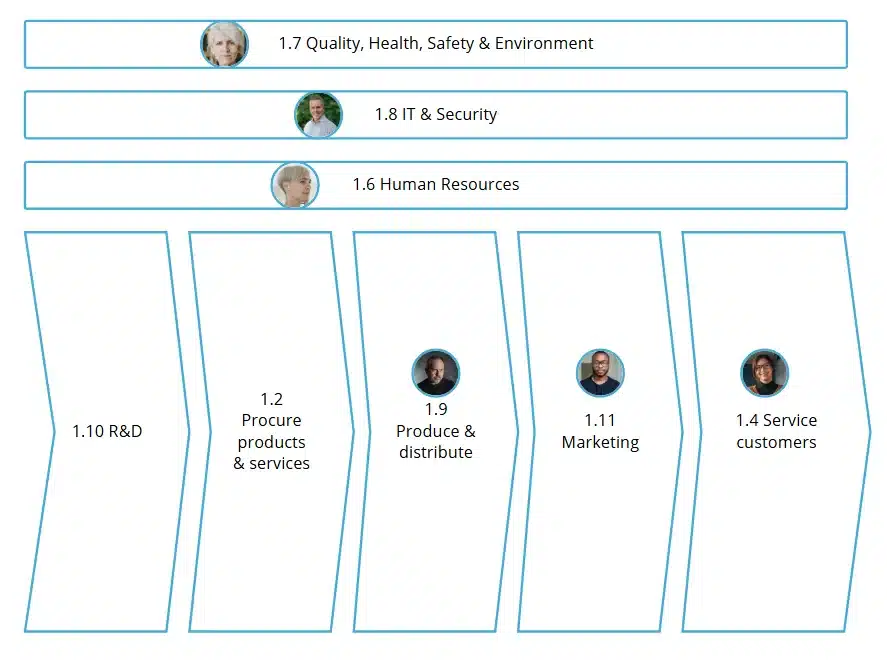
1. Draw the process house
Lay out functional lanes — R&D, procurement, production, marketing, service — with the roles responsible for each, then link every lane to the Category or Group it represents. Anyone opening the drawing sees ownership and structure at once.
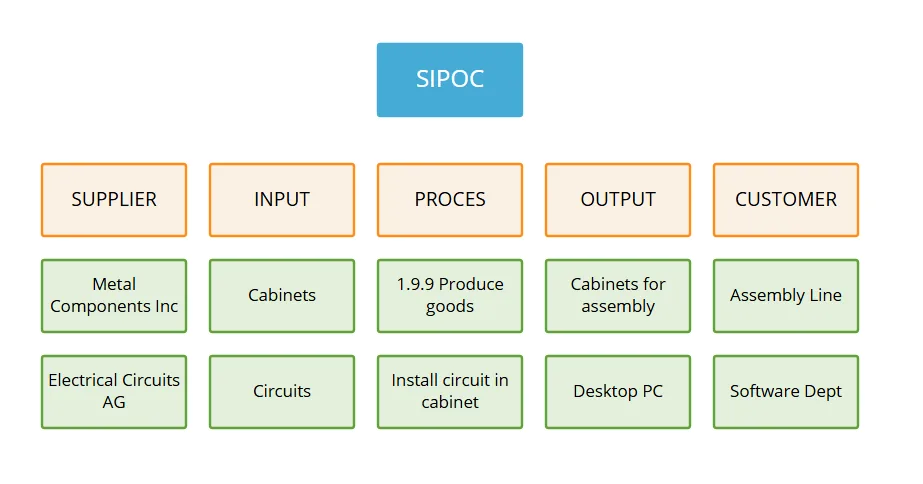
2. Scope work with SIPOC
Suppliers, inputs, process, outputs and customers, laid out for one process or a handful — a fast way to agree scope before anyone opens the process editor. Link the process box straight to the Process it represents.
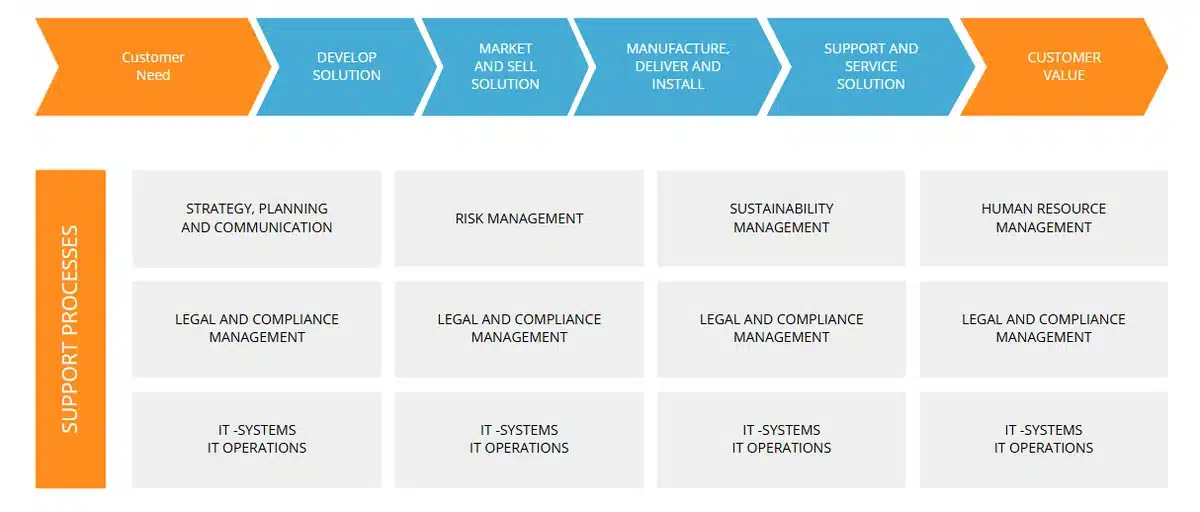
3. Map the value stream
Show the end-to-end flow from customer need to customer value, with support processes underneath. Use it as the one-page view that aligns leaders before you hang a detailed framework like APQC underneath each stage.
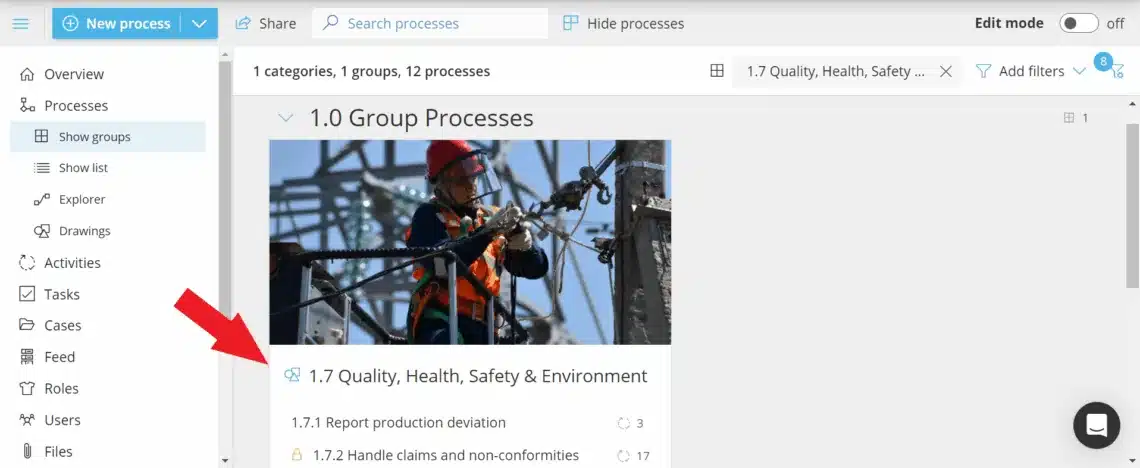
4. Publish it as a gateway into the hierarchy
Publishing adds a small icon to the process overview page for every linked Category, Group or Process, so people jump straight from their everyday view into the drawing — and clicking a shape in the drawing opens the matching filtered view back in the hierarchy.
Availability
Business architecture modeling is part of the Enterprise Architecture add-on, alongside value stream maps and the visual process connection map. It’s available on top of the Essential and Advanced plans. See what each plan includes on the pricing page.
Frequently asked questions
Yes. Drawings require the Enterprise Architecture add-on, which also unlocks value stream maps and the visual process connection map. It’s available on top of the Essential and Advanced plans — if you don’t see Drawings in your Gluu menu, contact Customer Success to enable it.
Nothing breaks. A link in a drawing points at the Process, Category or Group itself, not the name you typed onto the shape — so as long as the entity still exists, the link keeps resolving correctly after you rename or restructure it.
Because Drawings is a freeform canvas, you can build any framework your organization already uses — customers commonly draw a Porter-style value chain, an APQC-style landscape, SIPOC, process houses and swimlanes. There’s no template picker to choose from; you build the shapes yourself, the way you would in any diagramming tool.
Yes. A shape can link to a Category, Group, Process, another Drawing, an external URL, or the user responsible for that area — so one drawing can combine internal navigation with references to your intranet, a supplier portal or a regulatory site.
The account owner and any user with the Manage drawings permission can create and edit drawings. Everyone else can view a drawing once it’s published — Manage drawings is assigned under Account settings > Permission Groups.
Yes. A common approach is one high-level drawing for the full landscape, with linked sub-drawings for each major area — users drill down from the overview into the detail they need.
Written and reviewed by
Last updated
All Features
Keep exploring the platform
Ready to make your business architecture visible?
Gluu free 30-day trial. No credit card required. Start from €24 / year.