
Goal: Use business architecture drawings in Gluu (“Drawings”) to build an interactive visual guide that helps users navigate your process hierarchy.
Add-on requirement: Drawings require the Enterprise Architecture add-on. It is not included in the Core, Essential, or Advanced base plans. Contact Customer Success to enable it on your account.
If you prefer giving your users a visual guide to help them navigate your process hierarchy instead of only showing the standard overview (categories, groups and processes), use Drawings. It creates an interactive diagram based on your process structure — ideal for complex or extensive hierarchies.
You can include your entire process hierarchy in one drawing, or create multiple drawings that show individual parts.
Not yet familiar with the process hierarchy? See Use a process hierarchy to organise processes.
Before you start #
- Plan: Drawings require the Enterprise Architecture add-on. They are not included in the Core, Essential, or Advanced base plans.
- Role: The account owner and users with the Manage drawings permission can create and edit drawings. All users can view published drawings.
- Setup: Contact Customer Success to enable the Enterprise Architecture add-on before Drawings appears in your Gluu account menu.
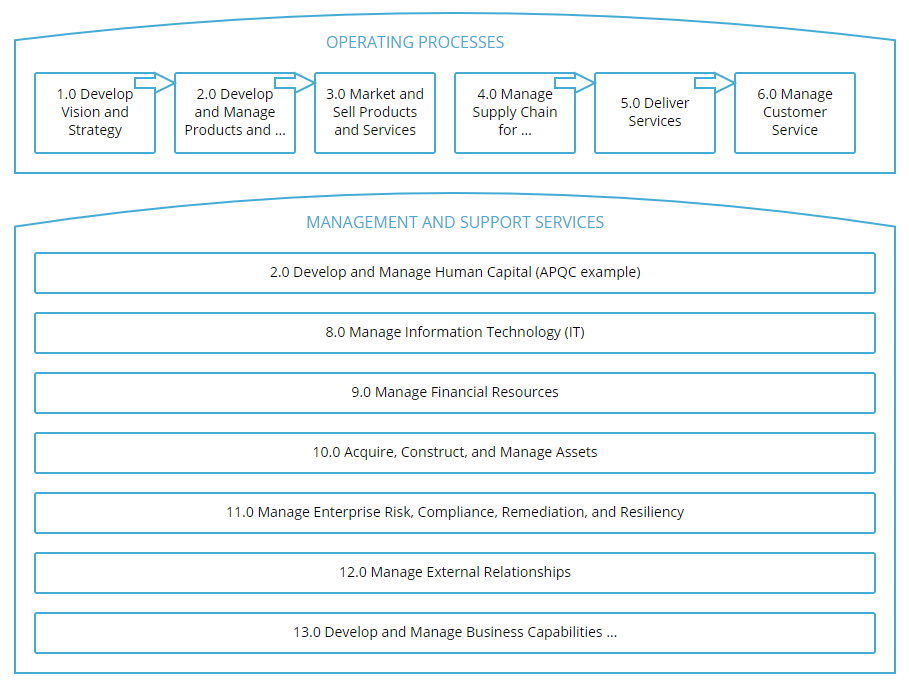
How to draw #
The video below introduces business architecture drawings. Basic steps to get started:
- Open Drawings from your Gluu account menu.
- Create a new drawing and give it a name.
- Add shapes to represent your process areas.
- Link shapes to categories, groups, processes, other drawings, or external URLs.
- Optionally add responsible users to shapes.
- Publish the drawing to make it visible to all users.
You’re done once the drawing is published and appears in the interactive view for all users.
Make custom navigation #
Link to categories, groups or processes #
Enrich shapes with links to categories, groups and processes in your hierarchy — or link to external sites or plain text. This creates a visual, interactive guide for users.
- Open Drawings from your Gluu account.
- Create or select a shape that represents a category, group or process.
- Add a link to the relevant category, group or process.
- Optionally add a text note or an external URL.
- Publish the drawing when ready.
When you link a Gluu object (category, group or process), a small icon appears on the process overview page. Users can click the icon to open your drawing.
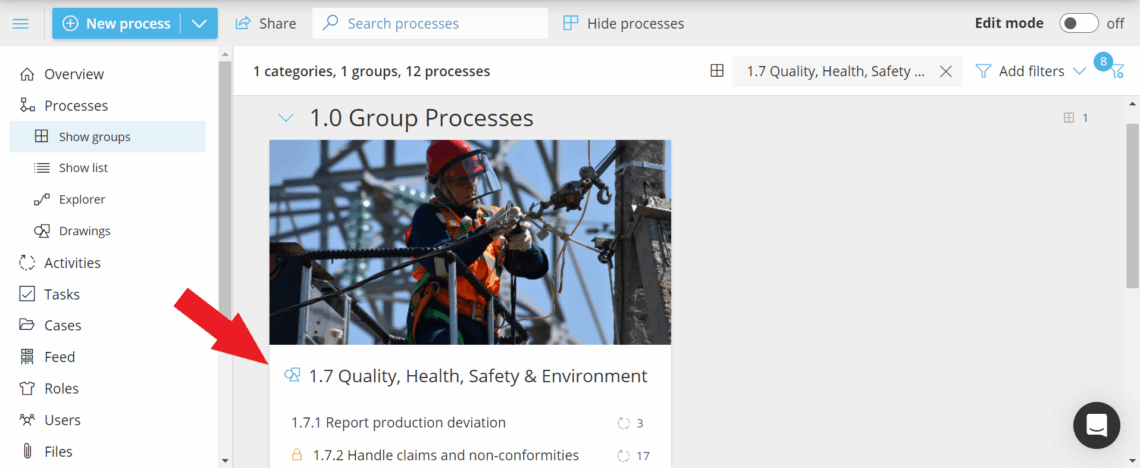
If users start on the drawing and click a category or group, they see a filtered view on the process overview page that matches the clicked item.
Example: Clicking the drawing link for “1.7 Quality, Health, Safety & Environment” opens the process overview page filtered to that group.
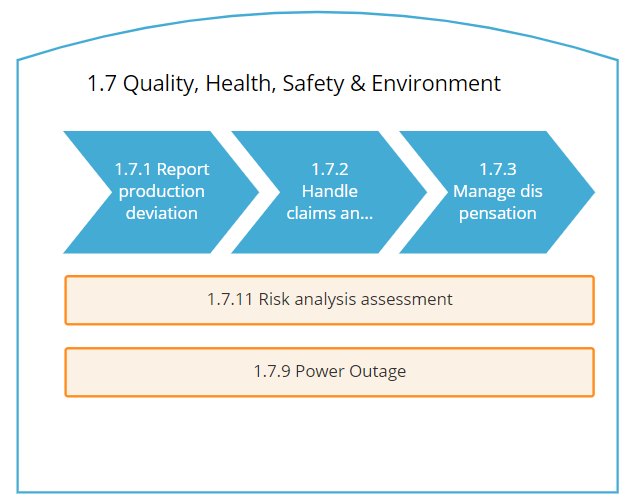
This gives users a focused view of the hierarchy that helps them find what they need faster.
You’re done once linked shapes correctly open the matching process, group, or filtered overview.
Link to other drawings and external sites #
Connect drawings together to guide users from a full hierarchy view into detailed sub-drawings. You can also link to external sites such as your intranet or supplier pages.
- Open a drawing and select a shape.
- Add a link to another drawing to create a drill-down path.
- Add an external URL if you need off-site resources.
- Publish and test the links end-to-end.
You’re done once each link opens the right drawing or external page from end to end.
Show responsible users on drawings #
Add users to drawings to visualize who is responsible for parts of your hierarchy.
- Open the relevant drawing.
- Select the shape that represents the area of responsibility.
- Add the user to the shape.
- Publish to show responsibility in the interactive view.
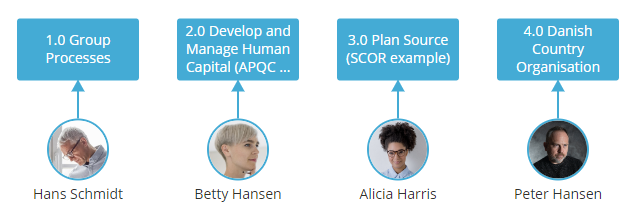
You’re done once responsible users appear on the shape in the published, interactive drawing.
Permissions: The account owner and users with the Manage drawings permission can create and edit drawings. All users can view published drawings.
FAQ – Business architecture drawings #
Yes. Drawings require the Enterprise Architecture add-on. It is not included in the Core, Essential, or Advanced base plans — it must be purchased separately. If you don’t see Drawings in your Gluu menu, contact Customer Success to enable the add-on on your account.
The account owner and any user with the Manage drawings permission group can create and edit drawings. All other users can view drawings once they are published. Manage drawings is assigned by your account administrator under Account settings > Permission Groups.
When a shape is linked to a category or group, two things happen. First, a small icon appears on the process overview page next to that category or group — users can click it to open the drawing. Second, if a user clicks the shape from within the drawing, they are taken to a filtered view of the process overview showing only that category or group.
Yes. You can create as many drawings as you need. A common approach is one high-level drawing showing your full hierarchy, with linked sub-drawings for each major area. Users drill down from the overview drawing into the detailed view for the area they need.
Yes. Any shape in a drawing can be linked to an external URL — for example, your company intranet, a supplier portal, or a regulatory reference site. Combine this with links to internal Gluu objects to build a single visual guide that covers both internal processes and external resources.
Drawings are not updated automatically when you rename or move categories, groups, or processes. If you restructure your hierarchy, review your drawings and update any affected links manually to ensure the navigation remains accurate.


