
Features /
Forms and data
A filled-out form becomes usable data – not paper waiting to be retyped
Build a form once. Include dropdowns, date pickers, photos, videos, quizzes or fields that only appear when an earlier answer meets a condition. Then attach it to any task or activity, on desktop or the mobile app. Every submission is stored as a structured record you can search, filter, share or export.
What it is
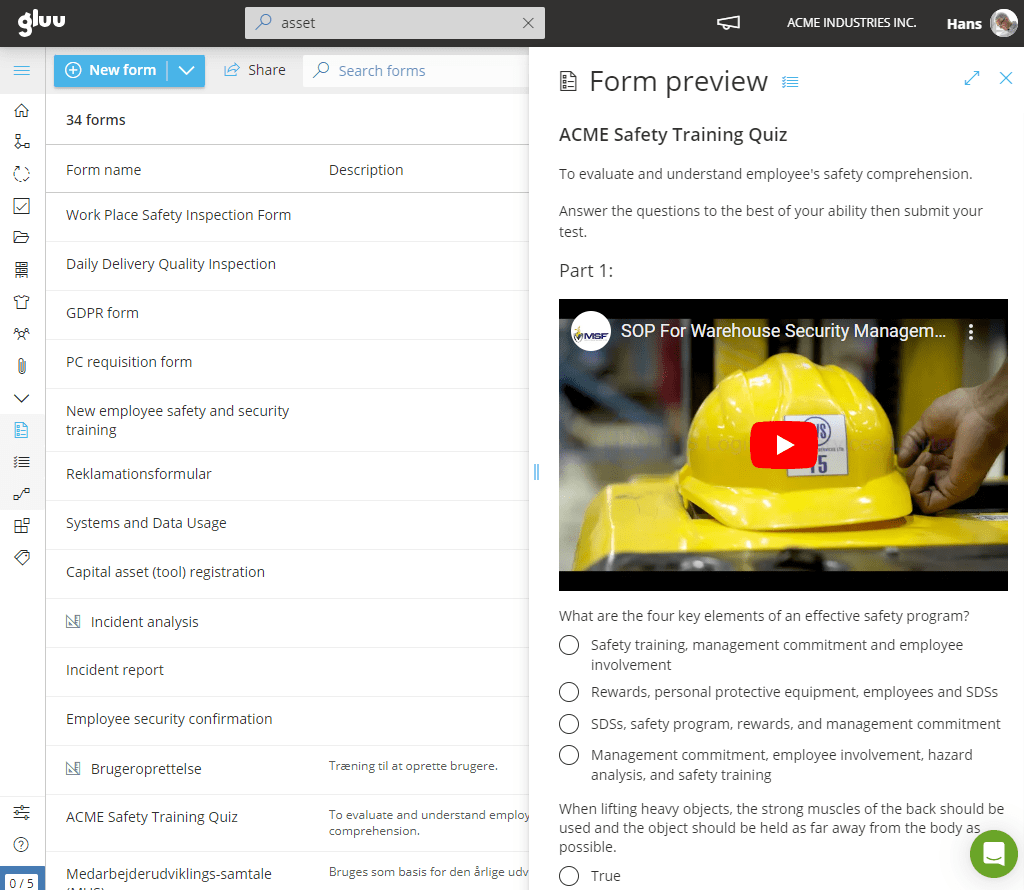
A form in Gluu is a reusable object built once in a drag-and-drop designer – combining fields like text, dropdowns, checklists, date pickers, quizzes, competence look-ups and conditional fields that only appear once an earlier answer meets a condition – then attached to any task in any activity across any process. Only users with form-management rights can build or edit a form, and it only shows up on a task’s form dropdown once it’s been published.
Filling one in is part of doing the task, not a separate step afterwards: on desktop or the mobile app, a user completes the fields, attaches a photo or file if the task needs proof, and submits. From that moment the response is a structured record attached to the task — searchable, filterable and exportable, inside Gluu or an external system — rather than a paper form waiting to be collected and typed up somewhere else.
Why it matters
Less paper, more usable data

Only ask what actually applies
Add a field that appears only once an earlier answer meets a condition, so a short registration stays short and a longer one only surfaces the questions that matter for that specific case.

Duplicate instead of rebuilding from scratch
Copy a single field or an entire form to reuse across tasks, keeping wording, choices and structure consistent – instead of recreating something close to an existing form by hand every time.

Submissions become data, not paper waiting to be typed up
Complete a form on desktop or the mobile app as part of the task itself, attach a photo if needed, and submit – the response is stored as a structured, searchable record from that moment on.

Turn mandatory training into a task people actually complete
Build a quiz into a form with the same drag-and-drop tools used for any other field, and run required training as a task inside the work people already do – not a separate course competing for attention in an LMS nobody logs into voluntarily.
Outcomes
No re-typing
data submitted through a form flows straight into the system with nothing transcribed from paper afterwards
Can’t submit incomplete
a digitally rebuilt form blocks incomplete submissions removing the follow-up work paper forms created
“We see big-time savings by not having to handle our record keeping on paper anymore. Our registrations happen inside the app now.”
Jakob Lund, Former factory manager, Superfos Randers
Explore forms and data
Nine ways to build forms and put what they capture to work
Embedded digital forms
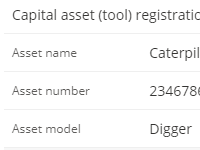
Build a form once, then embed it in any task or activity so it’s ready to capture data the moment that step is reached.
Form data management
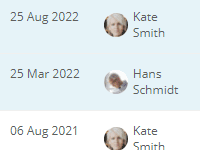
Search, filter and share form data internally, export it for reuse in Gluu or external systems, or keep it automatically synced to SharePoint as part of a case’s files.
Form designer
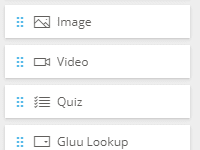
Design forms with drag-and-drop tools including videos, date pickers, quizzes and file uploads.
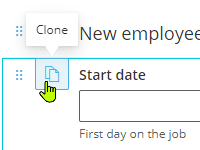
Field and form cloning
Duplicate individual fields or entire forms to speed up creation and maintain consistency.

Embedded video and images
Upload or embed videos and images to support work instructions on both desktop and mobile.

Interactive training quizzes
Create quizzes with questions and media to deliver interactive and mandatory staff training.

Mobile Apps for iOS and Android
Fill in forms, attach photos and submit data from the factory floor or the road using Gluu’s iOS and Android apps.
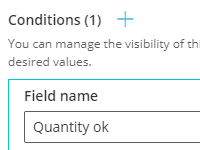
Conditional form fields
Show form fields only when specific conditions are met to reduce clutter and streamline completion.
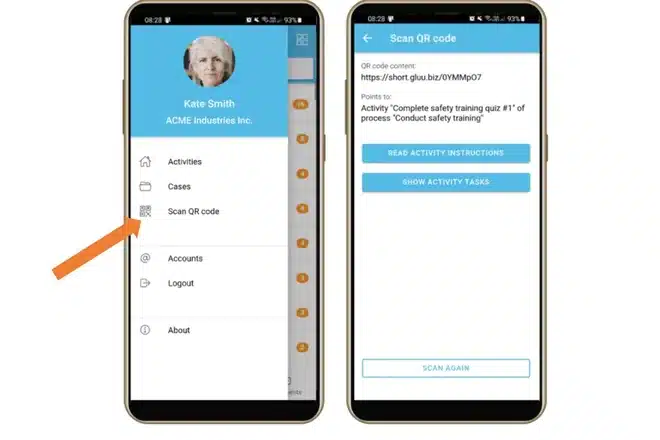
QR code form access
Scan a label to open the task and its form on mobile, so the registration happens where the work is instead of on paper.
Frequently asked questions
Text, numbers, dropdowns, checklists, multiple choice, date pickers, images, video, quizzes, competence look-ups and fields that reference other users, processes or cases — dragged and dropped into place, no technical setup required.
Only users with form-management rights can create, edit or delete a form. Once it’s published, any process owner or editor can attach it to a task — they don’t need form-building rights themselves to use one that already exists.
Both. A form attached to a task shows up the same way on desktop and in Gluu’s iOS and Android apps, so someone on the factory floor or on the road can complete it, attach a photo, and submit — without needing a laptop nearby.
It becomes a structured record attached to that task — searchable and filterable from then on, not a paper form waiting to be read and typed up somewhere else.
You choose a controlling field and set the value that should trigger the next one to appear — for example, a follow-up question that only shows if a checkbox is ticked. It keeps a form short for the cases that don’t need every question.
Duplicate a single field or an entire form to reuse its structure elsewhere, keeping wording and choices consistent instead of rebuilding something similar from a blank page.
Yes. Filtered form data can be exported as .xls, .csv or JSON, or accessed programmatically — the same REST API used to connect other Gluu data to external systems.
For regular, mandatory training — safety, hygiene, machine operation and similar — yes: a quiz built into a form runs as a task inside the same app people already use for their work, without a dedicated LMS.
Written and reviewed by
Last updated
All Features
Keep exploring the platform
Ready to stop retyping paper forms and start capturing clean data instead?
Gluu free 30-day trial. No credit card required. Start from €24 / year.