
Features /
Case & project management
Sync case folders to SharePoint automatically
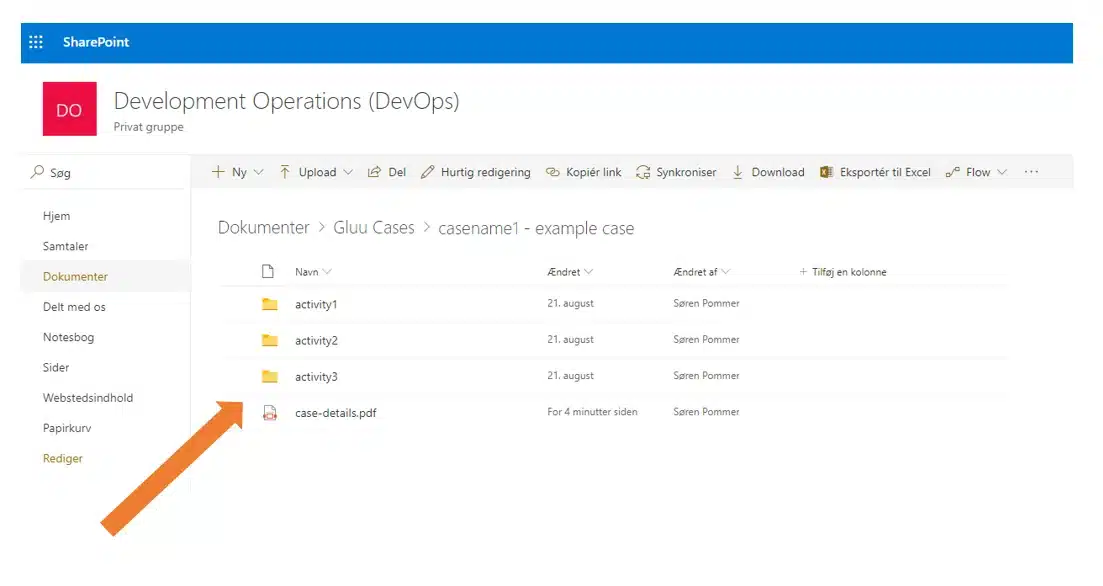
SharePoint case folder sync automatically creates a SharePoint folder for every Case and Activity, applies the naming standard you’ve set, and clones the Case Template’s document templates into place — so every Case keeps a synced, backed-up copy of its files in SharePoint, with nothing built by hand.
What it is
SharePoint case folder sync connects a Gluu Case Template to a SharePoint site. When someone starts a Case, Gluu creates a matching Case folder — and a subfolder for every Activity inside it — in SharePoint automatically, following the naming standard you’ve configured.
It works alongside Gluu’s wider case and project management features: the Case itself still runs in Gluu, with named task owners, live progress and an audit trail. SharePoint becomes the synced, browsable copy of the files that Case produces — forms, reports, photos and document templates — for teams and auditors who already work out of SharePoint.
Why it matters
One governed source, not two copies drifting apart

One naming standard, every case follows it
When folders get built by hand, every case ends up named a little differently and SharePoint quietly drifts from what actually happened in Gluu. Case folder sync keeps both in step, using one naming standard for every case and activity.

A backup and audit trail without a manual export
Every form, report and photo captured on a case task lands in the matching SharePoint folder as it’s produced — a synced copy you can point auditors, subcontractors or your backup policy at, without a separate export step.

No SharePoint training required to stay organized
Folder and file names follow the standard you set once, at account level or per case template — so colleagues never have to learn a naming convention or remember where a case’s files belong.
Outcomes
100+
new employees onboarded
to standardized processes
Doubled in size
since 2019, without losing
process discipline
Every phase mapped
offer, design, planning
and execution, standardized
“In Gluu, we can — throughout the process — see whether activities have been done and where work is not moving. We can also see who is responsible for the specific activities.”
Hans Jørgen Ebbesen, CEO, CJ A/S
How it works
How does SharePoint case folder sync work in Gluu?
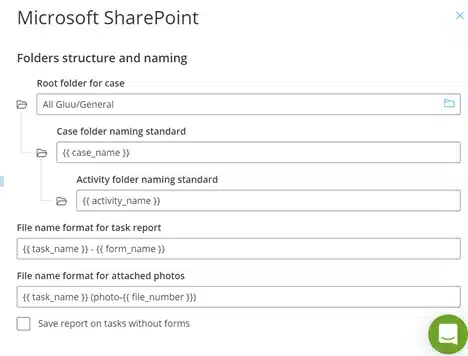
Set your naming standard once
Add your organization’s Azure AD tenant ID, turn on Microsoft SharePoint under Apps & Integrations, then set the root folder and the case, activity and file naming standard every new case should use by default.
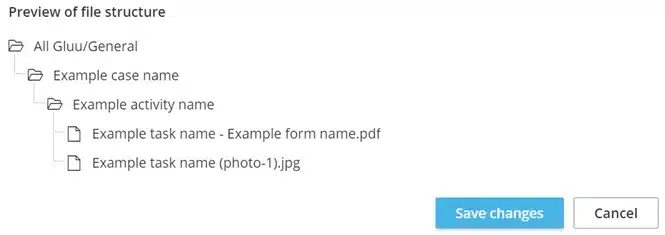
Preview the folder tree before you save it
Gluu shows exactly what it will create in SharePoint before anything changes — case folder, activity subfolders and file names — so there are no surprises the first time a case runs.
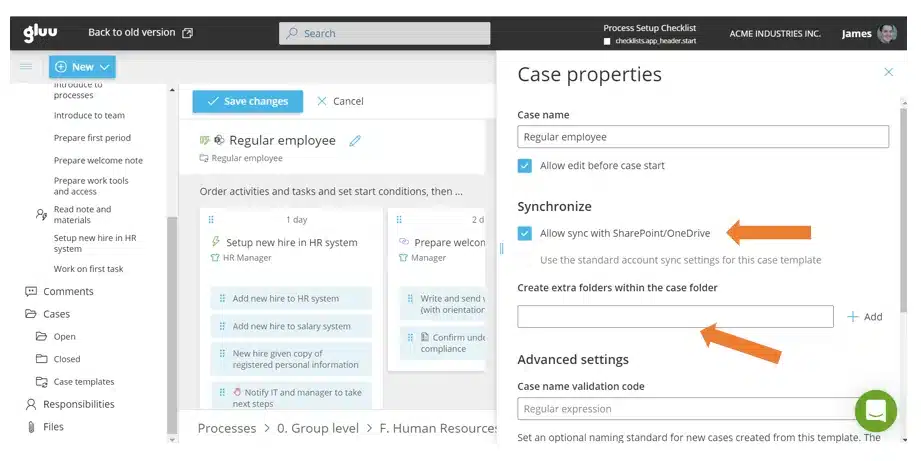
Turn sync on per case template
Override the account standard for one process: open its Case Template, switch on Allow sync with SharePoint/OneDrive, and add extra folders if that case needs them. Every case started from that template — and its document templates — follows the same structure automatically.
Availability
SharePoint case folder sync requires the Advanced plan plus the API & Connectors add-on. See what each plan includes on the pricing page.
Frequently asked questions
Gluu doesn’t replace SharePoint — cases, tasks and progress still run in Gluu. SharePoint case folder sync creates and updates a matching folder structure in your existing SharePoint site, so the files a case produces stay backed up and browsable there too.
Gluu catches the sync up once SharePoint is reachable again. You can also click the SharePoint icon on the case at any time to sync it immediately and open its folder.
Yes. Set an account-wide standard as the default, then override the root folder, naming or extra folders for any individual case template under its Synchronize settings.
Every form, report and photo attached to a case task, plus the document templates set on the case template, using the file naming standard you’ve configured — for example “task name – form name” for forms.
It’s part of the API & Connectors add-on on the Advanced plan. See Gluu’s plans for what else that add-on includes.
Yes. Connecting SharePoint starts with adding your organization’s Azure AD tenant ID in Gluu’s account settings, then turning on the Microsoft SharePoint integration under Apps & Integrations.
Written and reviewed by
Last updated
All Features
Keep exploring the platform
Ready to keep your case files in sync with SharePoint?
Gluu free 30-day trial. No credit card required. Start from €24 / year.