
Features /
Communication
QR code work instructions that start the right case
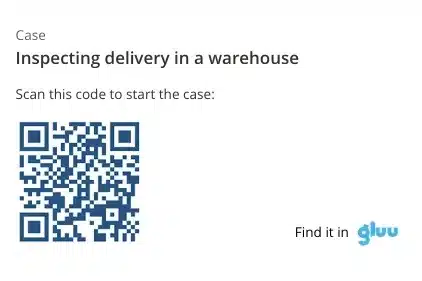
QR code work instructions turn a printed label into instant access. Gluu generates a QR code and a shortlink for every Process, Activity and Case, so scanning a label with the mobile app opens the matching work instruction — or starts a new Case — once Gluu has confirmed that the person is authorized.
What it is
QR codes and shortlinks are how Gluu’s communication features reach people who are not sitting at a desk. Every Process, Activity and Case has a Share panel with a copyable link and a QR code — copy the code to the clipboard, or download it as a PNG or SVG file that goes straight into printed material.
The code points at the page in Gluu, not at a copy of it. When a work instruction is updated, every label already printed and posted keeps opening the current version. Access follows the same permissions as the rest of Gluu, so a label on a shared machine is not an open door: an authorized person goes straight in, and anyone else is asked to sign in first.
Why it matters
Standard work, one scan away from the machine

Nobody works from an outdated printout
A laminated instruction on the wall is out of date the moment someone improves the process. A QR label points at the live page instead, so the version people follow is the version you published this morning, and nobody has to maintain two copies of the same instruction.

Reports start where the problem is
A defect spotted on a machine at 06:40 usually gets reported hours later, if at all. A label on that machine starts the non-conformity Case on the spot, with the right template, the right fields and a photo — instead of a note someone means to type up at the end of the shift.

Access without handing out extra logins
Every scan is checked against the same Role and permission model as the rest of Gluu. People who should see the instruction go straight to it, and people who should not cannot open it, even with the code in hand. Printed labels never become a way around your access rules.
How it works
How do QR codes work in Gluu?
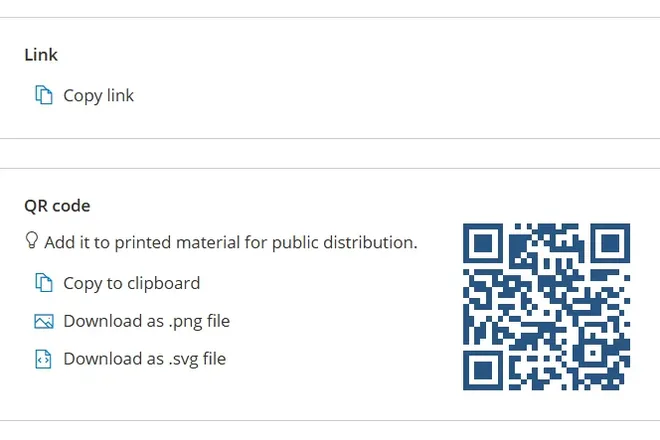
Copy the link or download the code
Open Share on any Process, Activity or Case. The Link panel gives you a copyable link to send in a message or an email. The QR code panel copies the code to the clipboard or downloads it as a PNG or SVG file, sized for printed material.
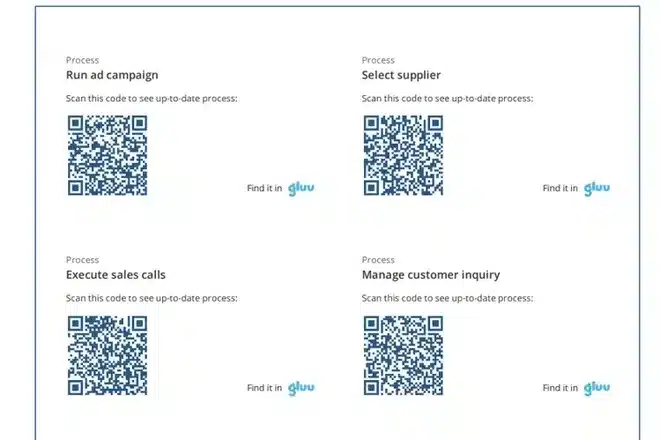
Print a batch as labels
Filter a list of processes or activities — all of them, or only the ones a role is responsible for — and click QR codes. Gluu returns a PDF laid out eight labels per A4 sheet, each label naming the process, instruction or case it opens.
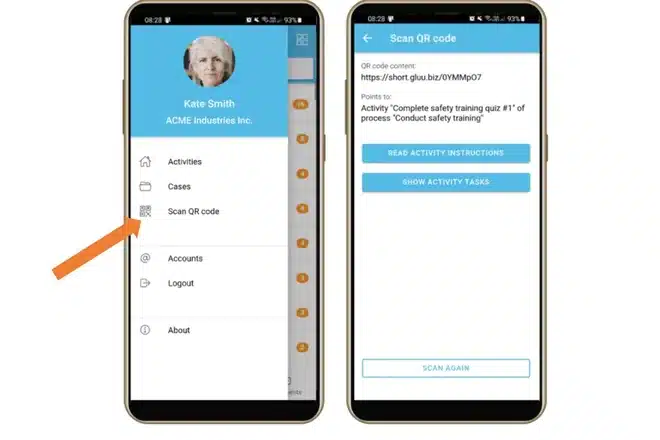
Scan to open or to start a case
The Gluu mobile app has a built-in scanner in its menu. A scan names what the code points to, then opens the work instruction, the activity’s tasks or the Case the label was made for — once Gluu has checked that the person scanning has access to it.
Availability
QR codes and shortlinks are available on the Advanced plan, together with the iOS and Android apps that carry the built-in scanner. See what each plan includes on the pricing page.
Frequently asked questions
Yes. Gluu checks access before the page opens: an authorized person goes straight in, someone who is signed out is asked to sign in and is then redirected, and anyone without rights to that process cannot open it at all. The printed code grants nothing on its own.
Yes. A QR code made for a Case starts that Case when it is scanned, so a label on a machine, a vehicle or a delivery bay can launch a non-conformity report or a registration in one action — with the case template’s own tasks and forms already attached.
As many as the filtered list holds. From Processes → Show lists, or Activities → My role’s activities or All activities, filter to what you need and click QR codes; Gluu builds a PDF at eight labels per A4 sheet. The step-by-step guide walks through it.
Nothing — it keeps working. The code points at the page in Gluu rather than a snapshot of it, so the next person to scan gets the current version. PDF exports of a process carry a QR code back to the online version for the same reason.
On the thing the work is about: a machine, a vehicle, a tool cabinet, a workstation, a delivery bay or a meeting room. The test is whether someone standing there would otherwise have to go and find the instruction, the form or the right case template on their own.
Written and reviewed by
Last updated
All Features
Keep exploring the platform
Ready to put the instruction one scan away?
Gluu free 30-day trial. No credit card required. Start from €24 / year.