
Goal: Share any Gluu page via link or QR code, create sheets of QR codes, scan with the mobile app, and keep access secure.
Gluu is built to ‘make it easier to work the right way, than the wrong way’. One small part of this is to make ‘the right way’ (standard work) easy to find and access. This is where QR codes come in. Process owners can use them to…
- make processes or work instructions easy to access from mobile phones.
- print labels and stick them on physical objects.
- automaticallty start cases by scanning a code.
For a full overview of sharing options read: Share and roll out a process
Before you start #
- Plan: QR codes require the Advanced plan. They are not available on Core or Essential.
- Role: No special permission is needed to find or share a QR code for a process or activity you can already access.
- Setup: No special setup—click Share on any process or activity page.
Find a QR code #
- Click Share (upper left) on any process or activity page.
- Copy the code to clipboard, or download it:
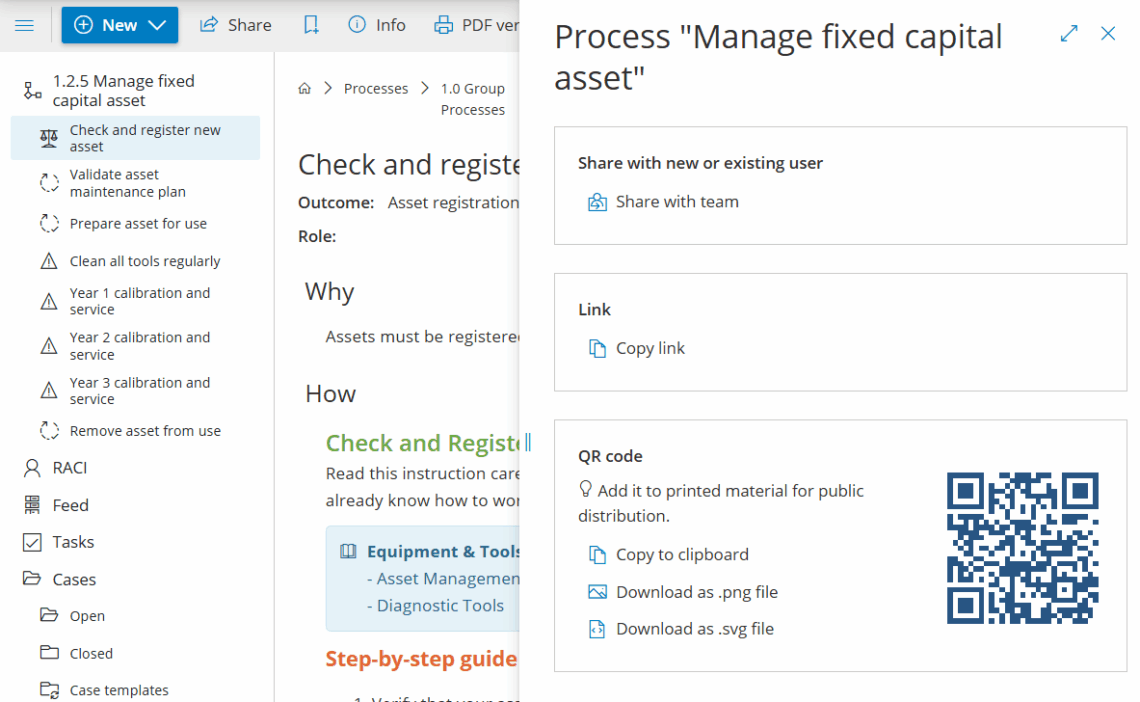
You’re done once you’ve copied or downloaded the QR code you need.
Print labels with QR codes #
You can generate multiple QR codes at once from these pages:
- Processes → Show lists
- Activities → My role’s activities
- Activities → All activities
- Filter to the processes/activities you need.
- Click QR codes to download a PDF.

This format is made for easy label printing (8 labels from an A4 page):
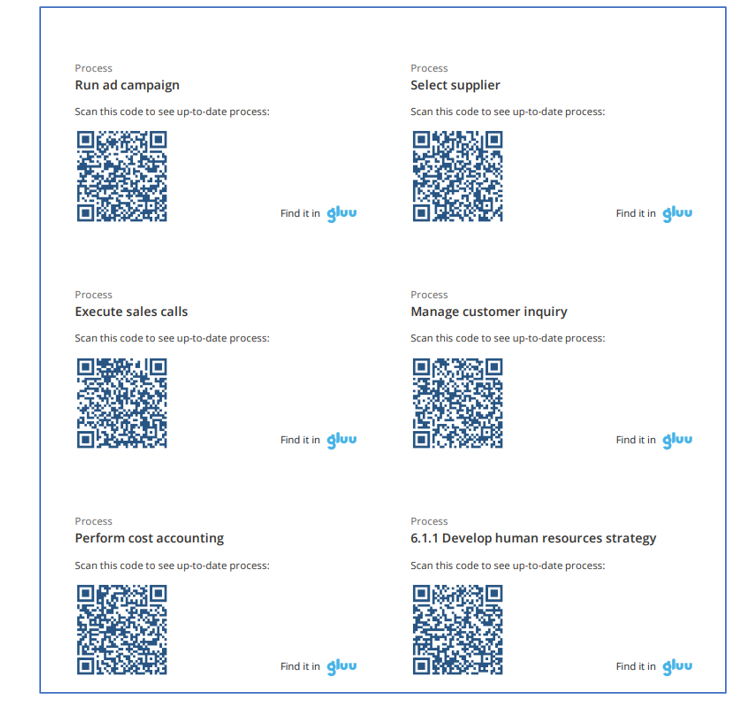
Print labels and stick them on physical objects for easy access to the relevant process.
You’re done once the PDF of labels is downloaded and ready to print.
Scan and view via mobile app #
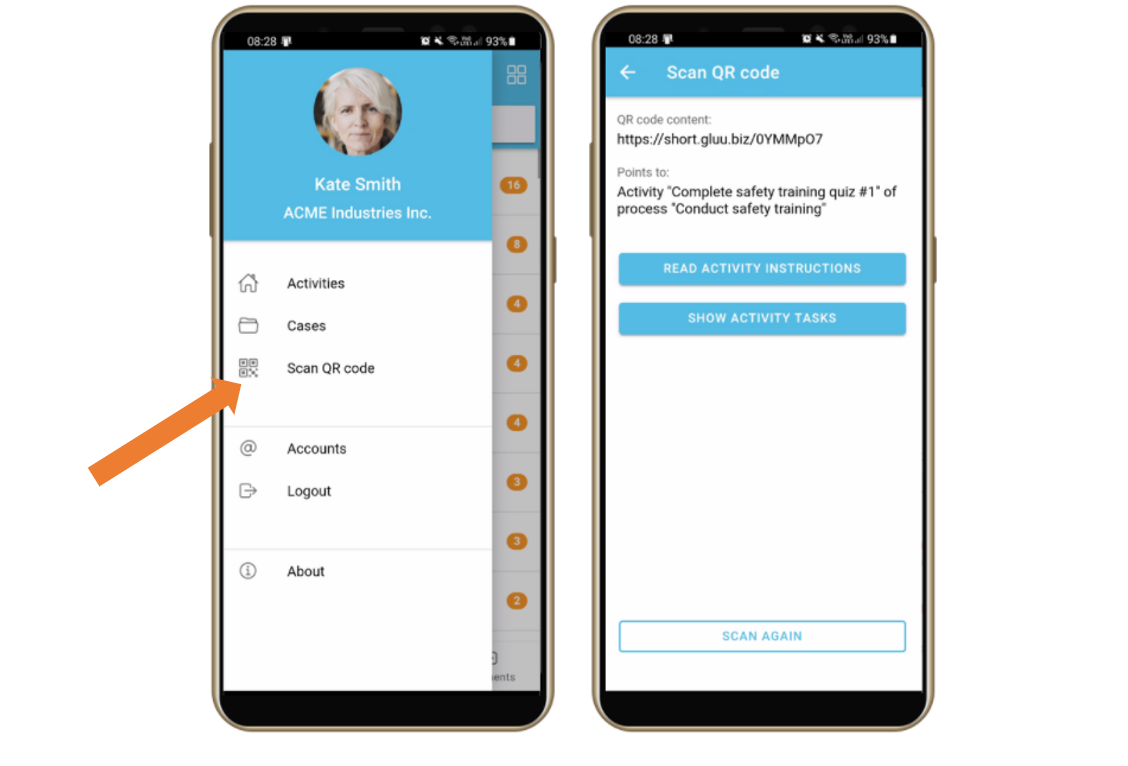
- Open the app menu (three lines in the upper left).
- Use the built-in QR scanner to scan codes.
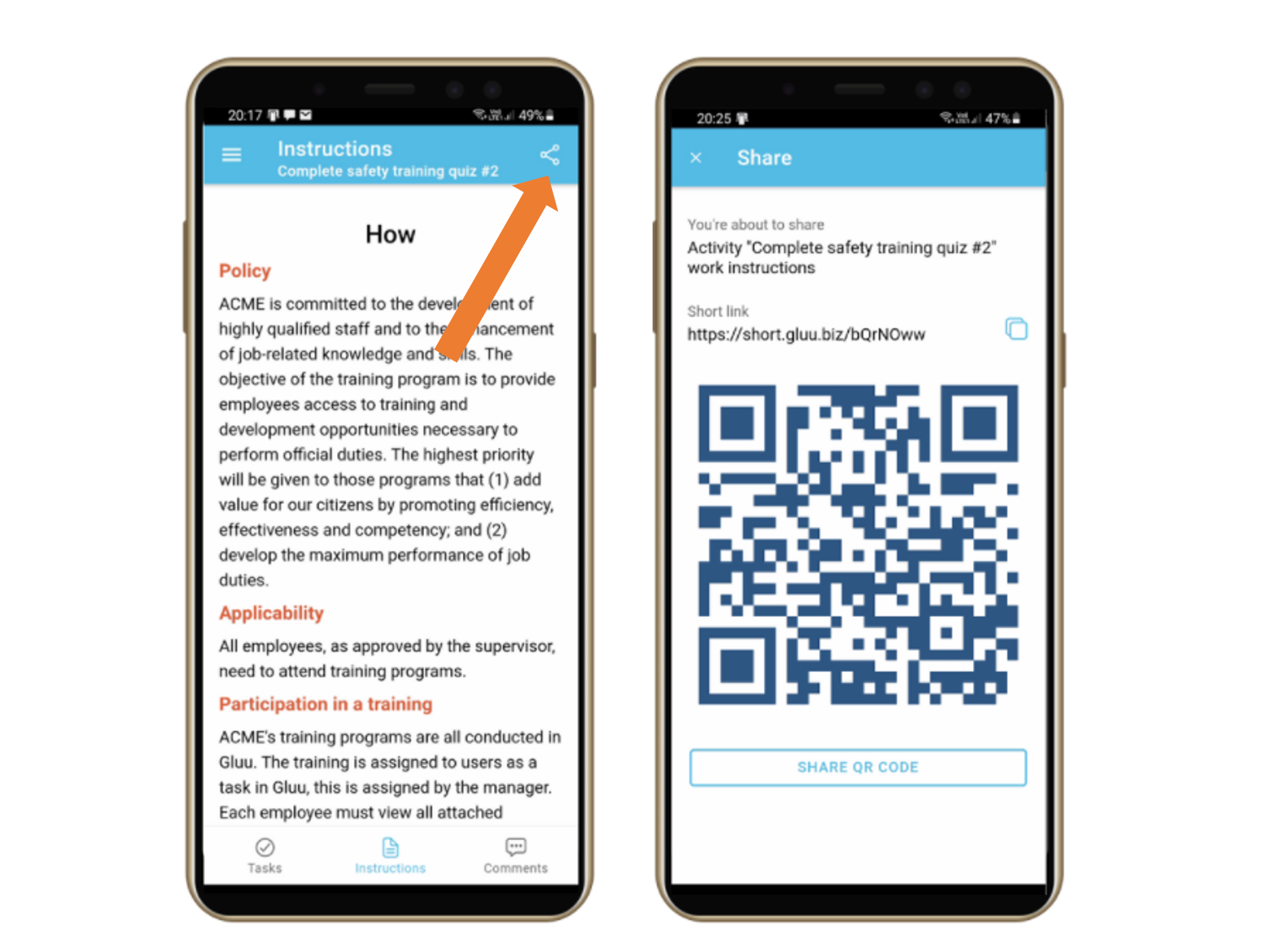
- To share a work instruction as a QR code, open the page and tap the Share icon.
User can also share with colleagues directly from the app:
You’re done once the scanned or shared code opens the right work instruction.
Security when sharing #
- We check if the recipient is authorized in Gluu.
- If authorized and permitted, they go straight to the page.
- If not logged in, they’re asked to sign in, then redirected if they have access.
- If they lack access rights, the page won’t open.
You’re done once only authorized, permitted users can open the page from the shared link or code.
FAQ – Share via link or QR code #
QR codes require the Advanced plan. They are not available on the Core or Essential plan.
Click Share in the upper left of any process or activity page, then copy the QR code to your clipboard or download it directly.
Yes. From Processes > Show lists, or Activities > My role's activities / All activities, filter to the items you need and click QR codes to download a PDF formatted for easy label printing—eight labels per A4 page.
Open the app menu (three lines, upper left) and use the built-in QR scanner. Users can also share a work instruction as a QR code directly from the app by tapping Share on that page.
Gluu checks whether the recipient is authorized. If they have access they go straight to the page; if they're not logged in they're asked to sign in first; and if they lack the necessary access rights, the page simply won't open.
Yes. Process owners can set up QR codes so that scanning one automatically starts a case, in addition to using codes for quick access to processes or work instructions and for printed labels on physical objects.


