
Account admin
Process owner
Goal: Test run Gluu — or start small — by taking one process through a full improvement cycle: map it, add instructions and tasks, invite coworkers, and gather their feedback.
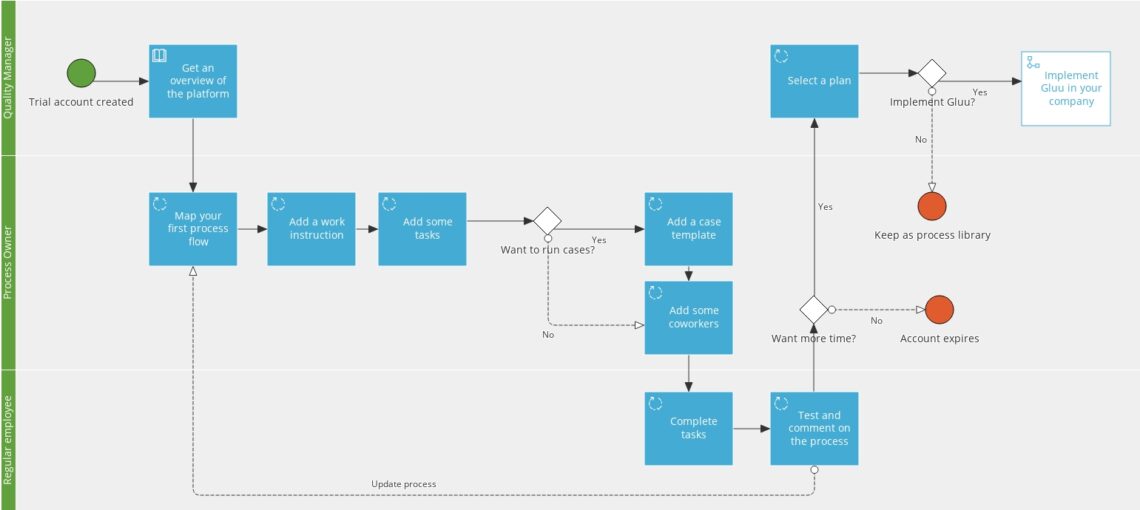
Inside a Gluu trial account you will see a sample process called ‘Introduce you to Gluu’. This is the process we recommend you follow to test and understand all the main features. Click through each activity and familiarise yourself with the basics — this is the same way your own processes will soon be explored by others.
Before you start #
During your free trial you have full access to every step below, so you can try the whole cycle. If you are on a paid plan, some steps need a particular plan or permission — each step notes which, and here is the overview:
- Map processes and use the AI assistant: available on all plans (Core, Essential, Advanced).
- Add work instructions and comment on processes: Essential and Advanced plans.
- Add tasks, run cases, and use the mobile apps: Advanced plan.
- Invite coworkers: you need the Manage users permission (set under Manage account).
1. Create an account #
First, create a trial account. Once you are inside, the sample process ‘Introduce you to Gluu’ will guide you through the next steps.
You’re done once you can sign in and open the sample process.
2. Map a process #
Available on all plans.
- Create a new process on the Processes page.
- Click the process to map its flow, then follow the wizard and let Gluu’s AI assistant help you map your first process.

You’re done once your process has a flow of activities across the roles involved.
3. Add work instructions #
Plan: Essential or Advanced.
Following the guide, you can add work instructions to each activity in the process, so the people doing the work know exactly what to do.
You’re done once your key activities carry clear instructions.
4. Add tasks #
Plan: Advanced.
Once your process and instructions are set up, start executing it with tasks. Tasks make the work specific and measurable. Gluu supports two types:
- Recurring, schedule-driven tasks — these run automatically for work that must happen on specific days or times.
- Case-based tasks — these are included in cases and start at the right point in the process flow.
This video gives you an overview of how you use tasks:
Read more about executing processes with tasks.
You’re done once your activities have a few tasks that make them specific and measurable — ideally both some recurring and some case-based tasks.
5. Add case templates to run cases #
Plan: Advanced.
If your process needs to run occasionally and “on demand”, use cases to run a specific sequence of tasks across roles. Make sure you have at least two activities with tasks set to ‘start with a case’, then build the template.
Read how to run cases with Gluu, or watch our webinar on running case-based tasks.
You’re done once you have a case template and have tried starting a sample case.
6. Invite coworkers #
Permission: Manage users.
Once your process has a flow, instructions and tasks, involve some coworkers in your test. Add more users to your account and give them the roles involved in the process. They are then ready to start testing it.
You’re done once your coworkers are invited and assigned their roles.
7. Complete tasks #
Plan: Advanced (tasks and the mobile apps).
People with the right roles can mark tasks as ‘done’, either on the Gluu web platform or in Gluu’s native Android and iOS apps. The mobile apps are for completing tasks and cases on the go — you map and edit processes on the web.
You’re done once your coworkers have completed some of the tasks you set.
8. Comment and give feedback #
Plan: Essential or Advanced.
Once your coworkers have tried the process, they will have ideas for improvement. That is what the comment feature is for — communicating around processes. As a final step, make a few changes and see how Gluu prompts you to communicate them back.
You’re done once your coworkers have tested the process and left their feedback as comments.
Good to know #
- You do not have to complete all eight steps at once. Start small — map one process and add instructions — then add tasks, cases and coworkers as you go.
- A case template needs at least two activities with tasks set to ‘start with a case’ before it will run.
- Work instructions, tasks and cases unlock as you move up plans; a trial gives you all of them so you can try the full cycle.
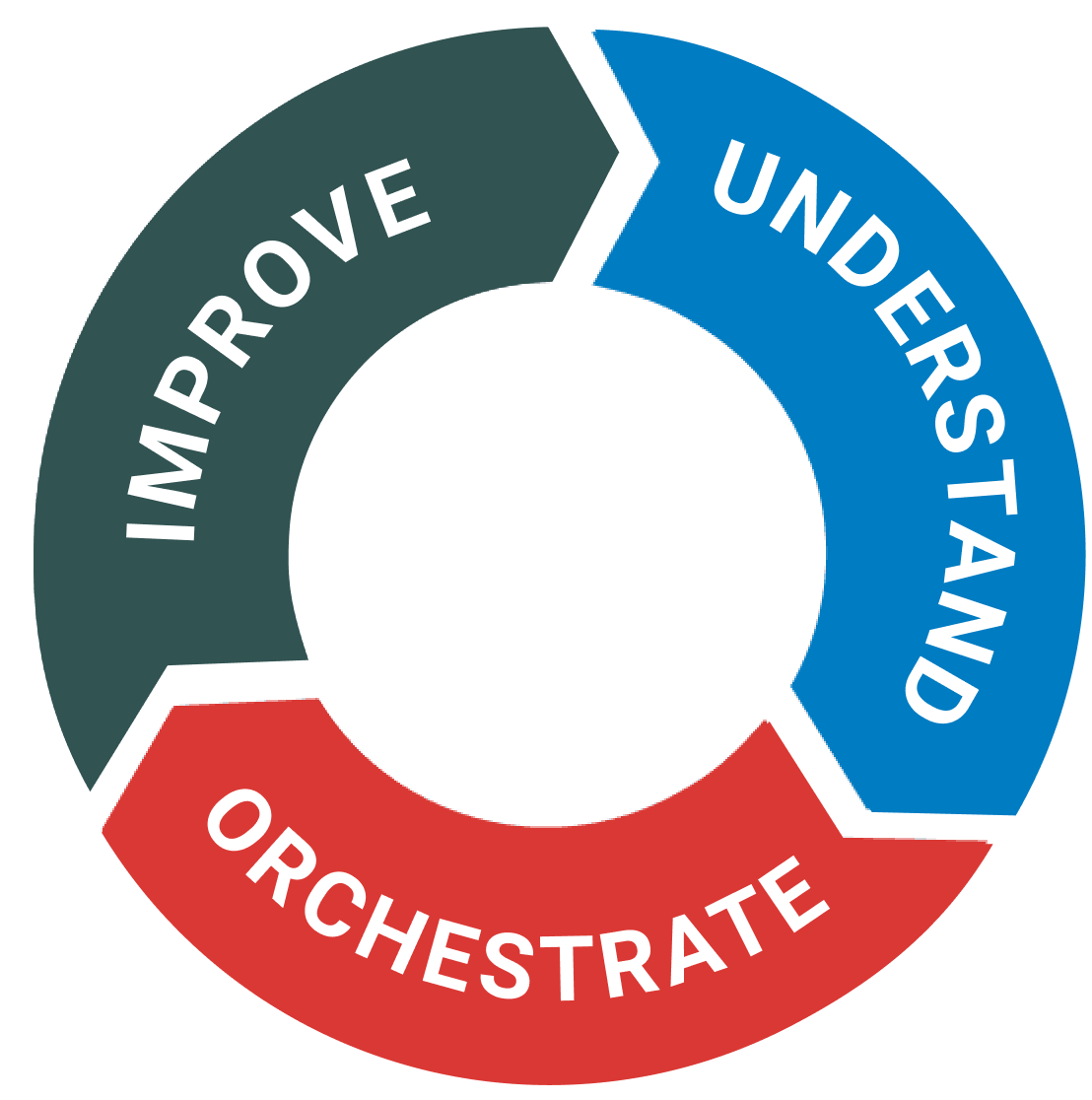
Congratulations! By now you have completed a process improvement cycle and are well on your way to standardising and improving the work your process covers.
FAQ – Getting started with Gluu #
During a free trial you have full access to every step. On a paid plan, mapping processes works on all plans; work instructions and comments need Essential or Advanced; and tasks, cases and the mobile apps need Advanced.
Tasks and cases are Advanced-plan features. On Core or Essential you can still map processes and add work instructions. Upgrade to Advanced to add tasks, build case templates, and complete work in the mobile apps.
Inviting and managing users needs the Manage users permission, set under Manage account. A user without it can still be assigned process roles but cannot add new people, so ask your account owner if you need to invite coworkers.
It is a sample process included in every trial account. Click through its activities to see how work instructions, tasks and comments fit together, then use it as a model when you map your own first process.
No. The eight steps mirror one full improvement cycle, but you can start small — map a single process and add instructions — and add tasks, cases and coworkers later as your needs and your plan grow.


