
Goal: Use the Gluu mobile app to access work instructions, complete tasks and forms, and share comments from anywhere.
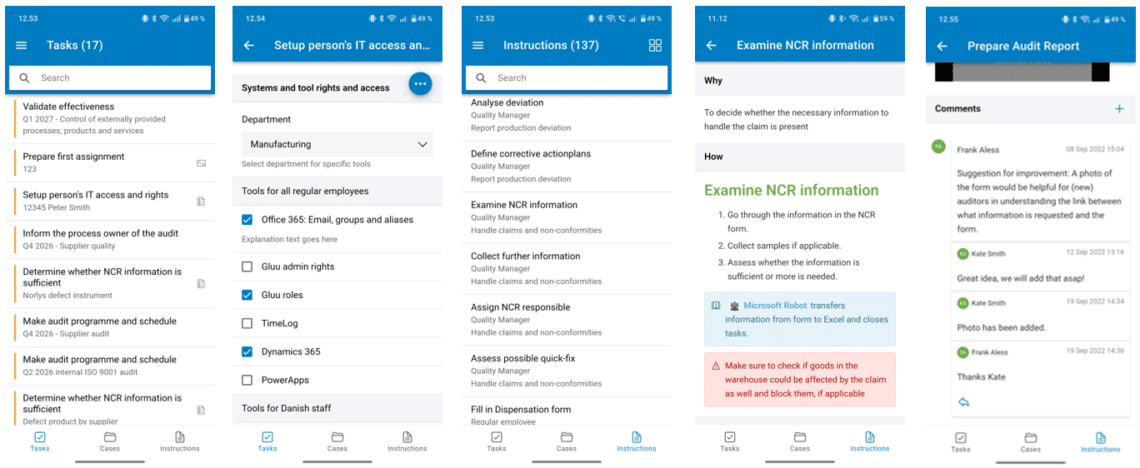
The work instructions, cases, tasks, forms and comments you add in Gluu are available in our Android and iOS apps. Users log in with the same username and password as the web browser and see activities and tasks linked to their roles.
Before you start #
- Plan: Reading work instructions and commenting is available on any plan. Completing tasks and working with cases in the app requires the Advanced plan.
- Role: No special permission—any user with a role on a process sees the tasks and instructions linked to that role.
- Setup: Install the Gluu app for iOS or Android, and have your Gluu username and password ready.
Intended use #
Gluu’s native mobile apps for Android and Apple are built as a simple way to access work instructions, complete tasks and registrations, and capture issues and ideas on the road, factory floor or building site. The app is designed for business users that work inside processes to complete tasks on time and in the right way. Users that want to work with processes have to visit the web application.
1. Download and access the app #
- Download the iOS or Android app.
- Open the app.
- Log in with the same username and password you use in the web browser.

You’re done once you’re logged in and see your activities and tasks.
2. View and complete tasks and forms #
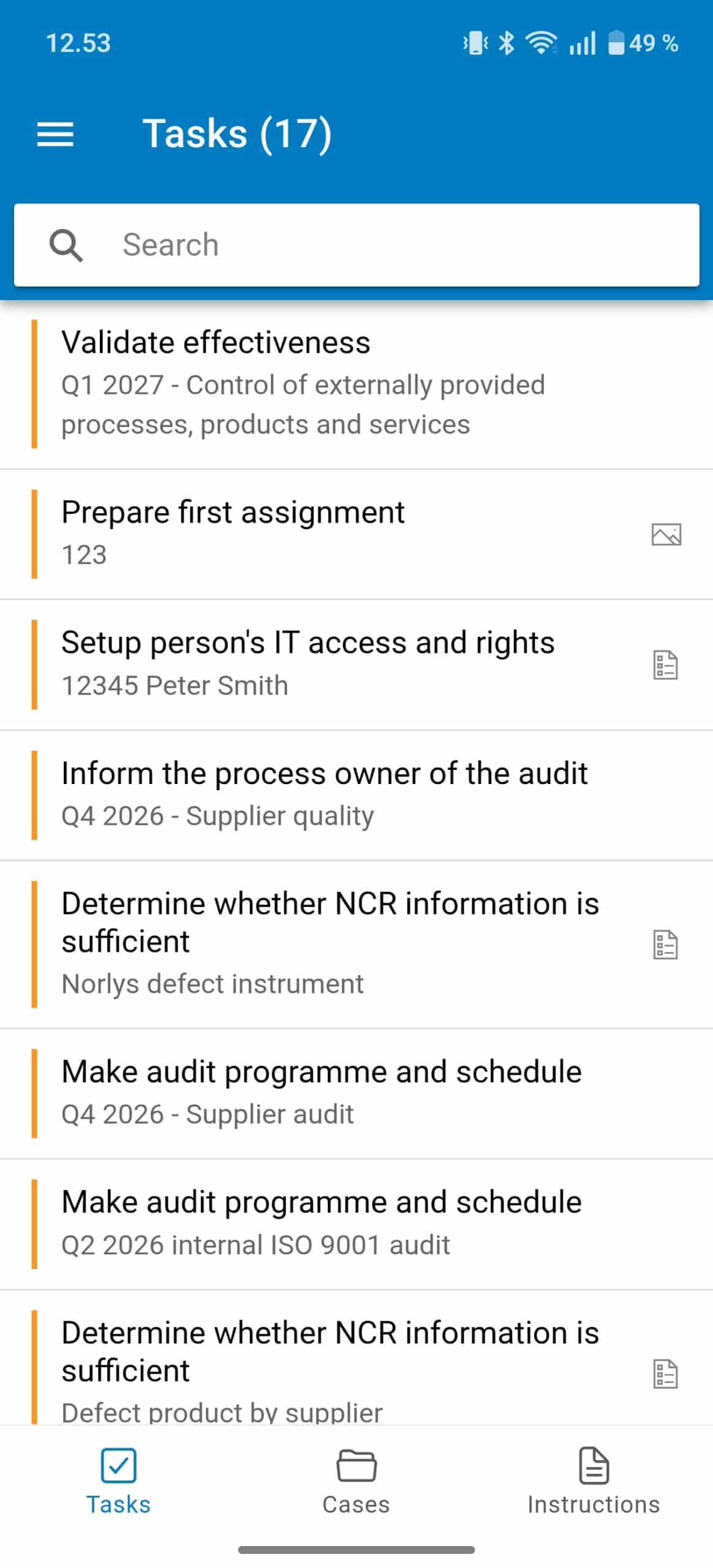
- Sign in to see taks connected to your role(s).
- Tap a task to pick, complete and/or upload files and photos.
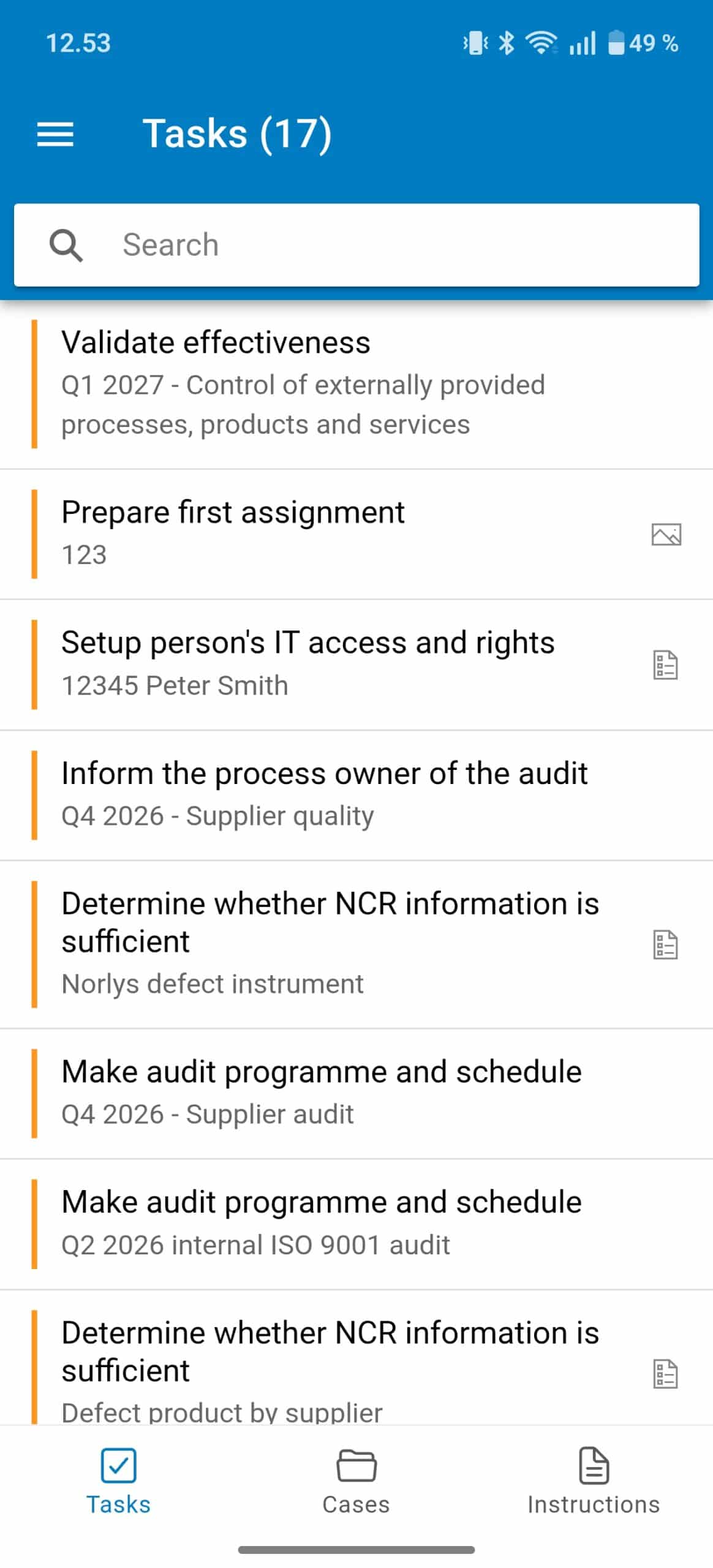
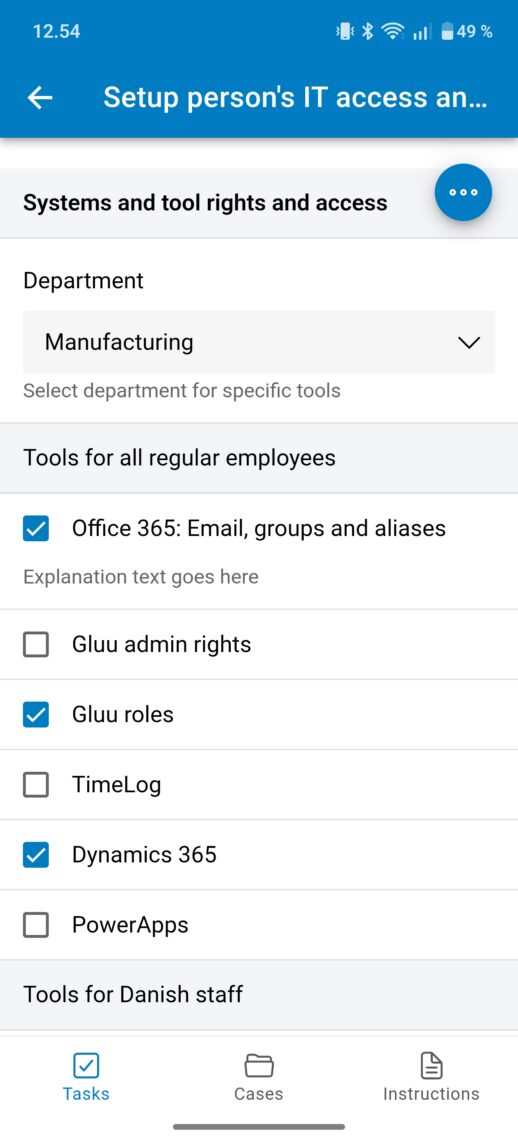
You’re done once the task shows as completed with any files or photos attached.
3. Read work instructions and watch any uploaded videos #
- Tap Instructions to open your work instruction list.
- Tap four squares icon in top right corner to sort by process.
- Tap specific instruction to open.
- Follow steps and watch videos if available.
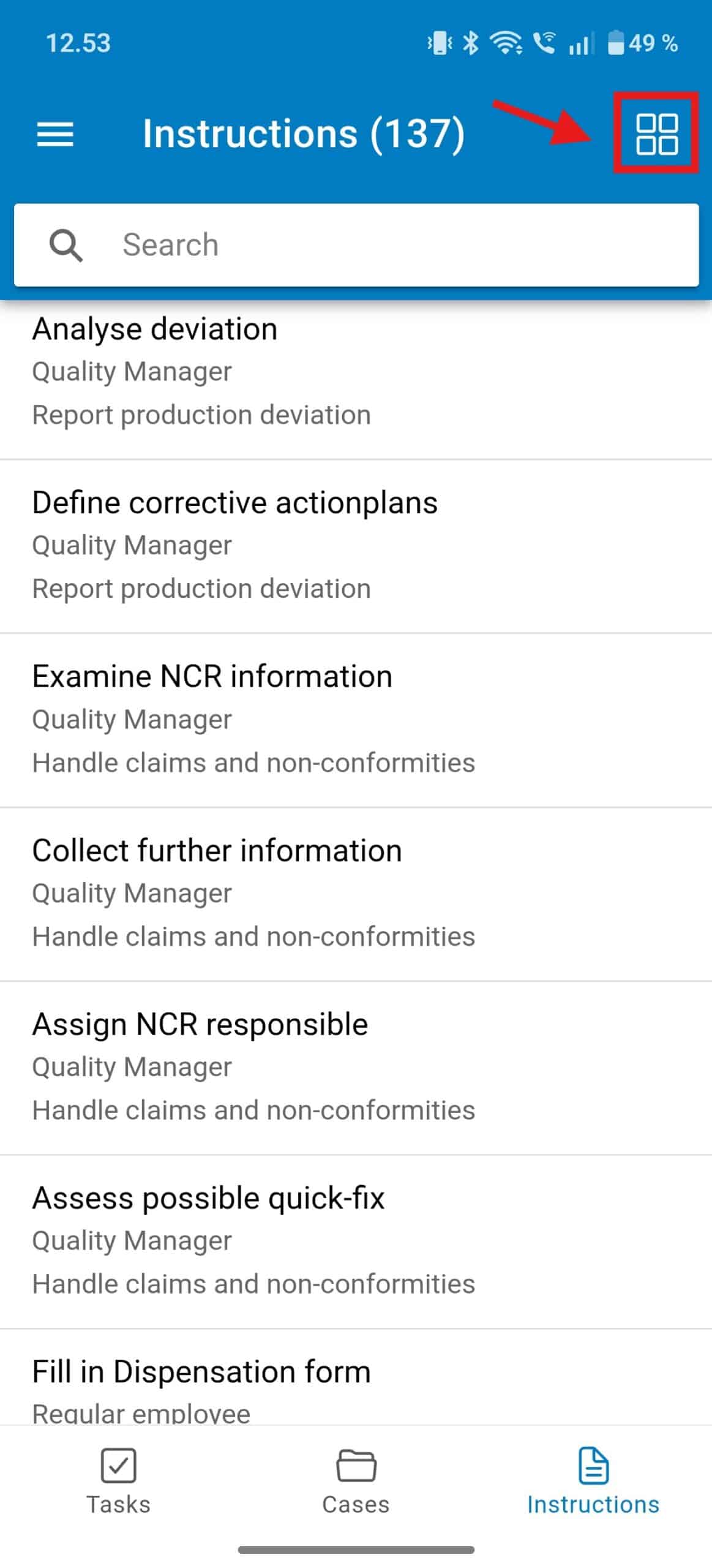
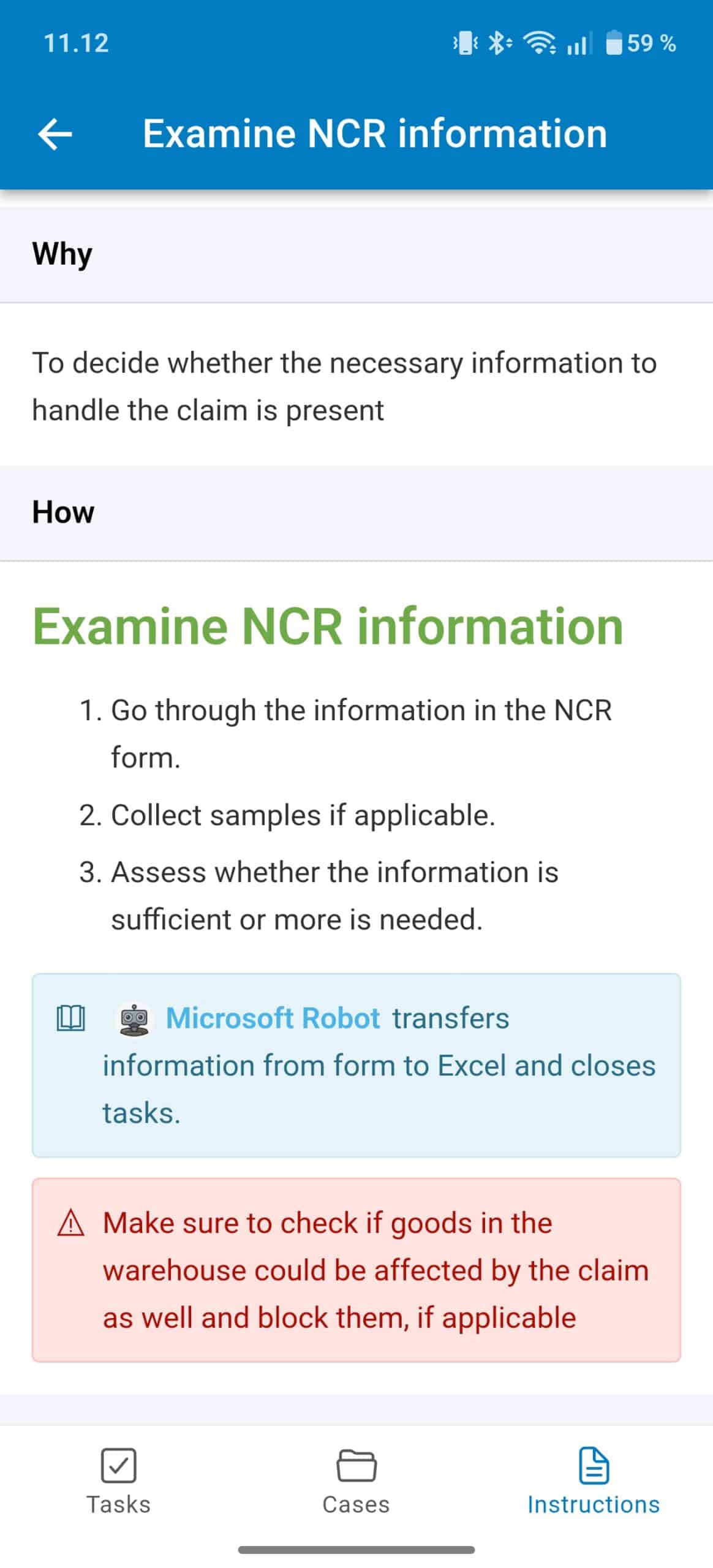
You’re done once you’ve followed the steps and watched any relevant videos.
4. Ask questions and comment #
All activities and tasks have the option to add Comments.
- Click an instruction or task
- Scroll to the bottom.
- Read the latest comments.
- Reply to a comment or add a new comment.
Comments can be shown to everyone with the role or to the process editor team, depending on process notification settings: Managing change and comment notifications by process.
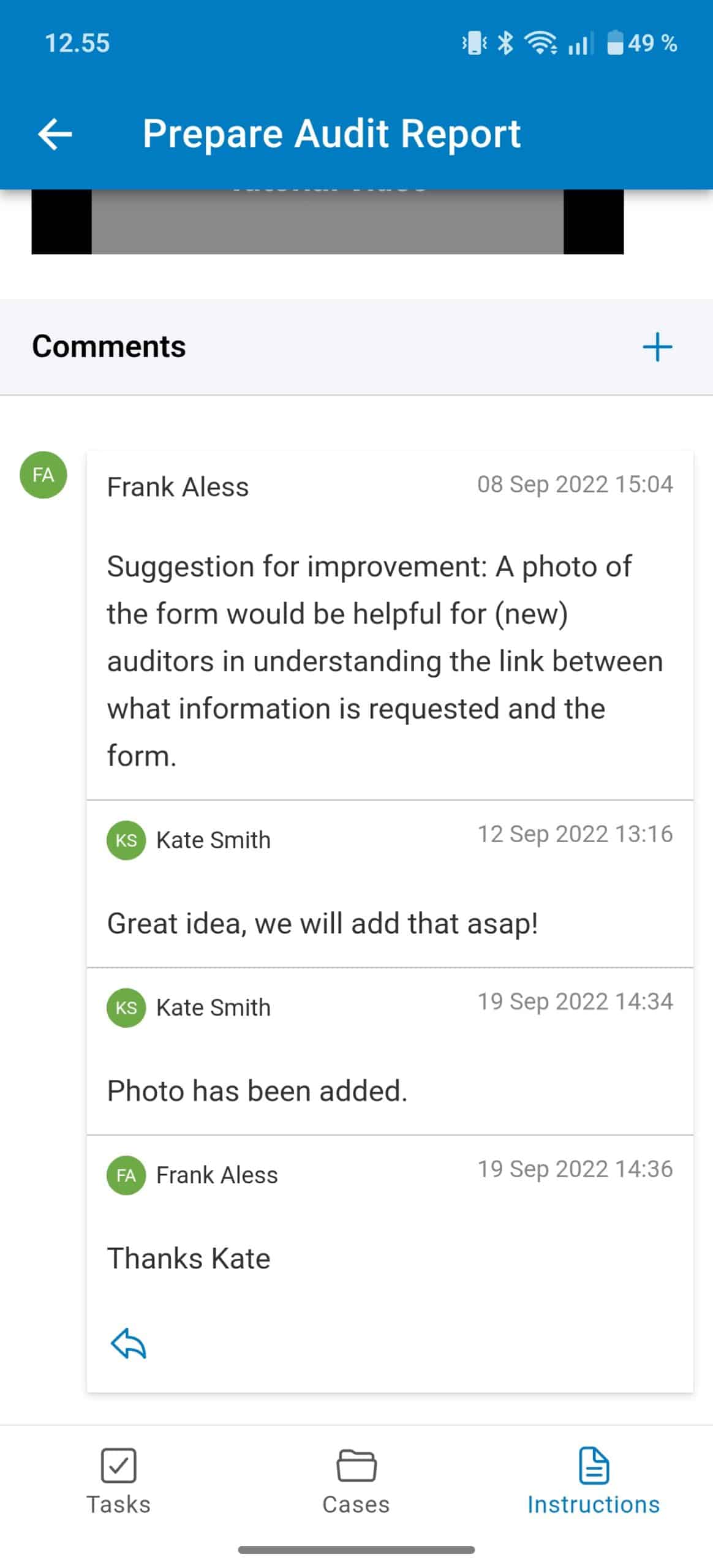
You’re done once your comment or reply is posted and visible to the relevant users.
5. Fill in forms and add photos #
- Open a task that includes a form.
- Fill in the form fields.
- Tap the 3 dots i top right corner to see your task options and add photos/files.
- Review your entries and attachments.
- Tap Complete to submit (stored in a non-deletable format).
- If need be, you can re-open the task using the “restart” option in the 3 dots menu.
TIP! Remember to save your work as a draft if you are not completing the form all at once (3 dots menu).
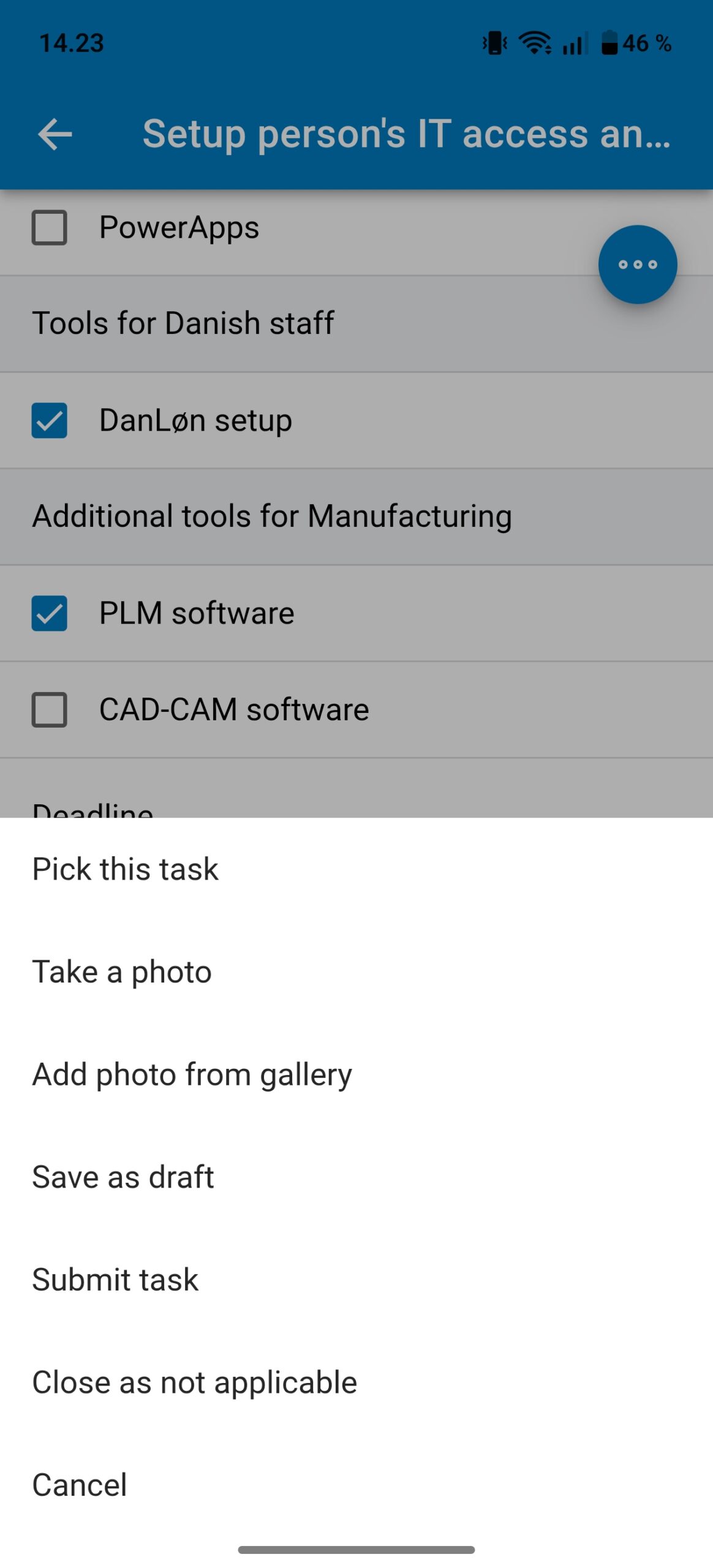
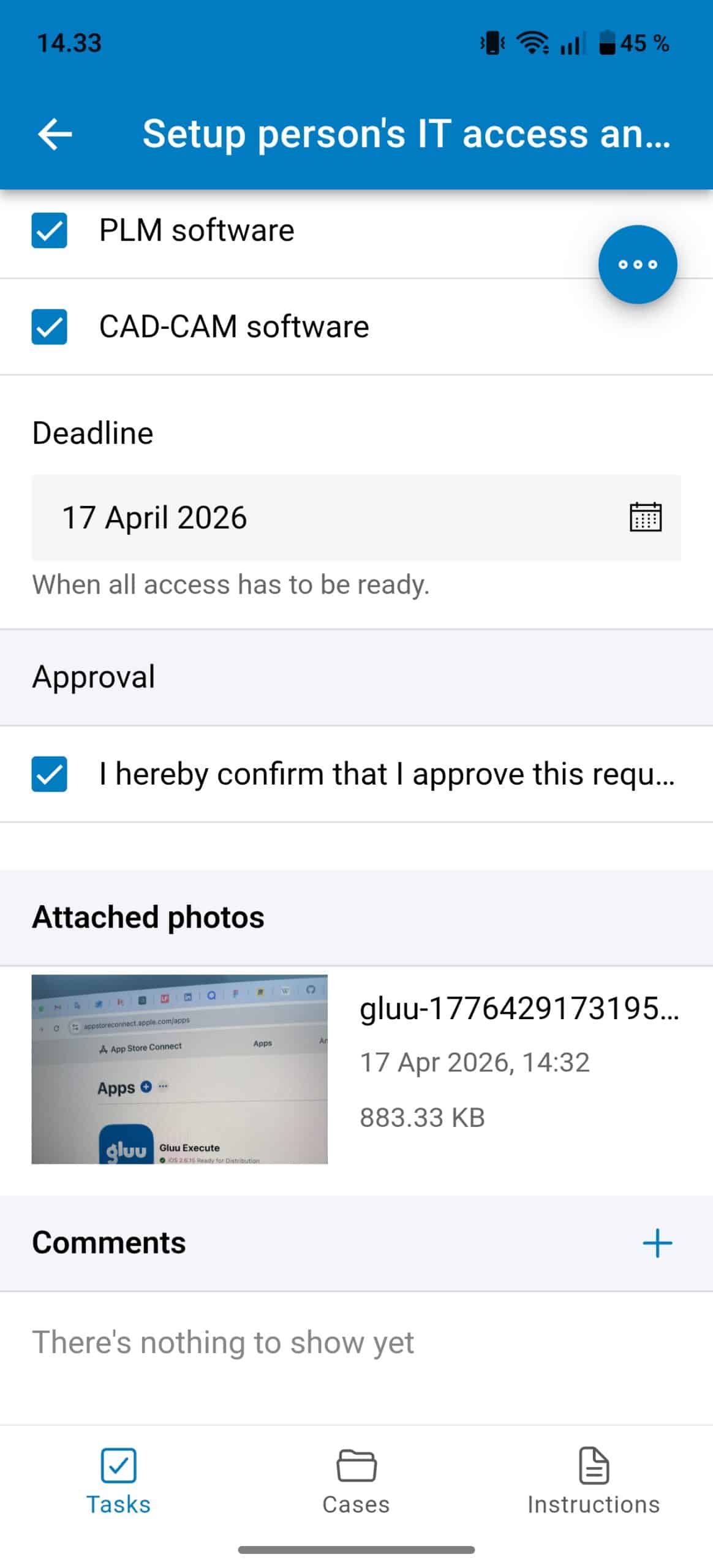
TIP! Click an image to delete it if it’s irrelevant.
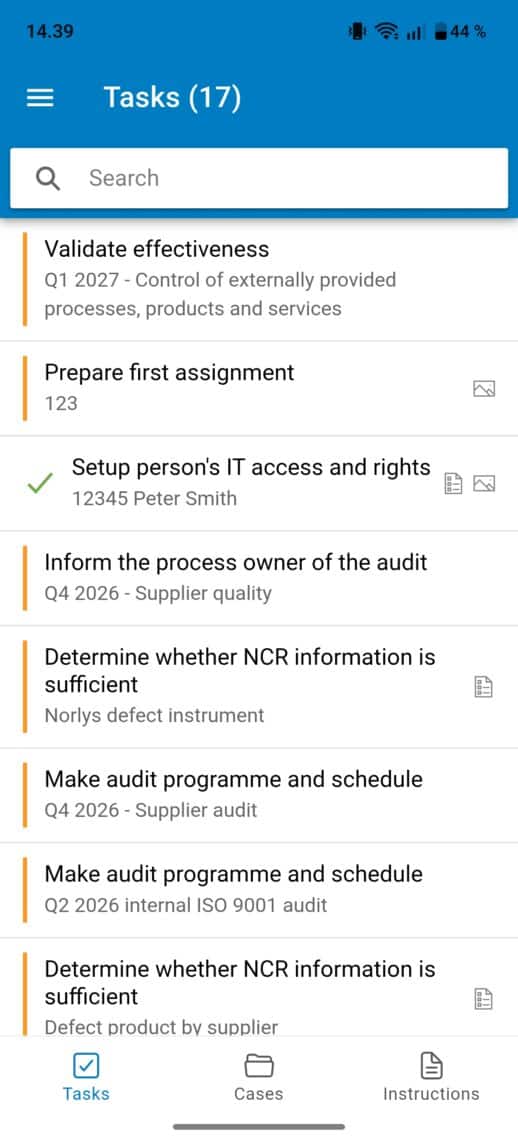
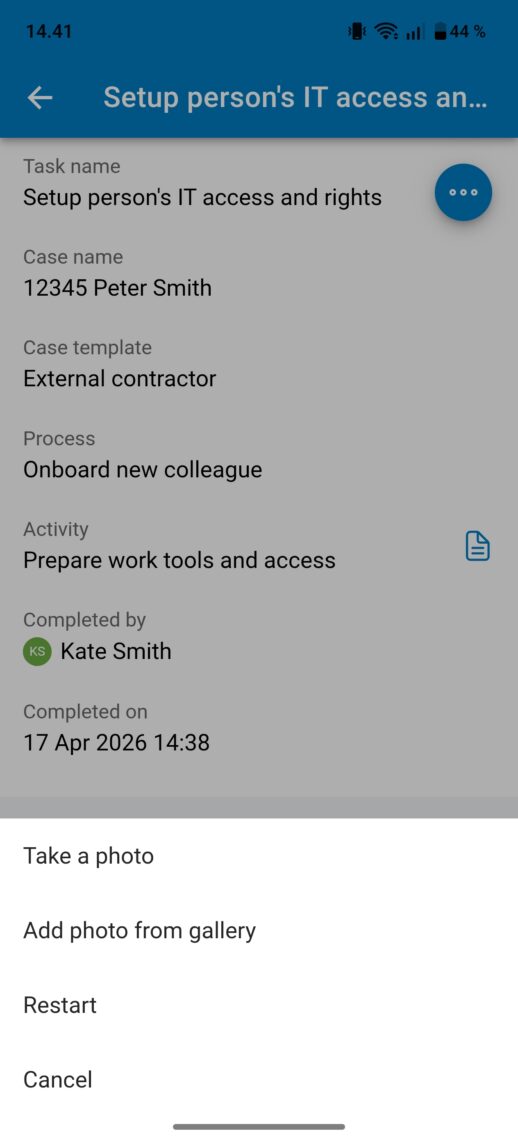
You’re done once the task shows Complete with your form entries and attachments saved.
6. Work with cases #
- Open Cases.
- Review running cases relevant to your role.
- Complete case tasks assigned to you.
- Tap the + button (bottom right) to start a new case.
- Select a case template.
- Name the case and start it.
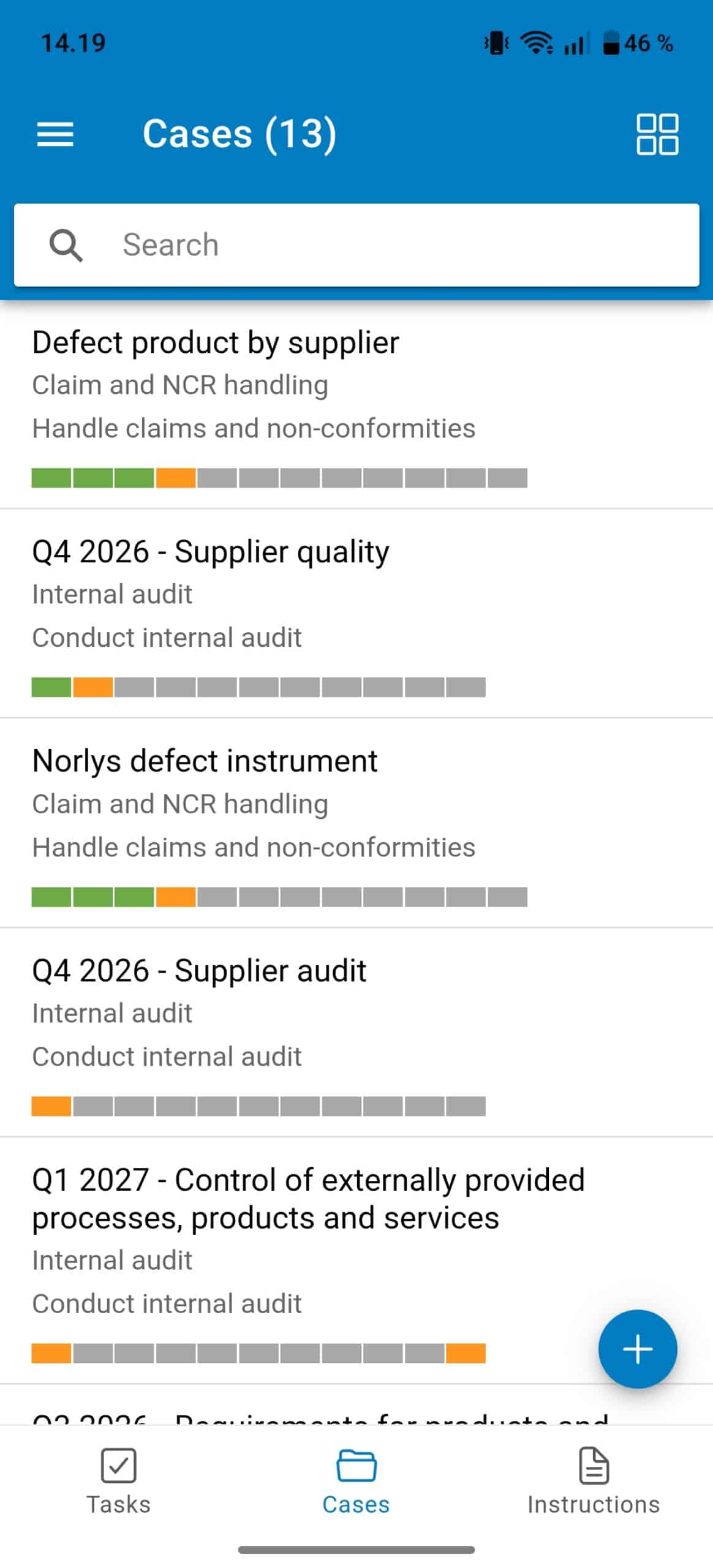
You’re done once your case tasks are completed, or a new case is started from a template.
FAQ – Gluu mobile app #
Reading work instructions and commenting is available on any plan. Completing tasks and working with cases in the app requires the Advanced plan, since tasks and cases themselves are Advanced-only features.
The app is built for business users who work inside processes—completing tasks and registrations, and capturing issues and ideas from the road, factory floor or building site. Users who need to design or edit processes should use the web application instead.
Download the app for iOS or Android, open it, and log in with the same username and password you use in the web browser. You'll then see the activities and tasks linked to your role.
Yes. If you're not completing a form all at once, use the 3-dot menu to save your work as a draft and come back to it later.
Yes. Once a task is completed it's stored in a non-deletable format, but you can re-open it using the Restart option in the 3-dot menu if you need to make changes.
Comments can be shown to everyone with the relevant role or just to the process editor team, depending on the process's notification settings.


