
Goal: Use Gluu file management to find files at activity, process and account levels, identify duplicates, and filter quickly.
Before you start #
- Plan: File management is available on the Essential plan and above. It is not available on the Core plan.
- Role: Any user with access to a process can view its files. No special role is needed to browse or filter the Files lists.
- Setup: No special setup—files appear in the lists automatically once uploaded to a work instruction.
Intended use #
Gluu file management is designed to be simple and basic. For advanced file management we recommend tools such as SharePoint that are integrated with Gluu. This article covers how to view files and manage duplicates. If you need to add new files, see Create a work instruction.
File list views #
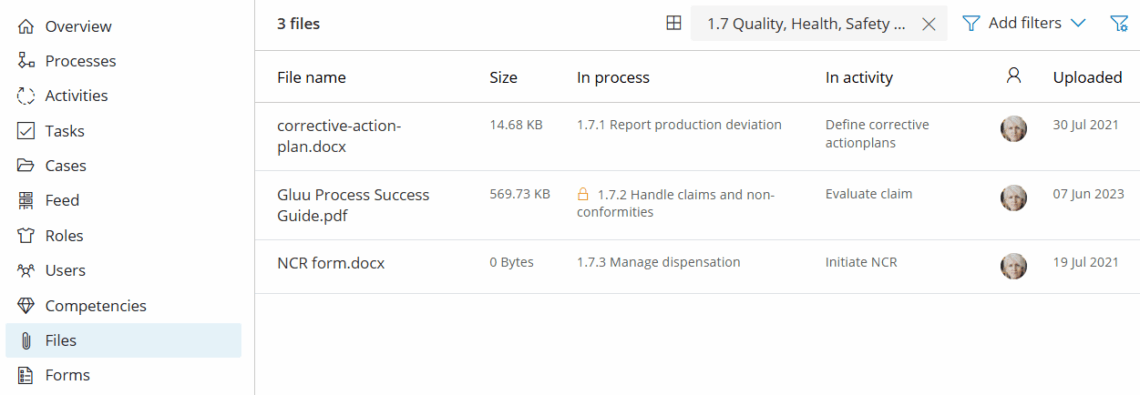
When a file is uploaded to a work instruction, it appears in the account’s file lists. This ensures a single overview:
- From the main navigation, outside any specific process page, open the left-hand menu.
- Click Files to view files used in any process or activity and see each file’s locations.
NOTE! If a process is frozen, its files are only visible on that process and its activities. They are hidden from the account file list and search to prevent use of outdated files.
Learn more: Publish and maintain a process
You’re done once you can see the file and every location it’s used in.
Filter and find duplicates #
Files with different names but the same content are recognized as one file and shown with multiple names and locations.
- Open any Files list (activity, process or account).
- Use filters to narrow the list — you can filter by process, activity, or file name.
- Select Has duplicates to show only files that exist in more than one location.
- Click a file with duplicates to open the drawer.
- Review File usage to see the current file’s location(s).
- Review the list of duplicate files and click any item to see more details.
You’re done once you’ve identified the duplicate and its full list of locations.

TIP! The Gluu Asset Explorer gives a visual overview of files and where they’re used. Requires the Advanced plan, or the Business Architecture add-on on Essential.
FAQ – File management #
No. File management is available on the Essential plan and above. It is not available on the Core plan.
Files are uploaded directly inside a work instruction, not through the Files view. Open the relevant activity page, enter Edit mode, and use the File icon in the work instruction toolbar to upload a file. Once uploaded, it appears automatically in the account-level Files list. See Create a work instruction for the full steps.
Files belonging to a frozen process are hidden from the account-level file list and search results. This is intentional — it prevents users from accidentally using files from an outdated or archived version of a process. The files are still visible on the frozen process and its activities directly.
Gluu identifies duplicates by file content, not by name. Two files with different names but identical content are treated as the same file. The Files list shows both names and all the locations where each version is used, so you can review and consolidate if needed.
The Files view is a read-only overview — it shows where files are used but does not let you delete them directly. To remove a file, open the work instruction where it is attached, enter Edit mode, and delete it from there.


