
●○○Core
Account admin
Goal: Create a new user, assign their roles, and send them access to Gluu.
Adding users is how you bring your colleagues into Gluu so they can find processes, follow work instructions, and take part in the work. This article covers adding a user manually. You can also bring people in two other ways:
- Share a specific process — invite someone to a single process without setting up full access.
- Sync with your company’s Azure AD — provision users automatically from your directory.
- Add users manually, as described below.
Before you start #
- Plan: Available on all plans — Core, Essential, and Advanced.
- Role: You need the Manage users role to create users and assign roles.
- Setup: Create the organisational roles you want to assign first, so you can add them while setting up each user.
Add users #
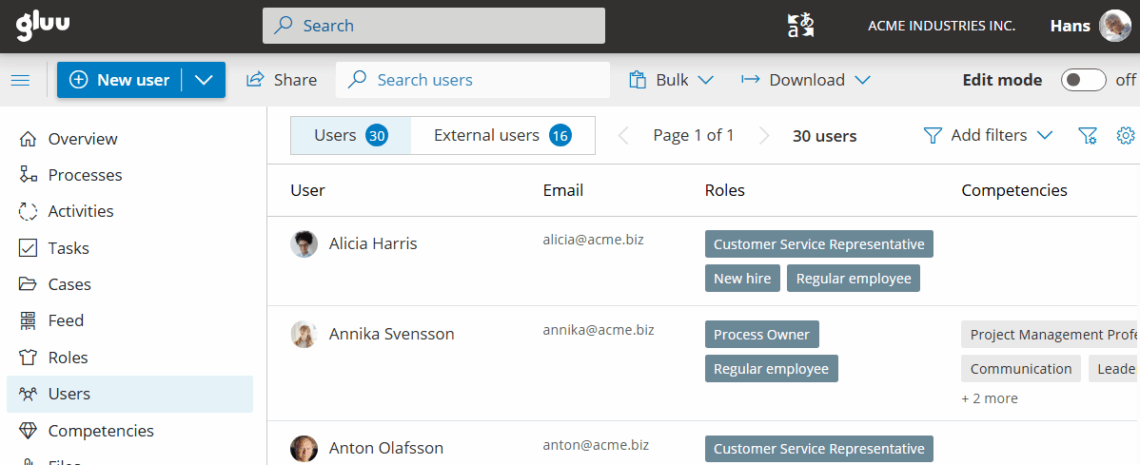
- Go to Users in the left menu.
- Search to check whether the user already exists.
- Click New to open the user details screen.
- Enter the person’s name and email, then click Create user.
You’re done once the new user appears in your Users list.
Assign roles #
Roles connect a user with processes and make sure each person sees what is relevant to their work. Assign roles while you set the user up, or add them later.
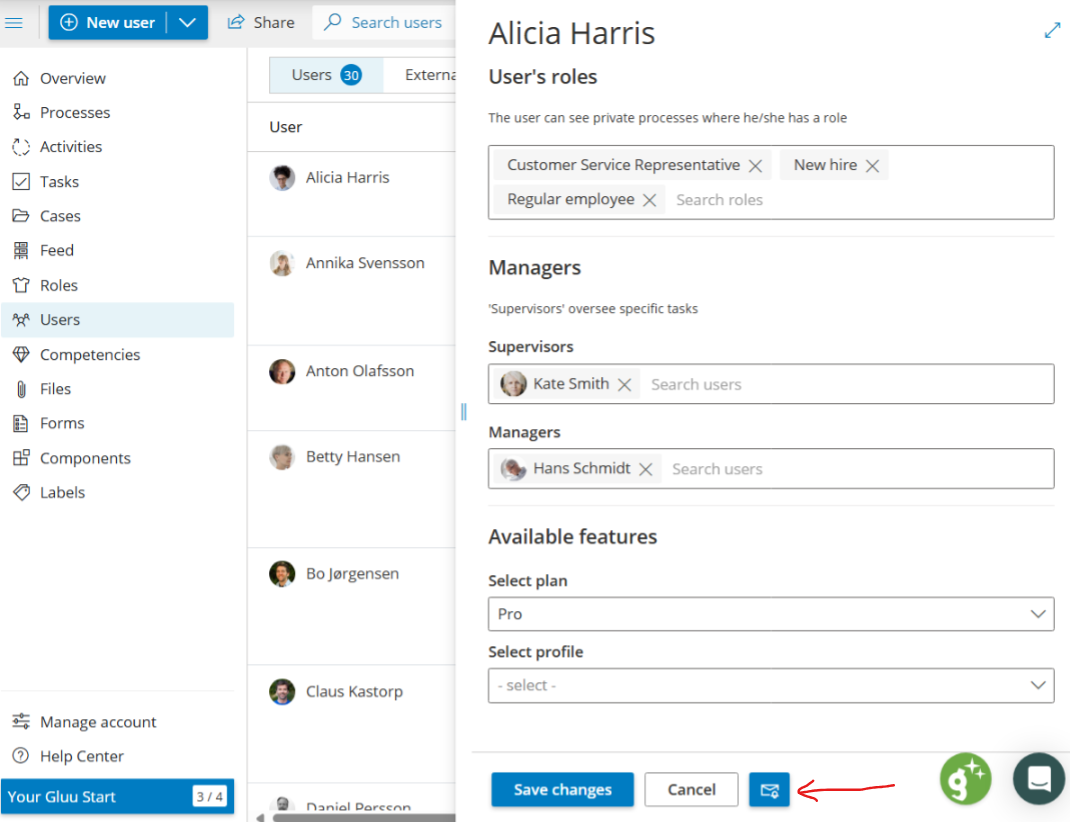
- Open the user.
- Search to add the roles the person holds.
- Click X next to a role to remove it.
You’re done once the user’s roles are listed on their profile. The user can now see every process, activity, and work instruction tied to those roles.
Read more about roles in this article.

Add optional information #
You can capture extra details about a user beyond their name and email:
- Click Optional fields below the email field.
- Add a title (optional).
- Add a phone number (optional).
- Add a location — a physical site or a department.
You’re done once the optional fields show the details you added. Optional fields support HR and user management by letting you filter and group users across Gluu.
Send access details #
Once you have added a user, send the person an email with a link to set a password. This is not needed if you use Azure AD single sign-on.
The link is time-limited for security. If it lapses before the person uses it, send a new invitation link at any time from the same screen. Use this same option to help a user who has lost access.
You’re done once the user has followed the link and set a password. The person can now sign in to Gluu.
Default view rights #
By default, every user can:
- Search, read, view, and comment on any non-private process, activity, and work instruction.
- Search, read, view, and comment where they have a role, as process members.
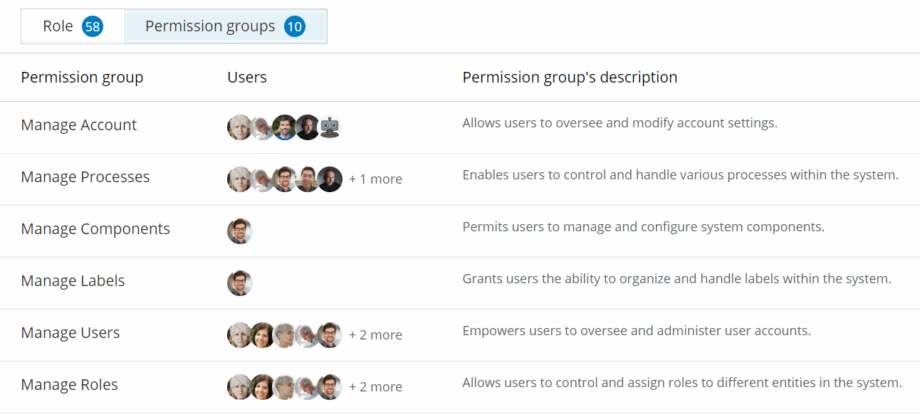
To grant broader access rights, you can use permission groups and add users to the appropriate groups. Permission groups require the Enterprise Security add-on.
Tip: To tailor the navigation a group of users sees, use Profiles (requires the Enterprise Customization add-on).
Example: onboard a new hire #
Maria joins the finance team. In Users, you click New, enter her name and email, and click Create user. You open Optional fields and add her title, Financial Controller, and her location, Copenhagen. You assign her the Accounts Payable and Month-end Close roles, so she immediately sees those processes. Finally, you send her access email — she follows the link, sets a password, and signs in to find her work waiting.
Read more: Manage process roles and Use permission groups.
FAQ – Adding and inviting users in Gluu #
Adding and inviting users is available on all plans — Core, Essential, and Advanced. You need the Manage users role to create users and assign roles. Standard user seat limits for your plan still apply, but there is no separate charge for sending an invitation.
After you create the user, open the user and send an email with a link to set a password. The link is time-limited for security. If it lapses before the person uses it, send a new invitation link at any time from the same screen.
A new user only sees public processes plus any process where they hold a role. Assign the user to the organisational roles for the work they do, and the matching processes, activities, and work instructions become visible to them automatically.
Yes. When you create or edit a user, click Optional fields below the email field to add a title, phone number, and location. These fields support HR and user management by letting you filter and group users across Gluu.
Roles connect a user to specific processes and the work they do. Permission groups grant broader, advanced access rights and require the Enterprise Security add-on. Use roles for everyday access, and permission groups when you need to manage elevated rights centrally.
Related: Single sign-on (SSO) configuration


