
Goal: Communicate changes, notify the right users, and create printable PDF versions for processes and activities.
Aside from users logging in and searching or filtering processes, you can share a process, or a specific activity, by using the ‘Share’ function or creating a ‘PDF version.’
Before you start #
- Plan: Sharing a process and inviting users is available on any plan. Creating a PDF version requires the Advanced plan.
- Role: Anyone with access to a process can use Share; adding new users or editors may require additional permissions depending on your account settings.
- Setup: No special setup—open any process and click Share to get started.
Share process #
Go to the process and click ‘Share’ in the top menu to open the sharing menu. Here you can choose to copy elements for reuse in other media.
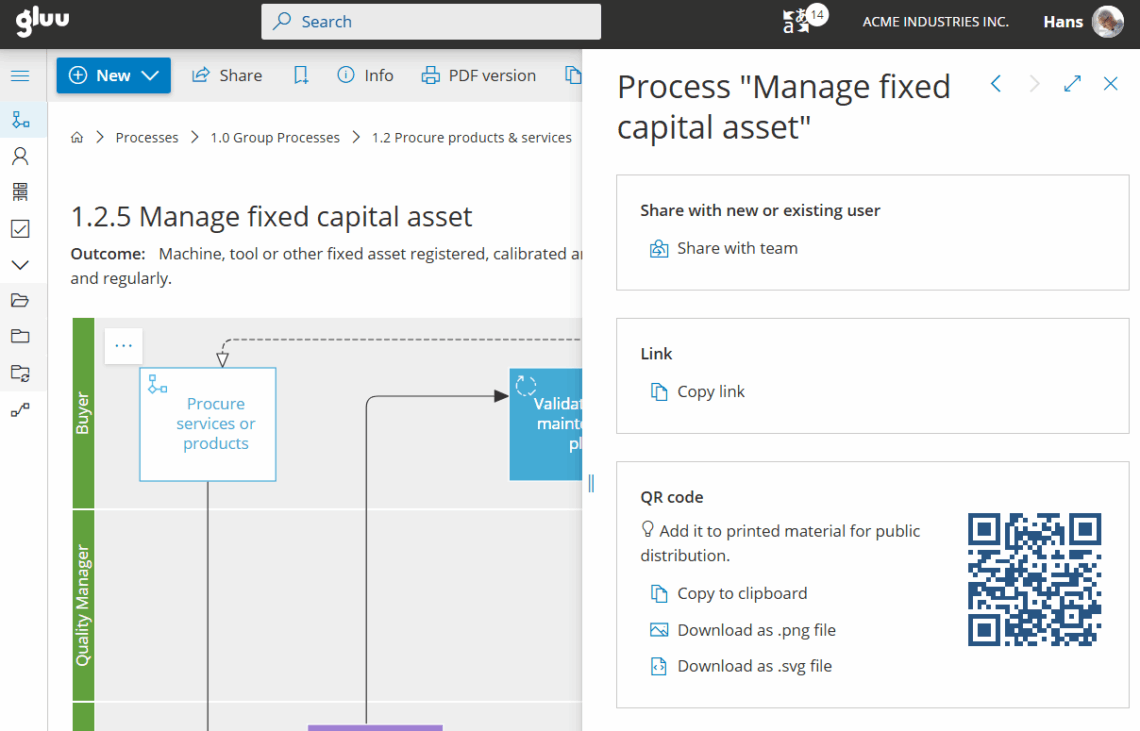
Or you can open the ‘Share with team’ wizard that will let you send emails to existing or new users – while even assigning roles to people that are not yet part of the process.
Share with existing role members #
You can choose if you want to share the process with existing team members, or selected people only:
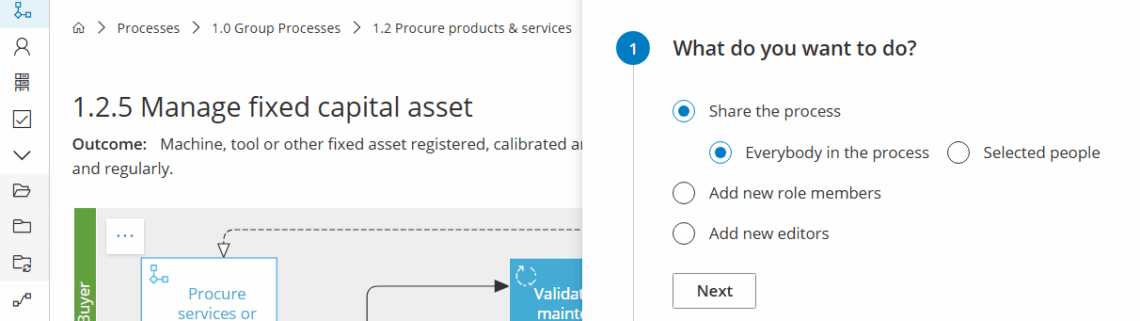
You’re done once you’ve selected existing team members or specific people to share the process with.
Share with new role members #
You can also add new users to roles in the process (or editors in general), while notifying them in a single flow:
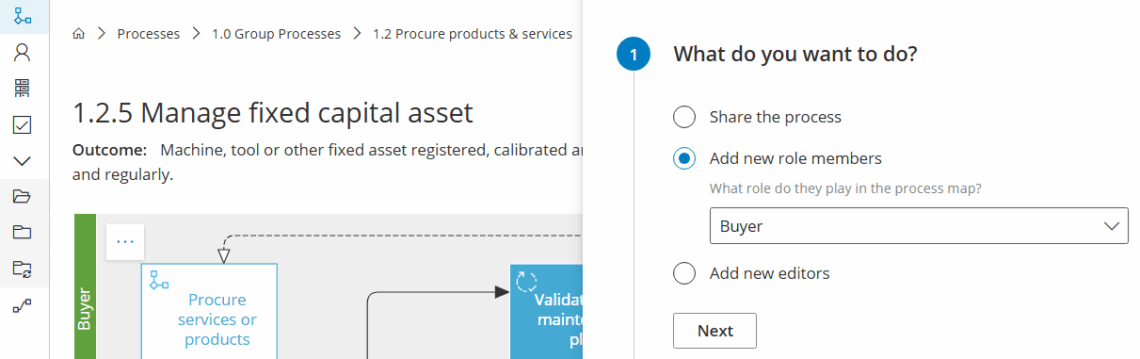
This will let you search among existing users OR
you can add emails for outside users and invite them into the specific process.
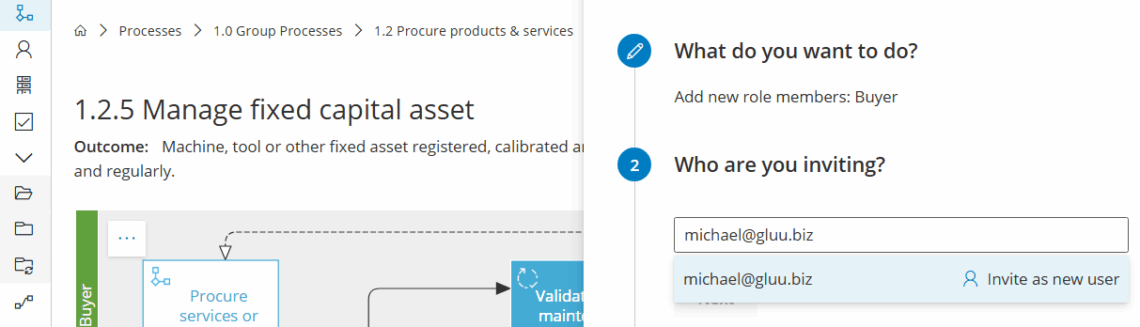
You’re done once new or existing users are assigned to roles and queued for notification.
Send out emails #
The final step builds a standard email that can be edited.
Click ‘Send emails’ to invite users to use your process:
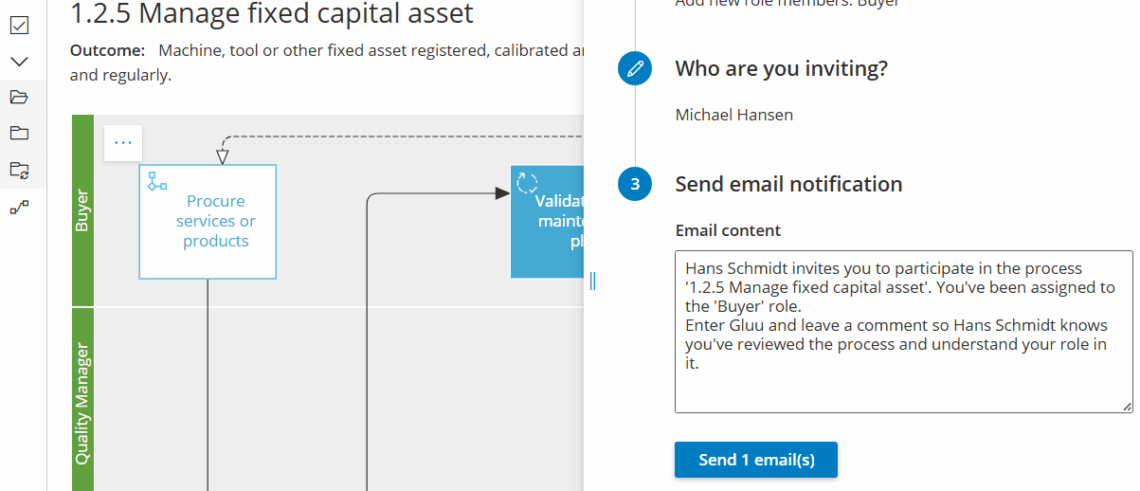
You’re done once the emails are sent and invited users can access the process.
PDF builder #
With Gluu’s ‘Advanced’ plan you can create PDF versions for processes that require offline usage, e.g. as backup. To create a PDF you can use the PDF builder:
- Click “PDF version”.
- Select the elements you wish to include.
- Drag to arrange section order.
- Click “Print” to download a ready PDF.
Click ‘Advanced settings’ to group activities by roles (e.g. for onboarding material), or to split the PDF into separate pages so each activity has its own page. You can also include QR codes to make it easy to redirect people to the updated online version:
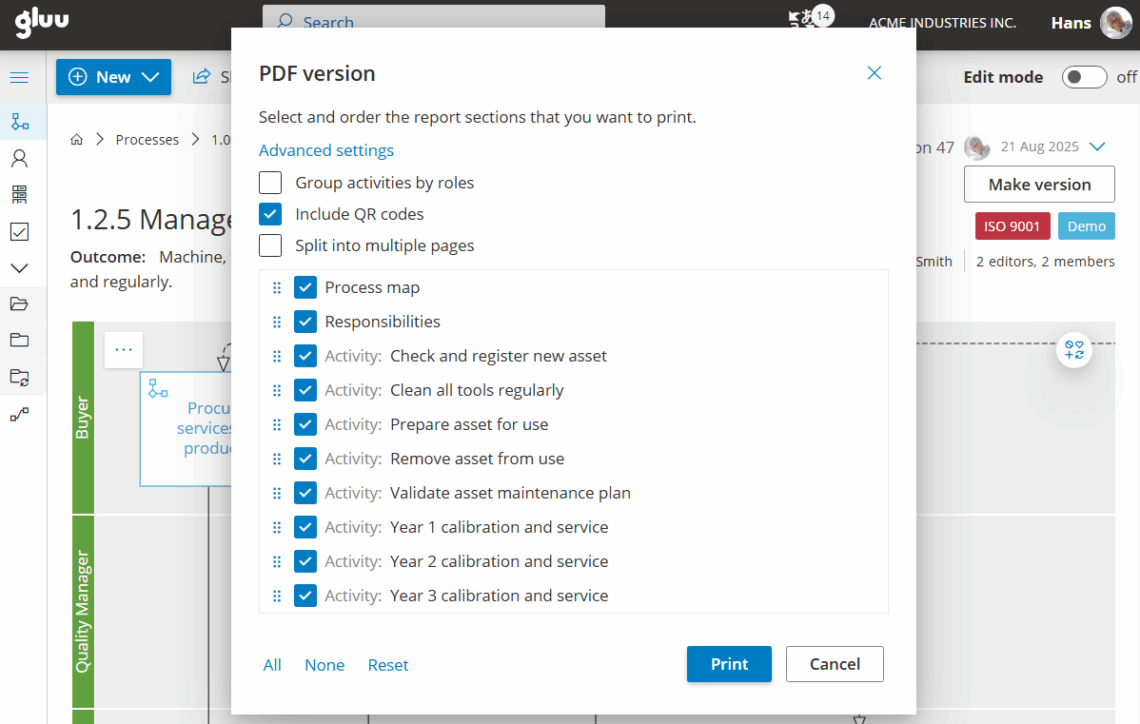
The report shows chosen sections and includes time/user stamps and QR codes for quick access.
PDF example:
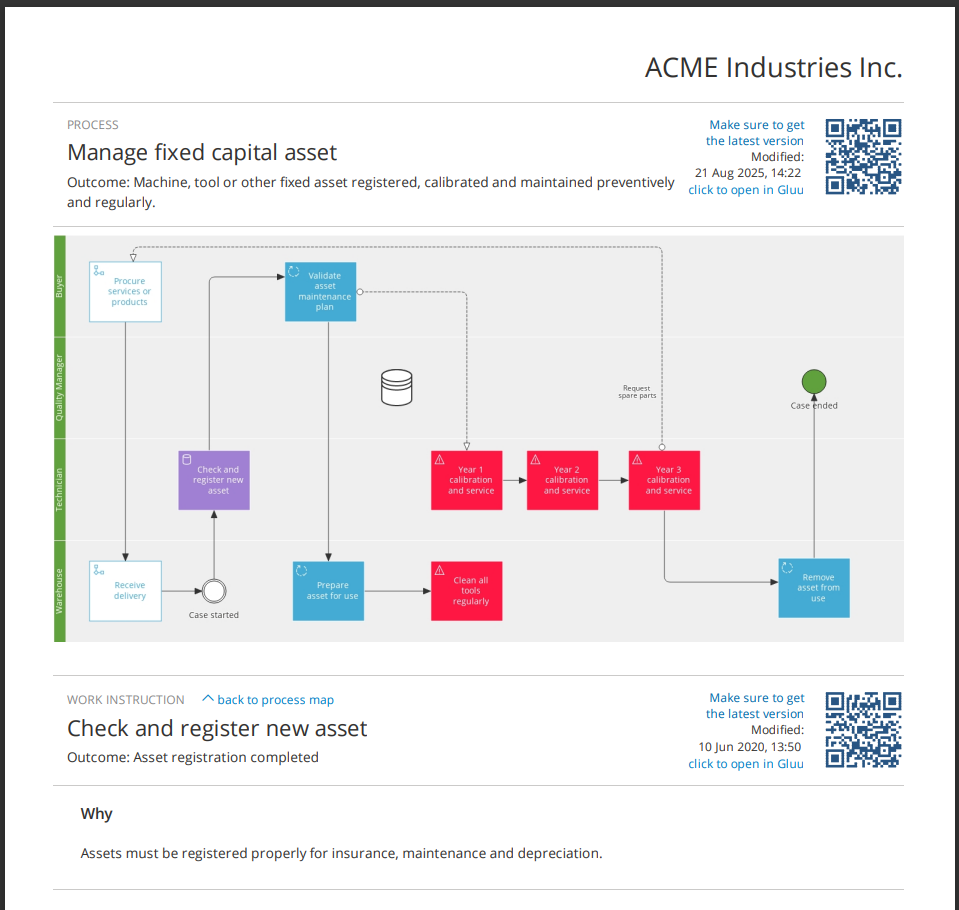
You’re done once you’ve downloaded a PDF with the sections, order, and settings you chose.
FAQ – Share processes and create PDFs #
Sharing a process and inviting users to it is available on any plan. Creating a PDF version through the PDF builder requires the Advanced plan.
Share opens a menu for copying elements of a process for reuse in other media. Share with team is a separate wizard that emails existing or new users, letting you assign them to roles in the process as part of the same flow.
Yes. In the Share with team wizard, you can search among existing users, or add email addresses for outside users to invite them into the specific process for the first time.
You choose which elements to include and drag to arrange the section order. Advanced settings let you group activities by role—useful for onboarding material—or split the PDF so each activity gets its own page, and you can include QR codes linking back to the live online version.
Each QR code in a printed or PDF process links back to the corresponding page in the live, always-up-to-date online version—useful when someone is working from a printed copy but needs to check the current instructions.
A PDF version is built for offline use, such as a backup copy or printed reference when someone doesn't have online access. It includes time and user stamps plus QR codes, so it stays traceable and easy to reconnect to the live process.


