
Goal: Learn how to add work instructions in Gluu from the process editor or an activity page, then write and enrich them faster with AI, media, links and files.
Before you start #
- Plan: Work instructions require the Essential plan or above. On the Core plan, activities exist in the process map, but the work instruction editor is not available.
- Role: Any editor or process owner on the process can add or edit its work instructions.
- Setup: Have a mapped process with at least one activity to attach the instruction to.
Add a work instruction #
There are two ways how you can add work instructions to your activities — or edit existing ones:
- Directly from our process editor
- On an activity (work instruction) page
From the process editor #
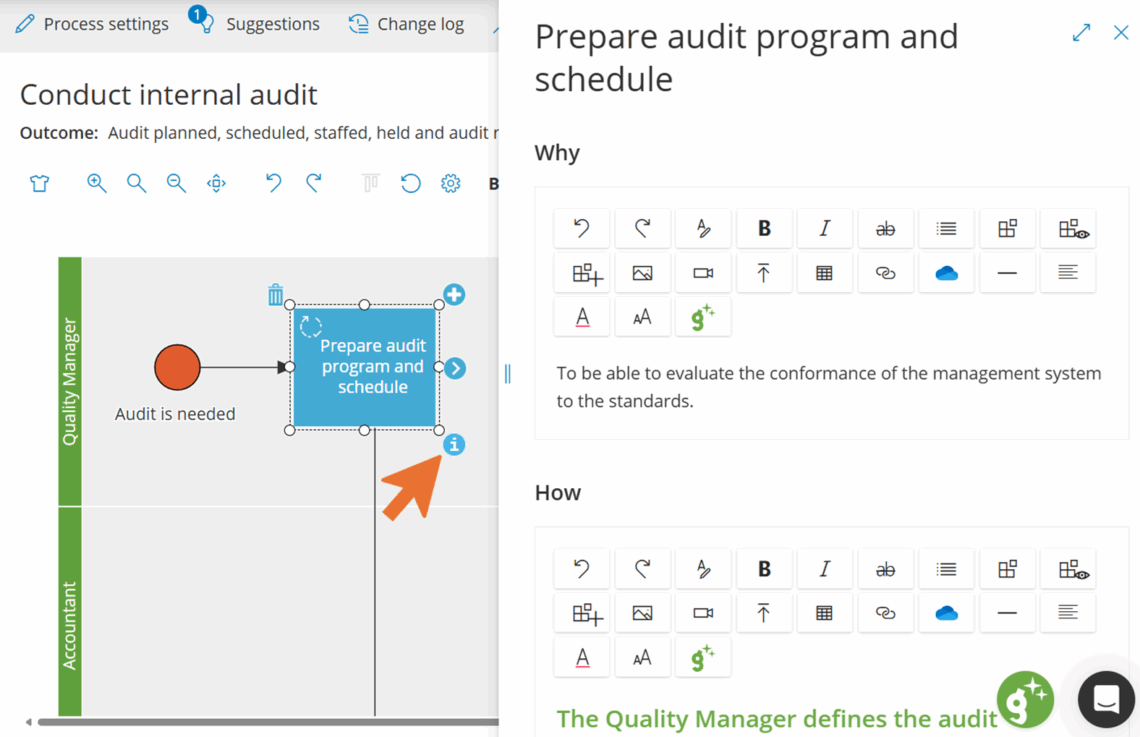
Once your process map is finished and you save it, all activities are created by Gluu. You can open each activity page to add work instructions (see next section), or you can reopen the process editor by turning on edit mode.
- Turn on Edit mode in the process editor.
- Click the activity box to receive work instructions.
- Click the “i” icon in the lower-right corner.
- Add or edit the work instruction in the side drawer.
You’re done once the instruction is saved in the side drawer.
From an activity page #
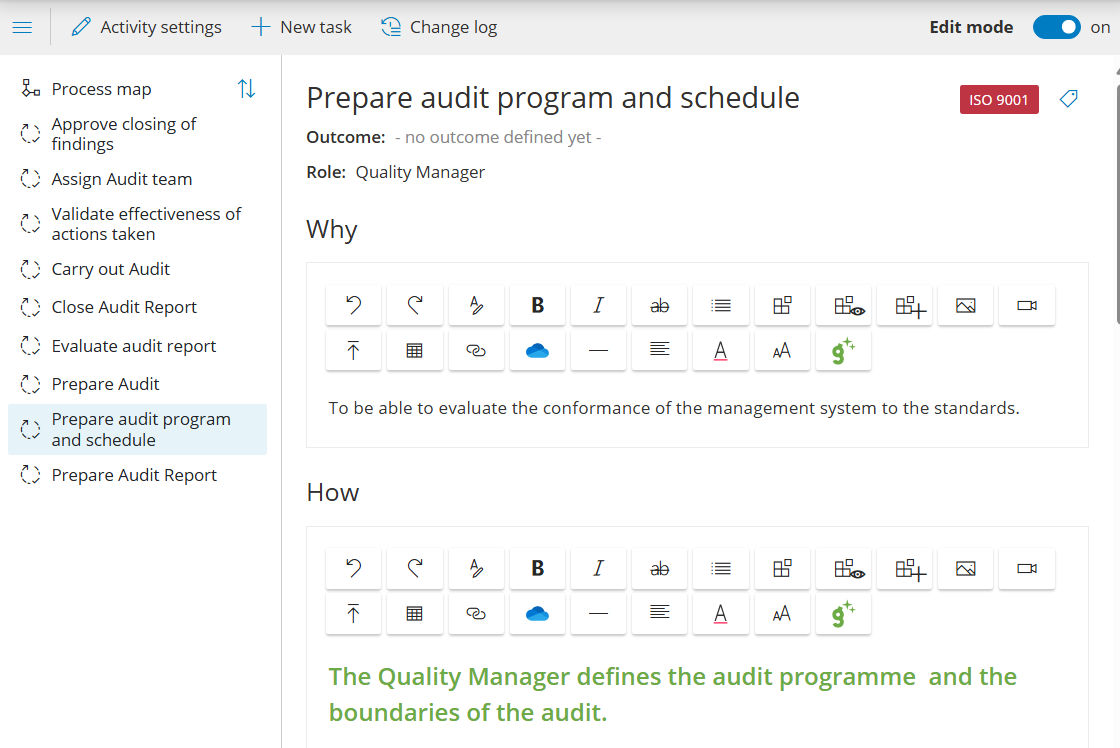
Work instructions live inside an activity in a process. This keeps the “what to do” (process + activity) together with the “how to do it” (work instruction).
- Go to the process that holds the activity.
- Click the activity and select Go to page.
- Click Edit to open the work instruction editor.
You’re done once the work instruction editor is open on the activity page.
Write the work instruction #
Write and format your instruction (you can also copy/paste from Word). The toolbar adds the options below.

Apply formatting #
Click Formatting to apply styles to selected text.
– Use Risk to highlight risks and failure points.
– Use Tip to add practical advice.
– Use Reference to point to other sources.
Use shared components #
Click the component icon:

to search for shared components (Process, Activity, User, Role, Form, Task, Case Template, Label or File) and insert dynamic links.
You can also preview or create new components directly from inside a work instruction.
Add images and videos #
Click the Image icon to insert an image at your cursor. Adjust size and alignment, and choose whether it opens in a new tab.
TIP! Use a screen snipping tool and paste directly with Ctrl + V.
Click the Video icon to embed a video via an “embed code” (e.g. from your intranet or YouTube). The video is shown inside the work instruction.
Upload files #
Click the File icon to upload a file. It appears as a stable link inside the instruction so users can download templates and references.
Use links #
Insert links to internal or external sources. You can link directly to files on Microsoft SharePoint or OneDrive.
Use the Gluu AI Assistant #
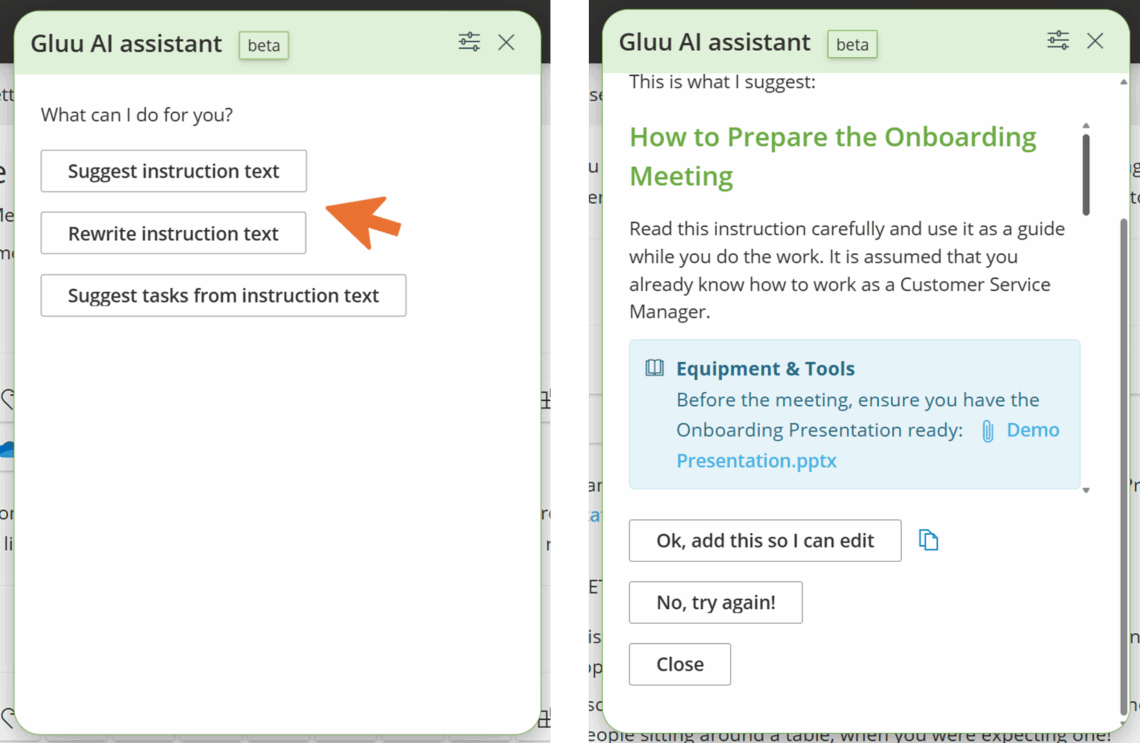
Use the Gluu AI Assistant to speed up work and keep a consistent style. Launch it from a work instruction page to:
- Suggest a new instruction based on your process context and best-practice prompts.
- Rewrite an existing instruction into your standard template.
- Suggest tasks based on the instruction content.
Review and edit AI suggestions before publishing. AI respects your account language and follows your admin-defined templates. Versioning works as usual — editors stay in control.
Change history and roll-back #
Gluu saves your work in the browser for a local fallback if your connection drops. Each version is saved automatically, and you can roll back to an earlier version from the change log.

FAQ – Creating a work instruction #
Open the activity from the process map or an activity page and click Edit. Two entry points work: turn on Edit mode in the process editor and click the info icon on an activity, or go to the activity page directly and click Edit to open the work instruction editor.
Work instructions require the Essential plan or above. On the Core plan, activities exist in the process map, but the work instruction editor is not available.
Yes. From a work instruction page, the Gluu Assistant can suggest a new instruction from your process context, rewrite an existing instruction into your standard template, or suggest tasks based on the instruction content. Review and edit AI suggestions before publishing—you stay in control.
Yes. Use the component icon to insert dynamic links to a Process, Activity, User, Role, Form, Task, Case Template, Label or File—these are shared components that update automatically when the linked item changes. You can also create new components directly from the editor.
Gluu saves your work locally in the browser as a fallback, and each version is also saved automatically on the server. If your connection drops, you can recover your latest changes, and you can always roll back to an earlier version from the change log.
Yes. Use the Image icon to insert an image at your cursor (or paste one directly with Ctrl+V), the Video icon to embed a video via an embed code, and the File icon to upload a file that appears as a stable download link inside the instruction.


