
Goal: Create users, assign roles and access, and invite them to Gluu—plus manage optional fields, permissions, and passwords.
Users can be added to Gluu in the following ways:
Sync with your company’s Azure AD
Or add users manually as described in this article.
Add users #
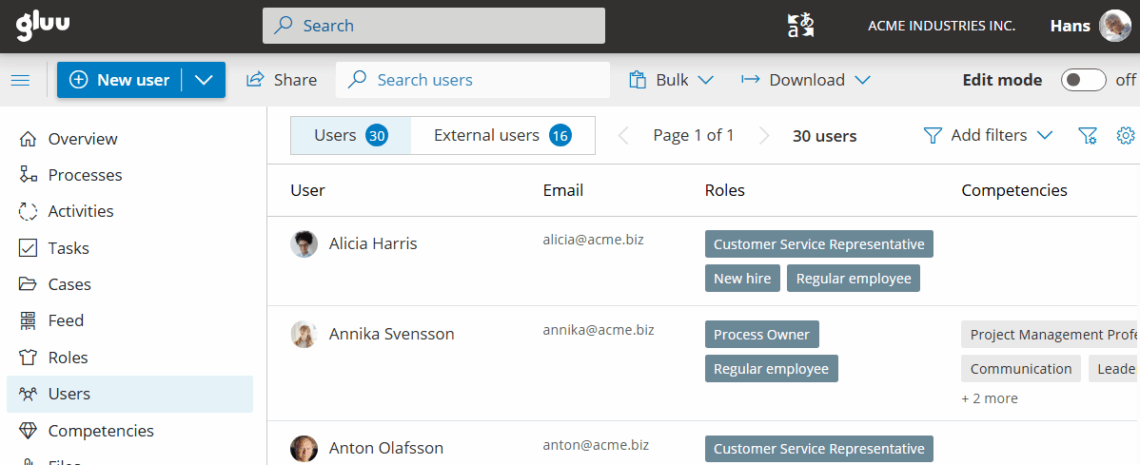
- Go to “Users” in the left menu.
- Search to see if the user already exists.
- Click “New” to open the user details screen.
- Follow the instructions and click “Create user”.
Assign roles #
‘Roles’ connect users with processes and ensures that each user sees what is relevant to the person’s work.
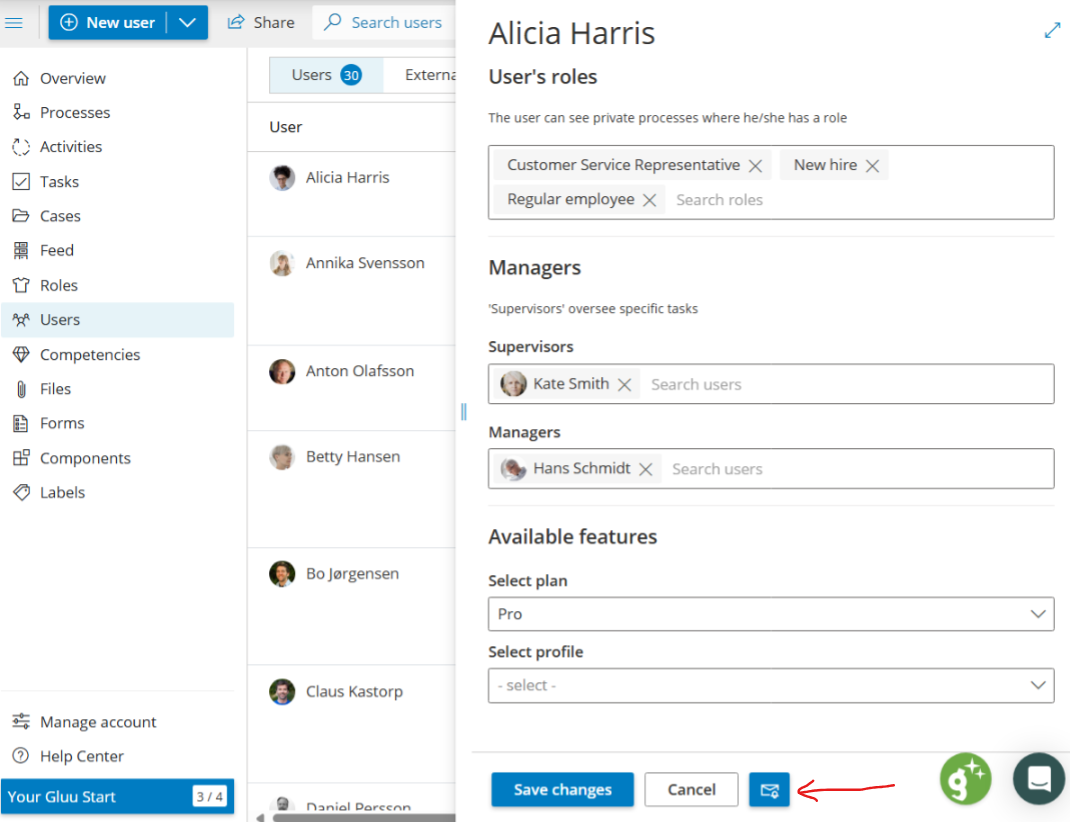
- Open the user dialog.
- Search to add roles.
- Click “X” to remove roles.
Read more about roles in this article.

Additional information #
You can also capture additional information in Gluu:
- Click “Optional fields” below the email field.
- Add Title (optional).
- Add Phone number (optional).
- Add Location (physical or department).
Optional fields support HR and user management by enabling filters across Gluu.
Send access details #
Once you have added a user, then you can send the person an email with a link to set a password (if not using Azure AD).
Note that for security reasons the link expires within 48 hours. However, you can always send a new invitation link.
This is also used for users that have forgotten how to access.
Basic view rights #
As a default all users can:
- Search, read, view and comment on any non-private process, activities and work instructions.
- Search, read, view and comment where they have a role (as Process members).
- Complete tasks in activities where they are members, if they have a PRO license.
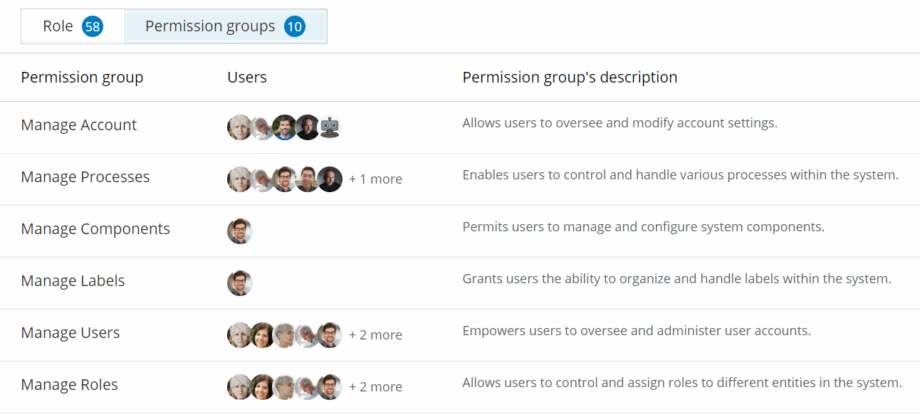
To assign more advanced rights to users you can use permission groups and add users to appropriate groups.
Tip: To tailor navigation for a user group, use Profiles.


