
Goal: Use Profiles to simplify Gluu for each audience—show the right navigation and hide what’s irrelevant.
Gluu has many features all aimed at ‘making it easier to work the right way, than the wrong way’. This has required an ability to only show features that are relevant to the individual user. That is the purpose of Gluu’s ‘user profiles’.
User profiles let you design profiles with exactly the right set of features and then assign them to users. Note that where profiles decide what to show, admin users still need to ensure that users have the ability to work with the features. For more special functions this is done through permission groups.
Before you start #
- Plan: Profiles require the Advanced plan and the Enterprise Customization add-on. They are not available on Core or Essential.
- Role: You need Account Owner/Admin (Manage account) access to create profiles and assign them to users.
- Setup: No special setup once the add-on is enabled—open Account settings > Profiles.
Set up a profile #
- Go to Account settings.
- Choose Profiles.
- Click New profile.
- Name the profile.
- Choose settings (navigation, overview, visibility) that should show.
- Save.
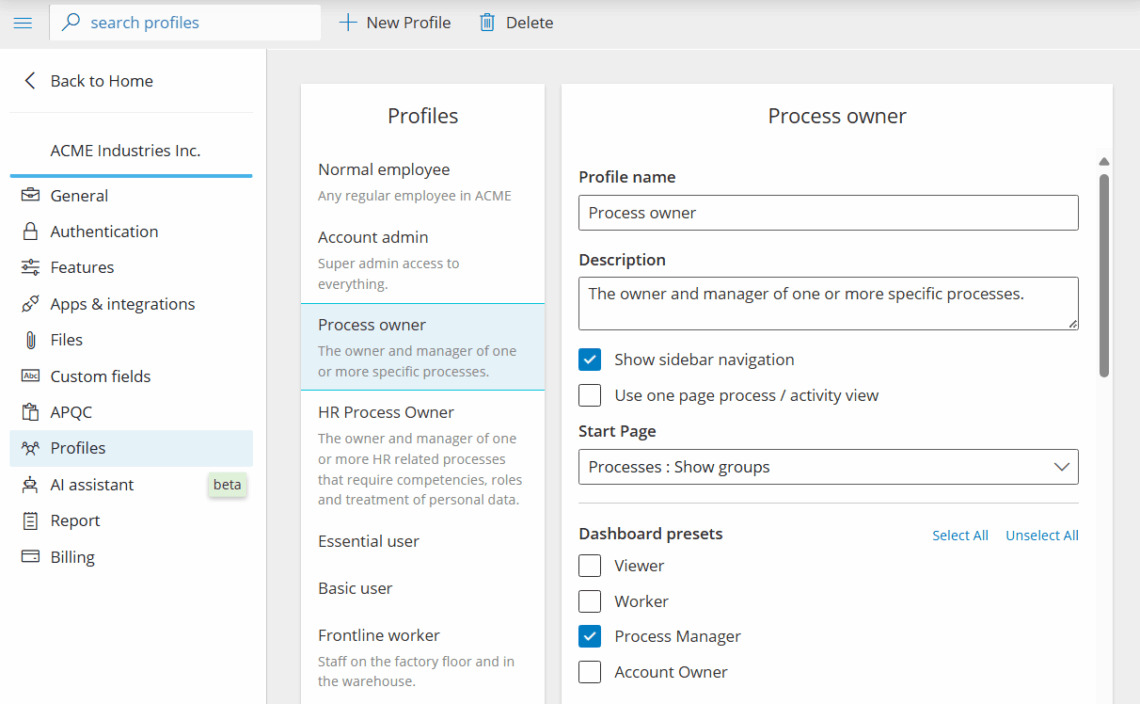
You’re done once the profile is saved with the navigation, overview and visibility settings you chose.
Assign profile to user #
Assign profiles to users from the user page.

You’re done once the profile is assigned and the user sees the navigation and overviews that profile defines.
Combine profiles with Work overviews for targeted home pages.
FAQ – User profiles #
Profiles require the Advanced plan and the Enterprise Customization add-on. They are not available on the Core or Essential plan, and not included with Advanced alone.
A profile controls what a user sees—navigation, overviews, and visibility settings. It does not control what a user is allowed to do; that's handled separately through permission groups, which admins still need to configure for more advanced functions.
You need Account Owner/Admin access (the Manage account permission) to create profiles under Account settings and to assign them to individual users.
Yes. Profiles work well together with Work overviews, letting you give each audience both a tailored navigation and a targeted home page.
No. Profiles and permission groups serve different purposes and both may be needed—profiles simplify what's shown, while permission groups control what users are actually allowed to do.


