
Goal: Filter Gluu to show only the activities, tasks, cases, components, or forms you care about — and save the filters you use often.
Use filters to quickly zero in on the activities, tasks, cases, components, or forms you care about. Filters persist until you change them — so you stay focused. Common filters can also be saved and shared, and added as cards to your work overview.
Before you start #
- Plan: Basic filtering is available on all plans. Saving and reusing filters requires Essential or Advanced. Filtering tasks, cases, forms, and the Explorer requires Advanced. No add-on is needed for any filtering.
- Role: Any user can filter and save personal filters. Sharing a filter with everyone requires the Manage account permission.
- Where: Filters work in the Gluu web application. They are not available in the Android or iOS mobile apps.
Filter types #
You can filter on almost any data in Gluu. Below we have created an overview by main functional area.
Logic tip: Adding multiple values within the same category applies OR between them (e.g. Role = “Sales” or “HR”); combining different categories applies AND between them (e.g. Role = “Sales” and Label = “Risk”).
Activities #
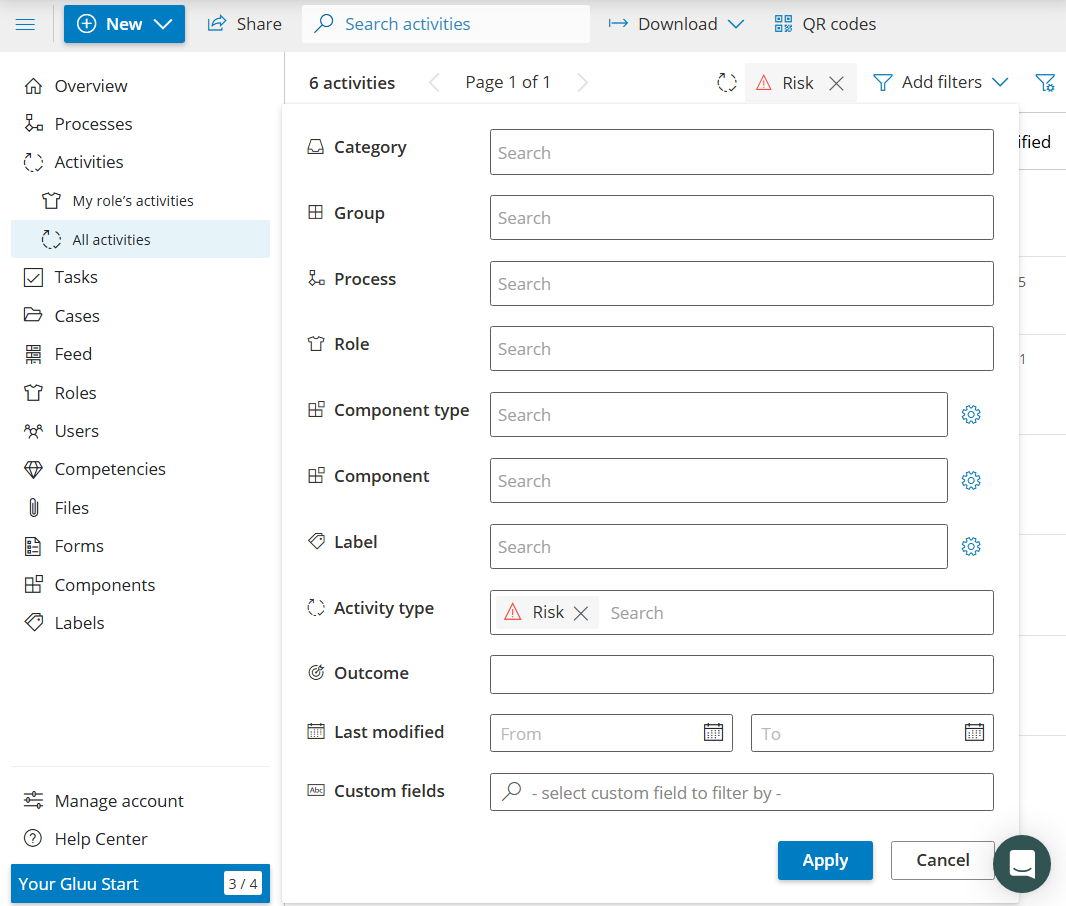
- Categories – only activities from selected category.
- Group – only activities from selected group.
- Process – activities for a specific process.
- Role – activities that involve one or more roles.
- Label – activities tagged with a specific label.
- Activity types – e.g., Risks, Customer Touch Points.
- Outcome – filter by outcome.
- Last modified – filter by last update date.
Example: All activities of the type ‘Risk’ to show risky work. Could also be done as a label, of course.
Tasks #
Requires the Advanced plan.
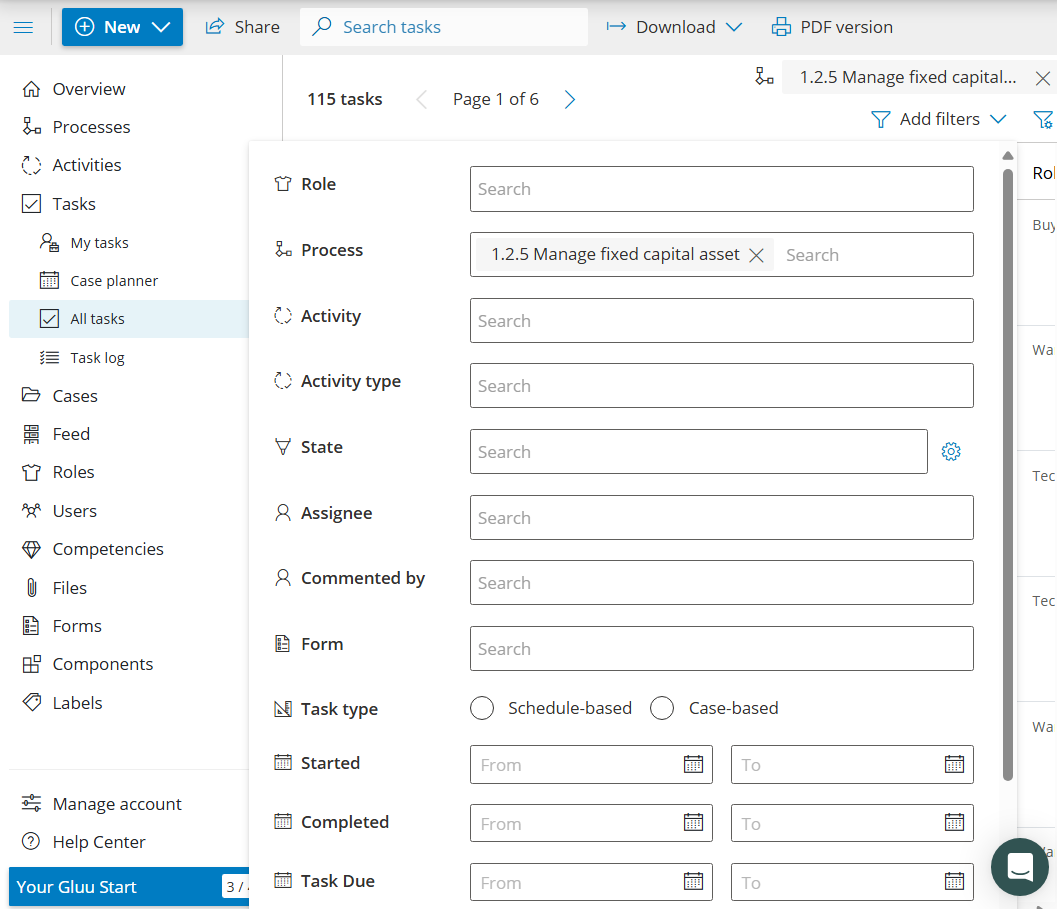
- Roles – tasks involving specific roles.
- Process – tasks for a specific process.
- Activity – tasks within a specific activity.
- Activity types – tasks from activities marked as Risks, etc.
- State – not started / in progress / completed.
- Assignee – assigned to / picked by a user.
- Commented by – tasks with comments by a user.
- Form – tasks that contain a specific form.
- Task type – schedule-based or case-based.
- Started, Completed, Task due – absolute or relative dates.
Example: Filtering to only show tasks within a specific process.
Cases #
Requires the Advanced plan.
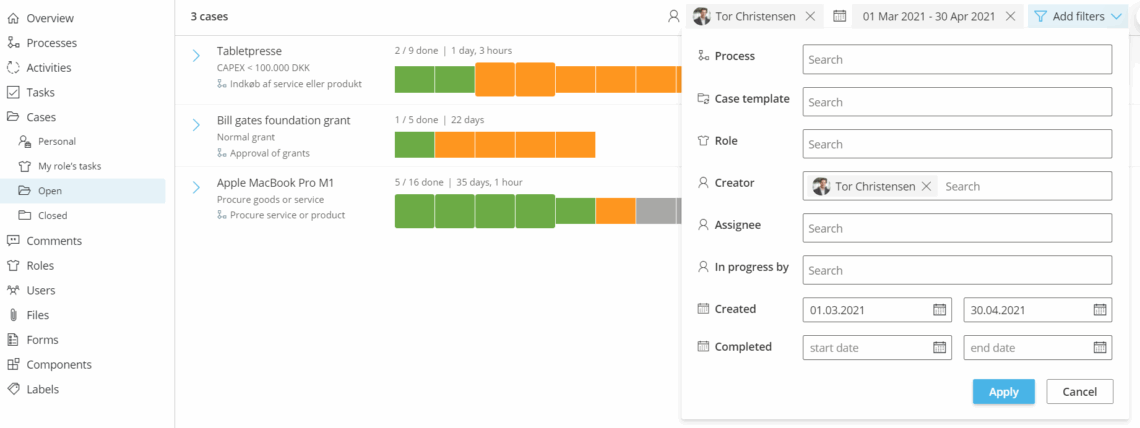
- Process – cases for a specific process.
- Case template – cases from a specific activity/template.
- Role – cases involving specific roles.
- Label – cases with a specific label.
- Form – cases that contain a specific form.
- Creator – cases created by selected users.
- Assignee / Picked by – cases for/picked by users.
- Commented by – cases with comments by a user.
- Created / Completed – date ranges.
Example: Cases created by user Tor Christensen in a set timeframe.
Components #
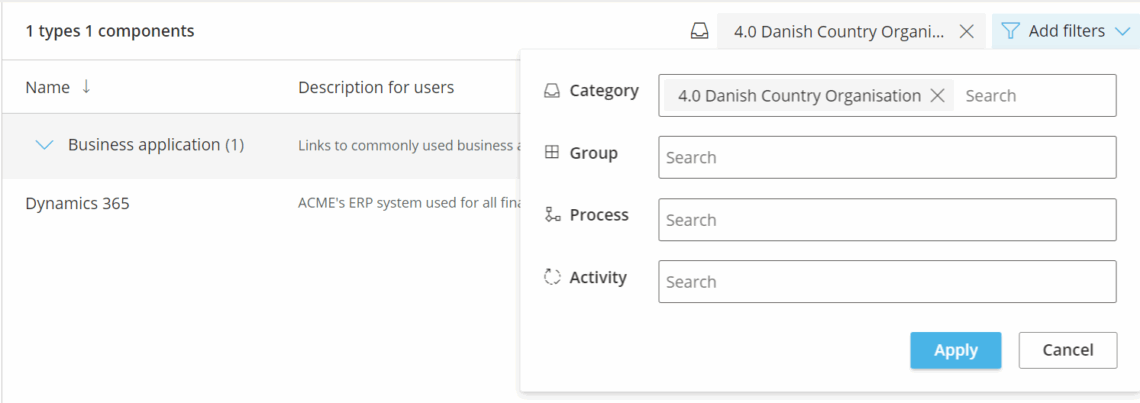
- Category – components allowed in certain process categories.
- Group – components allowed in certain process groups.
- Process – components used in specific processes.
- Activity – components used in specific activities.
By time period or date #
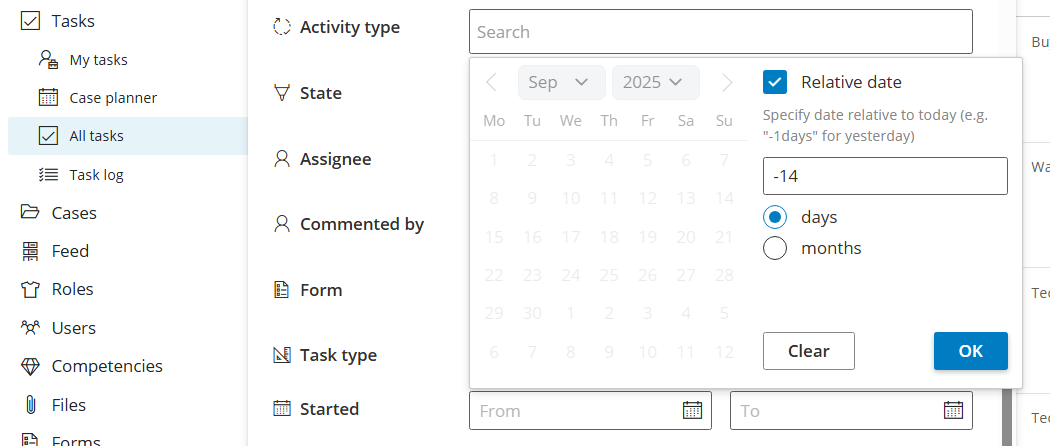
Presets & relative dates: Start from built-in presets like Today or Last month. Relative dates update automatically (e.g., “Today” always means today).
Filtering by forms #
Requires the Advanced plan.
Show only tasks or cases that use a specific form. You can also save that filter and add it as a card on your overview page to visualize the form’s data — see Add filters to your work overview below.
Save & reuse filters #
Requires the Essential plan or above.
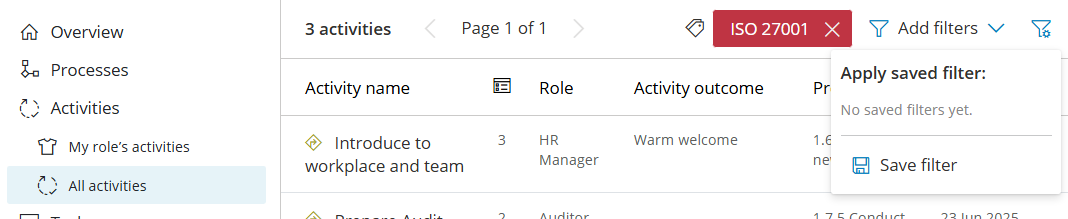
- Click the filter settings icon (top-right of the filter bar).
- Select Save filter, name it, and (optionally) share with colleagues.
Only “Manage account” users can share filters with everyone. If you need to share filters with your team, ask your Gluu administrator to do this on your behalf. - Access saved filters from the same settings icon.
Pro tip: Share general filters with colleagues so everyone can access common views. Keep personal filters unshared to avoid cluttering others’ lists.
Add filters to your work overview #
Requires the Essential plan or above. No add-on is needed.
Saved filters can be added as cards on your personal work overview, giving you a targeted home page every time you log in. You can also show specific form data on your overview by adding a form card and choosing which fields to display.
Note: Your personal overview is private — cards you add are only visible to you.
To add a saved filter to your overview:
- Open the page with the content you want (Processes, Activities, Tasks, Cases).
- Set your filters and save them (see Save & reuse filters above).
- Go to Overview and click Settings (cogwheel, top-right).
- Click Add card and select from your Saved filters.
- Drag and drop cards to reorder them. Uncheck cards to hide them.
- Adjust columns if needed (e.g., set a card to three columns for full width).
To show form data on your overview:
- Go to Overview > Settings and click Add card.
- Select a Form from the list.
- Open the card’s Settings and choose the fields to display.
- Optionally filter on field values to include only specific entries.
Read more: Customize work overviews
Filtering in the Explorer #
The Gluu Explorer has its own filtering system, separate from the standard filter bar. Use it to find connections between processes, activities, components, forms, and labels visually. You can filter by component, label, or form, and explore how assets link together across your account.
Requires the Advanced plan.
Read more: Explore asset connections
Video guide #
FAQ – Filtering in Gluu #
Basic filtering works on all plans. Saving and reusing filters requires Essential or Advanced, and filtering tasks, cases, forms, or the Explorer requires Advanced. No add-on is needed for any filtering — it is included in the plan tiers.
Multiple values in the same category use OR, so Role = Sales or HR matches either. Values across different categories use AND, so Role = Sales and Label = Risk matches only items that meet both conditions at once.
Filters are only available in the Gluu web application. The Android and iOS apps are for completing tasks and cases on the go, so build and save your filters on the web and use them there.
Save a filter, then choose to share it. Only users with the Manage account permission can share a filter with everyone, so if you need a shared team view, ask your Gluu administrator to save and share it for you.
Yes, on Essential or Advanced. Add a form card to your personal overview and choose which fields to display, then optionally filter on field values. The overview is private, so the cards you add are visible only to you.


