
Goal: Safely remove users and hand over any process ownership/editorship—without losing history or access.
You need the Manage users permission to delete or edit users. This is typically assigned to HR Managers and account administrators. Read more about permission groups.
Before starting you must also have rights to manage the processes you’re transferring; otherwise the transfer will be denied. Using SSO? Remember to remove the user from your identity provider as well — from the Azure AD group if using Microsoft login, or from your Google Workspace directory if using Google login.
Before you start #
- Plan: Deleting, editing and bulk-updating users is available on any plan. Bulk-editing user profiles or custom fields requires the Enterprise Customization add-on.
- Role: You need the Manage users permission to delete or edit users, plus rights to manage any processes you’re transferring ownership of.
- Setup: If the account uses SSO, also plan to remove the user from your identity provider (Azure AD group or Google Workspace directory) once they’re deleted in Gluu.
Delete users #
Deleted users cannot log in and will no longer appear in pickers/lists. Their historical comments, edits, and attributions remain—these are part of your organization’s knowledge record. Personal information is removed from the profile for GDPR compliance reasons.
Delete regular user(s) #
1) Go to Users (left menu) → search for the user. 2) Turn on Edit mode. 3) Click Delete (trash icon):

You’re done once the user is deleted—their name still shows on historical comments/edits but their personal data is removed.
Delete owner or editor #
When you delete a user who owns/edits processes, you’ll be prompted to transfer ownership first.
Step 1 — Start deletion #
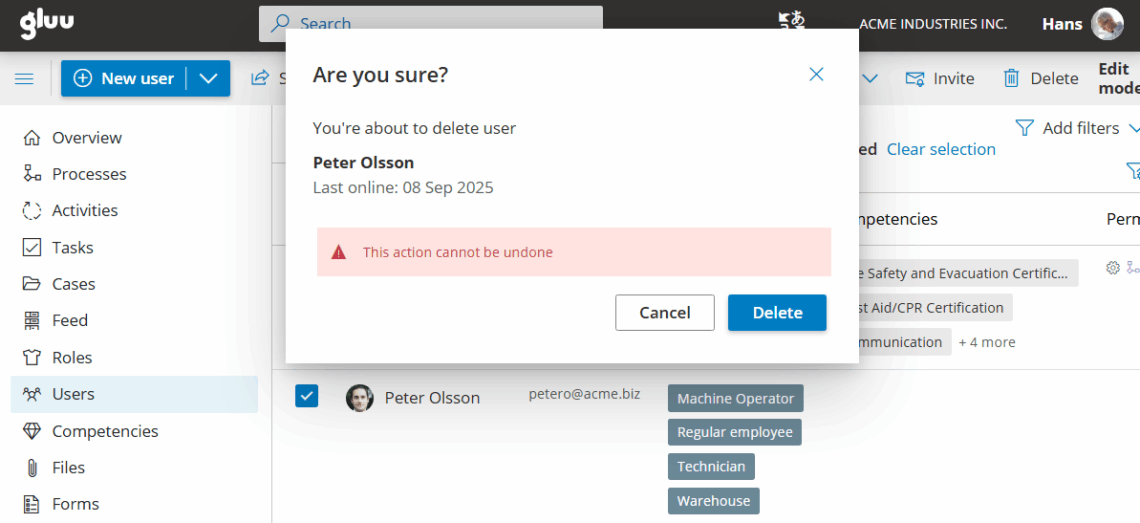
Click the trash icon for the user. A transfer dialog opens.
Step 2 — Choose primary transferee #
Select the primary user who should receive ownership/editorship by default, then proceed.
Step 3 — (Optional) Advanced settings #
Open Advanced settings to see all processes owned/edited by the user. You can override the primary transferee per process if needed.
You’re done once ownership/editorship for all the user’s processes is transferred and the user is deleted.
Bulk delete users #
Steps
1) In Users, turn on Edit mode and select the users you want to remove.
2) Ensure the selection covers all pages (use the page selector to confirm).
3) Click Delete. If any selected user owns processes, you’ll be prompted to transfer ownership first. After transfers, deletion completes.
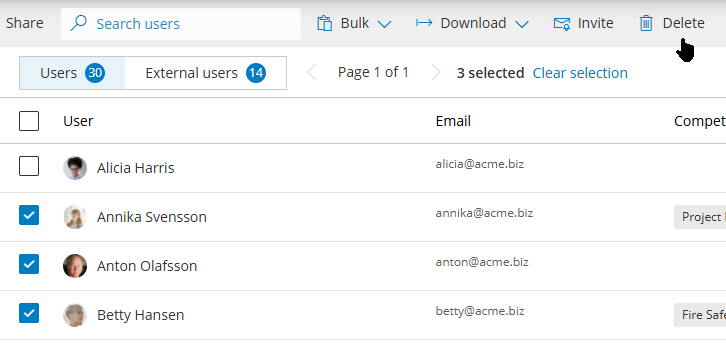
Selection across pages: Verify all target users are selected (not just the first page):

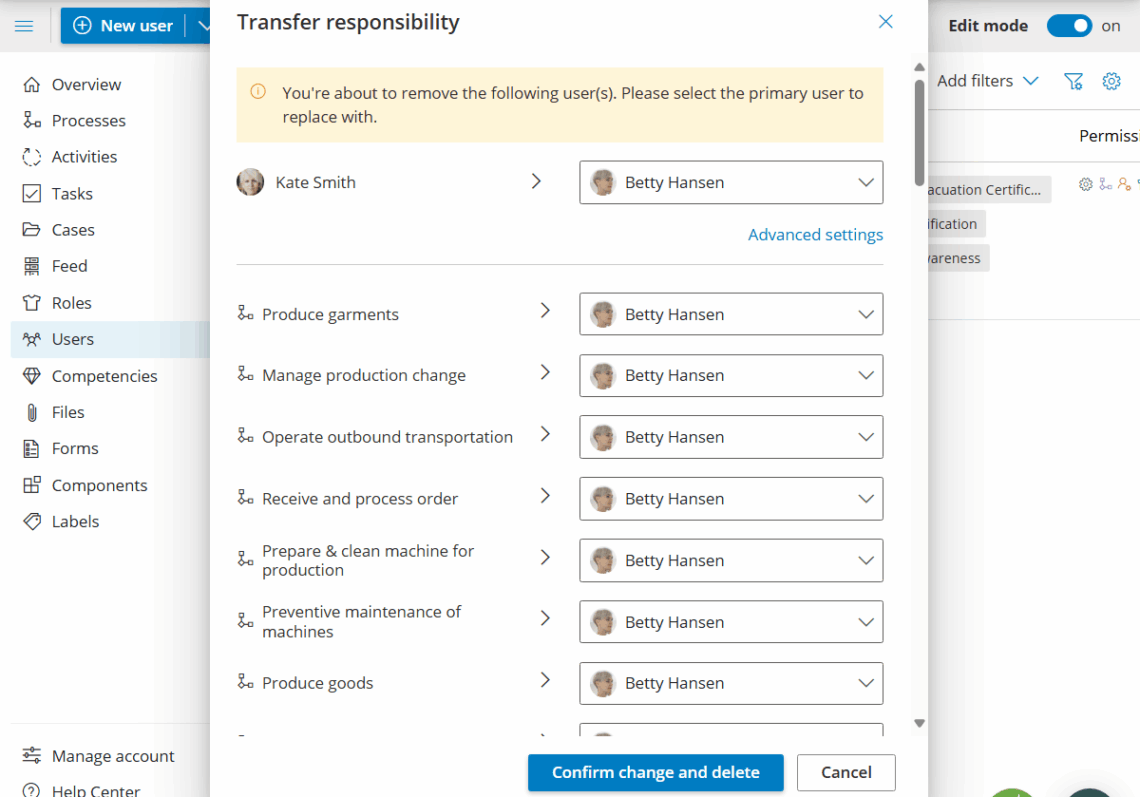
You’re done once all selected users are deleted (after any required ownership transfers are complete).
Edit users in bulk #
Use bulk update to change multiple users in one operation. Bulk editing lets you add, change or remove:
- Plans
- User profiles
- Roles (add/remove)
- Supervisors / Managers
- Access
- Custom fields
To edit you do this:
1) In Users, turn on Edit mode and select the users.
2) Click Bulk > Update and add the columns you wish to change.
3) Set values and apply the update.
Then add the fields you want to modify and set values:
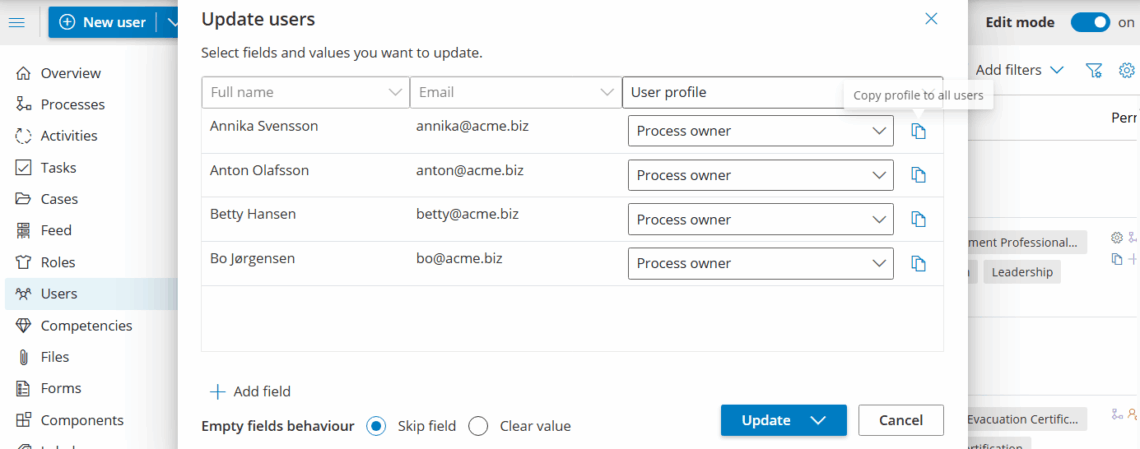
You’re done once you’ve applied the update and the change appears on all selected users.
FAQ – Manage users #
You need the Manage users permission, typically assigned to HR Managers and account administrators. You also need rights to manage any processes you're transferring ownership of when deleting an owner or editor.
Deleted users can no longer log in and no longer appear in pickers or lists, but their historical comments, edits, and attributions remain as part of your organization's knowledge record. Their personal information is removed from the profile for GDPR compliance.
You'll be prompted to transfer ownership or editorship first. Choose a primary transferee to receive everything by default, or open Advanced settings to override the transferee on a per-process basis before completing the deletion.
Yes. Turn on Edit mode, select the users you want (verifying the selection covers every page, not just the first), then use Delete for bulk deletion or Bulk > Update to change fields like plan, roles, supervisor or access for all of them at once.
No—most fields like roles, supervisors and access are available on any plan. Bulk-editing user profiles or custom fields specifically requires the Enterprise Customization add-on.
Yes. Also remove the user from your identity provider: from the Azure AD group if you use Microsoft login, or from your Google Workspace directory if you use Google login.


