
Process owner
Account admin
Goal: Speed up process work with built-in, no-prompt AI—create or rewrite work instructions, suggest tasks, enrich roles, translate content, and control access in admin.
The Gluu Assistant is your process co-pilot. It uses tested, built-in prompts that blend best practices with your account data—so you don’t have to write prompts. The latest generation adds advanced features and admin controls while keeping you in charge of content and versioning.
Before you start #
- Plan: The Gluu Assistant is available on all plans. Individual prompts vary: work instruction prompts need the Essential plan or above, task generation needs the Advanced plan, translation needs the Localization add-on, and competency suggestions need the HR Manager add-on (each noted in the relevant section below).
- Role: Any user with edit access to the process, activity, or role they’re working on can use the matching prompts. Managing AI settings and permissions needs the Manage account permission.
- Setup: No special setup—the Assistant is on by default. Admins can enable or restrict individual prompts (see “Manage the Gluu Assistant (admins)” below).
How to start it #
- Click the Gluu Assistant in the bottom-right corner on any page.
- Review the suggestions for that page (context-aware).
- Select a suggestion and follow the on-screen steps.
You’re done once you’ve followed the on-screen steps for your chosen suggestion.

What it can do #
The Assistant includes built-in prompts that let you complete the following tasks with simple clicks:
- Add missing categories and groups in your process hierarchy.
- Create or enrich roles (purpose, responsibilities, competencies).
- Draft and rewrite work instructions (Why/How) to your template. Requires Essential plan or above.
- Suggest actionable tasks based on instruction content. Requires Advanced plan.
- Translate instructions while respecting your account language. Requires the Localization add-on.
Create a new work instruction #
Requires the Essential plan or above.
- Open the relevant activity page.
- Click the Gluu Assistant.
- Select “Suggest instruction text”.
- Review the proposed Why/How and context.
- Click “Add” to insert the instruction.
- Edit details as needed (you stay in control).
You’re done once the instruction is saved to the activity.
Read more: Create a work instruction
Rewrite an existing work instruction #
Requires the Essential plan or above.
- Open the activity with an existing instruction.
- Click the Gluu Assistant.
- Select “Rewrite instruction text”.
- Review how your notes, media and links were blended.
- Click “Apply” to replace or update the instruction.
You’re done once the updated instruction is saved.
Generate tasks from an instruction #
Requires the Advanced plan.
- Open the activity instruction.
- Click the Gluu Assistant.
- Select “Suggest tasks”.
- Review task suggestions derived from the instruction.
- Select the tasks you want to add.
- Click “Add” to create the tasks for case execution.
You’re done once the selected tasks appear on the activity, ready to run in a case.
Translate instructions (account language aware) #
Requires the Localization add-on. Contact Gluu support to enable it on your account.
- Open the activity instruction.
- Click the Gluu Assistant.
- Select “Translate” and choose a language.
- Review the translation.
- Save so users with that language see it automatically.
You’re done once the translation is saved—it appears automatically for users who have selected that language, and only for content that has a translation.
Versioning and approvals still apply. Read more: Translate processes and work instructions
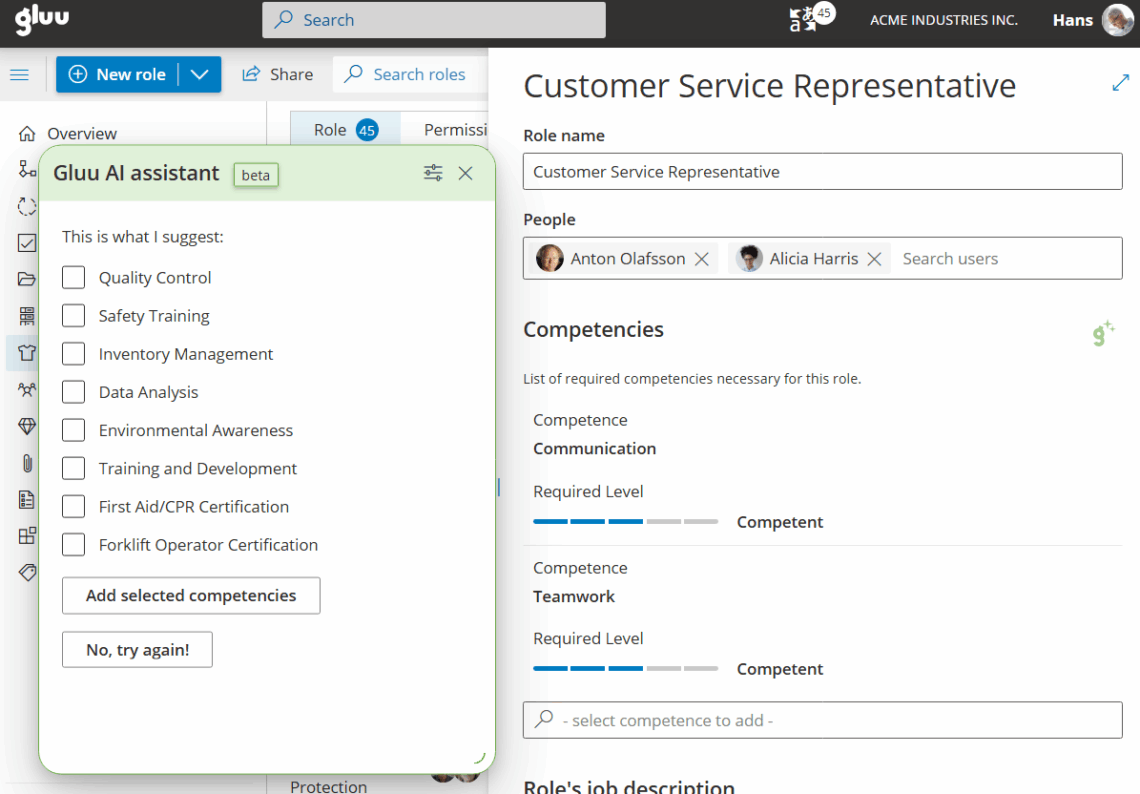
Add or enrich a role #
- Open Roles and select or create a role.
- Click the Gluu Assistant.
- Select “Describe role purpose”.
- Review and add the proposed purpose.
- Select “Suggest responsibilities”.
- Review and add responsibilities.
- Select “Suggest competencies”. Requires the HR Manager add-on.
- Choose relevant competencies from your account list.
- Set competency levels as needed.
- Save the role.
You’re done once the role’s purpose, responsibilities and (where enabled) competencies are saved.
Example: drafting a work instruction with the Assistant #
A process owner is mapping a new “Process supplier invoice” activity that has no instructions yet. Instead of writing the Why and How from scratch, they open the activity, click the Gluu Assistant, and select “Suggest instruction text”. The Assistant proposes a short Why (“Ensure invoices are approved before payment to avoid duplicate or unauthorized spend”) and numbered How steps, drawn from the activity’s role and its place in the process. The process owner reviews the draft, tightens the wording, and clicks “Add”. The instruction is saved as a draft and goes through the account’s normal versioning and approval steps before it’s published.
Manage the Gluu Assistant (admins) #
Admins can configure how AI behaves and who can use which prompts. You need the Manage account permission to access the AI admin panel.
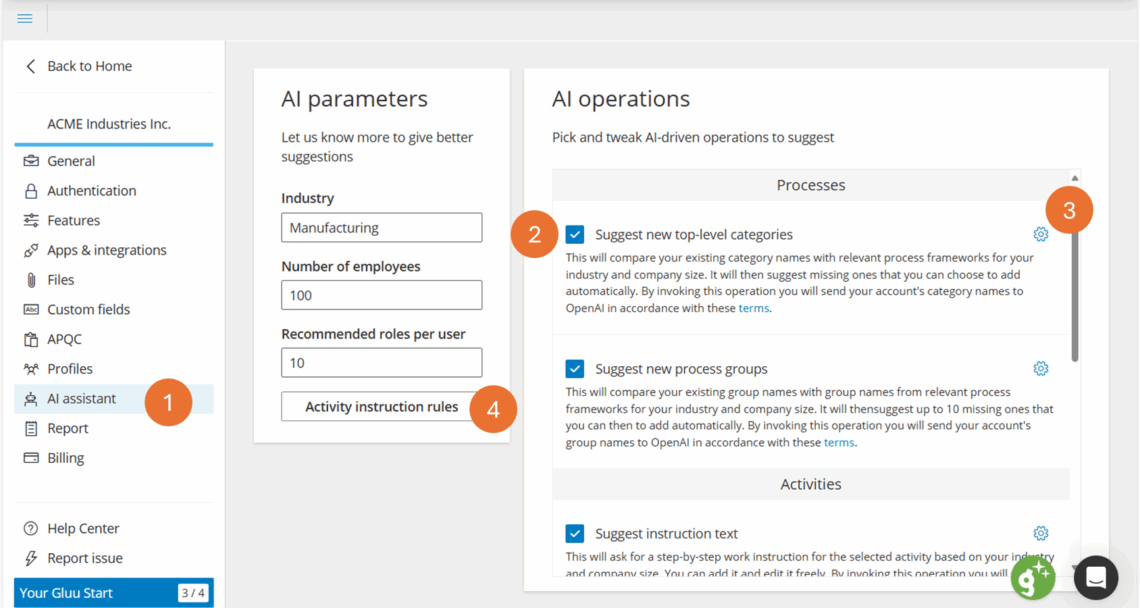
- Go to “Manage account”.
- Click “AI assistant” to open the AI control panel.
- Toggle individual prompts on/off to show or hide them.
- Click the cogwheel to enable prompts for specific permission groups.
- Review the prompt descriptions and enterprise terms link for OpenAI.
Set work instruction templates (admins) #
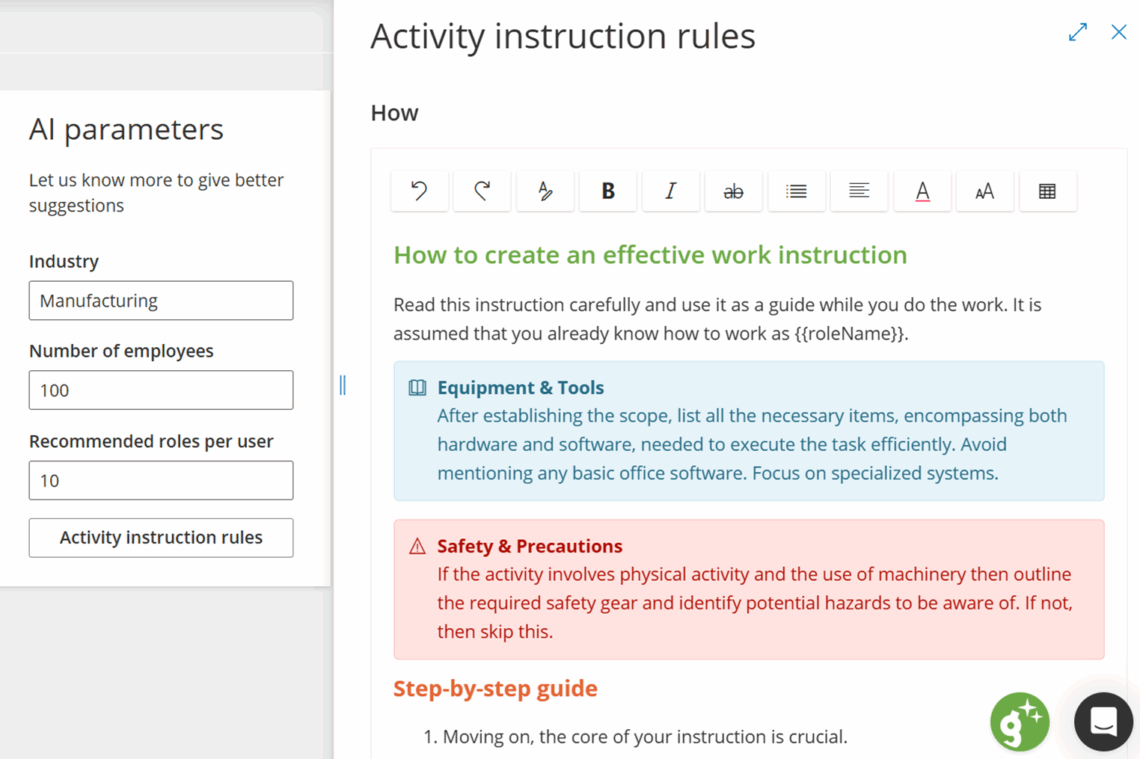
- Click “Activity Instruction Rules”.
- Edit the structure (e.g., Why ≤100–150 chars, How steps) and helper text.
- Save to apply the template to future AI output.
- Use the rewrite option to align existing instructions without losing content.
Data security #
The Gluu Assistant uses OpenAI’s LLM under Enterprise Privacy, meaning your data isn’t used to train models. Avoid adding highly sensitive personal data to instructions. Your company’s versioning, approvals and ownership apply to all AI-assisted content.
Video introduction #
Tips:
- Use the Assistant as a checklist to spark ideas and get started faster.
- Standardize with instruction templates for consistency across your account.
- Map tasks from instructions for measurable execution.
- Manage prompts by permission group to keep control of who can use which features.
FAQ – Gluu Assistant #
The Assistant itself is available on all plans (Core, Essential, and Advanced). However, individual prompts depend on which features are active on your account. Work instruction prompts require the Essential plan or above. Task generation requires the Advanced plan. Translation requires the Localization add-on. Competency suggestions require the HR Manager add-on.
Yes, content is processed by OpenAI’s language model, but under OpenAI’s Enterprise Privacy terms — meaning your data is not used to train any AI models. Avoid including highly sensitive personal data in work instructions used with the Assistant.
Yes. Admins can toggle individual prompts on or off and restrict specific prompts to chosen permission groups. This is managed under Manage account > AI assistant. You need the Manage account permission to access this panel.
No. All content created or modified by the Gluu Assistant goes through the same versioning, approval, and ownership rules as manually written content. You review and approve AI suggestions before they are applied.
The translation feature uses AI to translate into any language, but it requires the Localization add-on. Translated content is only shown to users who have selected that language in their interface settings, and only when a translation exists for that specific process or work instruction. Contact Gluu support to enable the add-on.
Yes. Admins can set an instruction template under Manage account > AI assistant > Activity Instruction Rules. This defines the structure (e.g. a Why section of up to 150 characters and numbered How steps) that the AI follows when creating or rewriting instructions. Existing instructions can then be rewritten to match the template without losing content.


