
Goal: Use Gluu’s Localization add-on to translate processes and work instructions so local users see content in their language while you keep a single master.
The Localization add-on lets you — or AI — translate processes and work instructions used across offices and sites without changing ownership or your master language. This means you can:
- Translate selected processes and work instructions for specific languages.
- Show translations only when a user selects that language and content is translated.
- Maintain a single master language with 1-to-1 local translations.
- Track when master content has changed and the translation needs updating.
Before you start #
- Plan: Localization is an add-on. It is not included in the Core, Essential, or Advanced plan on its own—contact Gluu support to enable it.
- Role: You need edit access to the activity, or the Manage processes permission, to enter translated text.
- Setup: No special setup once the add-on is enabled—the translation panel appears automatically on processes, work instructions and other translatable items.
Enable the add-on #
Contact Gluu support to enable the Localization add-on for your account. When enabled, you will see the translation tool:

You’re done once the translation tool appears in the interface.
Prepare content #
- Prepare your process maps. Make activity shapes large enough for longer languages (e.g., German texts can be ~2× longer than English).
- Ensure the right access. Translators must have edit access to the activity or the Manage processes permission to enter translated text. Read more about permissions.
Translate a process #
Follow these steps for any process:
- Open the process you want to translate.
- Open the Translation panel (flag icon or Translation tab in the left menu).
- Select the target language.
- Enter translated text below each master field (changes save automatically).
- Once all items are translated, the process will automatically show to users who have selected that interface language.
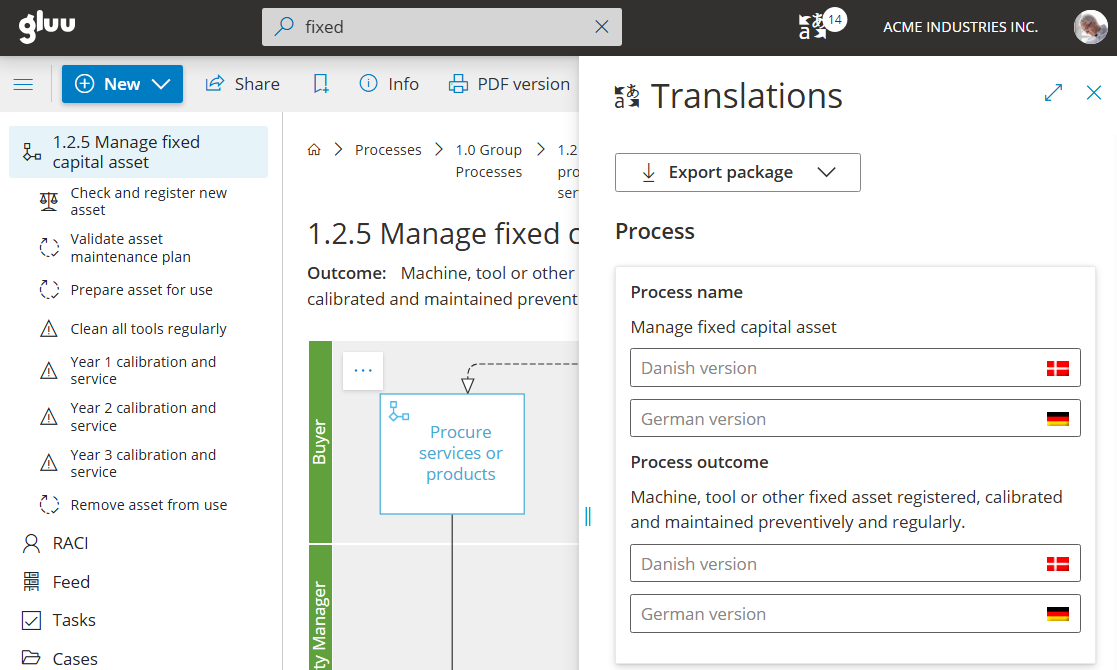
You’re done once users who select this language see the translated process. Confirm this, then proceed with other translations.
Translate a work instruction #
Open the work instruction you want to translate and follow the same steps as above.
“Obsolete” means that the original text has changed since the translation was last saved. Update the translation to reflect the latest master content.
“Translate with AI” lets you translate automatically while preserving formatting:
- Open the translation panel for the work instruction.
- Click Translate with AI.
- Review the AI-generated translation.
- Save to apply or edit before saving.
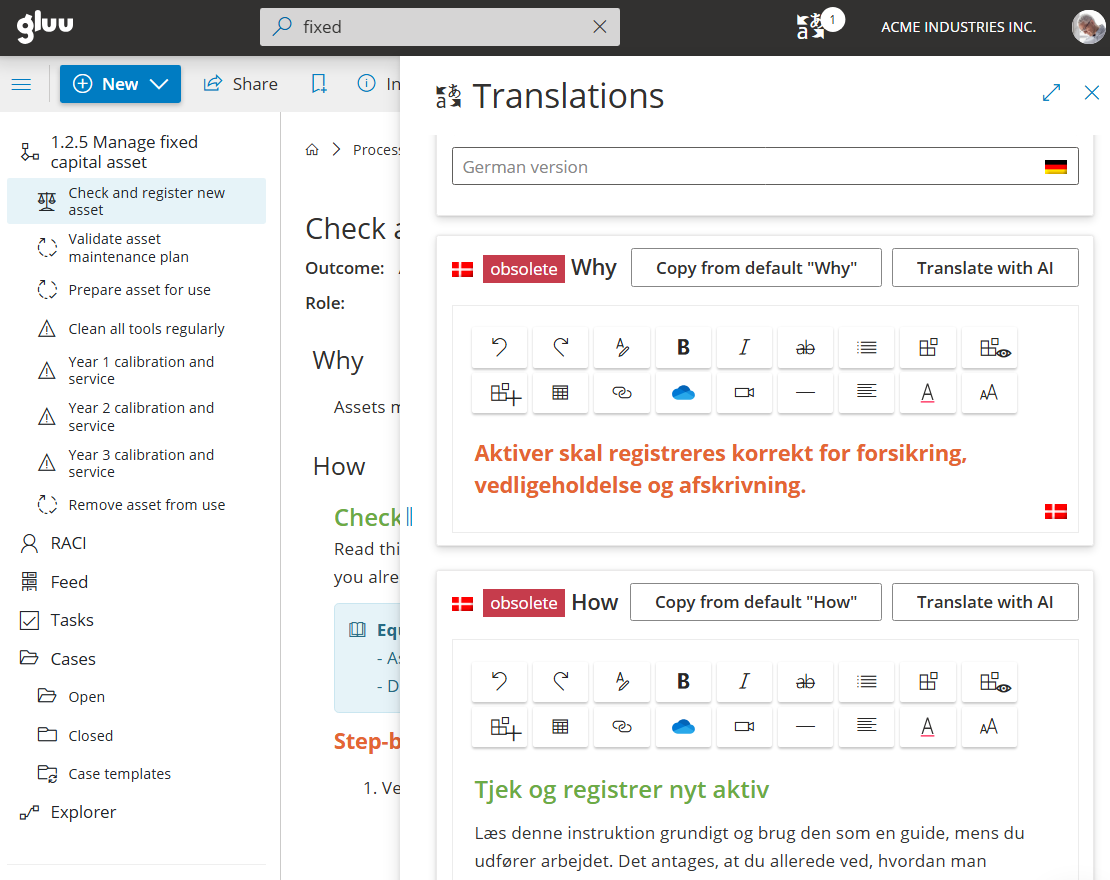
You’re done once you’ve reviewed and saved the translation, whether entered manually or generated with AI.
Translate other items #
The same translation workflow applies to other items in Gluu. Open the relevant page and follow the same steps. Items that support translation include:
- Process names and outcomes (from the process hierarchy page).
- Activity names and outcomes.
- Role names and descriptions (from the Roles page).
- Category and group names (from the process hierarchy).
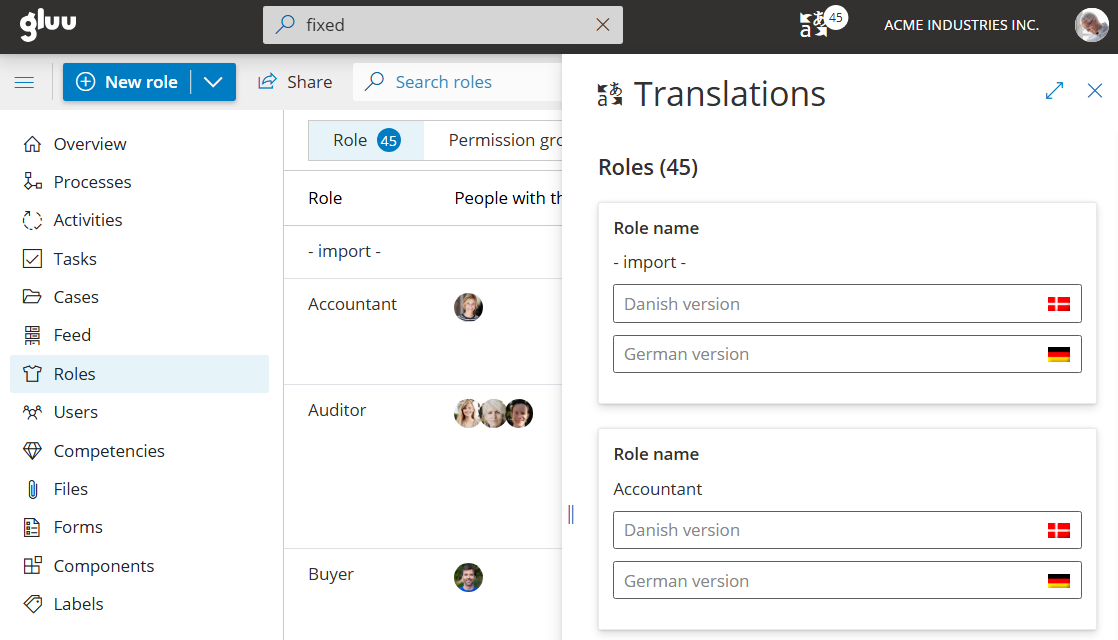
You’re done once the item’s translated text is saved and appears to users with that interface language selected.
FAQ – Localization #
Gluu currently supports English, German, Danish, and Greenlandic as standard languages. Enterprise customers can request additional languages — contact your Gluu representative. The list of available target languages in the translation panel reflects what has been enabled on your account.
No. You translate selectively. Only processes and work instructions that have been translated will show the translated version to users. Untranslated content continues to show in the master language, so you can start with the most critical content and expand over time.
Obsolete means the master language content has been updated since the translation was last saved. The existing translation is still shown to users, but it no longer matches the current master. You should update the translation to reflect the latest changes.
Yes. The Translate with AI option generates a translation automatically while preserving the formatting of the original work instruction. You can review and edit the AI-generated text before saving it. AI translation requires the Localization add-on and uses OpenAI under Enterprise Privacy terms.
Translators need edit access to the activity or the Manage processes permission to enter translated text. View-only users cannot translate. Contact your account administrator to check or update permissions under Account settings > Permission Groups.
No. Translations are stored separately from the master. Entering a translation does not change the master language text, ownership, or version. The master remains the single source of truth, and translations are only shown to users who have selected that language in their interface settings.


