
Goal: Know where to find Account, Process and Activity feeds, understand what each shows, and use them to track versions, changes, comments and suggestions.
In your Gluu account you have 3 types of feeds:
- Account feed
- Process feed
- Activity feed
Before you start #
- Plan: Feeds are available on the Essential plan and above. They are not available on the Core plan.
- Role: Any user with access to a process can view its feeds. Posting a comment or change suggestion needs to be a member, editor, or owner of the process.
- Setup: No special setup—feeds are on by default for every process on Essential and Advanced accounts.
Feed navigation #
- Feeds are shown in chronological order — scroll to the bottom to see the most recent entries.
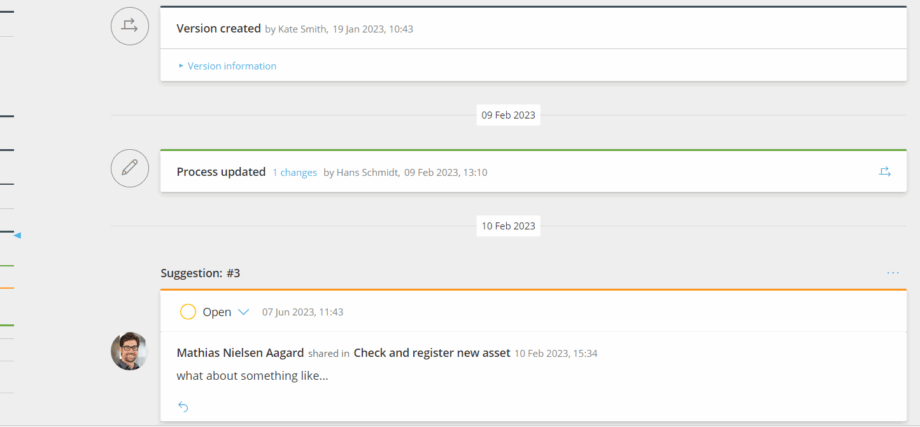
- Identify entry types by ribbon color: dark blue (versions), green (process changes), orange (change suggestions), and no ribbon (comments).
- Use the right-side navigation bar (Account and Process feeds) to jump to versions, changes, or suggestions (same colors as entries).
- Use the filter bar at the top of any feed to narrow by type, user, or date range — useful when a feed has grown large.
Account feed #
The account feed shows versions, comments and change suggestions across all processes where you are owner, editor or member.
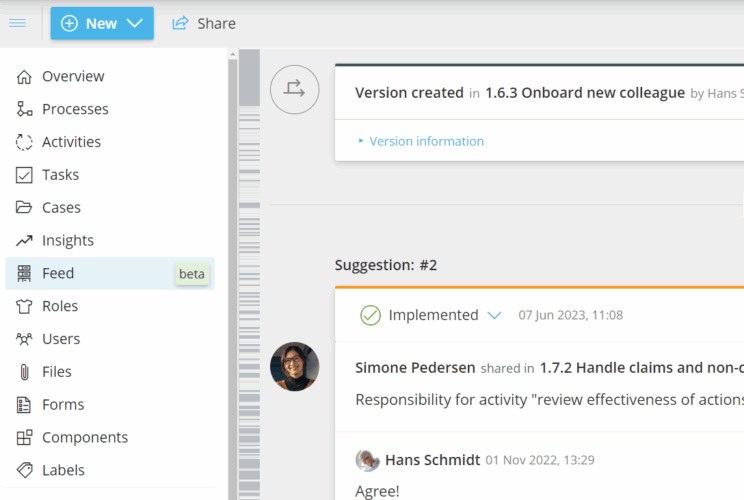
- Open the left-hand menu from the main navigation (outside any specific process page).
- Click Feed.
- Scan versions, comments and change suggestions relevant to you.
Who can post: Members, editors and owners of the processes shown in the feed can post comments and change suggestions.
You’re done once you can see the versions, comments and suggestions relevant to you across your processes.
Process feed #
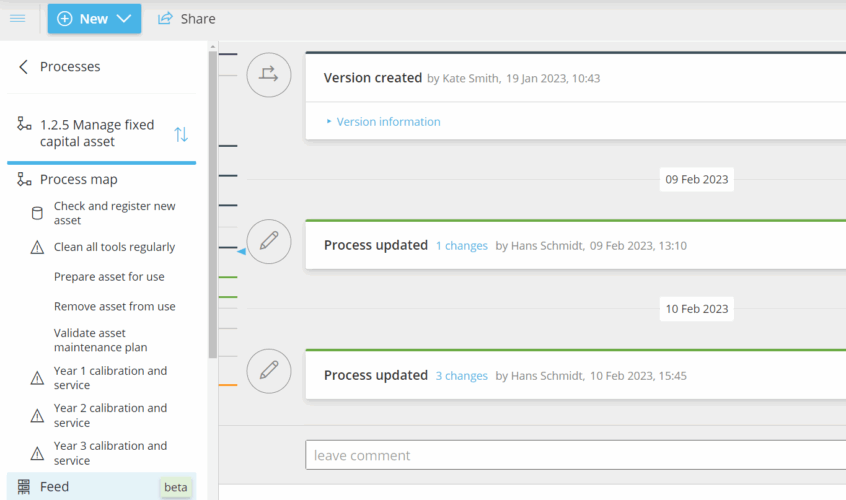
The process feed shows versions, comments, process changes and change suggestions for the specific process you are viewing.
- Open a process page.
- Click Feed in the left-hand menu.
- Review the process’s versions, comments, changes and suggestions.
- Post a new comment or change suggestion (members, editors and owners).
- Reply to existing comments or suggestions to support process improvements.
You’re done once your comment or suggestion is posted and visible in the process feed.
Activity feed #
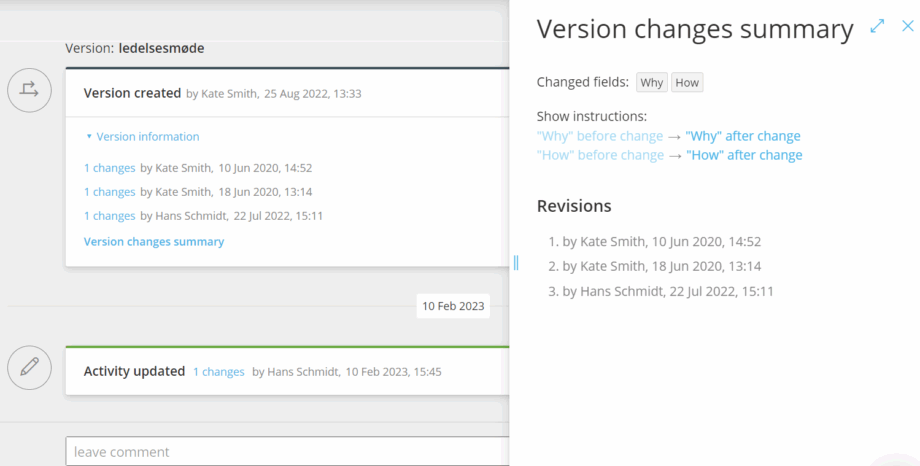
The activity feed shows what happened on a specific activity (changes, who did them, comments and change suggestions).
- Open the activity page.
- Click Feed in the left-hand menu.
- See the most recent changes and who made them.
- Leave a comment or a change suggestion about the work instruction.
TIP! Comments posted in an activity feed also appear in the related process feed.
You’re done once your comment or suggestion is posted—it also appears in the related process feed.
Read more: Manage user comments · Manage change suggestions
FAQ – Activity feed #
Feeds in Gluu are displayed in chronological order, oldest first. This mirrors how a conversation or a change log reads naturally — scroll to the bottom to see the latest activity. The right-side navigation bar lets you jump directly to the most recent version, change, or suggestion without scrolling.
The Account feed aggregates activity across all processes where you are an owner, editor, or member — giving you a personal overview. The Process feed shows everything for one specific process: versions, changes, comments, and suggestions. The Activity feed focuses on a single activity within a process, showing who changed it and any discussion about the work instruction.
Members, editors, and owners of the relevant process can post comments and change suggestions. All users with access to the process can view feed entries. Only editors and owners can hide comments or manage the status of change suggestions.
No. Feeds are available on the Essential plan and above. They are not available on the Core plan.
Yes. Every feed has a filter bar at the top. You can filter by entry type (versions, changes, comments, suggestions), by user, or by date range. This is especially useful on active processes with a long history of comments and suggestions.


