
Goal: Add and organize tasks in activities, set up scheduled (recurring) or case-based tasks, and control notifications and timing.
Tasks are the most concrete, actionable steps in a process. Add them to activities and complete them in the browser or mobile apps. Use checklists to ensure consistency and prevent misses. Gluu has two basic types of tasks:
- Recurring (scheduled): Auto-start on dates/times (e.g., daily sweeping, monthly reporting, quarterly reviews).
- Case-based: Start on demand (e.g. set up a new customer, buy a laptop for a new hire).
Tasks can be created in two ways:
Create tasks with AI #
You can have the Gluu AI Assistant help you by suggesting case-based tasks from the work instruction. This is how.
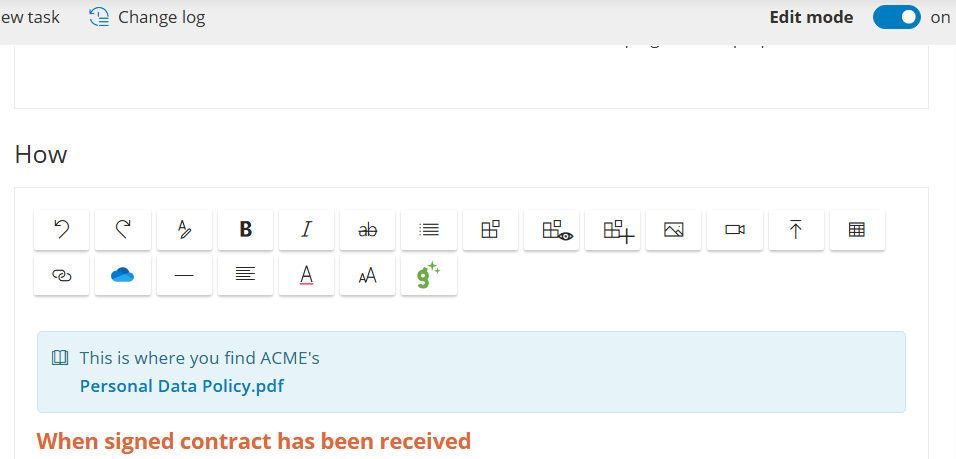
Open a work instruction (activity) and turn on ‘Edit mode’. Then click the green G icon to open the assistant:
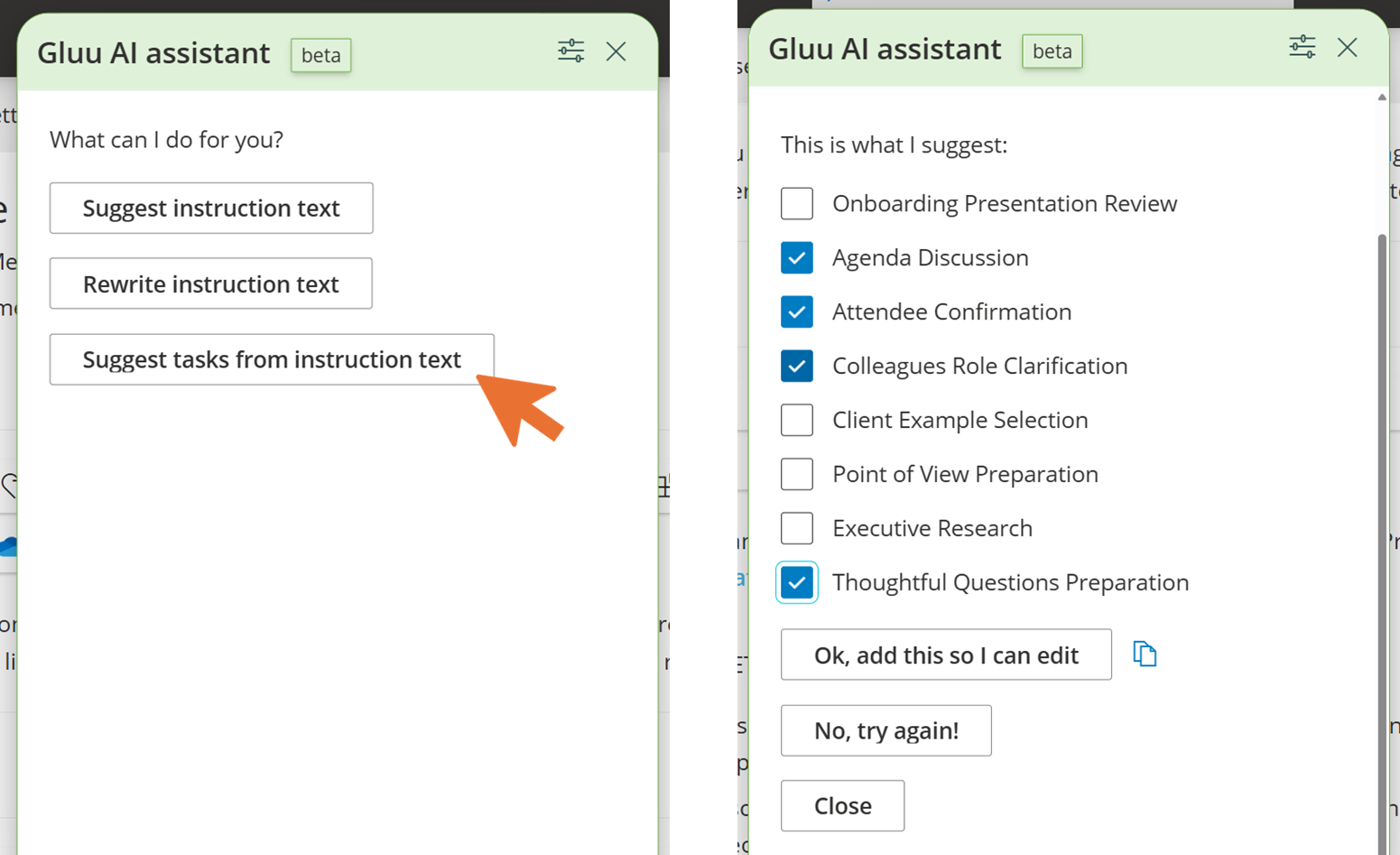
Now click ‘Suggest tasks…’ to produce a list of proposals that you can select and add. You can always edit task names afterwards:
The selected tasks are created automatically in the task manager that is shown at the bottom of the page (when the activity page is in ‘Edit’ mode):
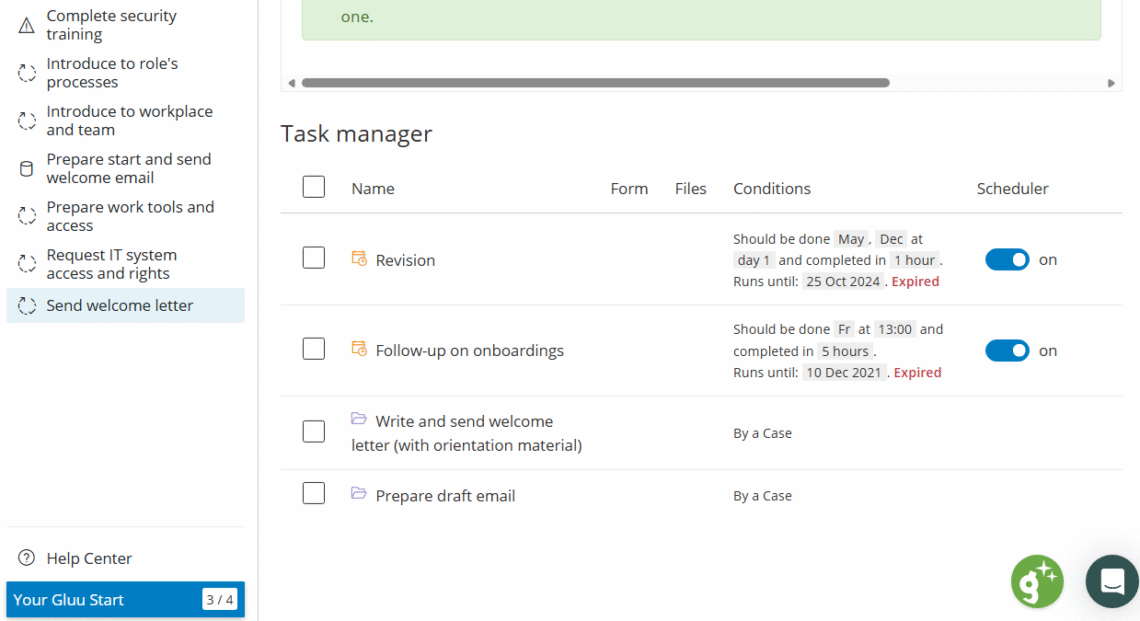
Owners/editors can click tasks to edit and manage. Switch on Edit mode and scroll to the bottom of the activity page to make changes.
More info on work instructions? Create work instructions.
Create tasks manually #
To create tasks manually you can click the button ‘New task’
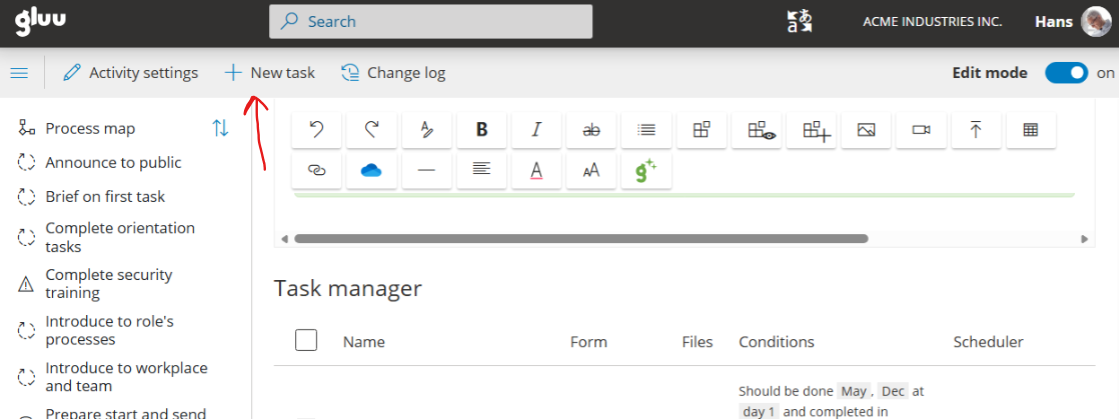
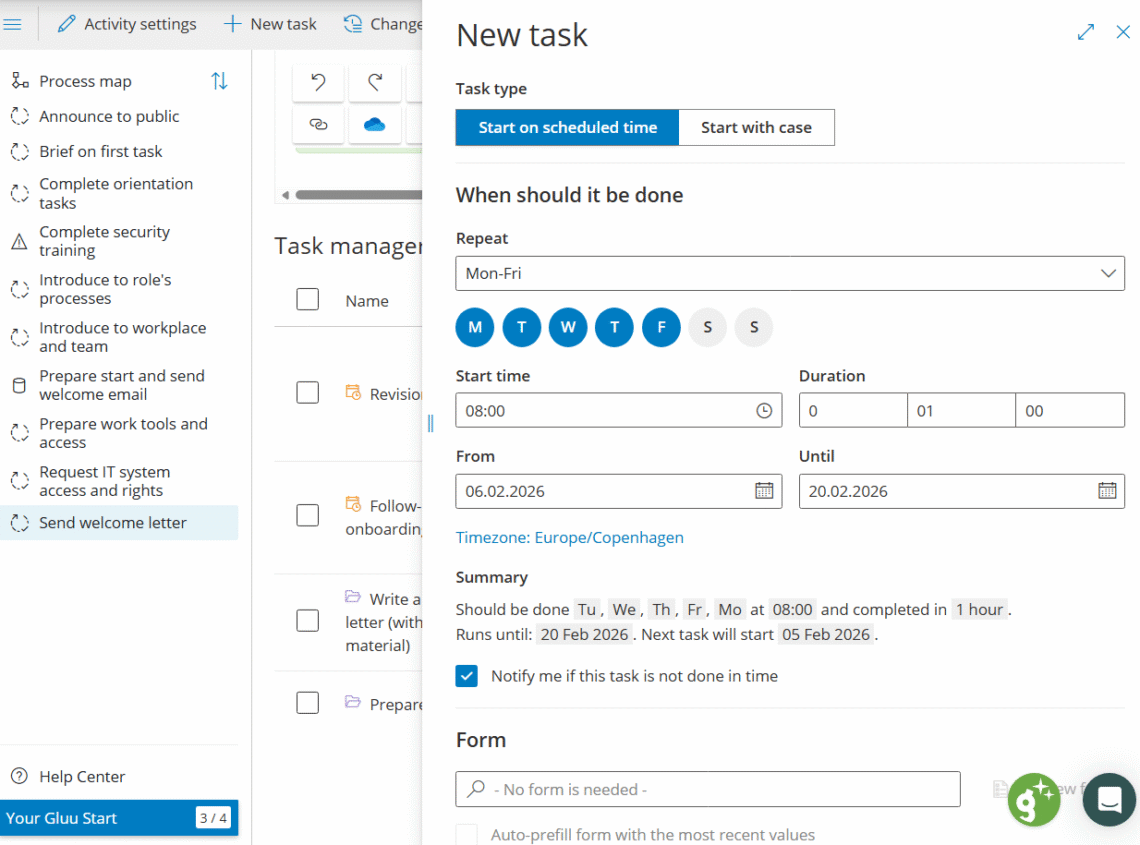
This will open the task menu where you can add a task name and select its type. Case-based tasks are managed inside case templates where scheduled tasks are managed this way:
Add a scheduled (recurring) task #
You create a recurring task by setting the following:
- Enter a clear task title (up to 100 characters). Keep guidance in work instructions, not the title. Select Scheduled.
- Set the recurrence (daily, weekdays, specific days, weekends, or months).
- Set the start time (when users see it, including in the mobile app).
- Set the start day (e.g., “Day 1” for the 1st of the month).
- Set the duration (how long the role has to complete it). Example: start day 1 with duration 4 to require completion by the 5th.
- Configure:
Notifications – email if the task expires without completion.
Period – the active date range for generating tasks.
Timezone – default is yours; adjust if needed.
Forms – attach a mandatory form if users must submit data. - Review the summary and close the guide to create the task.
No overlapping schedules: Avoid overlaps. For a monthly task running all month, start on day 1 and set duration to 28 days.
How users complete tasks on time: Completing tasks at the right time.
Pause/resume tasks #
You can pause any scheduled task to stop generating new instances. Resume to start again.
Any tasks in Gluu (recurring or case-driven) can include forms to capture data. This article explains how to find and retrieve that data for use in analysis or export to other systems.
View an activity’s task log #
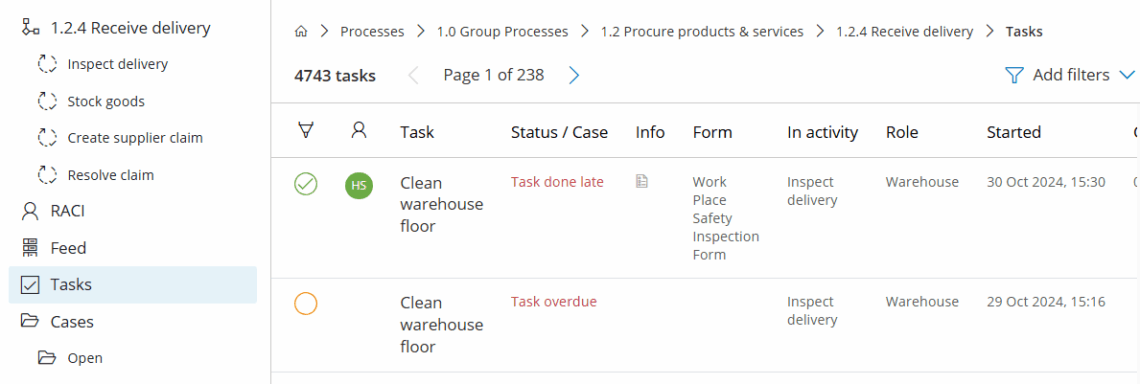
All tasks are recorded—done, late, or not done.
- Open the activity and click Task log.
- Set a date range using the filter, or sorting by column.
- Review results (done, late, not done). You can mark tasks complete if needed.
Note: Save a task log filter to your Work Overview to see exactly the right tasks every time you log in.
Export recurring and case-based task data #
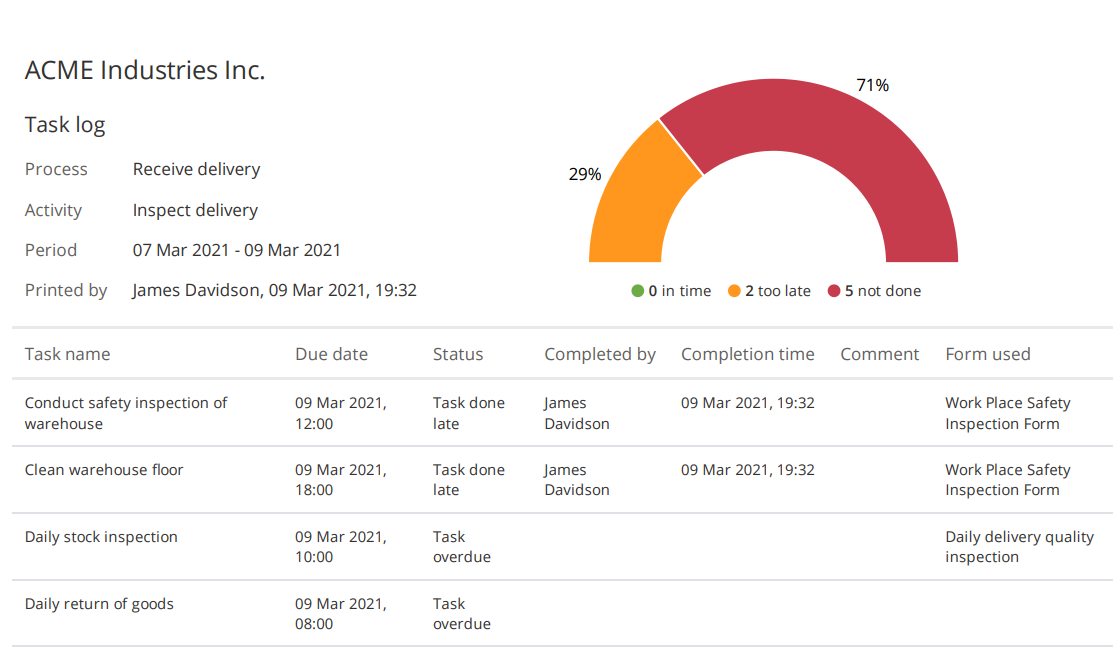
Click Download to export CSV/JSON or choose PDF version to get a report:
Note: The data is also available via API


