
Goal: See where tasks appear, complete them (with forms and files), and track case progress—on web or mobile.
This article is written for regular users that must complete tasks and fill forms in Gluu.
Before you start #
- Plan: Completing tasks and filling forms is available to all users on all plans. Process review tasks require the Versioning add-on.
- Role: No special permission is needed to view or complete your own tasks. Process review tasks can only be created by Process Owners and Editors.
- Setup: No special setup—tasks appear automatically when they’re scheduled or triggered by case logic.
Where to find tasks #
Tasks show to users with the right role at the right time. Case-based tasks can also be assigned to specific users.
You can find your tasks in the following places:
In work overviews #
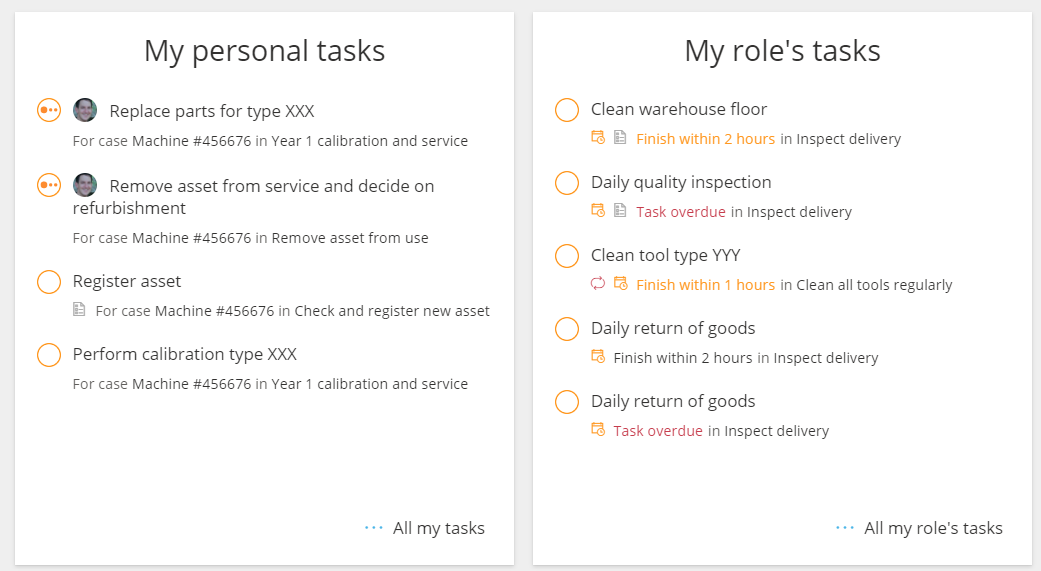
Live scheduled tasks are also highlighted on My overview:
In the left menu #
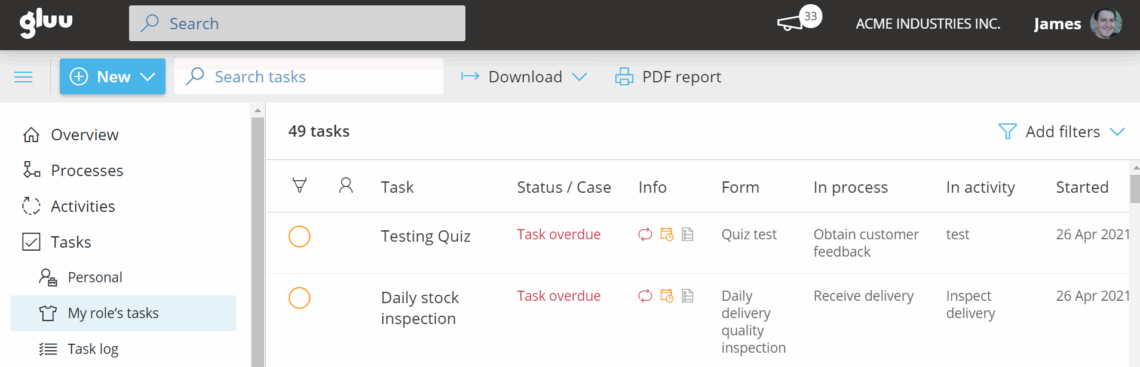
Tasks > My tasks and Tasks > My role’s tasks in the left menu:
In the mobile app #
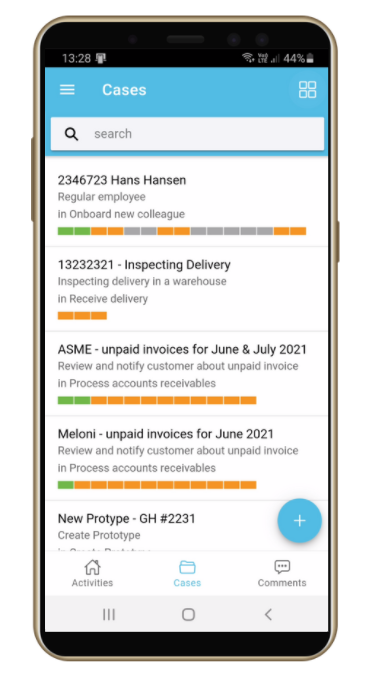
Via Gluu’s Android/iOS apps that let users focus on tasks and work instructions.
See only relevant activities, instructions, tasks, and complete forms directly on mobile. Read Mobile app basics for more information.
In case overviews #
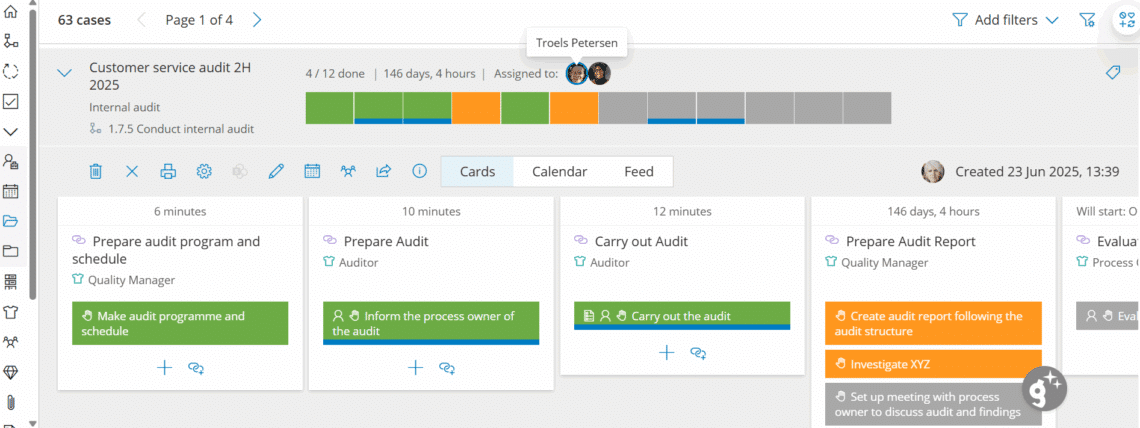
On the case Case overview you will see all cases visible to you. On My overview you’ll see active cases you’re part of (because tasks need your role). Click a case to view:
- Case overview (unfolded): activities and tasks.
- Calendar: time spent. Completed tasks (green) = activation to completion; Open tasks (orange) = time since activation.
- Feed: all comments during the case.
- Avatar: Hover over an avatar to see tasks assigned to that specific user.
Work with tasks #
When a task starts (at its scheduled time or when case logic triggers it) it shows on the list of tasks.
To pick or complete the task:
- Click the task.
- Select the play button to set the task to In progress or click Submit to complete.
- Select Not applicable if needed by clicking the arrow next to Submit.
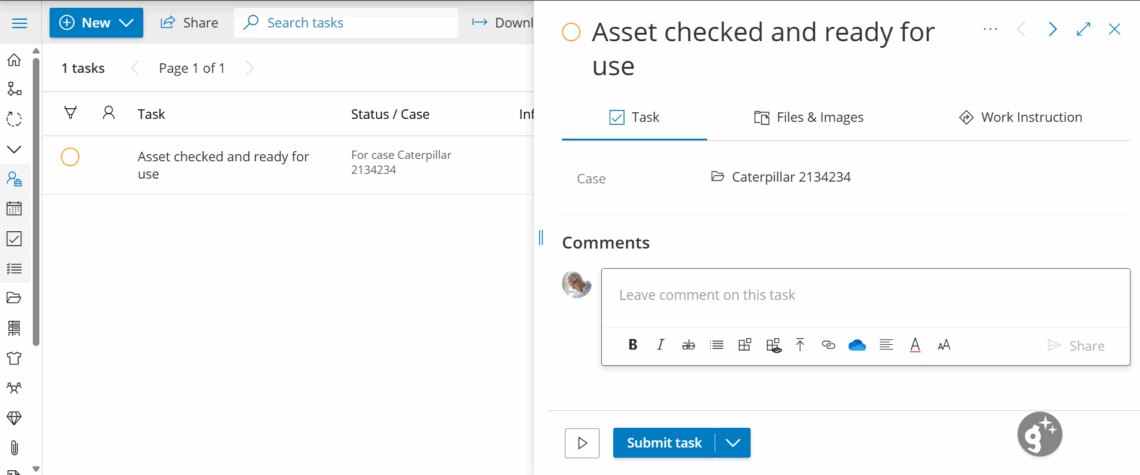
If you choose the play button, the task will automatically be assigned to you and show to others as in progress.
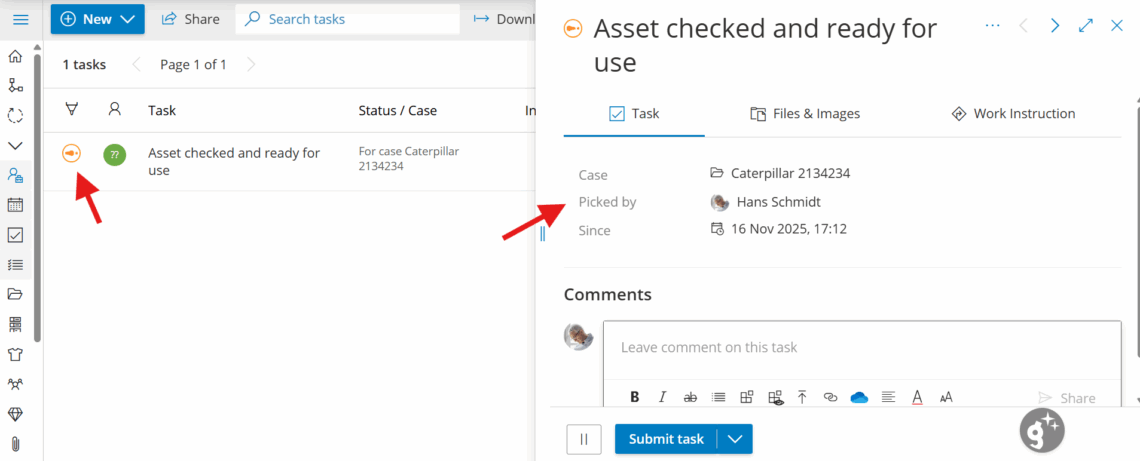
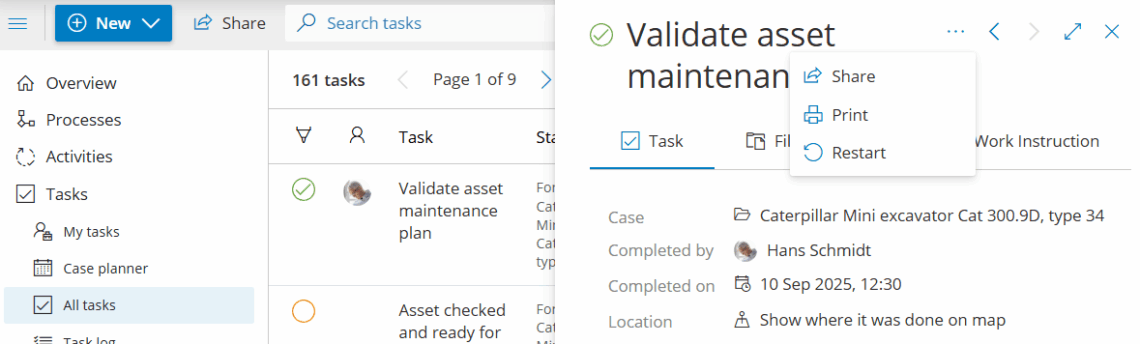
Once completed, clicking the task will show you the details of who finished the task and when. You’re done once the task no longer appears in your open task list.
Restart a completed task #
- Open the completed task.
- Click Restart.
- Update the information.
- Complete the task again.
You’re done once the task shows the updated information and its new completion details.
Attach or remove photos/files #
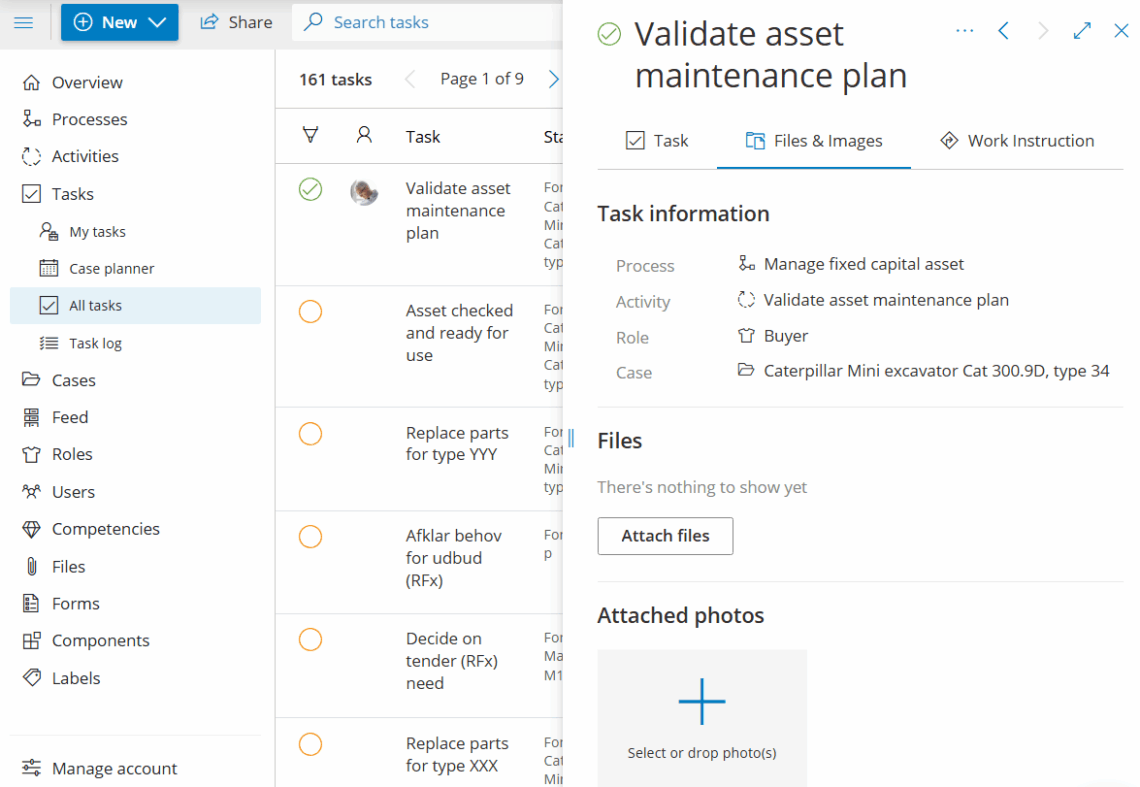
- Open the task > Files and images.
- Click Attach files or Select or drop photos (mobile: choose from library or take photo).
- To remove, click the trash icon on the file/photo or open Attach files and deselect.
- You can add/remove files even after completion.
You’re done once the file or photo appears in the task’s Files and images list.
Photos added during completion appear in case reports. Learn more: Manage recurring and case-based tasks.
Add process review tasks #
Process review tasks require the Versioning add-on. Only Process Owners and Editors can create them.
You can schedule recurring review tasks directly on a process — without leaving Gluu. This is useful for planning and tracking when a process should be reviewed, updated, or approved.
Process review tasks work the same way as tasks on activities: they support forms, files, conditions, and a scheduler.
How to add a process review task #
- Open the process in Gluu.
- Go to the Tasks tab in the left menu.
- Click + Add process review task in the top bar.
- Configure the task — name, form, conditions, and scheduler — as you would on an activity-level task.
- Save the task.
You’re done once the task appears in the process’s task template list.
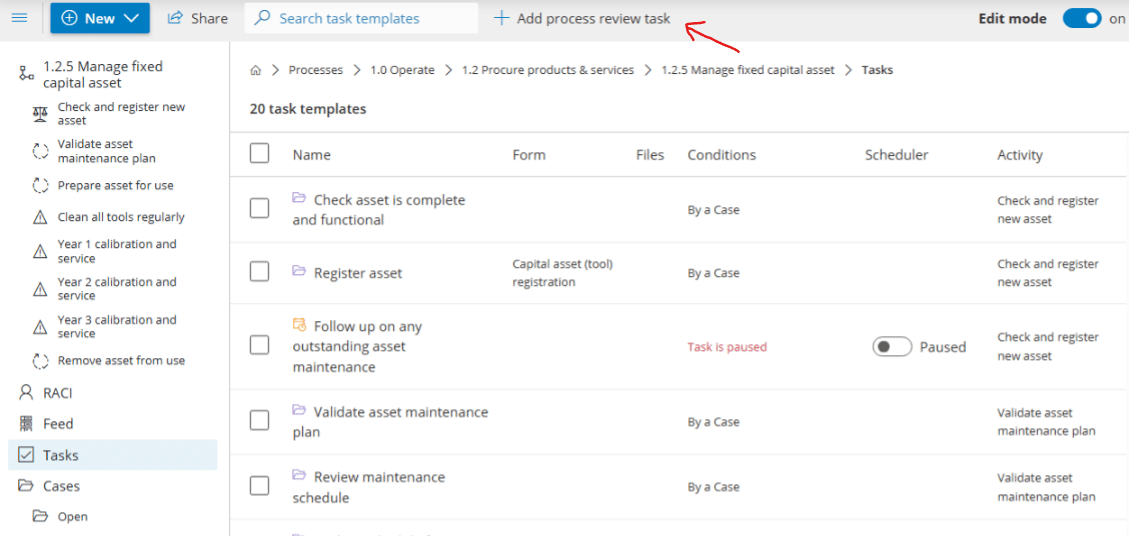
The task will appear in the task template list alongside any existing tasks for that process. Use the Scheduler column to set up recurring review intervals.
Process Owners and Editors can manage all process review tasks. Completion follows the same flow as any other task in Gluu.
FAQ – Using tasks and forms #
Your tasks show up in four places: highlighted on My overview, under Tasks > My tasks and Tasks > My role's tasks in the left menu, in the Gluu mobile app, and inside each case's Case overview.
No. Completing tasks and filling forms is available to all users on all plans, and no special permission is needed—you only need the role a task requires. Adding process review tasks requires the Versioning add-on and is limited to Process Owners and Editors.
The task is automatically assigned to you and set to In progress, and other users see it as in progress until you submit it. If a task doesn't apply, use the arrow next to Submit to mark it Not applicable instead.
Yes. Open the task's Files and images section and choose Select or drop photos on desktop, or choose from your photo library or take a new photo on mobile. Files and photos can be added or removed even after the task is completed.
Yes. Open the completed task, click Restart, update the information, and complete it again. The task keeps a record of who completed it and when for each completion.
A process review task is a recurring task scheduled directly on a process—rather than on an activity—to plan and track when the process should be reviewed, updated, or approved. It supports forms, files, conditions, and a scheduler, and can only be created by Process Owners and Editors on processes with the Versioning add-on.


