
Goal: Customize work overviews in Gluu so each user sees the most relevant tasks, cases, comments and instructions—via presets or a personal overview.
Use presets for common roles, or let users create personal overviews. Combine with Profiles to deliver the right start page for each audience.
Before you start #
- Plan: The Viewer and Process Manager presets work on any plan. The Worker preset shows tasks and cases, which require the Advanced plan. Saving filters to build a personal overview requires the Essential plan or above. Showing form data cards on an overview requires the Advanced plan.
- Role: Account Owners or users with the Manage account permission can edit and create presets. Anyone can build their own Personal overview.
- Setup: No special setup—save filters on the pages you want to track before adding them as cards.
Preset work views #
- Viewer – comments and instructions tied to your roles.
- Worker – tasks and cases you work with. Tasks and cases require the Advanced plan.
- Process Manager – drafts and latest versions.
- Account Owner – governance across hierarchy and owners.
- Personal – build your own overview.
You’re done once you’ve picked the preset that matches your role, or switched to Personal to build your own.
Set a personal overview #
Requires the Essential plan or above (saving filters is not available on Core). Read more: Filtering basics.
Create a personal overview using cards fed by saved filters:
- Open the page with the content you want (Processes, Activities, Tasks, Cases).
- Set filters.
- Save the filters.
- Go to Overview and click Settings.

- Add cards from Saved filters.
- Drag and drop to reorder.
- Uncheck cards to hide.
- Adjust columns (e.g., set a card to three columns for full width).
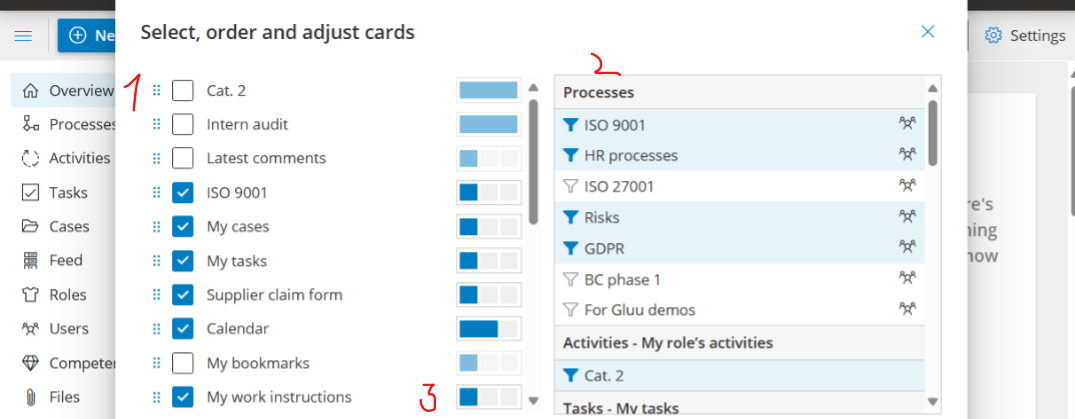
Tip: Add key instructions, bookmarks, and more. Task calendars for specific roles and cases require the Advanced plan.
You’re done once your saved-filter cards appear on your Personal overview in the order and columns you want.
Show selected form data #
Requires the Advanced plan (forms are not available on Core or Essential).
- Go to Overview > Settings and click Add card.
- Select a Form from the list.
- Open the card’s Settings.
- Choose the fields to display.
- Filter on fields to include specific values.
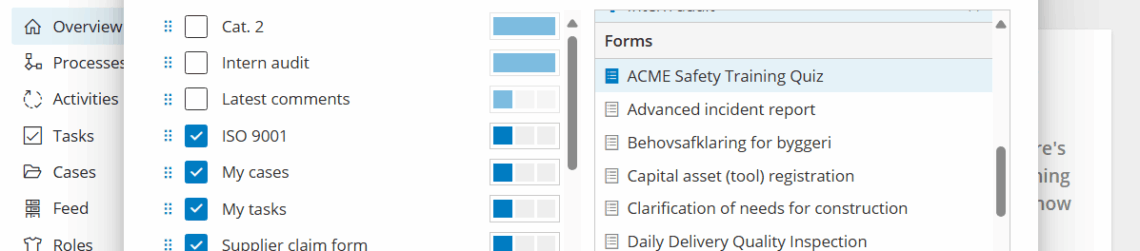
Note: Your Personal overview is private.
You’re done once your form data card shows the fields and filtered values you selected.
Edit or create presets #
Account Owners and users with the Manage account permission can edit and create presets:
- Select the preset.
- Click Settings.
- Modify cards, layout, or filters.
- Save to share with all users.
- (Optional) Disable presets in Account settings.
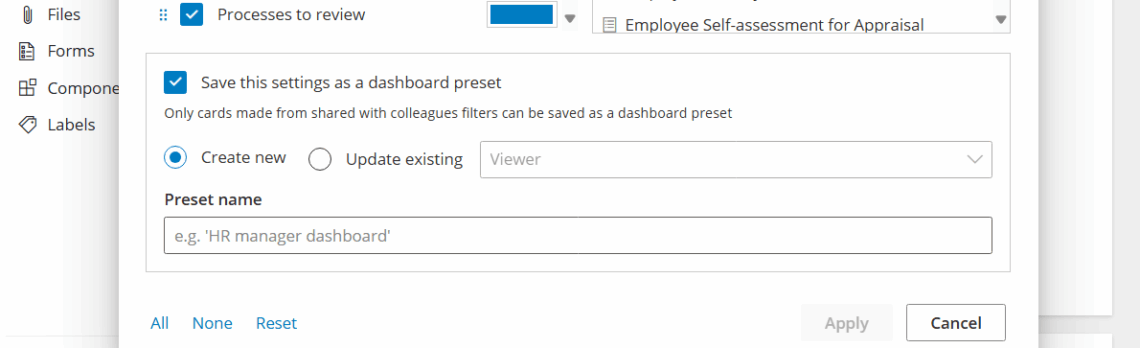
You’re done once the preset reflects the cards and layout you want—changes are visible to everyone using that preset.
FAQ – Customize work overviews #
The Viewer and Process Manager presets work on all plans. The Worker preset shows tasks and cases, which require the Advanced plan — on Core or Essential the Worker preset will appear but show no content. Saving filters to build a personal overview requires the Essential plan or above. Showing form data cards requires the Advanced plan.
No. Each user’s Personal overview is private and visible only to them. Preset overviews (Viewer, Worker, Process Manager, Account Owner) are shared across all users and managed by Account Owners or users with the Manage account permission.
Account Owners and users with the Manage account permission can edit and create presets. Changes to a preset are immediately visible to all users who have that preset selected. Presets can also be disabled entirely from Account settings.
First save a filter on the page with the content you want (Processes, Activities, Tasks, or Cases). Then go to Overview > Settings, click Add card, and select from your Saved filters. You can add multiple cards, reorder them by dragging, hide them by unchecking, and adjust their column width. This requires the Essential plan or above.
A work overview controls what content cards appear on a user’s home page — which tasks, cases, processes, or form data they see. A profile controls which features and navigation items are visible to a user across the whole application. The two work together: use a profile to simplify the interface, and a work overview to surface the most relevant content. See Work with user profiles for how to set up profiles.
Yes, but this requires the Advanced plan. Go to Overview > Settings, click Add card, select a Form, then choose which form fields to display and optionally filter by field values. This is useful for tracking form submissions — for example, showing only open cases for a specific case template.


