
Goal: Share any Gluu page via link or QR code, create sheets of QR codes, scan with the mobile app, and keep access secure.
Gluu is built to ‘make it easier to work the right way, than the wrong way’. One small part of this is to make ‘the right way’ (standard work) easy to find and access. This is where QR codes come in. Process owners can use them to…
- make processes or work instructions easy to access from mobile phones.
- print labels and stick them on physical objects.
- automaticallty start cases by scanning a code.
For a full overview of sharing options read: Share and roll out a process
Find a QR code #
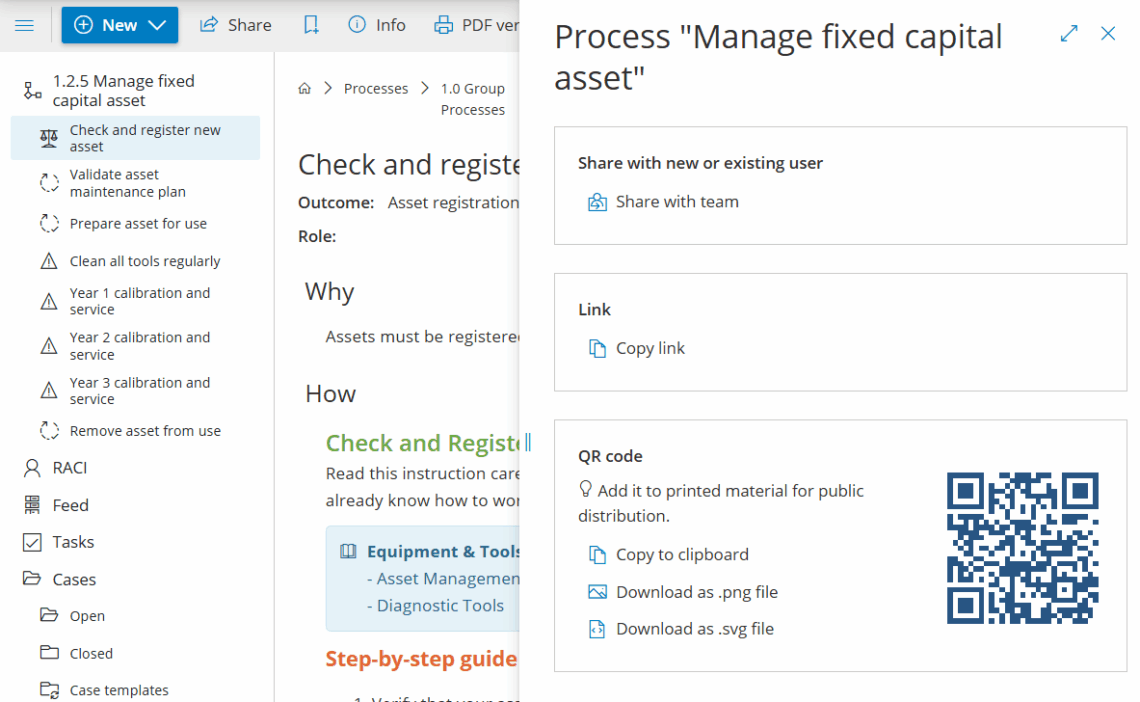
- Click Share (upper left) on any process or activity page.
- Copy the code to clipboard, or download it:
Print labels with QR codes #
You can generate multiple QR codes at once from these pages:
- Processes → Show lists
- Activities → My role’s activities
- Activities → All activities
- Filter to the processes/activities you need.
- Click QR codes to download a PDF.

This format is made for easy label printing (8 labels from an A4 page):
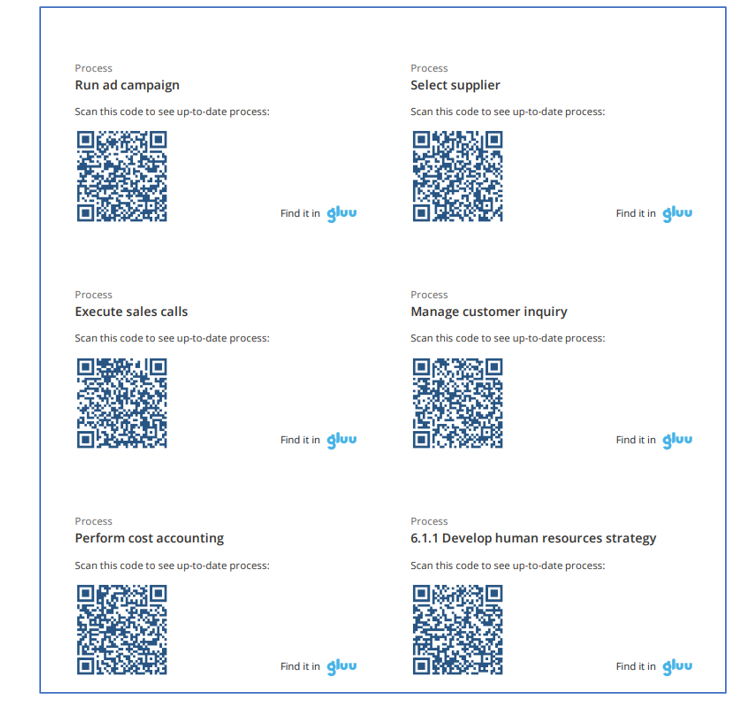
Print labels and stick them on physical objects for easy access to the relevant process.
Scan and view via mobile app #
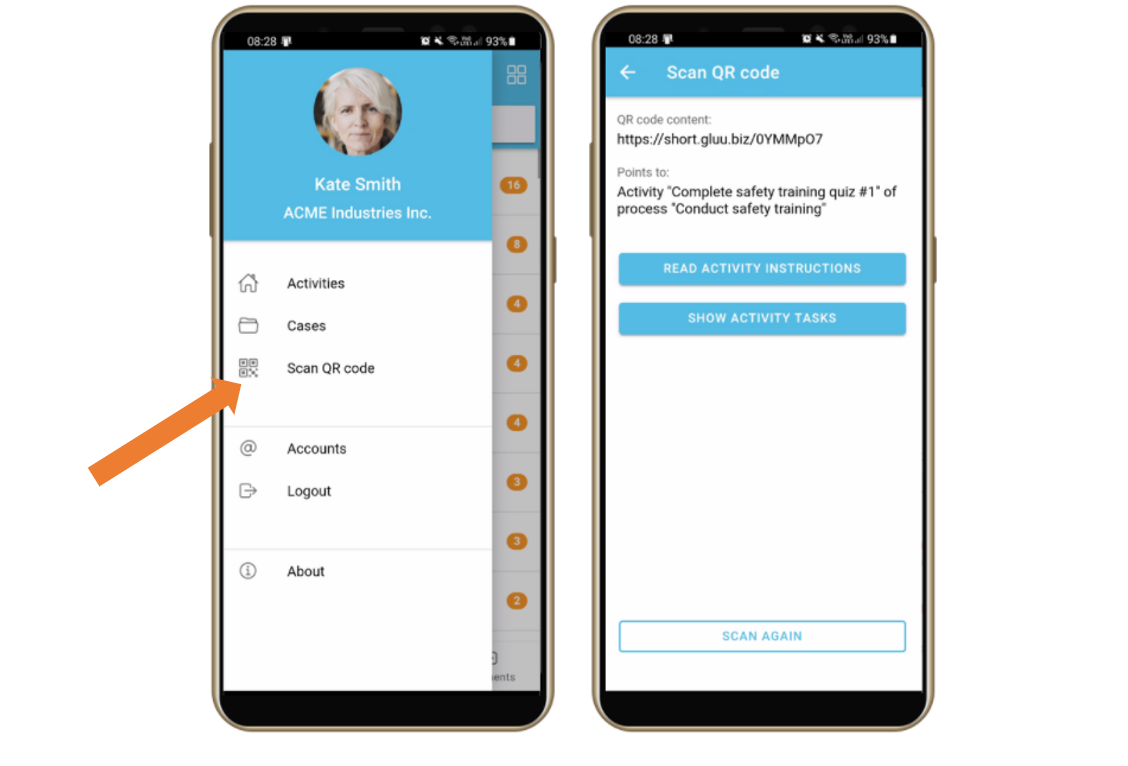
- Open the app menu (three lines in the upper left).
- Use the built-in QR scanner to scan codes.
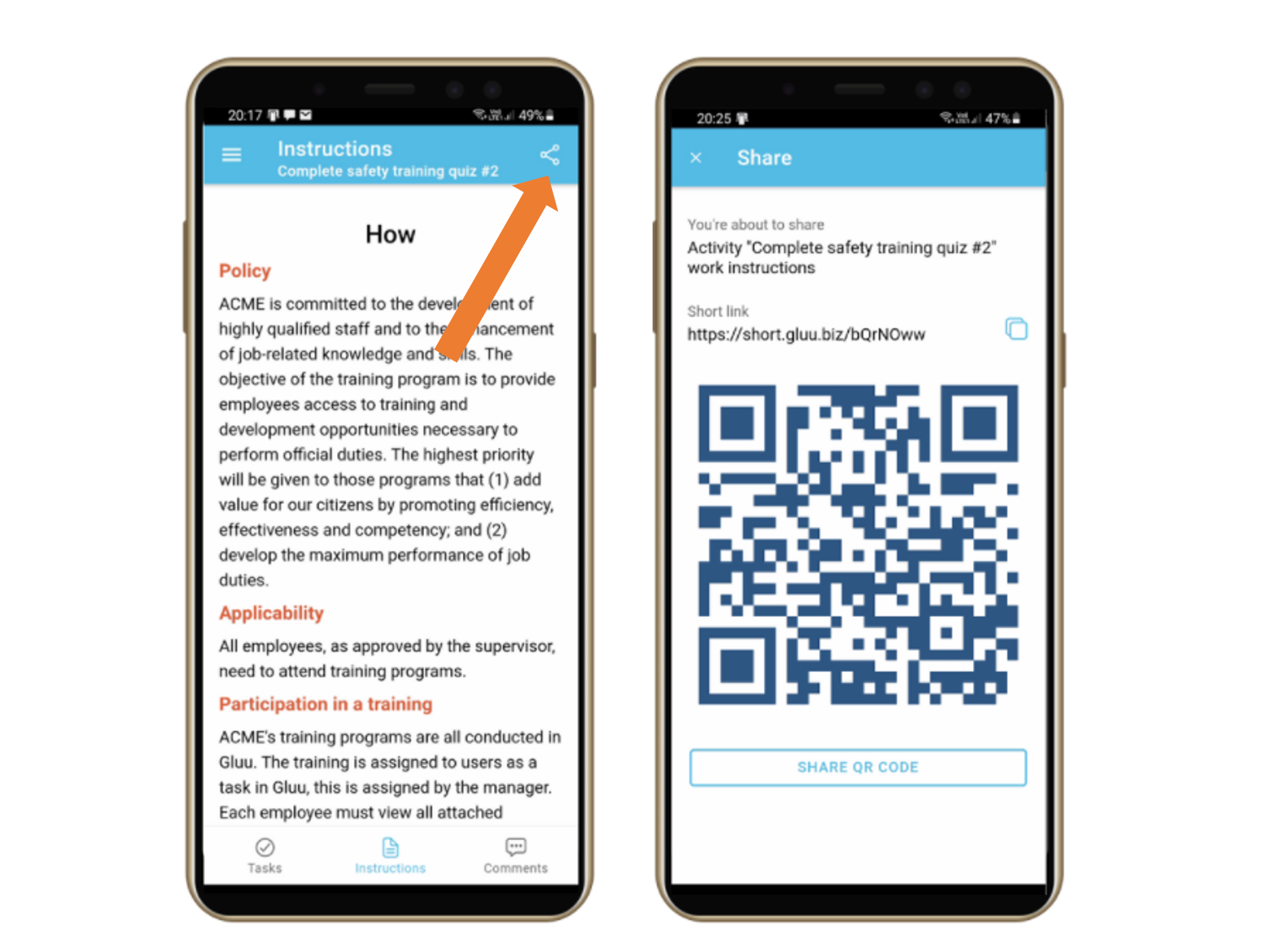
- To share a work instruction as a QR code, open the page and tap the Share icon.
User can also share with colleagues directly from the app:
Security when sharing #
- We check if the recipient is authorized in Gluu.
- If authorized and permitted, they go straight to the page.
- If not logged in, they’re asked to sign in, then redirected if they have access.
- If they lack access rights, the page won’t open.


