
Goal: Use labels in Gluu to create cross-process collections that make training, auditing and reporting fast and consistent.
Gluu offers several ways to organise and find your processes, procedures and work instructions:
- Process hierarchy – organise by business function or area.
- Process collection – group related processes in a diagram.
- Set special activity types – highlight an activity as a Control, Risk, System, Document or Customer TouchPoint.
- Use labels – create special collections across processes, activities and comments (this article).
Labels – similar to tags – let you collect information that spans your process hierarchy and activity types. Examples: GDPR, ISO 9001 or ISO 27001 labels to highlight everything that supports compliance.
This helps you quickly find the right information for training, auditing or management reporting.
TIP! You can also use custom fields to collect meta-data on processes, activities and users.
Before you start #
- Plan: Labels require the Essential plan or above—they are not available on Core.
- Role: Only the Account Owner or an Administrator can create labels for the account. Process owners and editors can label processes and activities; all users can label comments.
- Setup: No special setup—create your first set of labels from the Labels menu before asking editors to apply them.
1. Create labels for the account #
First create a set of labels for your account. Then process owners and editors can label their processes and activities. All users can label comments. Anyone can filter by a label or click a label to see everything associated with it.
(You must be the Account Owner or Administrator.)
- Click Labels in the left menu.
- Turn on Edit mode.
- Click New to add a label.
- Edit label names and colours, then click Save.
After you click Save, the labels are available to all users.
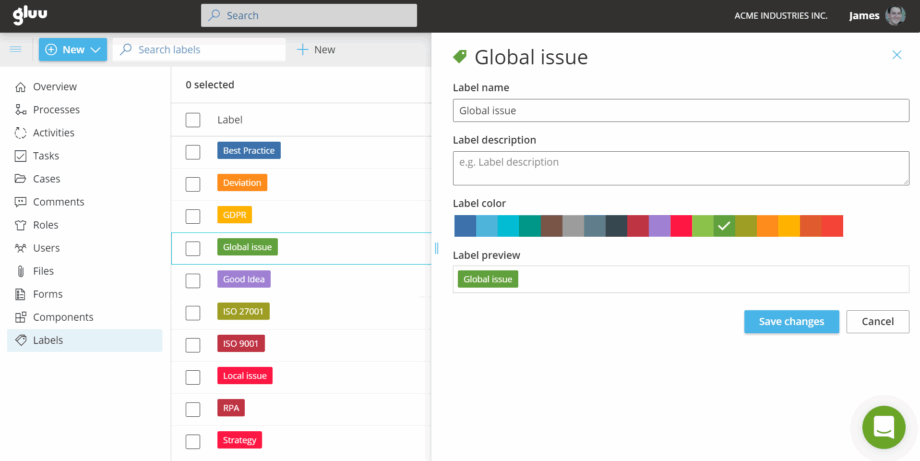
Users can now add labels to processes, work instructions and comments.
You’re done once your labels are saved and visible to all users on the account.
2. Add labels #
(You must have edit rights to the process or activity.)
- Go to the process or activity you want to label.
- Turn on Edit mode.
- Click the Label button to see available labels.
- Select one or more labels.
- Filter or click the label later to see related items.
Note: You can also label comments.
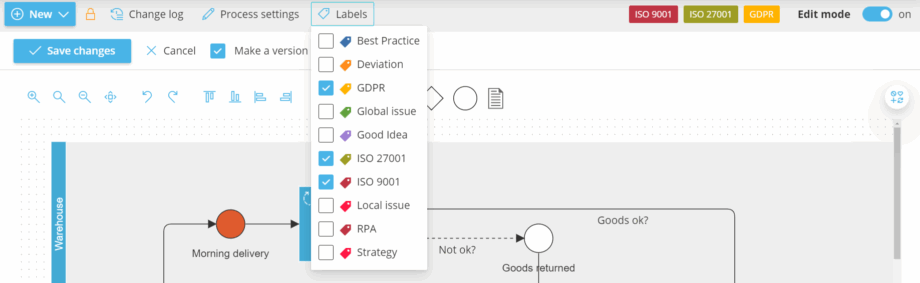
You’re done once the label appears on the process, activity, or comment and can be filtered on.
3. Show labeled information #
(Available to all users with access to the process.)
- Click a label to open a panel with all items that have this label (processes, activities and comments).
- Click any item to open it.
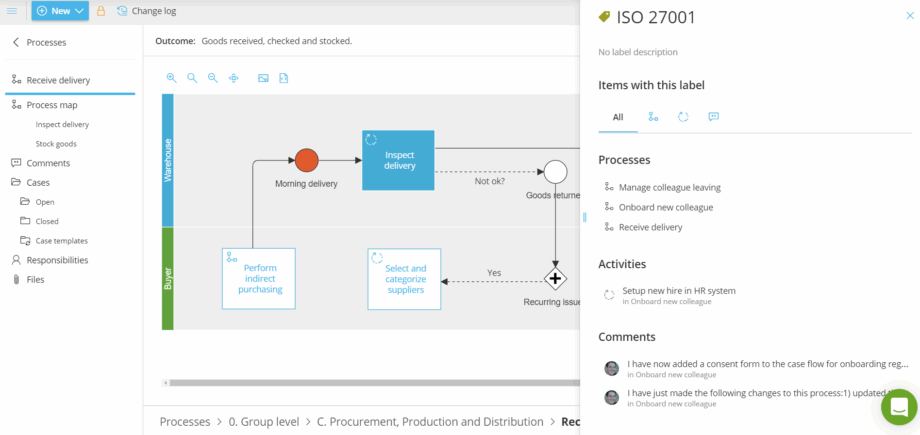
TIP! From the Processes and Activities pages, you can also filter by label to list all marked items.
You’re done once clicking the label shows every process, activity, and comment that carries it.
FAQ – Use labels to organise #
Labels require the Essential plan or above. They are not available on the Core plan.
Only the Account Owner or an Administrator can create the set of labels available across the account. Once created, process owners and editors can apply labels to processes and activities, and any user can label a comment.
Process hierarchy organizes processes by business function or area, and process collections group related processes in a diagram—both are fixed, single structures. Labels work across all of that: you can tag processes, activities, and comments from anywhere in the hierarchy with the same label, creating a flexible cross-cutting collection like everything supporting ISO 27001.
Yes. You can add labels to processes, activities, work instructions, and comments. Anyone with access can then click a label or filter by it to see everything tagged with it in one place.
Click the label itself to open a panel listing every item that carries it—processes, activities, and comments together. You can also filter by label from the Processes and Activities pages to list all marked items.
Labels are best for creating a findable, clickable collection across your account—like everything supporting GDPR or ISO 9001. Custom fields are better for collecting structured metadata on processes, activities, and users, such as values you'd want to filter, sort, or report on individually.


