Goal: Communicate changes, notify the right users, and create printable PDF versions for processes and activities.
Aside from users logging in and searching or filtering processes, you can share a process, or a specific activity, by using the ‘Share’ function or creating a ‘PDF version.’
Share process #
Go to the process and click ‘Share’ in the top menu to open the sharing menu. Here you can choose to copy elements for reuse in other media.
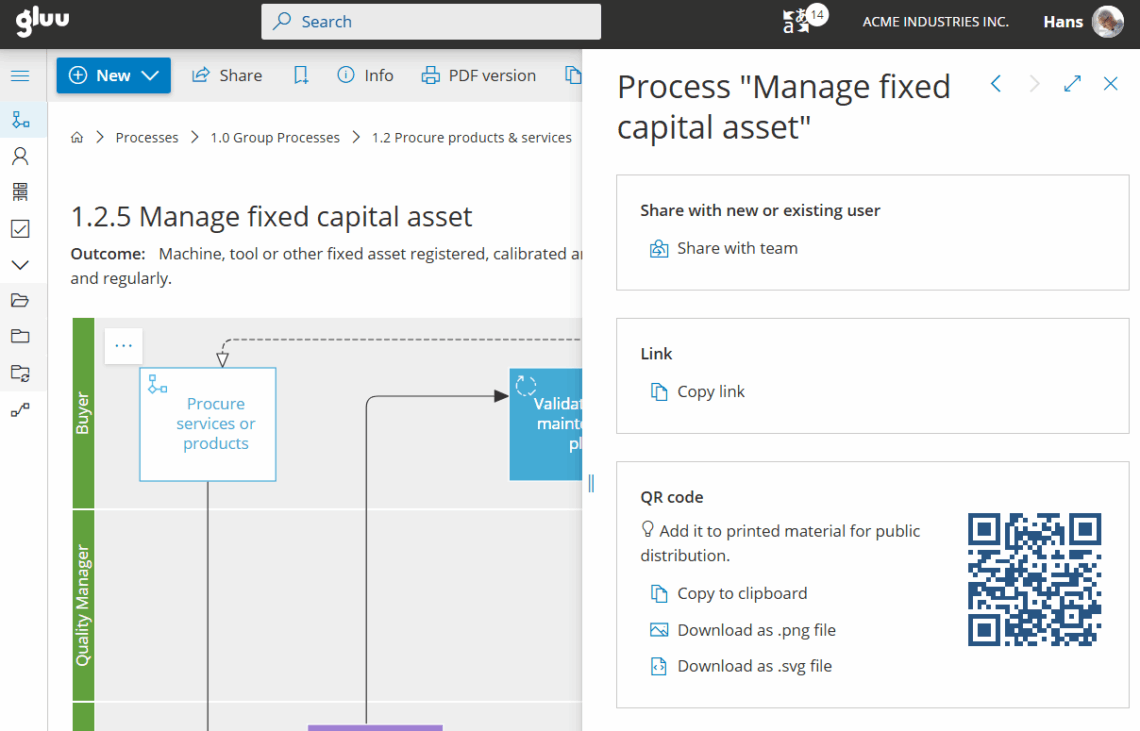
Or you can open the ‘Share with team’ wizard that will let you send emails to existing or new users – while even assigning roles to people that are not yet part of the process.
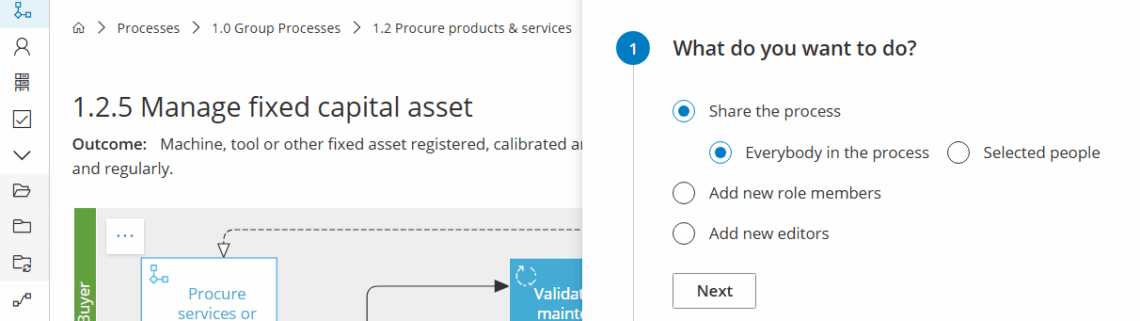
Share with existing role members #
You can choose if you want to share the process with existing team members, or selected people only:
Share with new role members #
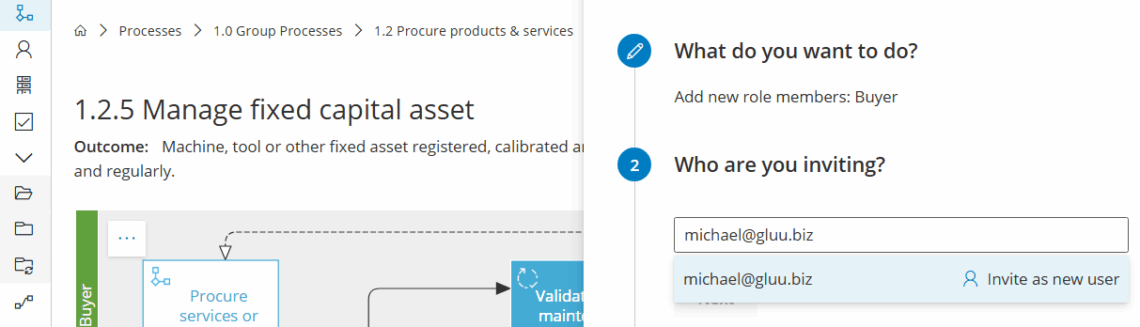
You can also add new users to roles in the process (or editors in general), while notifying them in a single flow:
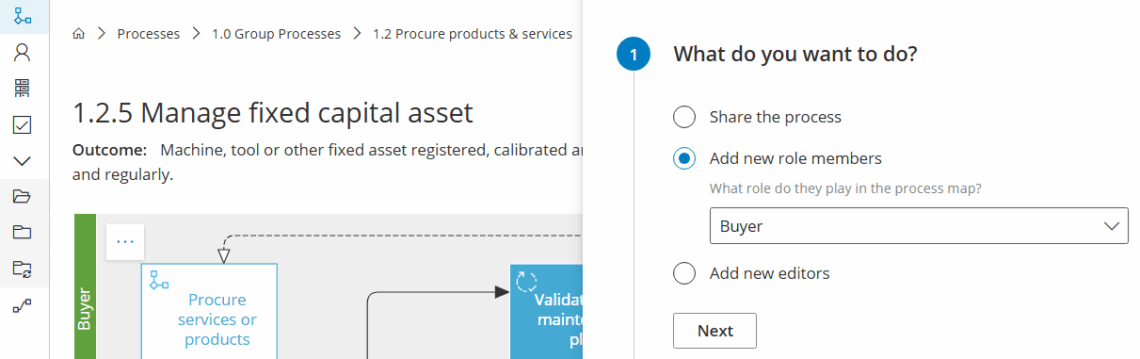
This will let you search among existing users OR
you can add emails for outside users and invite them into the specific process.
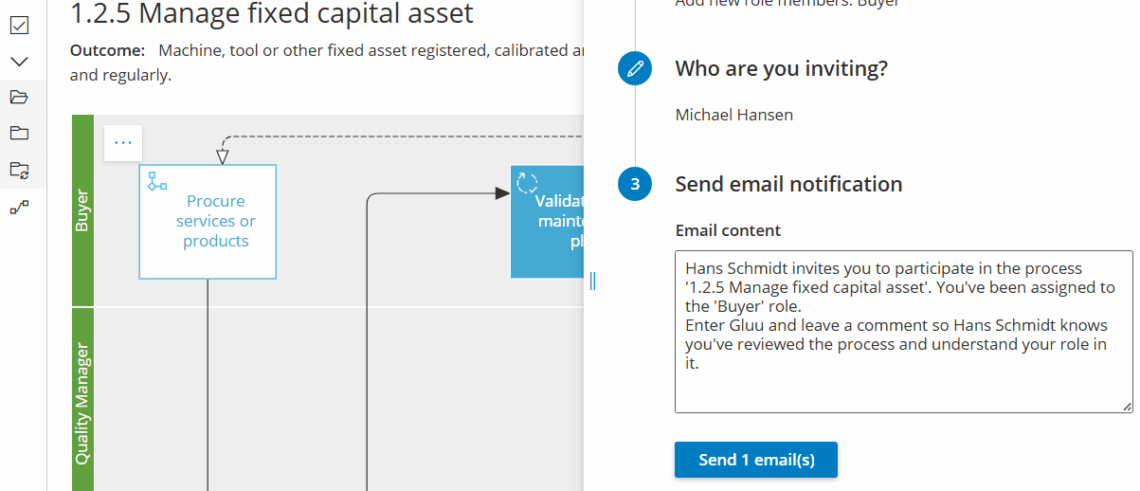
Send out emails #
The final step builds a standard email that can be edited.
Click ‘Send emails’ to invite users to use your process:
PDF builder #
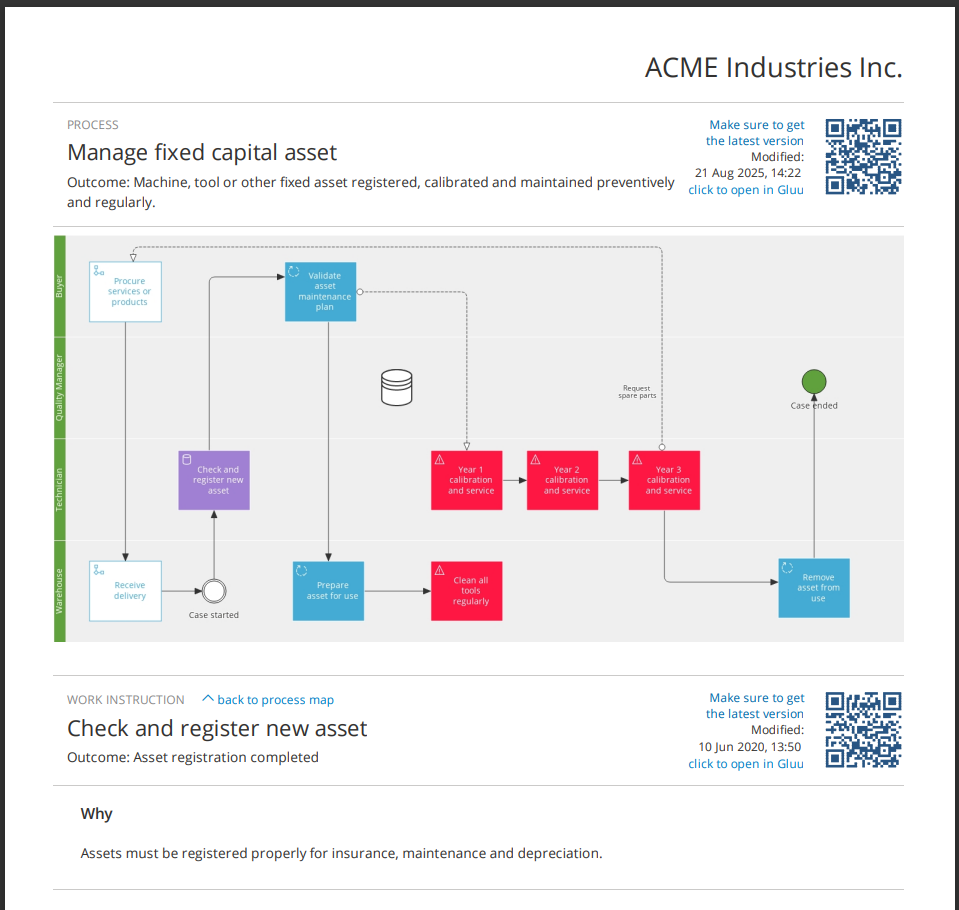
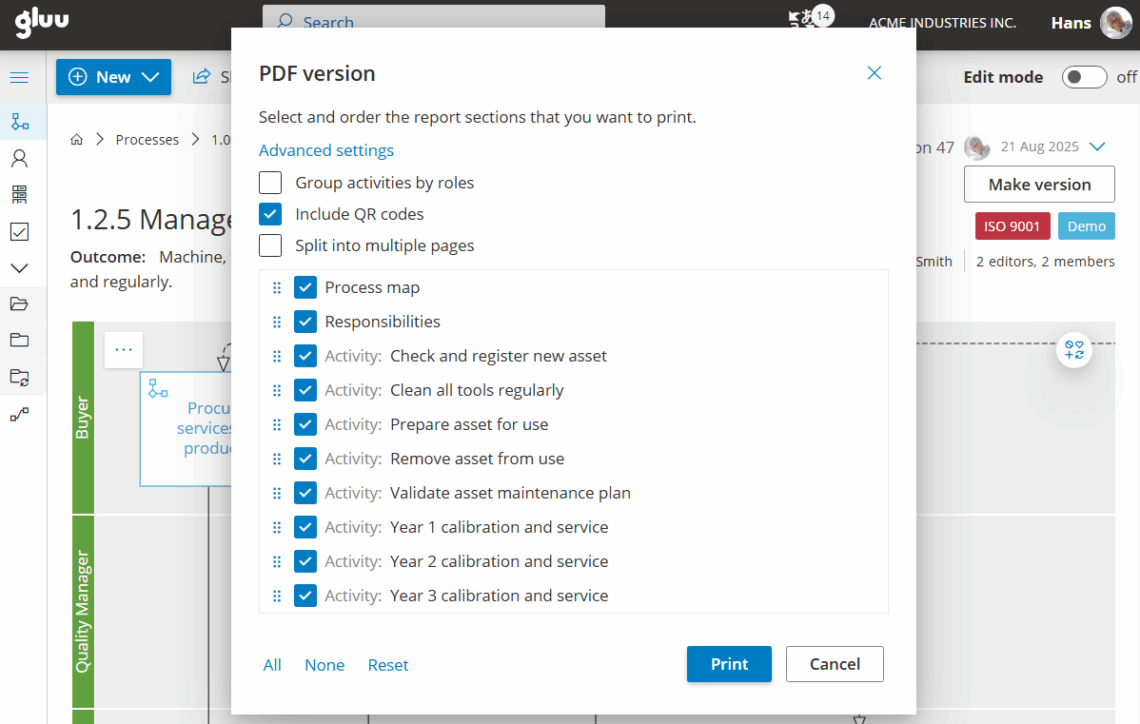
With Gluu’s ‘Advanced’ plan you can create PDF versions for processes that require offline usage, e.g. as backup. To create a PDF you can use the PDF builder:
- Click “PDF version”.
- Select the elements you wish to include.
- Drag to arrange section order.
- Click “Print” to download a ready PDF.
Click ‘Advanced settings’ to group activities by roles (e.g. for onboarding material), or to split the PDF into separate pages so each activity has its own page. You can also include QR codes to make it easy to redirect people to the updated online version:
The report shows chosen sections and includes time/user stamps and QR codes for quick access.
PDF example: