
Goal: Collect questions, ideas and issues directly in context, notify the right people, and keep every discussion searchable.
With Gluu’s comment widget, questions and suggestions are added where work happens, so readers have the right context. This is alll visible via the activity feed.
Example: A technician running “Lubricate machine” adds a faster method as a comment. Other technicians react, and the process owner later reviews improvement ideas.
Before you start #
- Plan: Commenting on processes and activities requires the Essential plan or above—it is not available on Core.
- Role: Any user following a process can add a comment. Only Editors and Owners can hide comments.
- Setup: No special setup—comments are available on any activity by default.
Add a comment #
- Click on any activity in a process. This opens options to comment.
- Type your comment. (You can add files and links.)
- Click Share. (You can always delete it)
The toolbar gives you options to format your comment so you can e.g. prepare work instruction parts for insertion by editors.
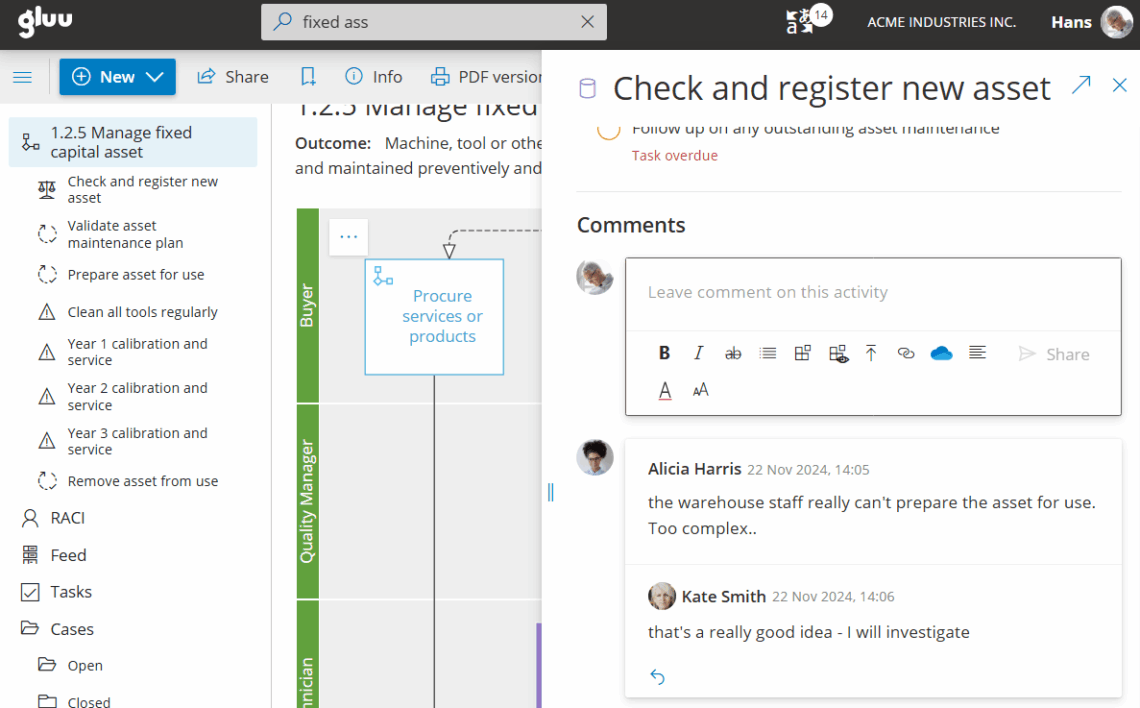
You’re done once your comment is shared and visible in the activity’s feed.
Related: turn comments into change suggestions.
View comments #
Your comment is shared with people following the process: the owner, editors, and users in the responsible role for the activity.
- They see it on My overview.
- They get it in activity update emails (manage notifications).
- They can click the activity link to reply or mark Agree/Disagree.
All comments are stored and searchable, so you can always find issues, ideas, questions, and answers in context.
Filter comments #
- Open the activity’s ‘Feed’.
- Set filter values and data range.
- Click ‘Apply’ to show results.
This makes it easier for editors and owners to manage comments and change suggestions – without having to use email.
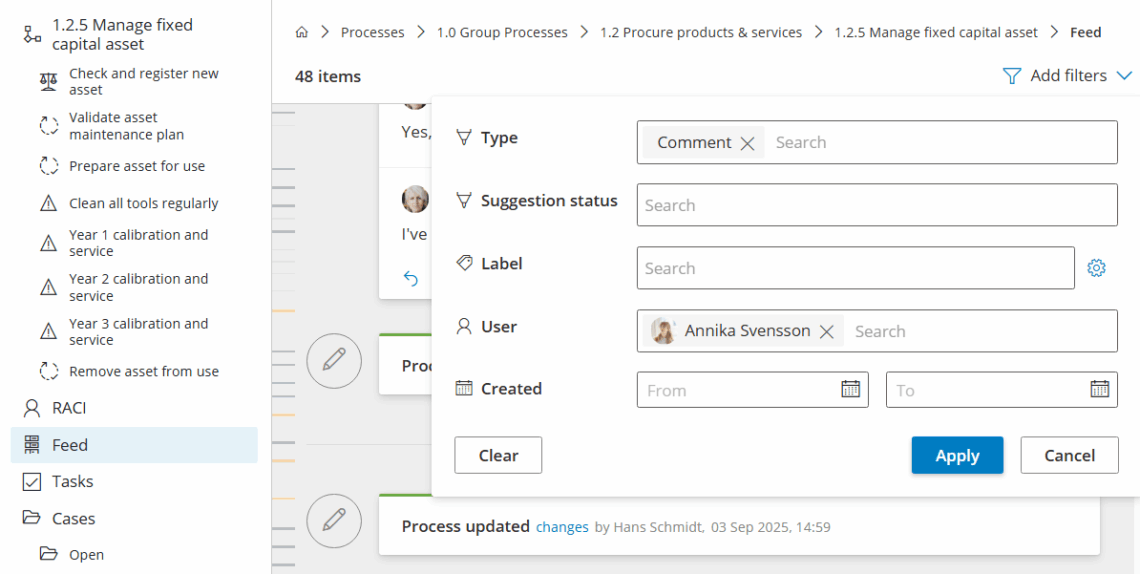
You’re done once the feed shows only the comments that match your filter and date range.
Hide comments #
Editors and Owners can hide comments. This way they are not visible to other users than editors and administrators.
Hiding comments is useful for anything that is only relevant to a small group of editors. A process’ comment feed can then consist of relevant questions and answers.
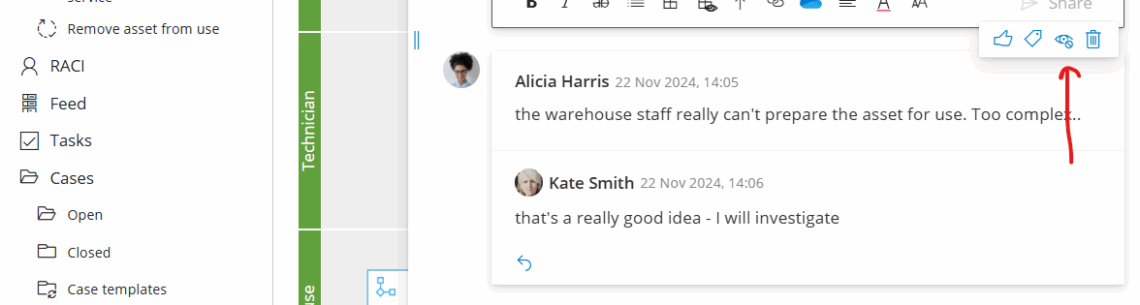
You’re done once the comment is hidden and no longer visible to users outside editors and administrators.
FAQ – Manage user comments #
Commenting requires the Essential plan or above. It is not available on the Core plan.
Your comment is shared with everyone following the process: the process owner, editors, and users in the responsible role for that activity. They see it on their My overview and can receive activity update emails.
Yes. Any comment can be converted into a change suggestion, which carries it through a review and approval life cycle rather than staying as informal discussion.
Open the activity's Feed, set filter values and a date range, and click Apply. All comments are stored and searchable, so editors and owners can manage discussions without relying on email.
Editors and Owners can hide comments. A hidden comment is no longer visible to other users—only editors and administrators can still see it. This is useful for keeping a process's feed focused on questions relevant to everyone.
Yes. The comment toolbar lets you add files and links, and format text—useful for drafting work instruction content that an editor can later insert directly into the process.


