
Goal: Move ideas from comment, to change suggestion to implemented version—discuss, approve, implement, and publish with full history.
Version management can start with a change suggestion and flow through discussion, status, implementation, and versioning.
Related: capture ideas via comments. For full versioning, see How to handle versioning in Gluu.
Before you start #
- Plan: Commenting and change suggestions are available on the Essential and Advanced plans. The customizable approval flow and advanced version management described here require the Versioning add-on.
- Role: Any user can add a comment or change suggestion. Editors and Owners can set status, implement suggestions, and create versions.
- Setup: No special setup—the Versioning add-on must be enabled on the account to unlock the approval flow described in step 2.
1. Submit a change suggestion #
Any user comment can be turned into a change suggestion – and vice versa.
- Open the process or activity.
- Add a comment or start a change suggestion.
- Convert between comment and change suggestion if needed.
Tip: Comments and change suggestions can be filtered for easy findability.

You’re done once your idea is captured as a comment or change suggestion, ready for discussion.
2. Review and set status #
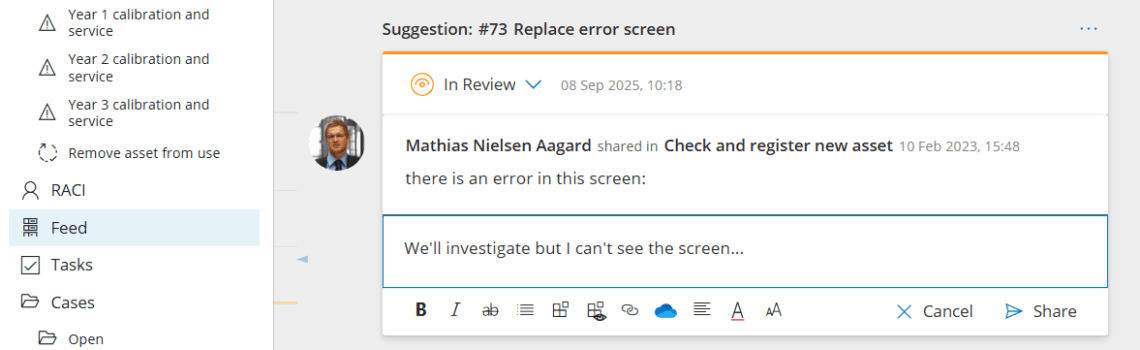
Just like regular comments change suggestions can be discussed through replies inside Gluu:
Discuss the suggestion and add labels and details.
Name / Rename suggestions once the idea is clear and ready for formalisation:
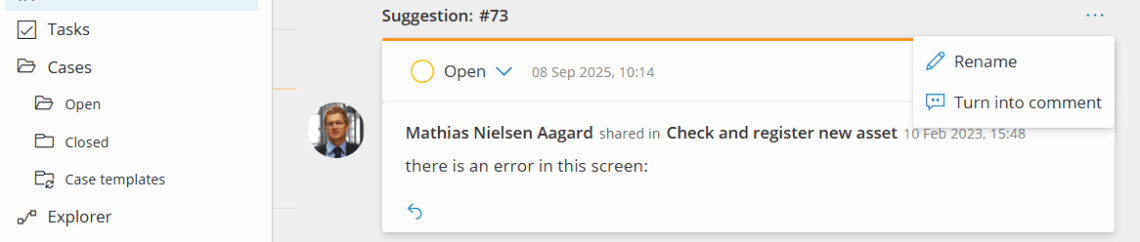
Change status options #
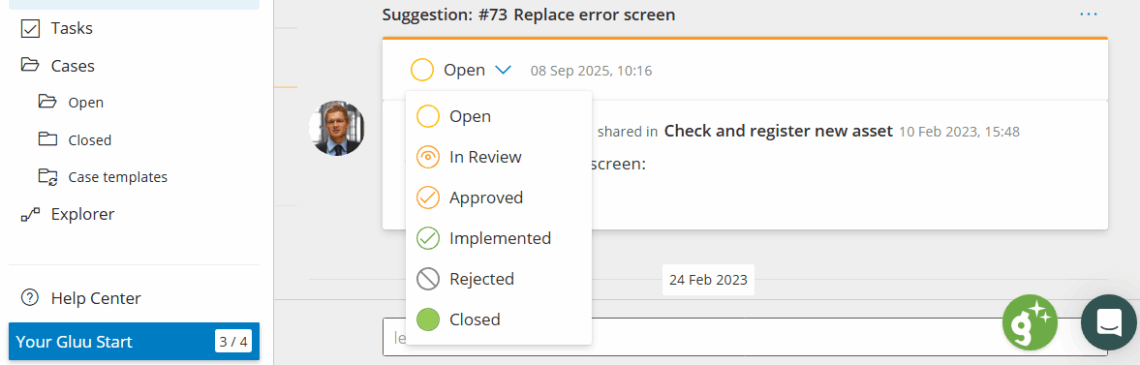
Editors and Owners can use the Change Status selector to manage the change suggestion through its life cycle:
Open – suggestions not reviewed by Editors.
In Reviews – suggestions in review by Editors. This is where discussion typically happens.
Approved – suggestions approved for implementation. Once the suggestion has this status it will show for process editors.
Implemented – suggestions that have been marked as implemented by process editors.
Rejected – suggestions that will not be implemented.
Closed – suggestions that are implemented and published.
You’re done once the suggestion has the right status—Approved suggestions become visible to process editors for implementation.
3. Implement an approved suggestion #
Go to the process page and put it in Edit mode and open the suggestions panel.
Review approved suggestions and their status.
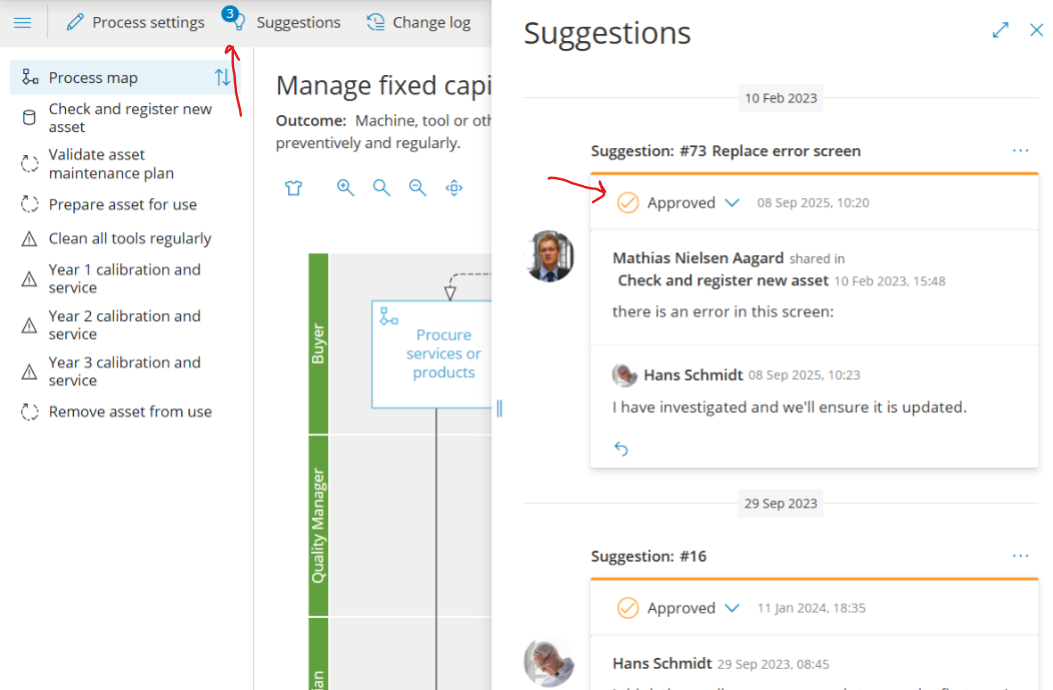
Update the process flow or work instructions and set status to Implemented.
Save and create a version to bundle all changes since the last version.
Name the version; history and discussion are included automatically.
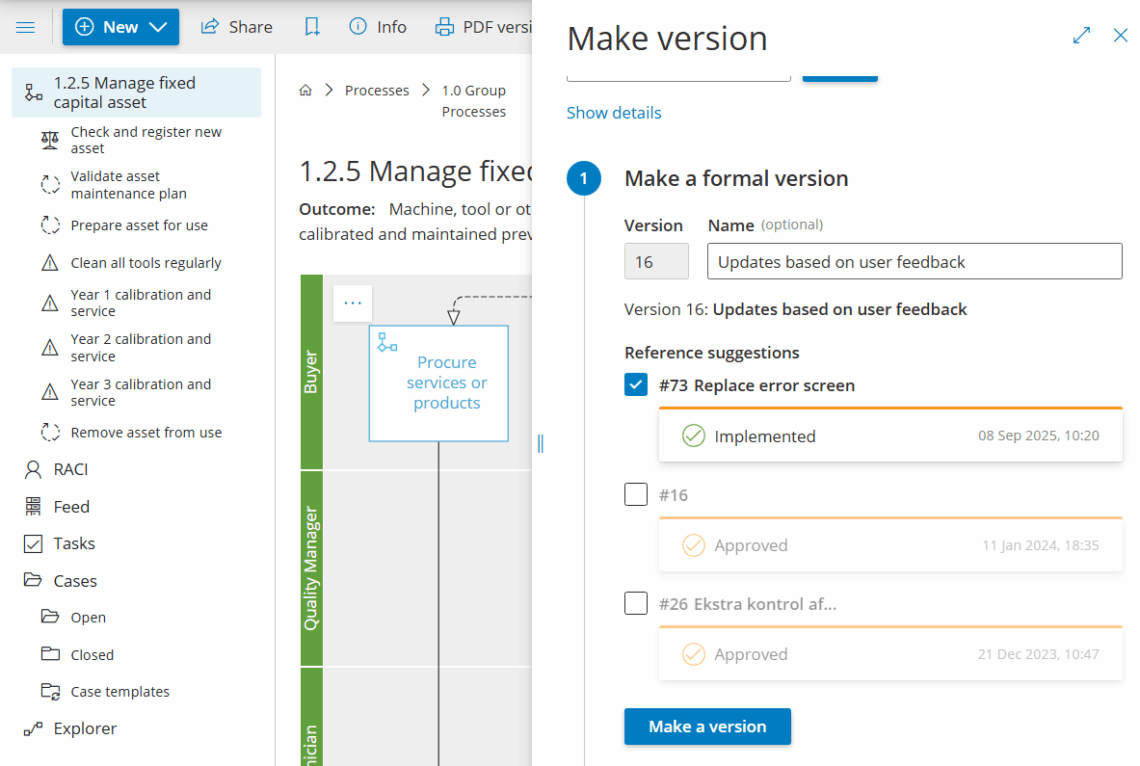
You’re done once the change is implemented and bundled into a named version with its history attached.
4. See version and change history #
- Open the version update to see the combined change suggestion.
- Click Version changes summary to view the change log.
- Open any revision to compare before/after.
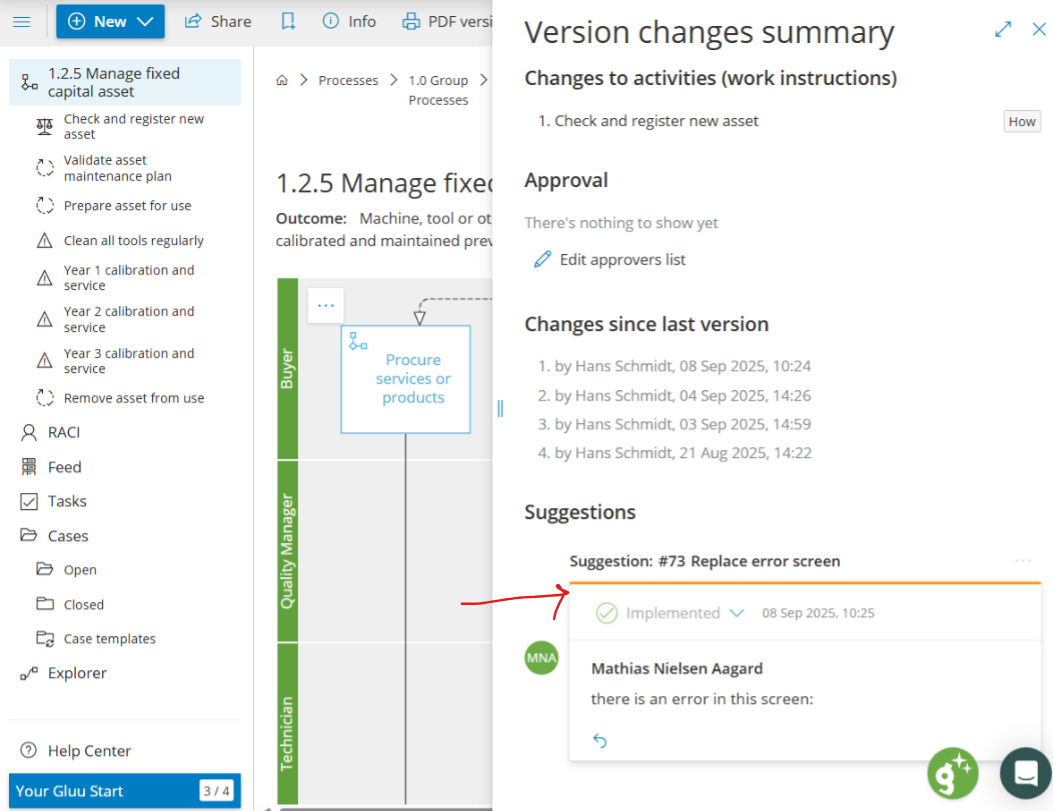
You’re done once you can trace a change from its original comment through approval to the version that shipped it.
FAQ – Manage change suggestions and versions #
Comments and change suggestions are available on the Essential and Advanced plans. The customizable approval flow (setting status through Open, In Review, Approved, etc.) and advanced version management require the Versioning add-on on top of that plan.
Both start the same way, and you can convert one into the other at any time. A change suggestion is typically the one you carry through the formal review and approval life cycle, while a plain comment is more informal discussion.
Editors and Owners can use the Change Status selector to move a suggestion through Open, In Review, Approved, Implemented, Rejected, or Closed. Other users can view and discuss but not change the status.
Once a suggestion has Approved status, it becomes visible to process editors in the suggestions panel when they put the process into Edit mode, ready to be implemented.
After updating the process flow or work instructions and setting status to Implemented, save and create a version. This bundles all changes made since the last version, along with their history and discussion, into a single named version.
Open the version update to see the combined change suggestions it contains, click Version changes summary for the change log, or open any revision to compare before and after—each keeps its link back to the original comment or suggestion.


