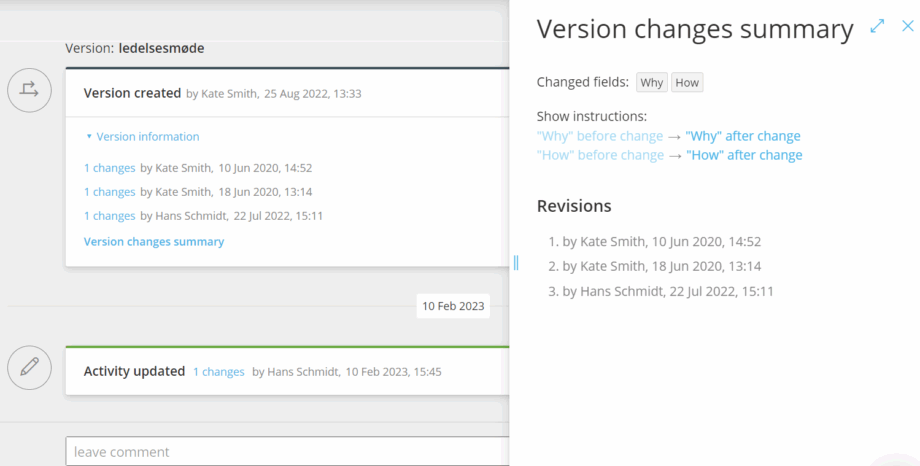
Goal: Know where to find Account, Process and Activity feeds, understand what each shows, and use them to track versions, changes, comments and suggestions.
In your Gluu account you have 3 types of feeds:
- Account feed
- Process feed
- Activity feed
Feed navigation #
- Read newest information at the bottom of each feed.
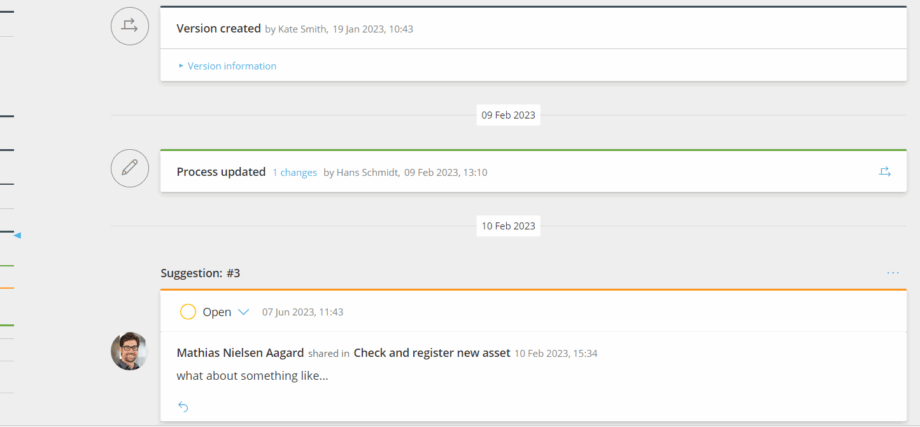
- Identify entry types by ribbon color: dark blue (versions), green (process changes), orange (change suggestions), and no ribbon (comments).
- Use the right-side navigation bar (Account and Process feeds) to jump to versions, changes, or suggestions (same colors as entries).
Account feed #
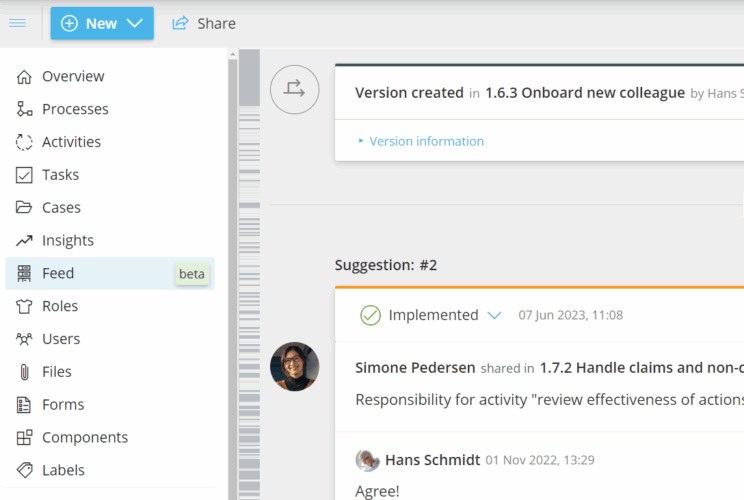
The account feed shows versions, comments and change suggestions across all processes where you are owner, editor or member.
- Open the left-hand menu anywhere above process level.
- Click Feed.
- Scan versions, comments and change suggestions relevant to you.
Process feed #
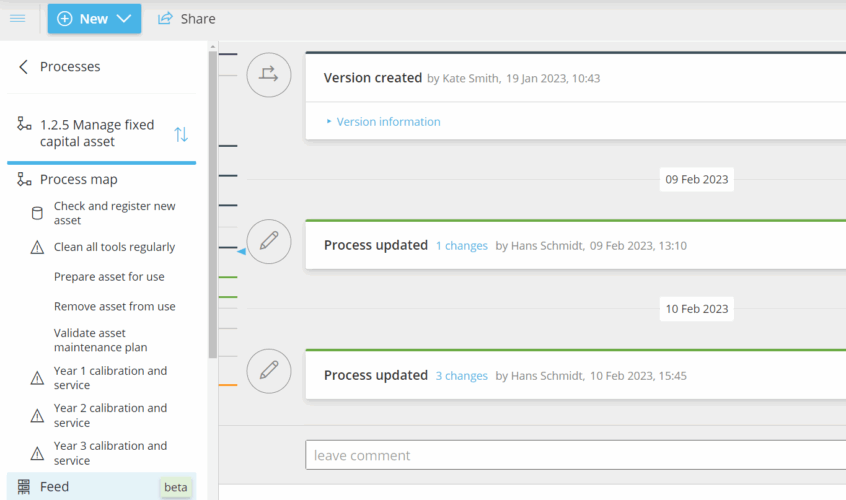
The process feed shows versions, comments, process changes and change suggestions for the specific process you are viewing.
- Open a process page.
- Click Feed in the left-hand menu.
- Review the process’s versions, comments, changes and suggestions.
- Post a new comment or change suggestion (members, editors and owners).
- Reply to existing comments or suggestions to support process improvements.
Activity feed #
The activity feed shows what happened on a specific activity (changes, who did them, comments and suggestions).
- Open the activity page.
- Click Feed in the left-hand menu.
- See the most recent changes and who made them.
- Leave a comment or a change suggestion about the work instruction.
TIP! Comments posted in an activity feed also appear in the related process feed.