
Goal: Use a process hierarchy to organise processes with categories, groups and processes — then clone, move, sort and bulk edit to keep everything consistent.
New processes are added to your account’s process hierarchy (“Processes”). This lets a central team manage how processes fit together, while process owners manage individual processes — so you can delegate ownership without losing control.
New to process architecture? Then we recommend taking the free Gluu Academy video course “Designing process architectures.”
Before you start #
- Plan: Creating and managing the process hierarchy is available on any plan. The Connections view is only available on the Advanced plan.
- Role: You need the Manage processes permission group to create and manage categories, groups, and processes. The Create new processes permission is enough to create processes without managing the hierarchy.
- Setup: No special setup—turn on Edit mode on the Processes page to start adding categories, groups, and processes.
Create a process hierarchy #
To create and manage categories, groups, and processes you need the Manage processes permission group. To create processes only (without managing the hierarchy), the Create new processes permission is sufficient. Read more about permission groups.
Your process hierarchy is built from three levels:
- Categories for the main groups of processes in your company.
- Groups to make smaller groups of processes within categories.
- Processes to show specific flows.
Use the List view to see all processes with their owners and status.
Use the Connections view to see how processes link to each other. (Only available in the Advanced plan)
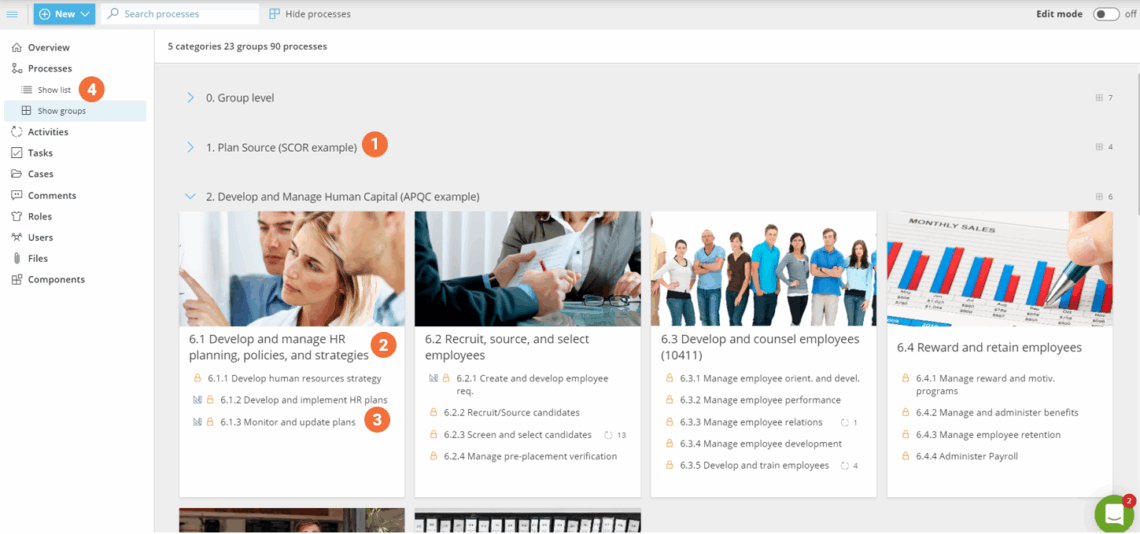
1. Add categories #
- Go to the Processes page.
- Turn on Edit mode.
- Click New category in the edit mode menu.
- Give the category a name and save.
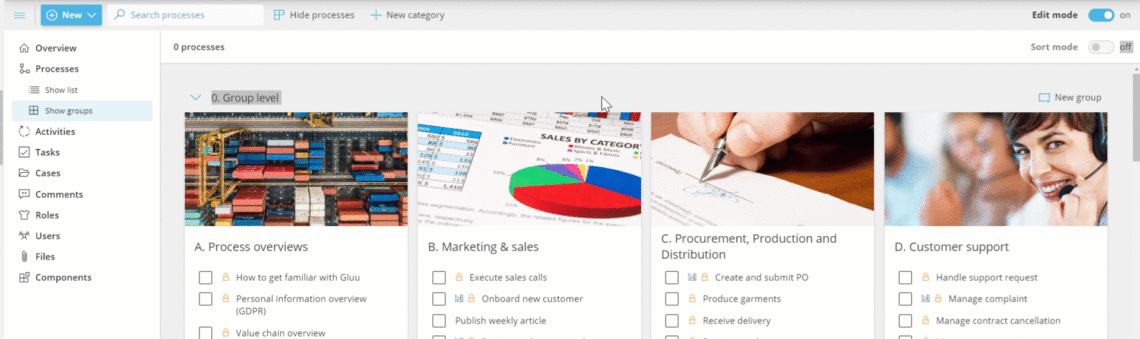
You’re done once the new category is saved and appears on the Processes page.
When you have created a category, add groups.
2. Add groups #
- Click New group to add a group into a category (groups are sorted by number and name).
- Give the group a name that covers the processes you intend to place here.
- Add an image to illustrate the group (crop by clicking the image before uploading).
- Click Edit group to change the group name later.
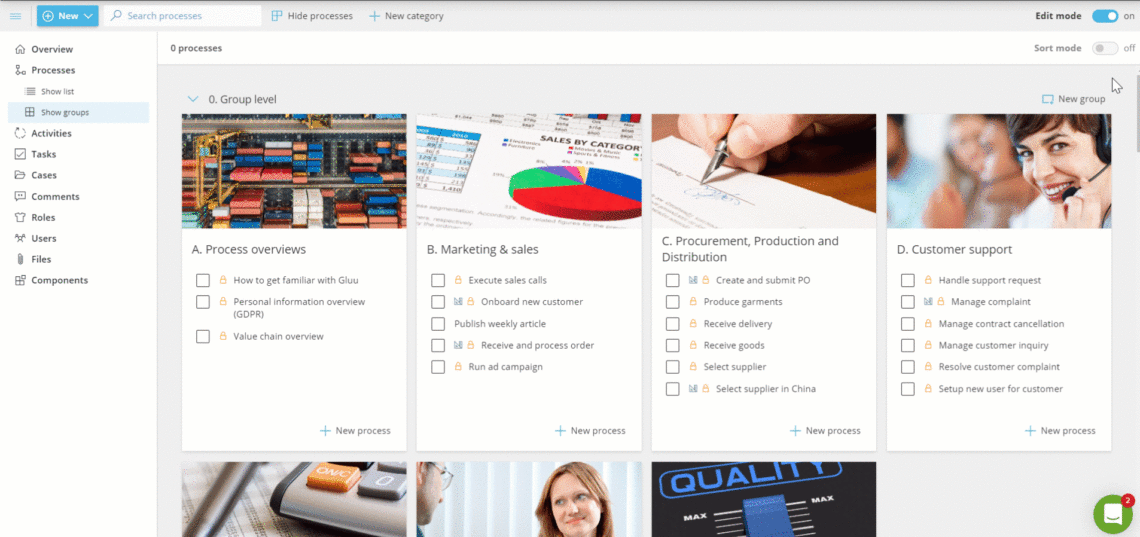
You’re done once the new group is saved inside its category, ready to hold processes.
When you have added a group, start adding processes.
3. Add processes #
Add new processes to groups by creating a blank process or duplicating an existing one:
- Click New process in the selected group (default is a new, blank process).
- Add your Process name (use active wording and day-to-day language). If you duplicate a process, rename the new process and its activities so you can distinguish them.
- Add your Process outcome (the intended output of the process).
- Click Create process to finish (the process is now Private and visible only to you and invited collaborators).
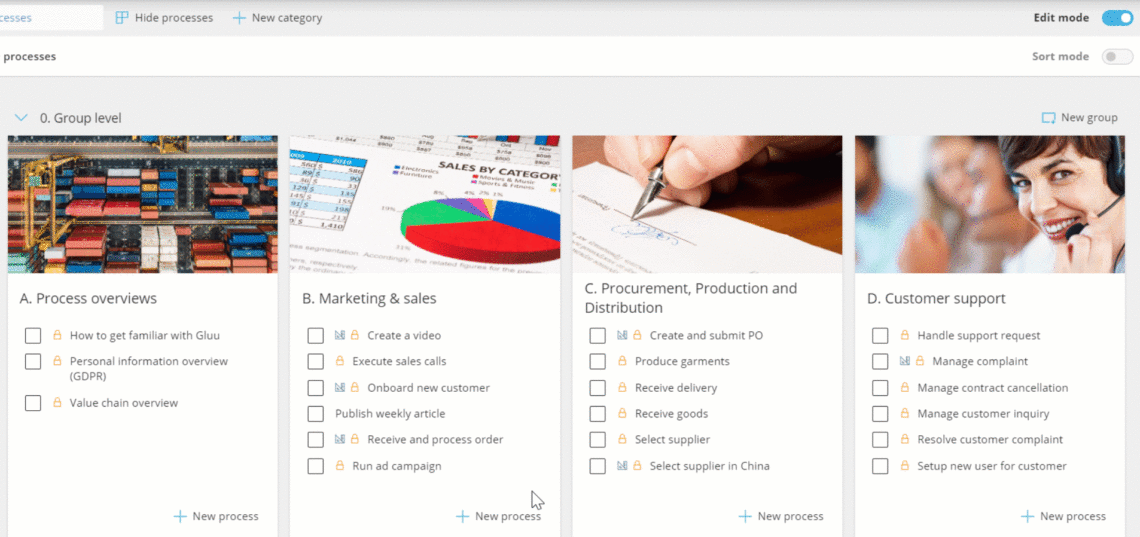
You’re done once the process is created—it’s Private by default, visible only to you and invited collaborators.
Read more: Map a process
Manage a process hierarchy #
If you want to reuse a mapped process or create a similar one, clone it instead of starting from scratch. Cloning requires the Manage processes permission group.
There are two ways to clone a process in Gluu:
- From the process page.
- From the process group page.
Clone a process #
Open the process map you wish to clone and set its placement and details.
- Open the target process.
- Click Clone to open the side drawer.
- Select the Category.
- Select the Group.
- Enter a new Process name.
- Enter a new Process outcome.
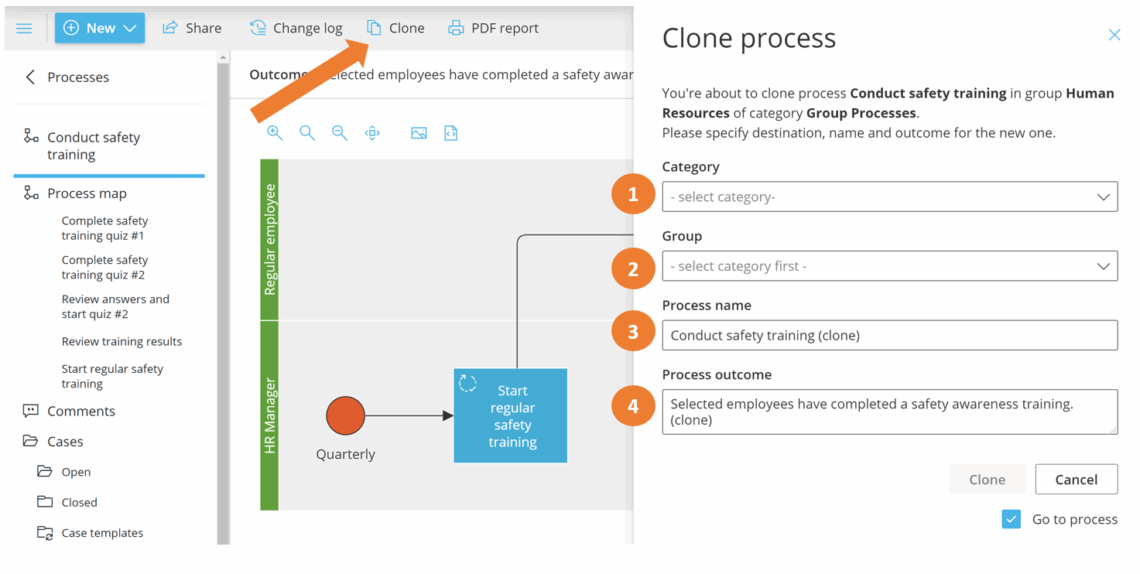
You’re done once the cloned process appears in the target category and group with its new name and outcome.
You can also clone from the Show groups page in edit mode.
- Open Show groups and turn on Edit mode.
- Select the process you wish to clone.
- Click Clone.
- Select the placement (category and group), then give it a new name and outcome.
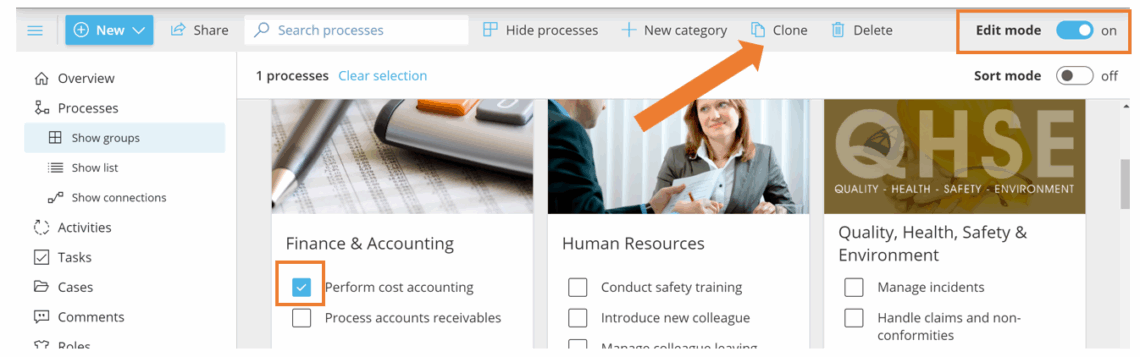
You’re done once the cloned process is placed in its new category and group with a name and outcome that distinguish it from the original.
Looking for information on how to clone processes between accounts? Learn more here: Transfer data between Gluu accounts
Move processes between groups #
You can move a process to a new group in edit mode.
- Turn on Edit mode.
- Open the process you want to move.
- Change the Group.
- Save.
You’re done once the process appears under its new group on the Processes page.
Sort categories, groups and processes by name and/or number #
Categories, groups and processes are sorted numerically and alphabetically. Add numbers if you want a specific sequence, or rely on automatic alphabetical sorting.
TIP! If you prefer automatic numbering, you will find that option in account settings.
You can:
- Change the process order within a group.
- Move processes from one group to another.
- Change the group order.
- Change the category order.
Note: when drag-and-drop sort mode is active, new processes are always added at the end of the list rather than inserted by number.
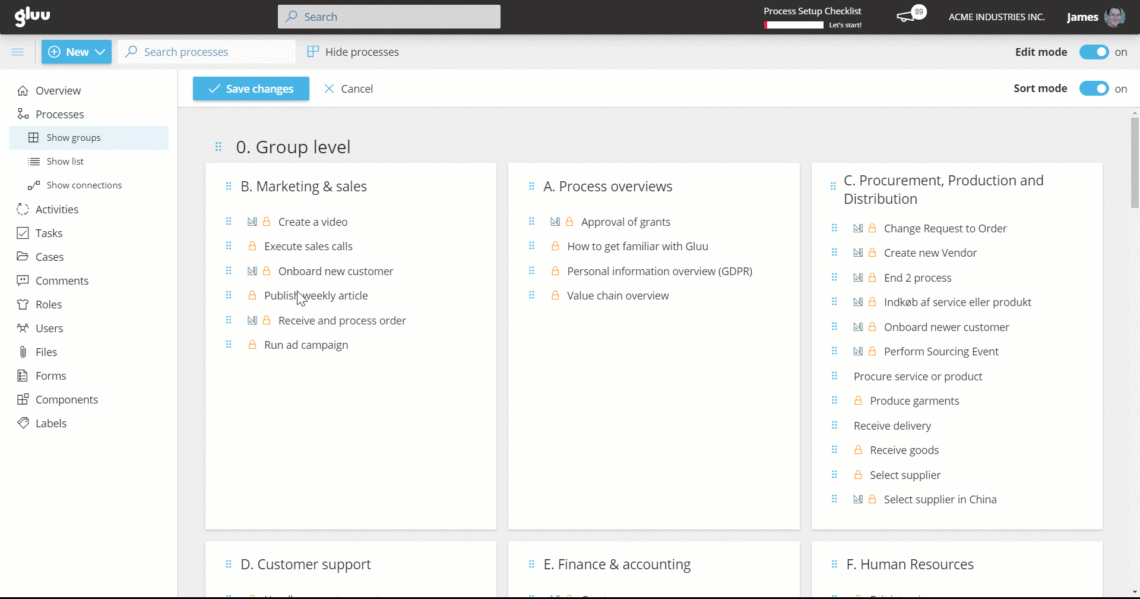
You’re done once categories, groups, and processes appear in the order you want.
Bulk edit processes #
Use bulk edit in edit mode to update multiple processes at once.
- Turn on Edit mode on the process overview page.
- Select 2 or more processes.
- Click Bulk edit in the top gray menu.
- Update Owner, Editors, Process status, Process visibility, or Notifications.
- Save.
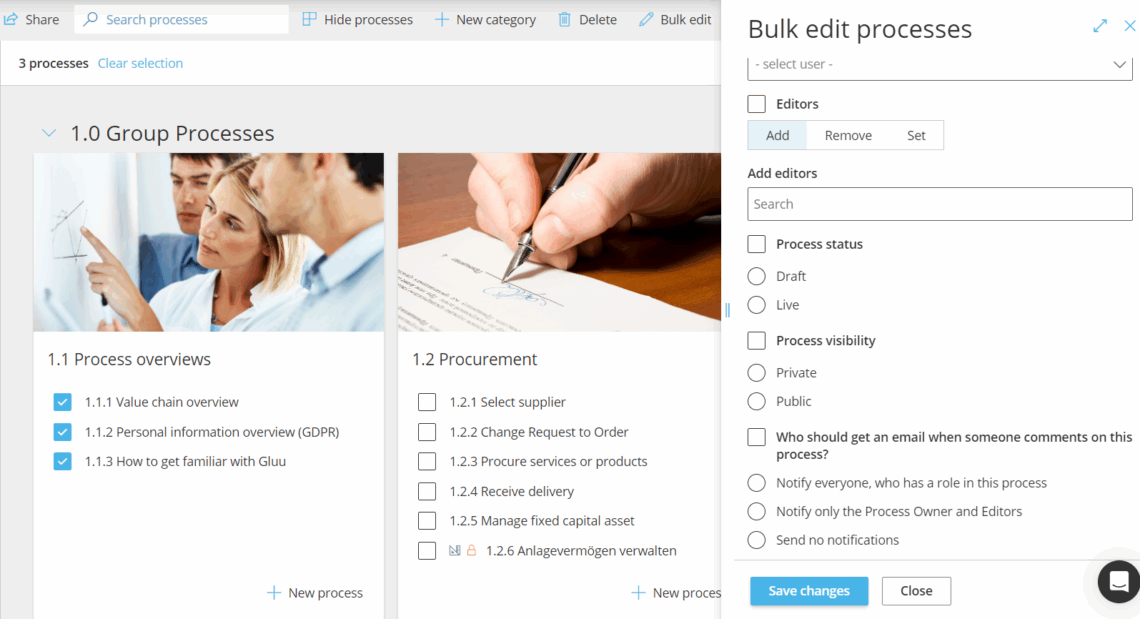
You’re done once the selected processes are updated with the owner, editors, status, visibility, or notifications you set.
FAQ – Process hierarchy #
To create and manage categories, groups, and processes you need the Manage processes permission group. If you only need to create new processes (without managing the hierarchy structure), the Create new processes permission is sufficient. Both are assigned by your account administrator under Account settings > Permission Groups.
Categories are the top-level divisions — the main functional areas of your organisation (e.g. Finance, HR, Operations). Groups sit inside categories and gather related processes together. Processes are the individual flows that show how specific work is done. This three-level structure lets you organise your entire process landscape in one place.
Yes. This requires the Copy from account permission, which must be granted by your account administrator. Once enabled, you can clone processes across accounts. See the Transfer data between Gluu accounts article for the full steps.
Bulk edit lets you update multiple processes at once from the process overview page. You can change Owner, Editors, Process status, Process visibility, and Notifications across all selected processes in a single operation. Turn on Edit mode, select two or more processes, and click Bulk edit.
This happens when drag-and-drop sort mode is active. In sort mode, Gluu preserves the manual order you set and adds new processes at the end rather than inserting them by number. If you want automatic numerical ordering, turn off sort mode or use the automatic numbering option in account settings.
New processes are created as Private by default. They are only visible to you and any collaborators you have explicitly invited. To make a process visible to others, open the process, enter Edit mode, and change Process visibility to Members or Public. You can also bulk edit visibility across multiple processes from the process overview page.


