
Goal: Set up multiple Gluu accounts for subsidiaries or clients and clone processes between Gluu accounts to share best practices.
If your organisation has subsidiaries in different countries, you may need separate accounts with different sets of processes. Some super users may need access to them all.
If you’re a consultant working with multiple clients, you can also access multiple accounts (with permission) under the same login.
This article explains how you connect accounts and can then clone to make a one-time copy to another account, or mirror to let a parent account push processes to one or more child accounts. When mirroring, changes on the parent are automatically reflected on the child account.
Cloning is useful if you want to share content but let the receiving account continue with creating their own version. Mirroring is useful if you want to maintain full control of the process and manage it in one place across multiple accounts.
Note: Mirroring processes in a parent-child relationship requires the parent-child feature enabled on both accounts. This is included in the Advanced plan. Contact Customer Success to confirm availability on your account.
Before you start #
- Plan: Cloning is available on any plan. Mirroring in a parent-child relationship requires the parent-child feature, included in the Advanced plan—contact Customer Success to confirm it’s active on your accounts.
- Role: You need the Copy from account permission on the source or parent account, and, for cloning, the Create new process permission on the destination account.
- Setup: You need access to both accounts (the same email for your user on each), and, for mirroring, the parent-child relationship must already be set up between them.
Set up an extra account #
- Create a new Gluu account.
- Ensure you are the owner of both accounts.
- Log in to see the account selector and choose the account to enter.
- Create users as normal. Users with access to both accounts will see the other account as shown in the screenshot below.
To switch accounts while working, open Account settings and select another account. You will jump there without an additional login.
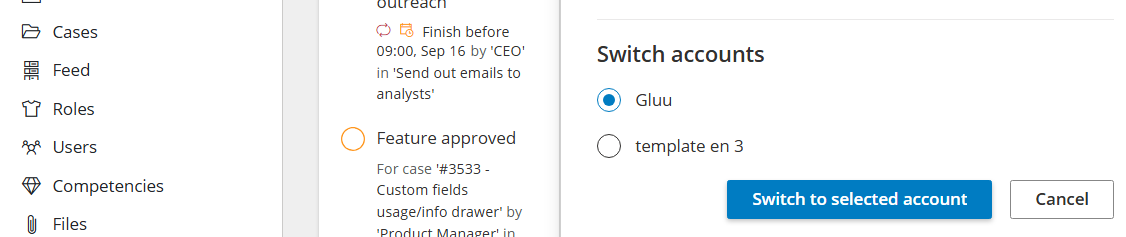
You’re done once you can switch between accounts from Account settings without logging in again.
Clone processes between accounts #
This is useful for sharing best-practice processes across accounts or giving customers a ready-made starting point.
To clone a process between accounts you must:
- Use the same email for your user in both accounts.
- Have the Copy from account and Create new process permissions on the source account.
Then do this:
- Go to the process overview page in the source account.
- Turn on Edit mode.
- Select the process to clone.
- Click Clone in the top bar.
- Choose the destination account and select category and group placement.
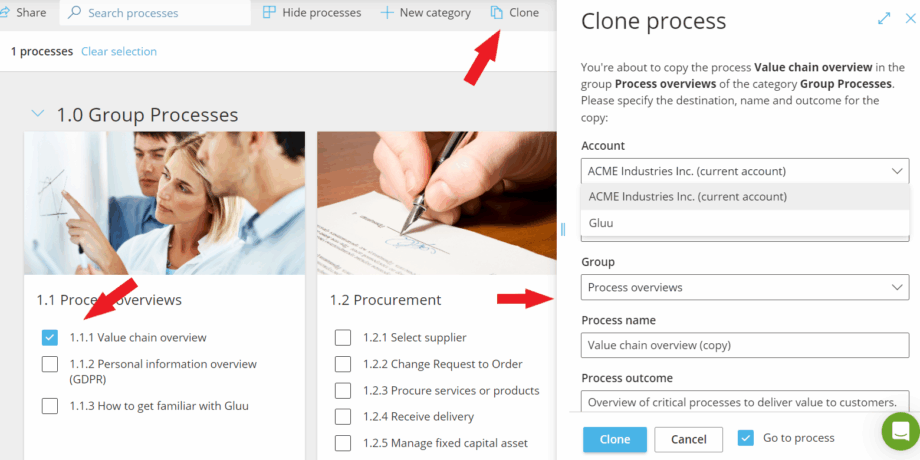
You’re done once the cloned process appears in the destination account’s chosen category and group. For cloning inside a single account, see Use a process hierarchy to organise processes.
Mirror processes from a parent account #
Large organisations and consulting partners can push selected processes — and related roles, activities, and components — from a parent account to one or more connected child accounts. Mirrored entities appear automatically on the connected account as read-only and always reflect the latest published version from the parent.
How it works #
Users on a connected account work with two types of entities side by side:
- Local entities — created or cloned on the account and maintained as normal.
- Mirrored entities — pushed from the parent account, visible automatically, and editable only from the parent account.
Comments and activity feed are always local, even on mirrored entities. Only the latest published version of a mirrored entity is visible on the connected account.
What can be mirrored #
- Processes — name, outcome, version number, diagram, roles (mapped between accounts), category, and group.
- Roles — copied or mapped to existing local roles on the connected account.
- Activities — name, outcome, why, how, and linked components.
- Components — name, description, content, and link.
Set up a parent-child account relationship #
To set up mirroring you need the Copy from account permission on the parent account, access to the child account(s), and the parent-child feature enabled on both accounts.
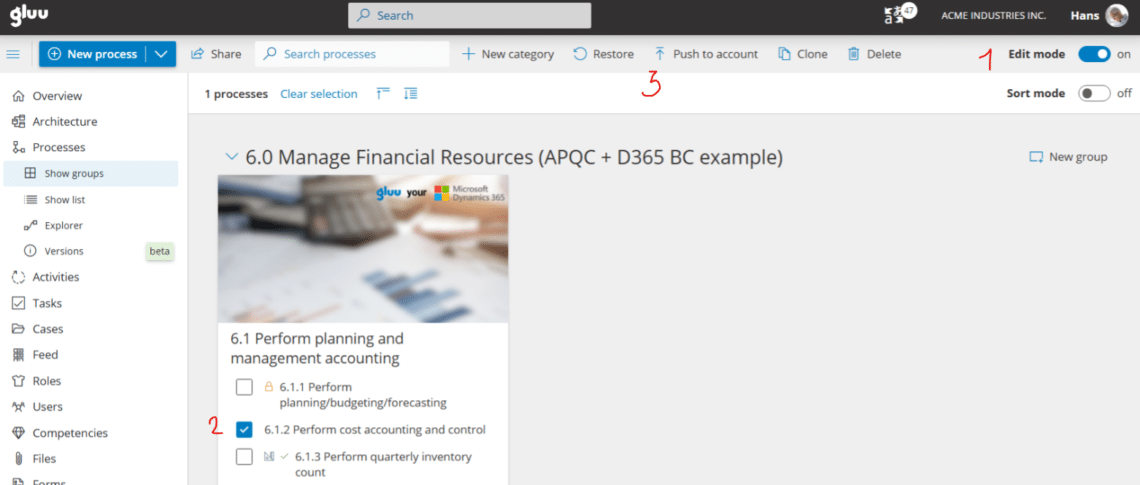
- On the parent account, go to Processes and turn on Edit mode.
- Select the process(es) you want to push to a child account.
- Click Push to account.
Select the child account to see its process categories and groups. Place the process in the right category and group and click to push it.
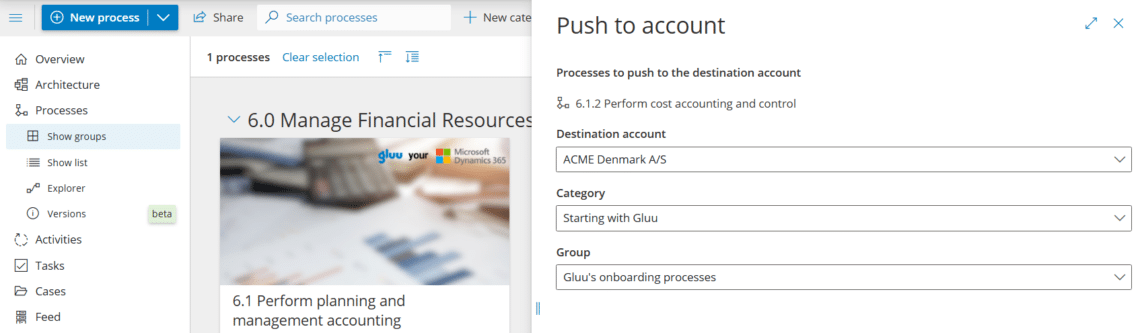
It now appears on the child account with an icon and is accessible for users there.
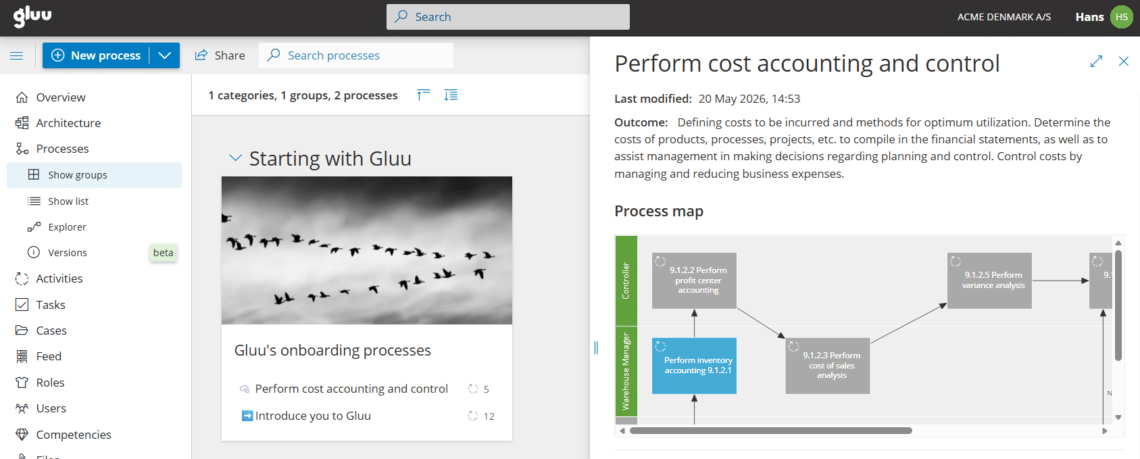
From this point on, the process, its work instructions and roles on the child account will be mirrored automatically from the parent account.
You’re done once the process appears on the child account and updates there automatically whenever you publish changes on the parent.
Editing and deleting mirrored entities #
- Mirrored entities are read-only on connected accounts. If you attempt to edit or delete one, a message will explain that the entity is managed from the parent account.
- The Publish version button is not visible on mirrored processes on connected accounts.
- If you delete a mirrored process on the parent account, you will be warned that the process is also mirrored on connected accounts. If you confirm, the process is removed from all connected accounts as well.
- If you delete or change an activity within a mirrored process on the parent account, that change is reflected automatically on all connected child accounts at the next sync.
FAQ – Transfer data between accounts #
Cloning makes a one-time copy of a process to another account. Once cloned, the two versions are independent — the receiving account can edit and develop their copy freely. Mirroring keeps a process connected to the parent account. Any changes published on the parent are automatically reflected on child accounts, and the mirrored version remains read-only on the child account.
Mirroring requires the parent-child feature enabled on both accounts. This is included in the Advanced plan. Contact Customer Success to confirm whether it is active on your accounts. Cloning between accounts does not require a specific plan but does require the Copy from account permission on the source account.
No. Mirrored entities are read-only on child accounts. The Publish version button is not available, and any attempt to edit will show a message explaining that the entity is managed from the parent account. To make changes, edit the process on the parent account and publish — the updated version will appear on child accounts automatically.
Comments and activity feed entries are always local, even on mirrored processes. Users on the child account can comment and post suggestions on a mirrored process, and those entries remain on the child account only — they are not synced back to the parent.
For both cloning and mirroring, you need the Copy from account permission on the source or parent account. For cloning, you also need the Create new process permission on the destination account. Both permissions are assigned under Account settings > Permission Groups by your account administrator.
Gluu will warn you that the process is mirrored on one or more child accounts. If you confirm the deletion, the process is removed from all connected child accounts as well. This action cannot be undone, so review which accounts are affected before confirming.


