
Goal: Use extra custom fields to add and collect metadata and/or specify relevant data you want to record on processes, activities, roles and users.
You can specify extra fields to collect more relevant data according to your requirements.
Maybe you want to add which IT systems are used with your processes, maybe you have certain HR requirements that you want to reflect on your roles in Gluu etc. Extra fields let you add anything to processes, activities, roles and users that you want, allowing you to customize to meet the needs of your organization.
Video intro #
Before you start #
- Plan: Custom fields require the Enterprise Customization add-on, available on the Essential and Advanced plans. Without it, the custom fields menu will not appear in account settings.
- Role: You must be an account manager or have Manage account permissions to create or remove fields. Standard editors cannot.
- Setup: No special setup—open Account settings → Custom fields once the add-on is enabled.
Note: The HR Manager add-on also enables access to custom fields for HR-specific use cases. If your account has HR Manager but not Enterprise Customization, your field options may differ.
Note: If the Enterprise Customization add-on is disabled, your existing field data is preserved — it is hidden but not deleted.
Setting up fields #
Which objects support fields #
Fields can be added to the following objects in Gluu:
- Process
- Activity
- User
- Role
- Category
- Group
- Case task
Important: once a field is created, it is locked to the object and type you selected. It cannot be changed. If you need a field for a different object or in a different type, you must create a new field. Choose carefully before saving.
Field types #
The following field types are available. Each type limits what users can enter, which helps keep your data consistent.
Text #
Free text fields allow users to type anything they want. We recommend using this type sparingly — free text is difficult to keep consistent across many users and makes data hard to filter or report on. Consider using a list type instead to limit input to predefined values.
Select one option #
Lets the user pick a single value from a predefined custom list. The list is defined by you when setting up the field — users can only select from the list, not type freely.
Select many options #
Same as above, but allows the user to select multiple values from the custom list.
Select one component #
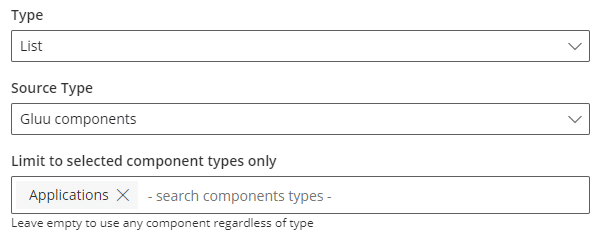
Lets the user pick a single value from your Gluu components. You can optionally restrict the source to one or more specific component types — if you don’t specify a type, users can choose from all components in your account. Learn more: Shared components.
Select many components #
Same as above, but allows the user to select multiple components. A multi-select component field looks like this:
Date #
Restricts input to a date value. Useful for fields like review dates, expiry dates, or go-live dates.
Yes/No #
A simple boolean field. Useful for compliance flags, approval indicators, or any binary state.
Number #
Restricts input to a numeric value. Useful for things like headcount, cost estimates, or version numbers.
Attribute name (for exports and API) #
When you create a field, Gluu assigns it an attribute name — a unique identifier separate from the field label shown to users. This attribute name is what appears in data exports and API calls. It is set at creation time and cannot be changed afterward, so make sure it reflects the field’s purpose clearly before saving.
This is especially relevant if your account uses the API & Connectors add-on for integrations with tools like Power BI or Power Automate.
Protected fields #
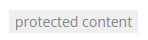
Any field can be marked as protected at creation time. Protected fields are designed for sensitive data — their values are encrypted at rest and hidden from view until a user with the right permission actively reveals them.
A protected field appears like this by default:
Clicking the field reveals the value — if you have permission to see it:
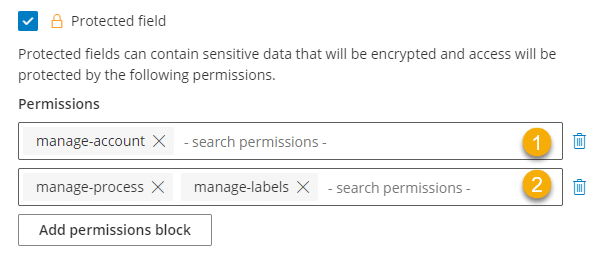
Access to a protected field is controlled by permission blocks. You can stack multiple permission blocks on a single field, each granting read access to different roles or individual users. A user can see the field value if they satisfy any one of the permission blocks. By default, the following can always see protected fields:
- Account managers
- Users who have both manage processes and manage labels permissions
Additional permission blocks can be added to extend access to other roles or people.
Video guide (detailed) #
Showing fields #
Create sections #
Creating a field is not enough on its own — a field must also be added to a section before users can see or fill it in.
A section is a named group of fields that you define. Sections are managed in Account settings → Custom fields → Sections. Only fields linked to the same object type can be grouped together in a section — you cannot mix process fields and user fields in the same section.
A field that exists but is not assigned to any section will never appear to users. If you have created a field and it is not showing up, check that it has been added to a section.
Where to find fields #
Once a field is part of a section, users can view and fill in values in the following places depending on the object type.
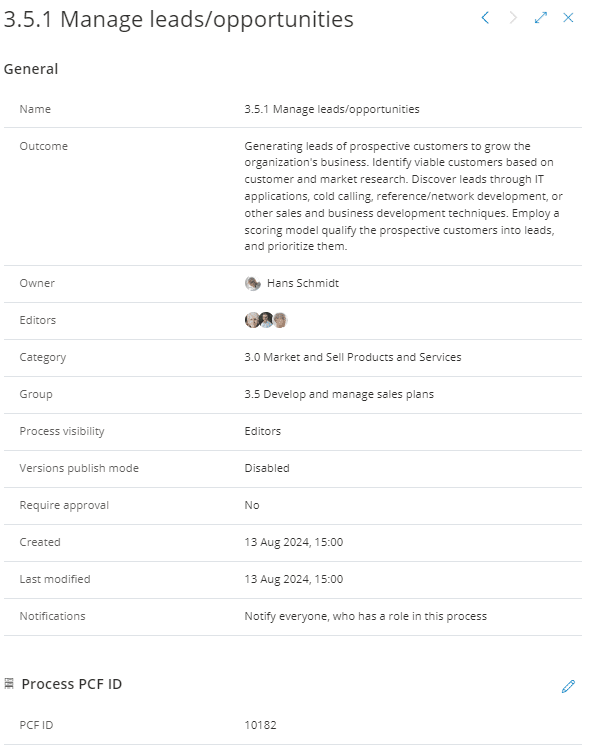
Processes and activities — fields appear in the info panel, opened by clicking the info icon on the process or activity:
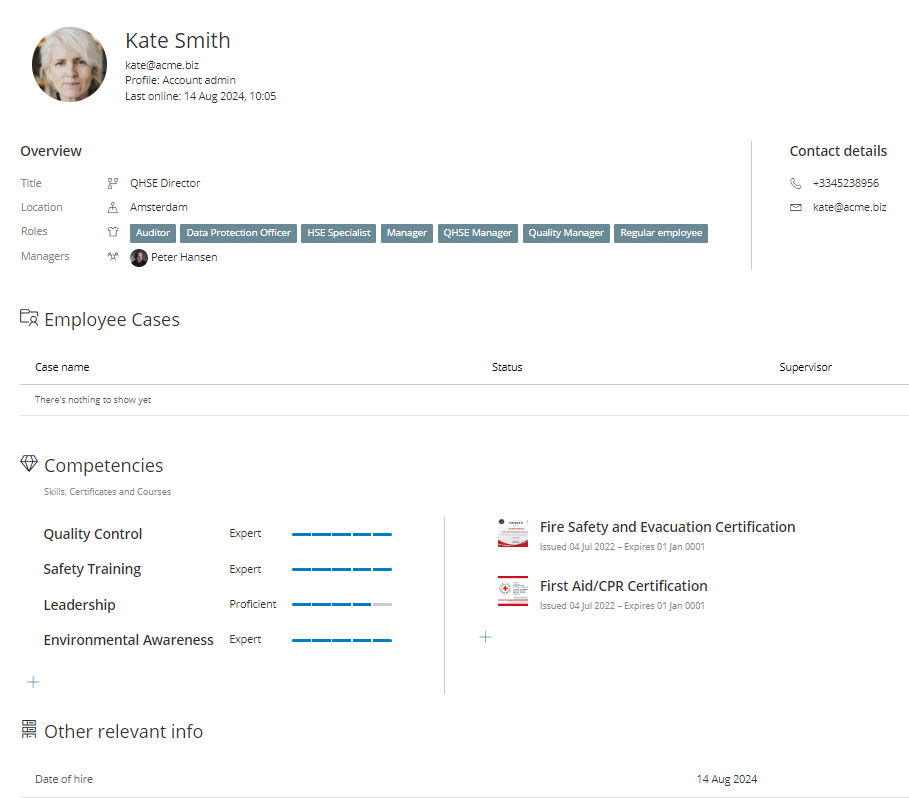
Users — fields appear on the user profile page. Access it from the user list by clicking the arrow next to the user’s name:
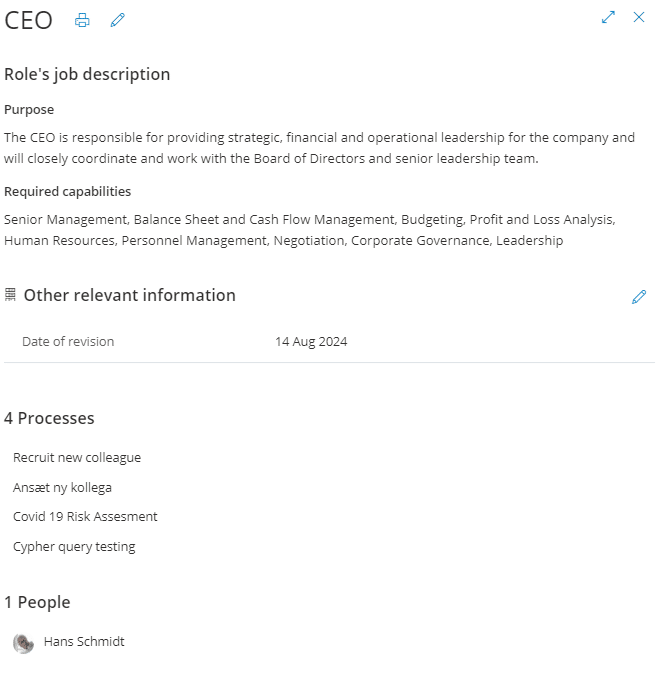
Roles — fields appear in the role info view, opened by clicking the role:
FAQ – Creating and using custom fields #
A field must be added to a section before it is visible. Go to Account settings → Custom fields → Sections, create or open a section for the relevant object type, and add the field to it. Only then will users see it.
No. A field is permanently locked to the object type and field type you selected when creating it. If you need a different type or object, create a new field with the correct settings. The original field can be deleted if it is no longer needed.
No. Once a field is marked as protected, that setting is permanent. If you need an unprotected version of the same field, create a new field without the protected option enabled.
By default: account managers, and users who have both manage processes and manage labels permissions. Additional access can be granted by adding permission blocks to the field—each block can specify a role or individual user. A user who satisfies any one block can reveal the value.
The attribute name is a unique identifier assigned to a field at creation time. It is used in data exports and API calls—it is not the same as the label your users see. It cannot be changed after creation, so make sure it clearly reflects the field's purpose before saving, especially if you use the API & Connectors add-on.
"Select one option" limits the user to a single value from your custom list. "Select many options" allows the user to pick multiple values from the same list. The same distinction applies to component-based fields: "Select one component" vs. "Select many components". Choose based on whether the field should hold one value or several.
Yes. Case task is one of the supported object types. When creating a field, select Case task as the object. Fields added to a case task section will appear on tasks within running cases.


