
Goal: Use labels in Gluu to create cross-process collections that make training, auditing and reporting fast and consistent.
Gluu offers several ways to organise and find your processes, procedures and work instructions:
- Process hierarchy – organise by business function or area.
- Process collection – group related processes in a diagram.
- Set special activity types – highlight an activity as a Control, Risk, System, Document or Customer TouchPoint.
- Use labels – create special collections across processes, activities and comments (this article).
Labels – similar to tags – let you collect information that spans your process hierarchy and activity types. Examples: GDPR, ISO 9001 or ISO 27001 labels to highlight everything that supports compliance.
This helps you quickly find the right information for training, auditing or management reporting.
TIP! You can also use custom fields to collect meta-data on processes, activities and users.
1. Create labels for the account #
First create a set of labels for your account. Then process owners and editors can label their processes and activities. All users can label comments. Anyone can filter by a label or click a label to see everything associated with it.
(You must be the Account Owner or Administrator.)
- Click Labels in the left menu.
- Turn on Edit mode.
- Click New to add a label.
- Edit label names and colours, then click Save.
After you click Save, the labels are available to all users.
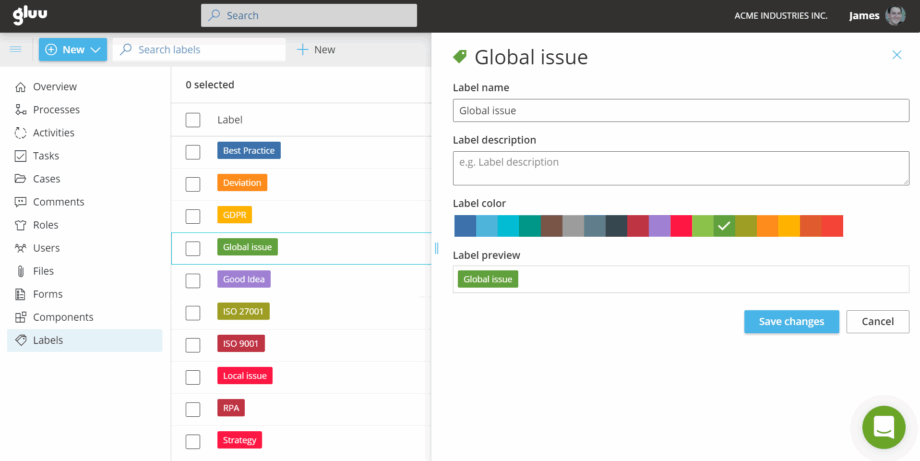
Users can now add labels to processes, work instructions and comments.
2. Add labels #
(You must have edit rights to the process or activity.)
- Go to the process or activity you want to label.
- Turn on Edit mode.
- Click the Label button to see available labels.
- Select one or more labels.
- Filter or click the label later to see related items.
Note: You can also label comments.
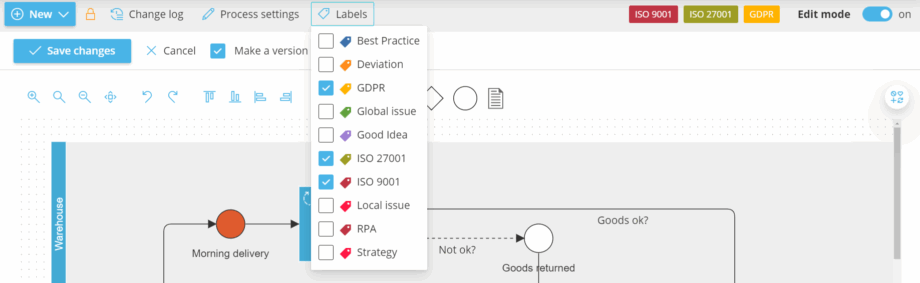
3. Show labeled information #
(Available to all users with access to the process.)
- Click a label to open a panel with all items that have this label (processes, activities and comments).
- Click any item to open it.
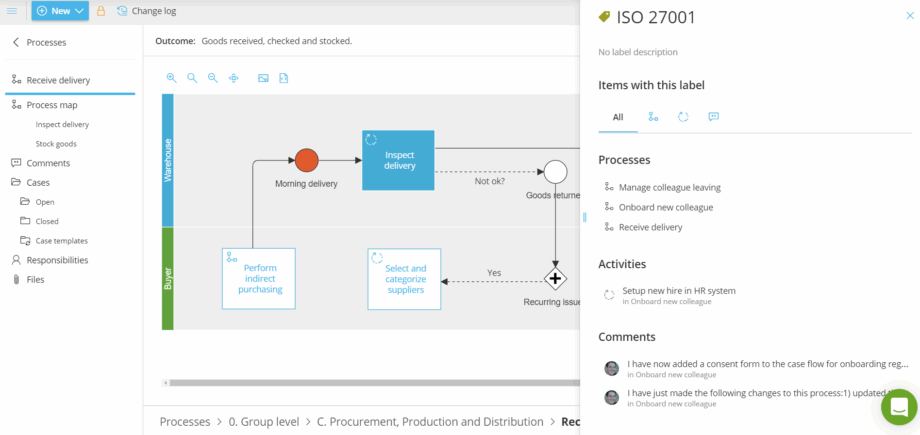
TIP! From the Processes and Activities pages, you can also filter by label to list all marked items.


