Goal: Collect questions, ideas and issues directly in context, notify the right people, and keep every discussion searchable.
With Gluu’s comment widget, questions and suggestions are added where work happens, so readers have the right context. This is alll visible via the activity feed.
Example: A technician running “Lubricate machine” adds a faster method as a comment. Other technicians react, and the process owner later reviews improvement ideas.
Add a comment #
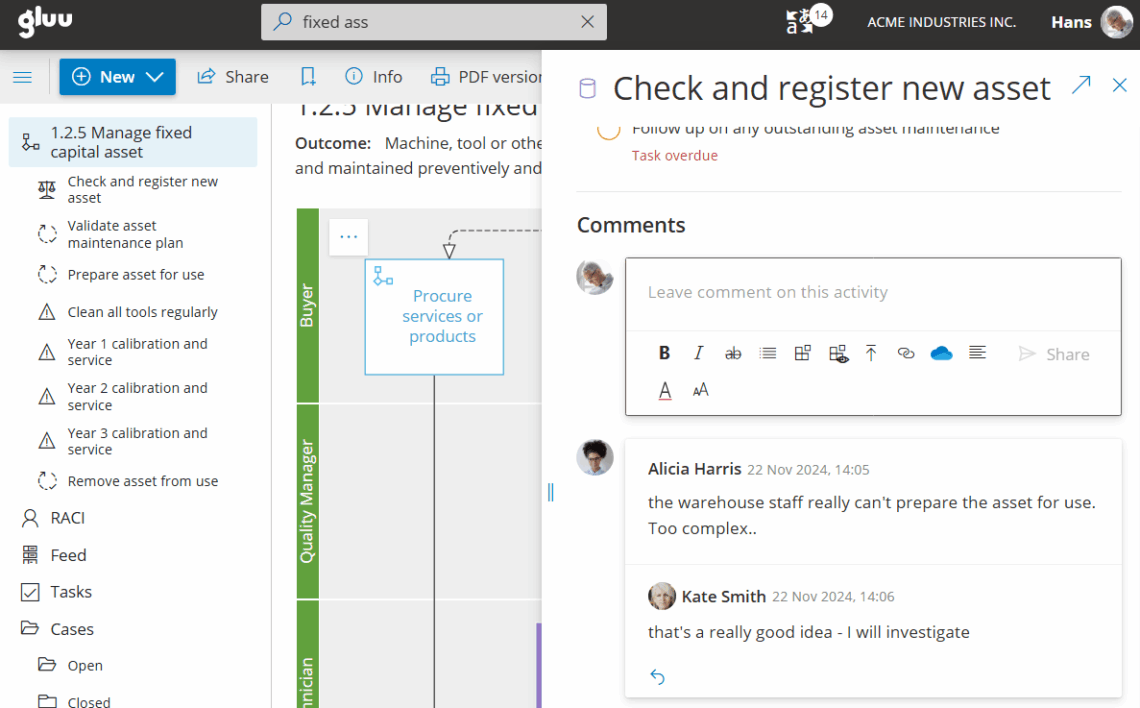
- Click on any activity in a process. This opens options to comment.
- Type your comment. (You can add files and links.)
- Click Share. (You can always delete it)
The toolbar gives you options to format your comment so you can e.g. prepare work instruction parts for insertion by editors.
Related: turn comments into change suggestions.
View comments #
Your comment is shared with people following the process: the owner, editors, and users in the responsible role for the activity.
- They see it on My overview.
- They get it in activity update emails (manage notifications).
- They can click the activity link to reply or mark Agree/Disagree.
All comments are stored and searchable, so you can always find issues, ideas, questions, and answers in context.
Filter comments #
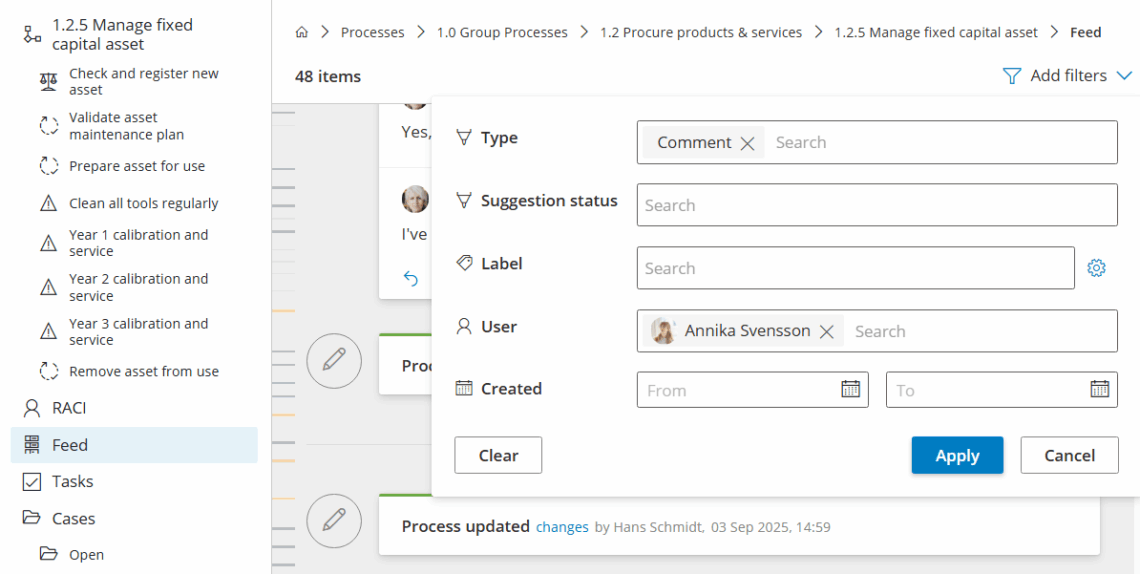
- Open the activity’s ‘Feed’.
- Set filter values and data range.
- Click ‘Apply’ to show results.
This makes it easier for editors and owners to manage comments and change suggestions – without having to use email.
Hide comments #
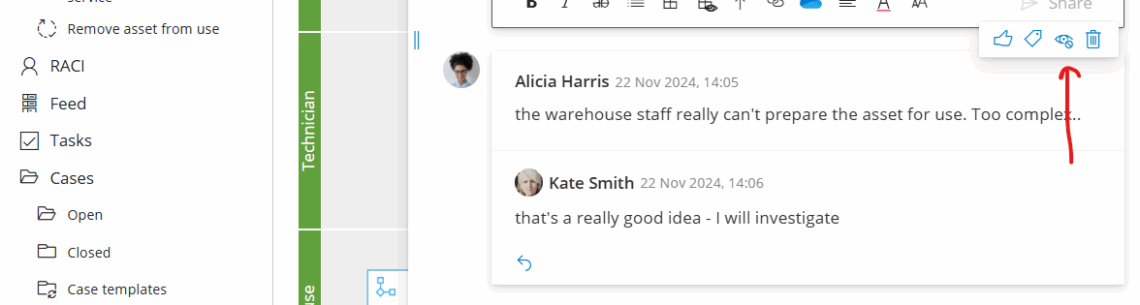
Editors and Owners can hide comments. This way they are not visible to other users than editors and administrators.
Hiding comments is useful for anything that is only relevant to a small group of editors. A process’ comment feed can then consist of relevant questions and answers.