
Goal: Use Gluu file management to find files at activity, process and account levels, identify duplicates, and filter quickly.
Intended use #
Gluu file management is designed to be simple and basic. For advanced file management we recommend tools such as SharePoint that are integrated with Gluu. This article covers how to view files and manage duplicates. If you need to add new files, see Create a work instruction
File list views #
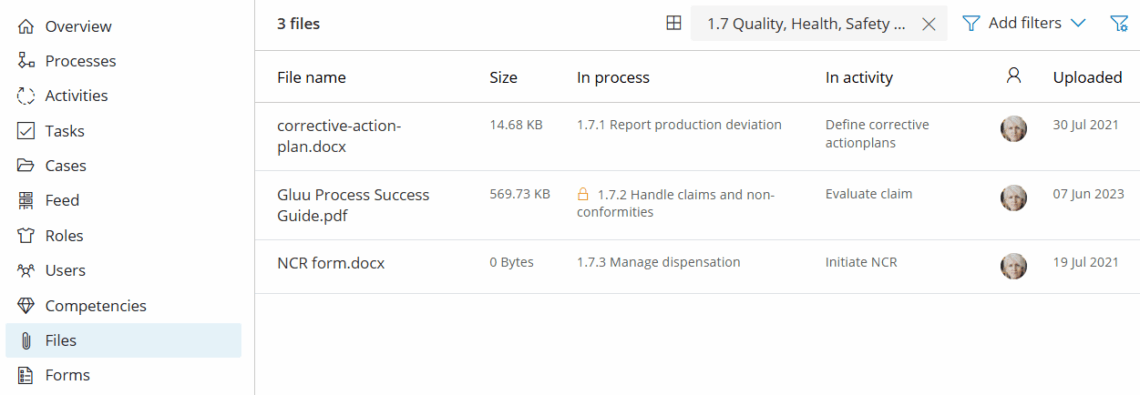
When a file is uploaded to a work instruction, it appears in the account’s file lists. This ensures a single overview:
- Go to account level (above process level).
- Open the left-hand menu.
- Click Files to view files used in any process or activity and see each file’s locations.
NOTE! If a process is frozen, its files are only visible on that process and its activities. They are hidden from the account file list and search to prevent use of outdated files. Learn more: Publish and maintain a process
Filter and find duplicates #
Files with different names but the same content are recognized as one file and shown with multiple names and locations.
- Open any Files list (activity, process or account).
- Use filters to narrow the list.
- Select Has duplicates to show files used in multiple locations (or just one, if selected).
- Click a file with duplicates to open the drawer.
- Review File usage to see the current file’s location(s).
- Review the list of duplicate files and click any item to see more details.

TIP! The Gluu Asset Explorer gives a visual overview of files and where they’re used.


