
Goal: Learn how to add work instructions in Gluu from the process editor or an activity page, then write and enrich them faster with AI, media, links and files.
Add a work instruction #
There are two ways how you can add work instructions to your activities — or edit existing ones:
- Directly from our process editor
- On an activity (work instruction) page
From the process editor #
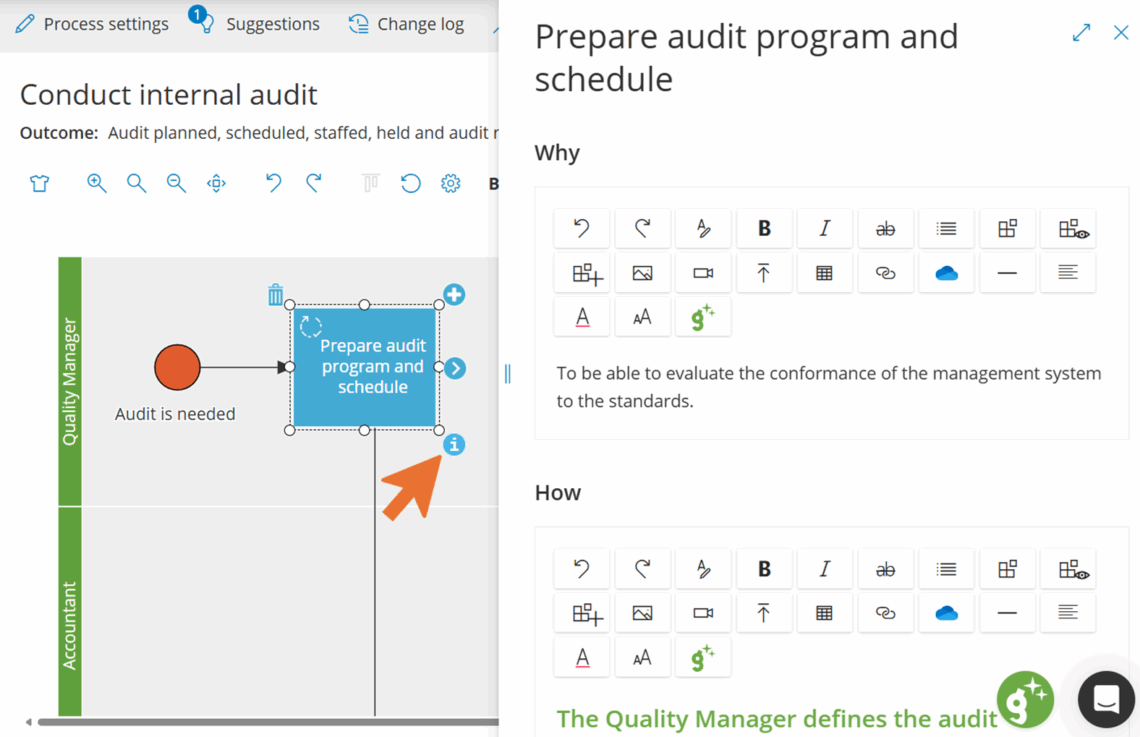
Once your process map is finished and you save it, all activities are created by Gluu. You can open each activity page to add work instructions (see next section), or you can reopen the process editor by turning on edit mode.
- Turn on Edit mode in the process editor.
- Click the activity box to receive work instructions.
- Click the “i” icon in the lower-right corner.
- Add or edit the work instruction in the side drawer.
From an activity page #
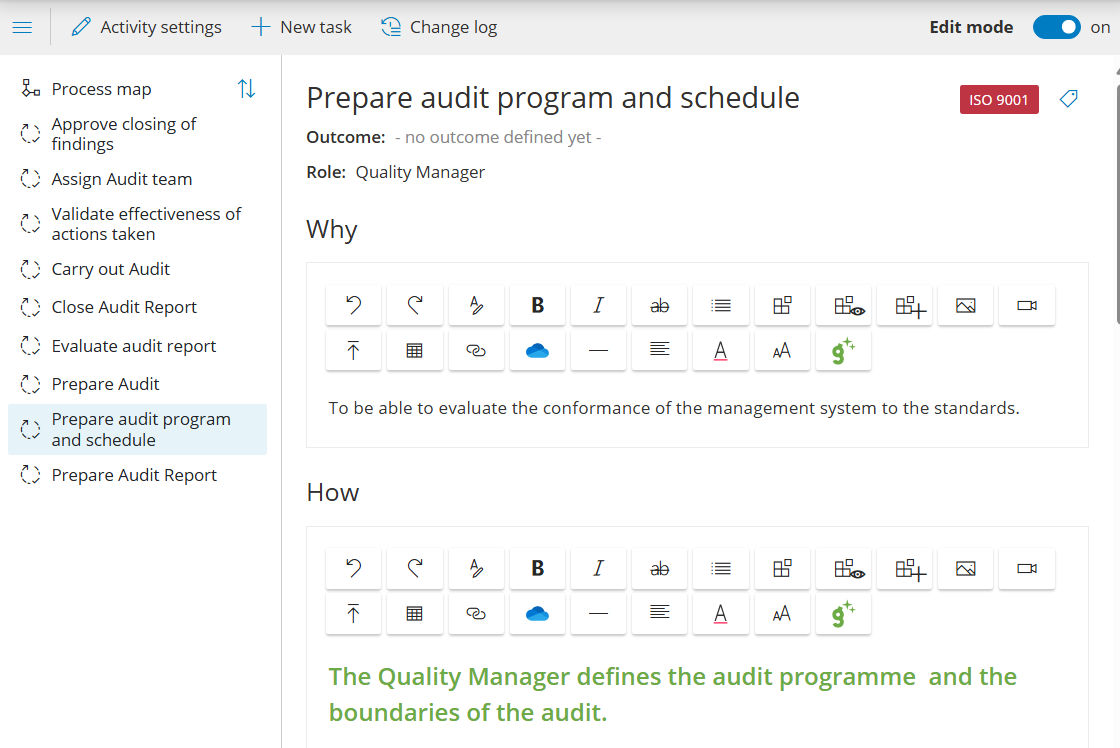
Work instructions live inside an activity in a process. This keeps the “what to do” (process + activity) together with the “how to do it” (work instruction).
- Go to the process that holds the activity.
- Click the activity and select Go to page.
- Click Edit to open the work instruction editor.
Write the work instruction #
Write and format your instruction (you can also copy/paste from Word). The toolbar adds the options below.

Apply formatting #
Click Formatting to apply styles to selected text.
– Use Risk to highlight risks and failure points.
– Use Tip to add practical advice.
– Use Reference to point to other sources.
Use shared components #
Click the component icon:

to search for shared components (Process, Activity, User, Role, Form, Task, Case Template, Label or File) and insert dynamic links.
You can also preview or create new components directly from inside a work instruction.
Add images and videos #
Click the Image icon to insert an image at your cursor. Adjust size and alignment, and choose whether it opens in a new tab.
TIP! Use a screen snipping tool and paste directly with Ctrl + V.
Click the Video icon to embed a video via an “embed code” (e.g. from your intranet or YouTube). The video is shown inside the work instruction.
Upload files #
Click the File icon to upload a file. It appears as a stable link inside the instruction so users can download templates and references.
Use links #
Insert links to internal or external sources. You can link directly to files on Microsoft SharePoint or OneDrive.
Use the Gluu AI Assistant #
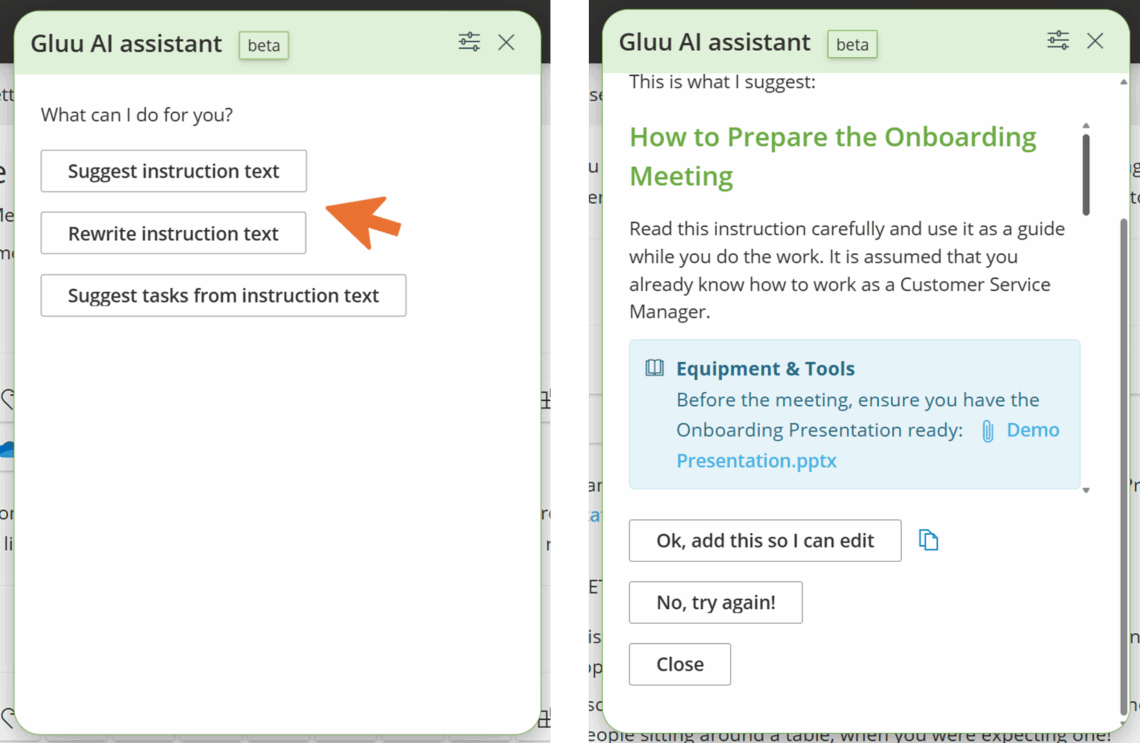
Use the Gluu AI Assistant to speed up work and keep a consistent style. Launch it from a work instruction page to:
- Suggest a new instruction based on your process context and best-practice prompts.
- Rewrite an existing instruction into your standard template.
- Suggest tasks based on the instruction content.
Review and edit AI suggestions before publishing. AI respects your account language and follows your admin-defined templates. Versioning works as usual — editors stay in control.
Change history and roll-back #
Gluu saves your work in the browser for a local fallback if your connection drops. Each version is saved automatically, and you can roll back to an earlier version from the change log.


