
Goal: Understand revisions vs. versions, view and compare changes, and choose the right versioning setup (disabled, auto, manual, approval).
Before you start #
- Plan: Revisions are available on every plan. Advanced version management—Auto/Manual versioning, approval flows and restore from the change log—requires the Versioning add-on. It is not included in the Core, Essential, or Advanced plan on its own.
- Role: Any user with edit access can view revisions. Creating a version and choosing versioning options requires Owner or Editor access to the process or activity.
- Setup: No special setup once the Versioning add-on is enabled—set versioning options from the process or activity’s Edit mode.
Change and versioning basics #
Let’s explain some basic terminology.
Every edit is saved as a revision. Revisions are created automatically while you edit and whenever you exit edit mode after changes. A version is a named, formal snapshot you choose to publish to users.
Create versions for significant changes (content or flow) so users are notified and your history stays clear—without creating noise for minor edits.
Versioning states #
- Published – the version that is live and shown to all users.
- Pending approval – a version in review by selected approvers.
- Version XXX – a version that is not in process.
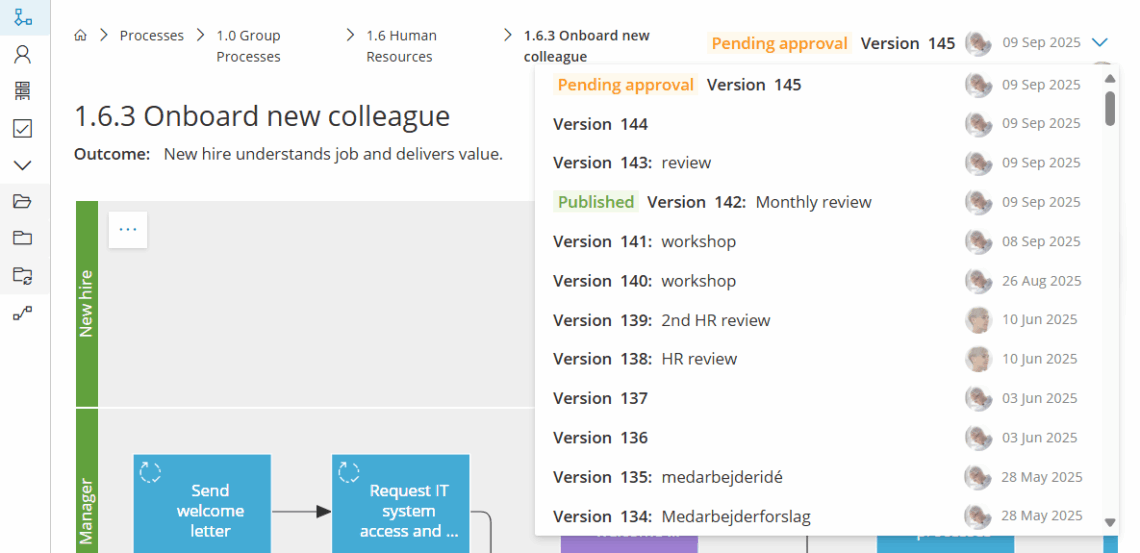
Set versioning options #
- Disabled – no formal versions, only revisions.
- Auto – a new version is created automatically after changes to the diagram.
- Manual – you create versions when you decide.
- Require approval – versions go live only after approvals.
Read Work with approvals for how to manage any processes that require formal approvals before publishing.
You’re done once the versioning option that matches your process’s needs is selected and saved.
View revisions and versions #
- Open the process (or an activity) and enter Edit mode.
- Open the Change log
- Select an item to preview the process/activities as they were at that time.
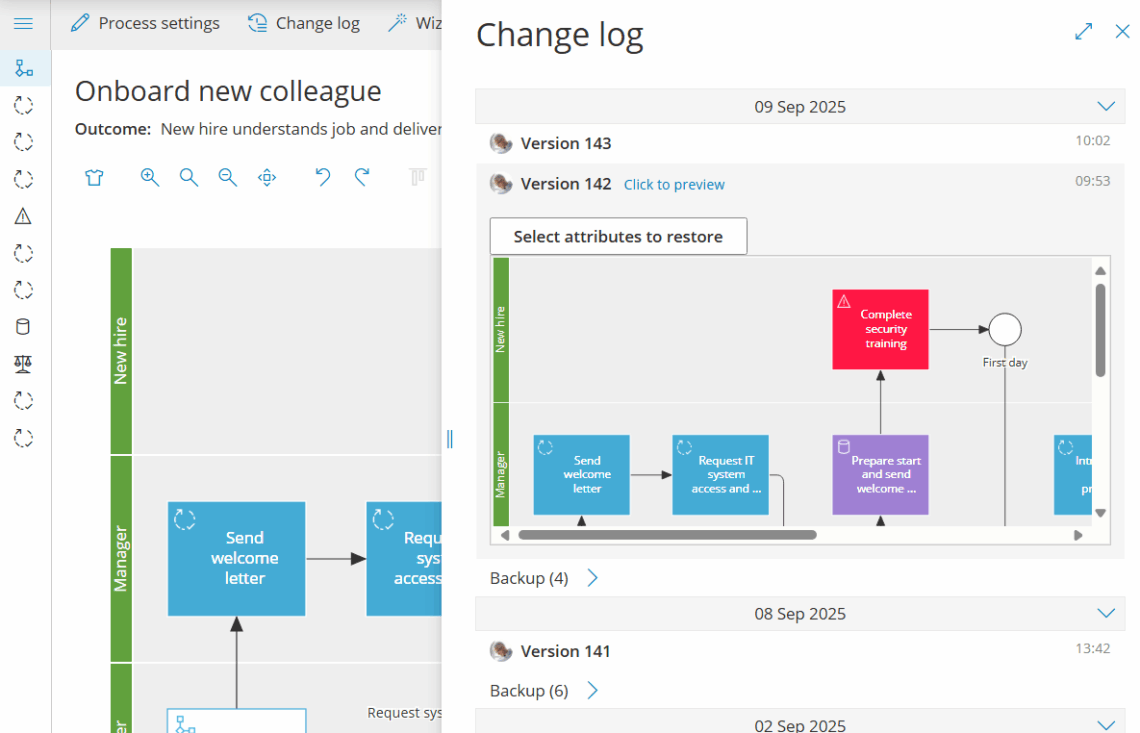
You’re done once you can preview the process or activity as it looked at the selected point in time.
Compare and roll back #
Click Select attributes… to compare versions and decide which attributes you want to restore (if any). Once you click ‘Apply’ then the current process map will automatically be replaced with the older revision.
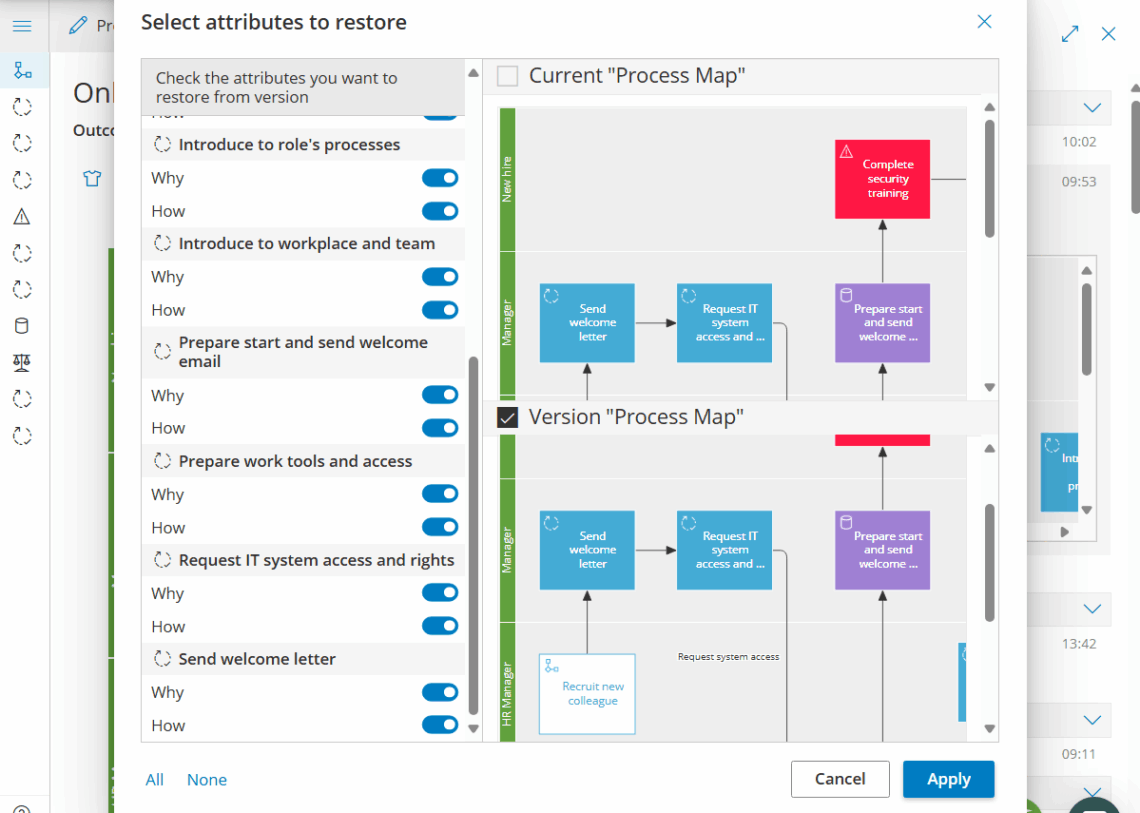
You’re done once you’ve clicked Apply and the process map reflects the restored attributes.
Create a version #
First ensure the process is set to Manual versioning.
1. Start wizard #
Open the process in Edit mode and click Make version (top right):

Now, complete the wizard step by step.
2. Name version #
Give it an optional name, if a number isn’t enough.
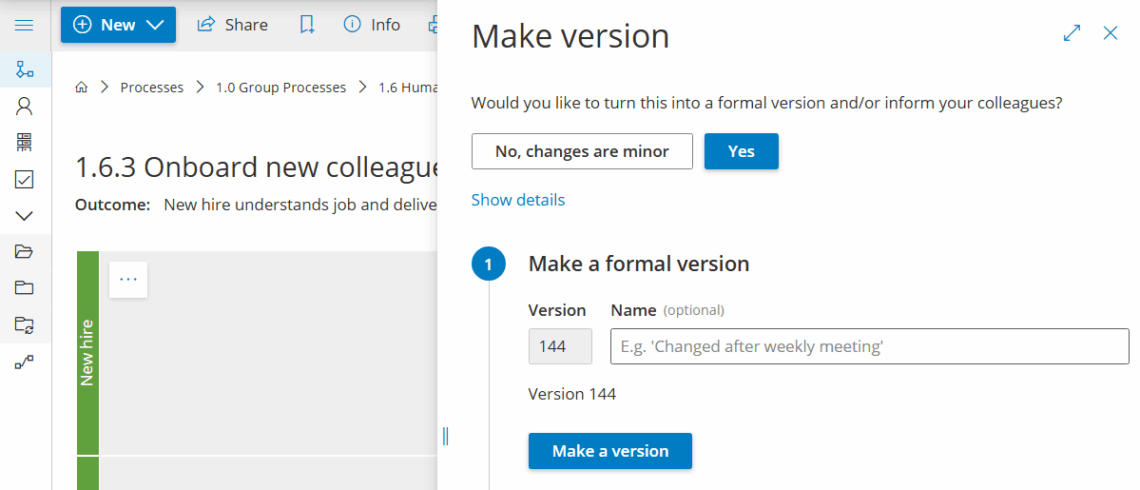
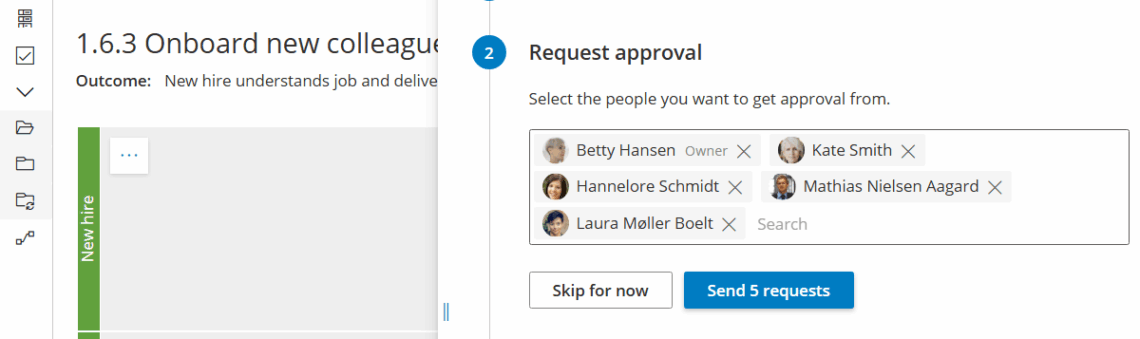
2. Set approvers (optional) #
Set approvers (if this is required and set up for the process, or the account).
Gluu lists Owner and all Editors as default but you can remove and add users.
Click ‘Send request’ to send approval requests by email with links to the process.
3. Notify colleagues when published #
Notify colleagues once the new version is published. Select and deselect to target exactly the people (and role members) that may be impacted by the change.
Then adjust the standard text that summarizes the changes.

You’re done once you’ve completed the wizard and the new version is published and notifications are sent.
FAQ – Versioning and revisions #
Revisions are available on every plan. Advanced version management—Auto or Manual versioning, approval flows, and restoring from the change log—requires the Versioning add-on. It is not included in the Core, Essential, or Advanced plan on its own.
A revision is saved automatically every time you edit and exit edit mode—it's a raw history of changes. A version is a named, formal snapshot you choose to publish to users, typically created for significant content or flow changes so users are notified without noise from minor edits.
Disabled keeps only revisions with no formal versions. Auto automatically creates a new version after changes to the diagram. Manual lets you decide exactly when to create a version. You can also require approval so versions only go live once approvers sign off.
Open the change log, select an item to preview it, then click Select attributes to choose which attributes to restore. Clicking Apply replaces the current process map with the older revision's selected attributes.
In the Make version wizard's final step, you select which colleagues and role members should be notified—you can target exactly the people affected by the change and adjust the standard summary text before sending.


