
●●●Advanced
Process owner
Business user
Goal: Set up a task that Gluu creates automatically on a fixed schedule, then manage that schedule over time.
A scheduled task is a recurring task template. On the schedule you set, for example every weekday at 08:00, Gluu creates a new task for routine work such as checks, reviews and meetings. Each occurrence is a separate task that someone has to complete.
Scheduled tasks are not connected to cases. For tasks that start on demand inside a case, see Run processes as cases.
Before you start #
- Plan: Scheduled tasks are available on the Advanced plan and on older (legacy) plans. They are not available on Core or Essential. Process review tasks additionally require the Versioning add-on.
- Role: You need edit rights on the process to create or edit a schedule. Members of the activity’s role complete activity task occurrences. Process review tasks go to the process owner and process editors.
- Setup: For an activity task, you need a process with the activity you want to add the task to.
Choose between an activity task and a process review task #
Gluu has two kinds of scheduled task. They use the same settings but belong to different places in the process.
| Activity task | Process review task | |
|---|---|---|
| Belongs to | One activity | The whole process, for example “Review process monthly” |
| Who receives it | Members of the activity’s role, not a named person | The process owner and process editors, in My tasks and by email |
| Plan | Advanced | Advanced and the Versioning add-on |
| Created from | The activity, in Edit mode | The Tasks tab of the process |
| Stored when | You save the process | You click Save changes |
| Scheduler switch | Yes, you can pause and resume | No |
Create a scheduled task on an activity #
- Open the process and turn on Edit mode.
- Select the activity.
- Click New task.
- Set Task type to Start on scheduled time. The panel opens with Start with case selected.
- Fill in the form. See Scheduled task settings for each field.
- Close the panel.
- Turn off Edit mode, then click Save & Exit.
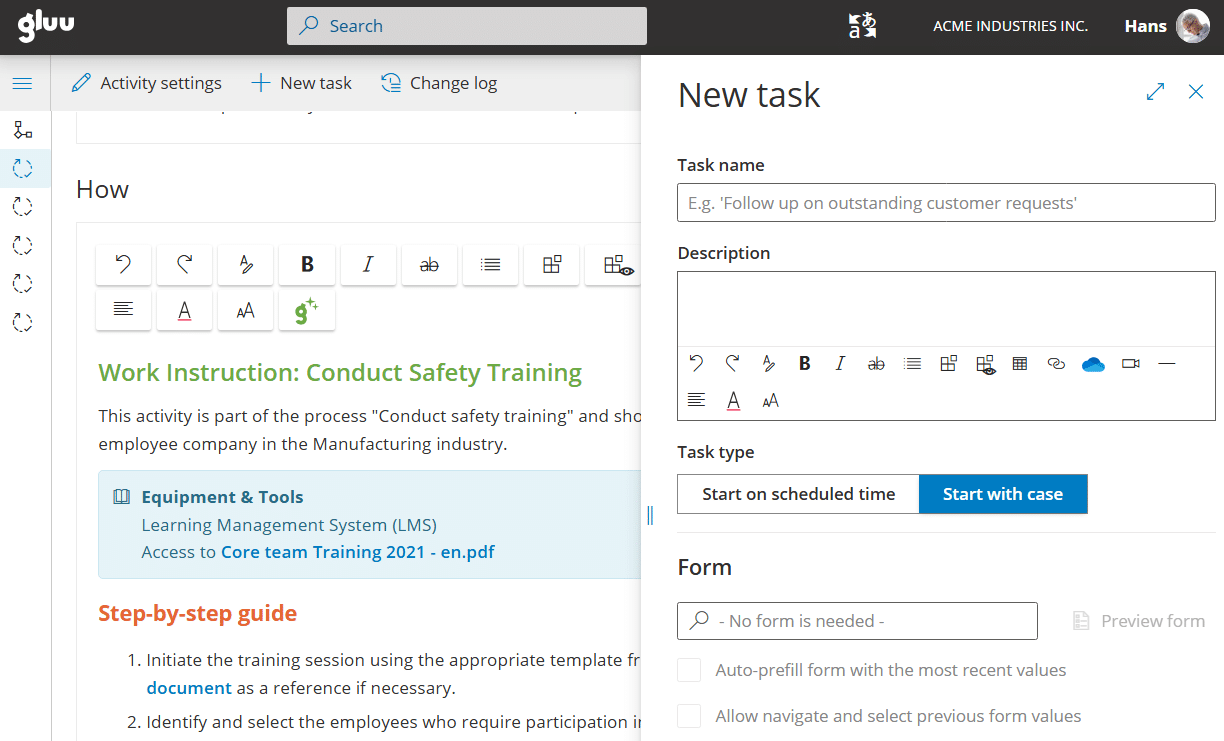
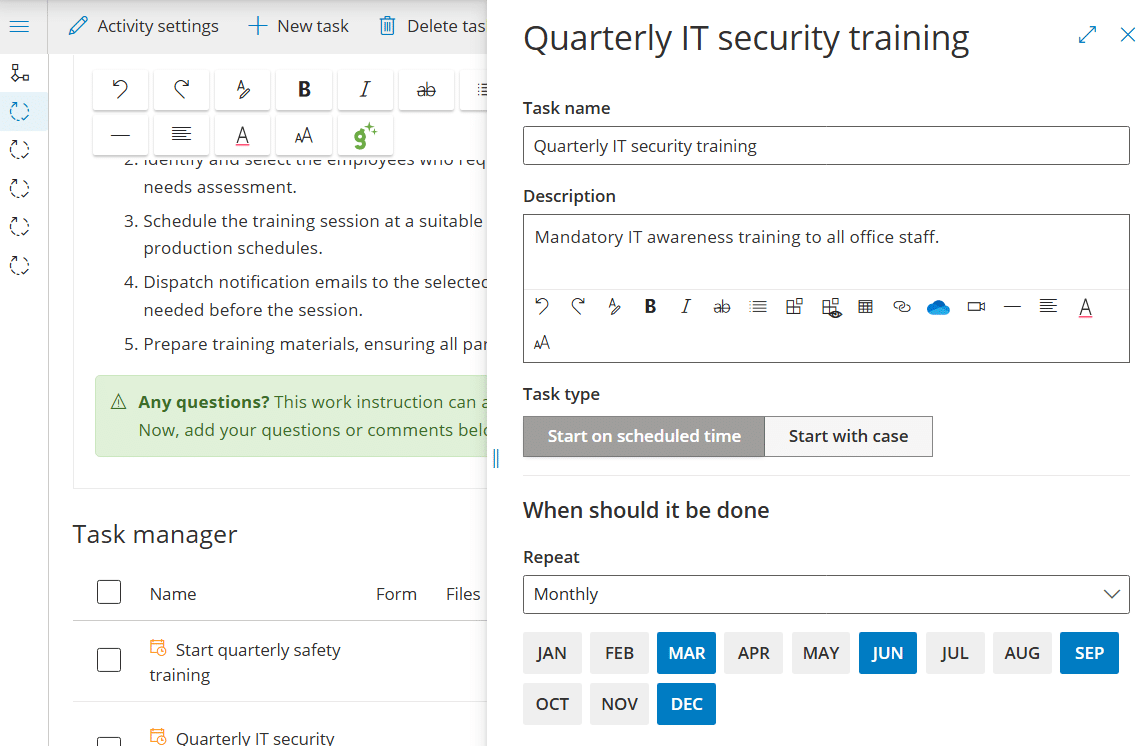
Nothing is stored until you save the process. You’re done once you have clicked Save & Exit and the schedule appears in the activity’s Task manager.
Create a process review task #
Process review tasks are created from the Tasks menu of the process. In process Edit mode you can only create activity tasks.
- Open the process and click Tasks in the left menu.
- Turn on Edit mode.
- Click Add process review task.
- Fill in the form. See Scheduled task settings for each field.
- Click Save changes.
A process review task is saved immediately, so you do not need to save the process afterwards. You’re done once the new row appears on the Tasks tab.
Scheduled task settings #
| Setting | What it does |
|---|---|
| Task name | Required, up to 100 characters. |
| Description | Rich text shown on every occurrence. |
| Repeat | Every day, Mon-Fri, Sat-Sun, Selected days or Monthly. Monthly lets you pick the months and a Start day. |
| Start time | The time of day each occurrence starts. |
| Duration | How many days, hours or minutes the role has to finish. It must be at least 15 minutes and not longer than the gap between two occurrences. |
| From / Until | The period the schedule runs. Until is the only way a schedule ends by itself. |
| Timezone | Defaults to the account’s time zone. |
| Notify me if this task is not done in time | Includes overdue occurrences in the email digest. |
| Form | An optional form to fill in, with options to prefill it from earlier answers. |
| Summary | A read-only sentence that describes the schedule. Check it before you save. |
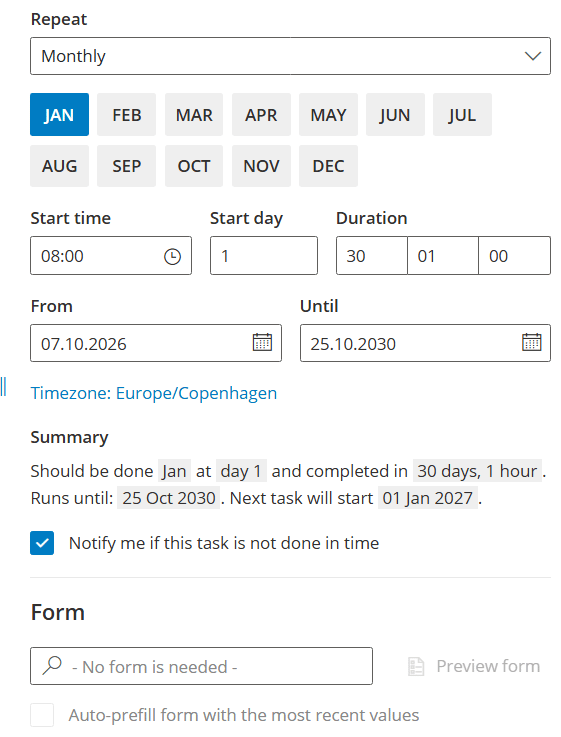
The defaults are Mon-Fri at 08:00 with a duration of 1 hour, starting tomorrow and running for 15 days. Extend Until if the schedule should run longer.
What happens after you save #
- Each occurrence appears a few minutes before its start time.
- The deadline is the start time plus the duration. After the deadline, the occurrence shows Task overdue.
- An unfinished occurrence does not stop the next one from being created. Each occurrence has to be closed on its own.
- Occurrences missed in the last 10 days, for example during downtime, are created afterwards. Users may then see several at once.
- Members of the activity’s role see activity task occurrences in My tasks, the Calendar card on Overview, the process Tasks tab and the activity.
- Process review task occurrences show in My tasks for the process owner and process editors.
Work on a scheduled task occurrence #
Open an occurrence from any of the places above. Users can:
- Click Pick this task or Set to ‘Open’ to start working on it.
- Click Submit task when the work is done.
- Click Save as draft, which is only available when a form is attached.
- Click Close as not applicable when the occurrence does not apply.
- Click Restart or Unassign.
- Add comments, files and photos.
You’re done once the occurrence is submitted or closed. The next occurrence is created on schedule whether or not this one is finished.
Edit, pause or end a schedule #
- Edit: Turn on Edit mode and click the row on the process Tasks tab, or click the task in the activity’s Task manager.
- Pause or resume: Use the Scheduler switch. It is available on activity tasks only. Pausing stops Gluu from creating new occurrences.
- End: Set the Until date. The schedule then shows Expired. You can also delete the schedule.
Notifications for scheduled tasks #
- Email digest: Includes overdue occurrences for role members who have email notifications on (hourly, daily or weekly), and only when the schedule has Notify me if this task is not done in time ticked.
- Process review tasks: The process owner and process editors are notified by email.
- Microsoft Teams: Gluu posts “started” and “completed” cards when a Teams connector is set up for the role.
Limitations of scheduled tasks #
- You cannot subscribe to scheduled tasks in an Outlook or Google calendar.
- The repeat options are daily, weekdays, weekends, selected days and monthly. There is no separate yearly or one-time repeat option.
- A scheduled task goes to the activity’s role, or for a process review task to the process owner and process editors. You cannot assign it to a named person. Case tasks can be assigned to named users, see Assign case tasks with case teams and template users.
- Gluu does not send an in-app notification for overdue occurrences. Overdue occurrences show Task overdue and can appear in the email digest.
- Scheduled tasks are not connected to cases.
Example: a weekday check and a monthly review #
A weekday opening check. A shop has the process “Open the store” with the activity “Check the cash desk”, carried out by the role Shift lead. On the activity, you add a task named “Check the cash desk float” and set Task type to Start on scheduled time. You keep the defaults of Mon-Fri at 08:00 with a duration of 1 hour, and tick Notify me if this task is not done in time.
A few minutes before 08:00 each weekday, an occurrence appears in My tasks for every member of the Shift lead role. The deadline is 09:00. After that the occurrence shows Task overdue, and it appears in the email digest of role members who have email notifications on. If Gluu is down for two days, the missed occurrences are created afterwards.
A monthly process review. On the Tasks tab of the process, you click Add process review task and name it “Review process monthly”. You set Repeat to Monthly, pick the months, set Start day to 1 and Duration to 5 days. A duration of 5 days is shorter than the gap between two monthly occurrences, so the form accepts it. In each selected month, the process owner and process editors see the occurrence in My tasks.
Read more: Tasks in Gluu: types and where to create them, Use tasks and forms in daily work, Create and manage forms and Run processes as cases.
FAQ – Scheduled tasks in Gluu #
Scheduled tasks are available on the Advanced plan and on older (legacy) plans, not on Core or Essential. Process review tasks additionally require the Versioning add-on. To create or edit a schedule, you also need edit rights on the process the task belongs to.
An activity task goes to the role assigned to the activity, so every member of that role sees each occurrence. A process review task goes to the process owner and process editors, who see it in My tasks and are notified by email. You cannot assign a scheduled task to a named person.
The deadline is the start time plus the duration. After the deadline the occurrence shows Task overdue. Gluu still creates the next occurrence on schedule, so each one has to be closed on its own. Overdue occurrences appear in the email digest only if Notify me is ticked.
Gluu creates occurrences that were missed in the last 10 days, for example during downtime, after the system is back. Users may therefore see several occurrences of the same scheduled task at once. Each of these occurrences is a separate task and has to be completed or closed on its own.
To pause an activity task, use the Scheduler switch. To end a schedule, set the Until date, after which the schedule shows Expired, or delete the schedule. Until is the only way a schedule ends by itself. Process review tasks cannot be paused with the switch.
No. Gluu does not support calendar subscriptions in Outlook or Google Calendar. Role members see scheduled task occurrences in My tasks, the Calendar card on Overview, the process Tasks tab and the activity. Gluu can also post started and completed cards to Microsoft Teams when a connector is set up.


