
Goal: Design, publish, and maintain forms that capture data during task completion—on desktop or mobile.
Use forms to digitize registrations and collect data via phone, tablet, or PC. Forms can be attached to any task in any activity. Access the form builder from your profile menu in the top-right of Gluu.
Before you start #
- Plan: Forms require the Advanced plan.
- Role: Only users with the Manage forms permission can create, edit or delete forms. Process owners and editors can attach a published form to a task.
- Setup: No special setup—open the form builder from your profile menu in the top-right of Gluu.
1. Create a form #
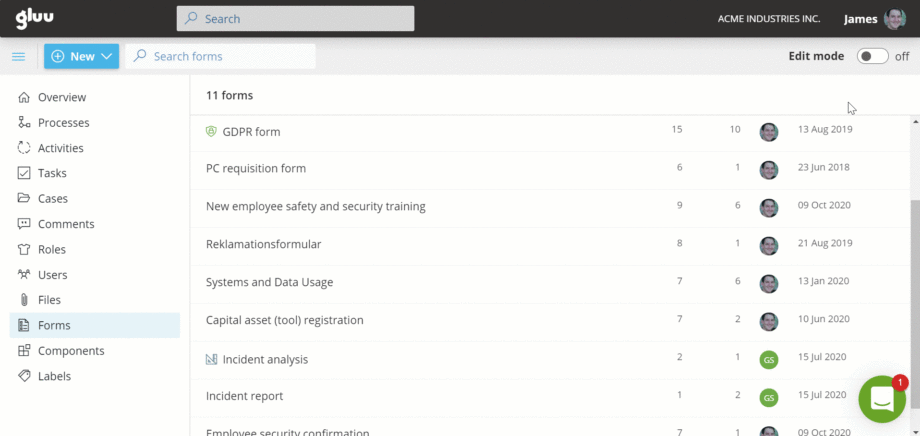
Manage all forms under Forms in the left menu.
- Click Add to create a new form, then turn on Edit mode.
- Enter a Name and Description.
- Drag-and-drop elements to arrange.
- Configure each element and mark fields as Required where needed.
- Use the trash icon to remove an element. (Historic submissions remain unchanged.)
- Use Duplicate to reuse elements within or across forms.
- Preview the form, then Save.
You’re done once the form appears in your forms list with the fields and required settings you configured.
Form tools and fields #
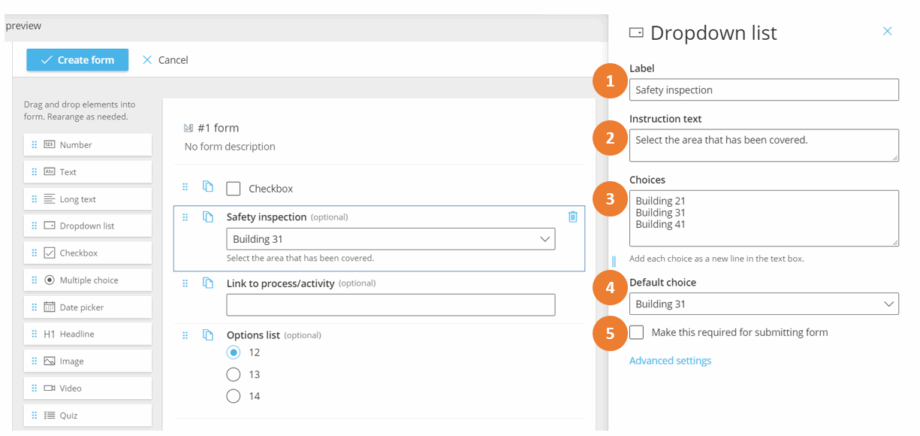
Set the forms properties:
- Label (field name).
- Instruction (helper text),
- Choices (for dropdowns),
- Default choice, and
- Required.
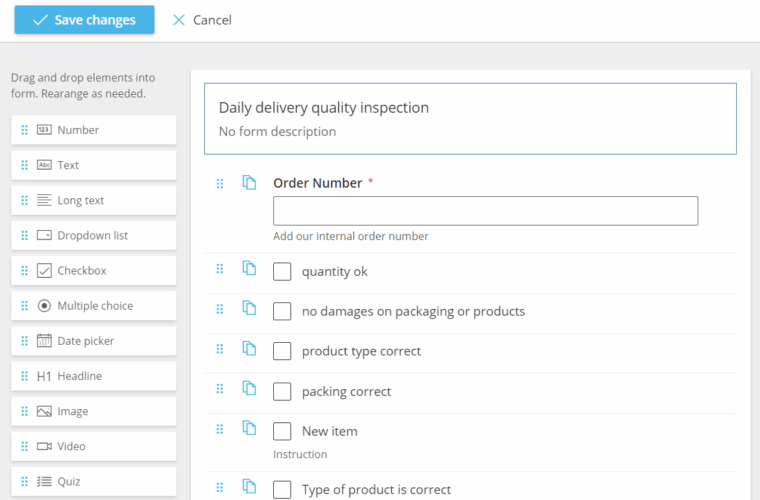
Form field options #
Number (digits only)
Text (short)
Long text
Dropdown list (options you define)
Checkbox (checklists)
Multiple choice (single selection)
Date picker
Headline (text-only)
Image
Video (embed via <iframe>)
Quiz (multiple-choice with correct answer(s))
Gluu lookup (limit answers to users/processes/cases)
Competence (skills/certificates)
Form (embed another form)
HTML (Rich formatted text or link)
Example: A training form with video + quiz questions.

Conditional fields (advanced) #
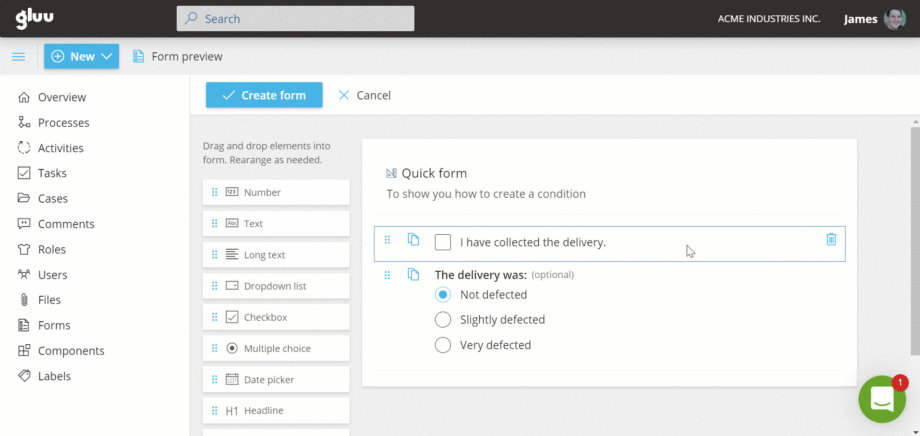
- Add the field that should only appear when a condition is met.
- Open Advanced settings and select the controlling field.
- Set the value that triggers the field to show.
Example: Show a multiple-choice question only if a checkbox is ticked.
2. Publish form #
Toggle the form to On to publish (green indicator). Turn it Off to hide from task editors (grey indicator).
You’re done once the indicator shows green and the form is selectable from the Form dropdown when editing a task.
3. Adding forms to tasks #
Any task, scheduled recurring or case-based, can have a form added to be filled by the user as part of task completion.
To add a form to an existing task, you have to:
- Go to the task manager of the activity where the task is located
- Turn on edit mode
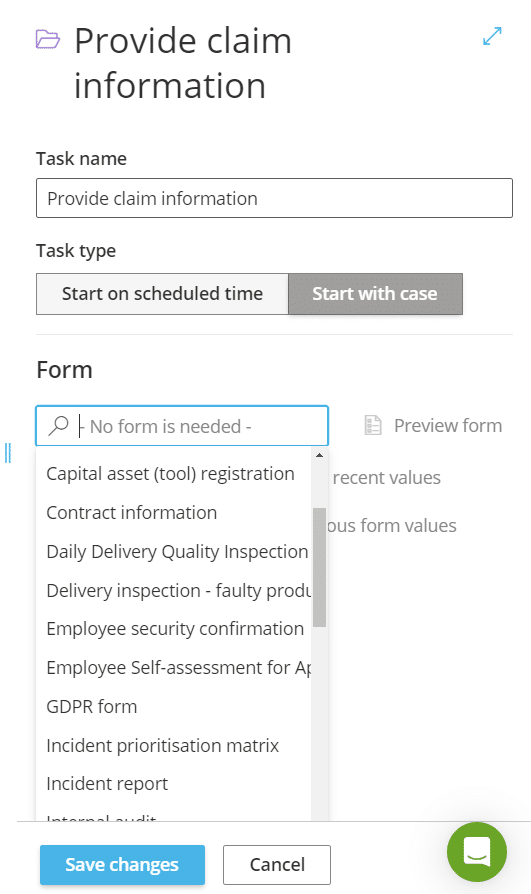
- Go to the ‘Form’ option in the task drawer
- Choose the form on the dropdown list that should be added to the task
- Click save
The dropdown list of forms show all available forms and the list is searchable – start typing and the list is filtered based on what you type. Remember, only published forms will show on the list!
You’re done once the form appears in the task manager for that task.

Prefill feature #
When adding a form to a task, you have the option of using our prefill feature that allows you to reuse form data previously entered into a form. The form data used for prefill is always only data from the form template you used on the task, not other forms you have in Gluu. In the example below (picture), the form data would therefore always be from filled versions of the ‘internal audit’ form template.
Using the prefill feature helps you get rid of redundant retyping of the same information into a new form. For instance, it lets you correct data typed in previously by reusing that data in a new form and letting the user edit the relevant fields in the form., e.g. incorrect customer contact info in a claims form. It also lets you pass on information from colleague to colleague easily, so they do not have to refer to a previous task in a case. They will have the information readily available as they are solving their own task and can just continue the work started by a colleague and simply add to it.
There are two possible settings for this feature (shown on picture below) and you manage them on the task(s) where you have used the form:
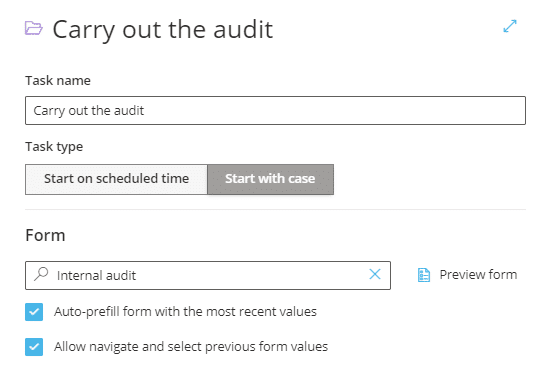
- Auto-prefill recent values from the same form in the same case (users can edit before submitting).
- Let user choose a previous version from this or other cases using the form.
- If both are enabled, the most recent fills automatically; users can switch to another version.
Note: The first time a form is used there’s nothing to prefill. Submit once to generate reusable data
Video intro #
FAQ – Creating and managing forms #
Forms require the Advanced plan. On other plans, the form builder and the Forms menu item are not available, so tasks cannot have a form attached.
Only users with the Manage forms permission can create, edit, or delete forms. Process owners and editors do not need this permission to attach an already-published form to a task.
Gluu supports Number, Text (short and long), Dropdown list, Checkbox, Multiple choice, Date picker, Headline, Image, Video, Quiz, Gluu lookup, Competence, embedded Form, and HTML fields, so you can mix data capture with instructional content in the same form.
Yes. Add the field you want to control, open Advanced settings on it, select the controlling field, and set the value that should trigger it to show. This is useful for follow-up questions that only apply in specific cases.
Prefill reuses data from earlier fills of the same form template on the same task—never data from other forms. You can enable auto-prefill of the most recent values, let users choose from a previous version, or both; users can always edit prefilled values before submitting.
Only published forms appear in the Form dropdown. Open the form and toggle it to On (green indicator) to publish it, then it becomes searchable in the dropdown when editing a task.


