Goal: Use a process hierarchy to organise processes with categories, groups and processes — then clone, move, sort and bulk edit to keep everything consistent.
New processes are added to your account’s process hierarchy (“Processes”). This lets a central team manage how processes fit together, while process owners manage individual processes — so you can delegate ownership without losing control.
New to process architecture? Then we recommend taking the free Gluu Academy video course “Designing process architectures.”
Create a process hierarchy #
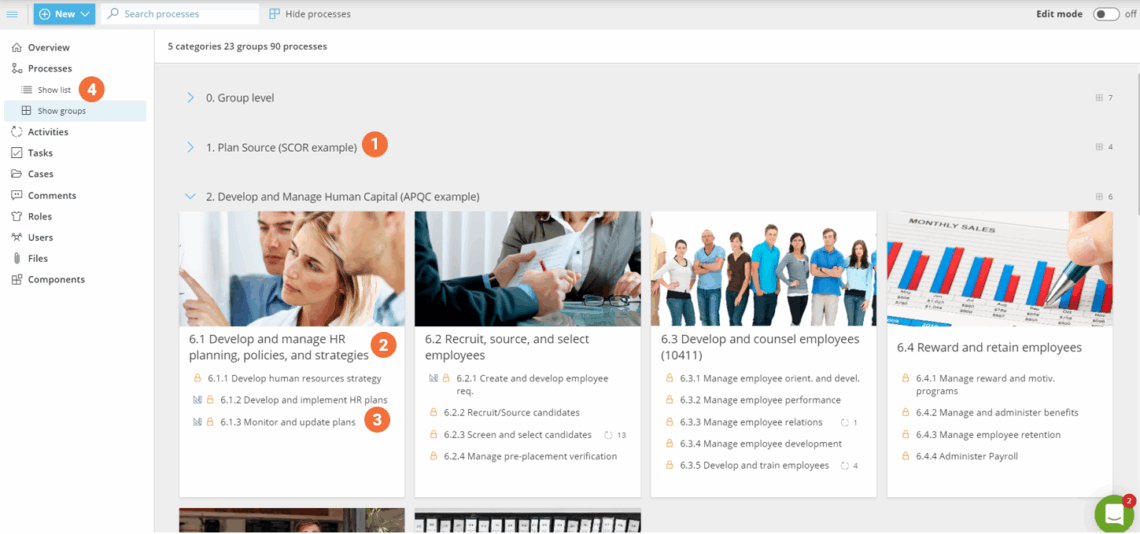
If you have the appropriate user rights then you can create a process hierarchy with:
- Categories for the main groups of processes in your company.
- Groups to make smaller groups of processes within categories.
- Processes to show specific flows.
- Use the List or Connections views to see process relationships and owners.
1. Add categories #
Add categories from the edit mode menu.
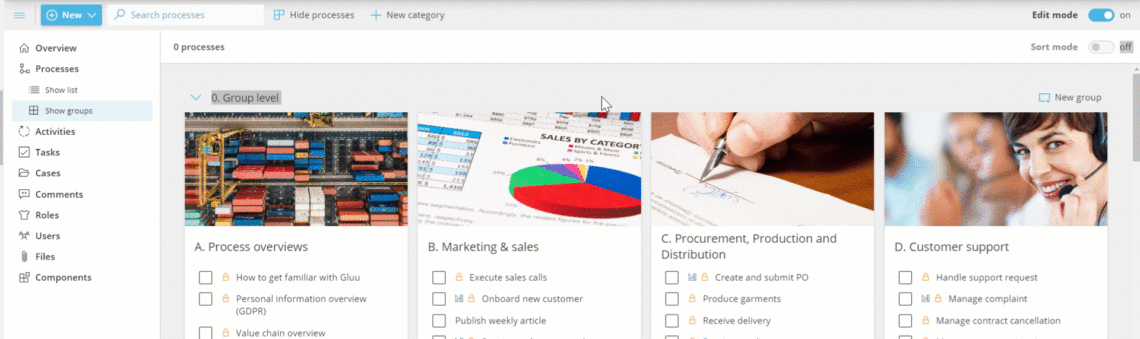
When you have created a category, add groups.
2. Add groups #
To add groups you should:
- Click New group to add a group into a category (groups are sorted by number and name).
- Give the group a name that covers the processes you intend to place here.
- Add an image to illustrate the group (crop by clicking the image before uploading).
- Click Edit group to change the group name.
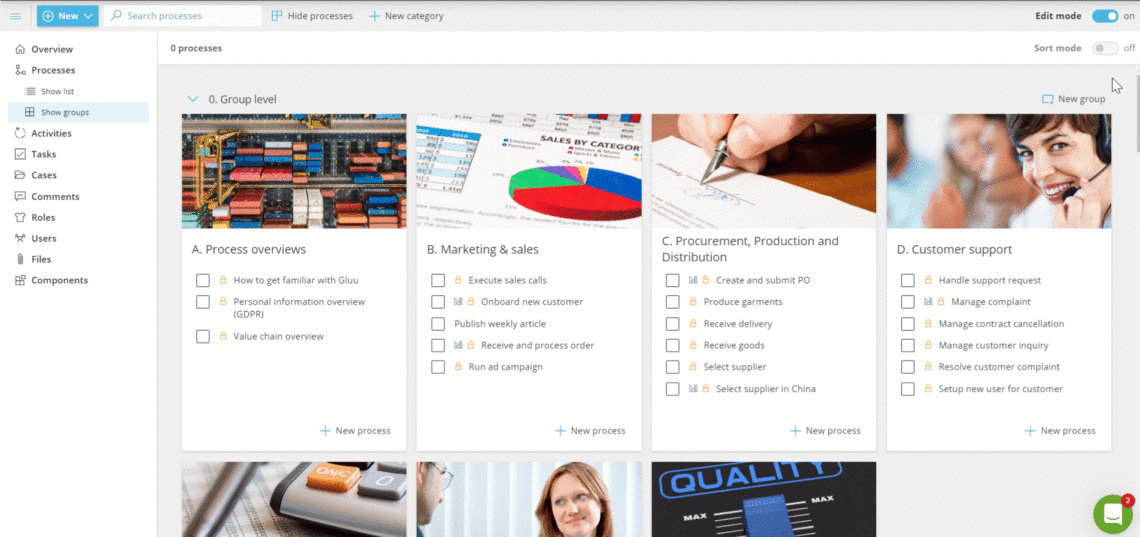
When you have added a group, start adding processes.
3. Add processes #
Add new processes to groups by creating a blank process or duplicating an existing one:
- Click New process in the selected group (default is a new, blank process).
- Add your Process name (use active wording and day-to-day language). If you duplicate a process, rename the new process and its activities so you can distinguish them.
- Add your Process outcome (the intended output of the process).
- Click Create process to finish (the process is now Private and visible only to you and invited collaborators).
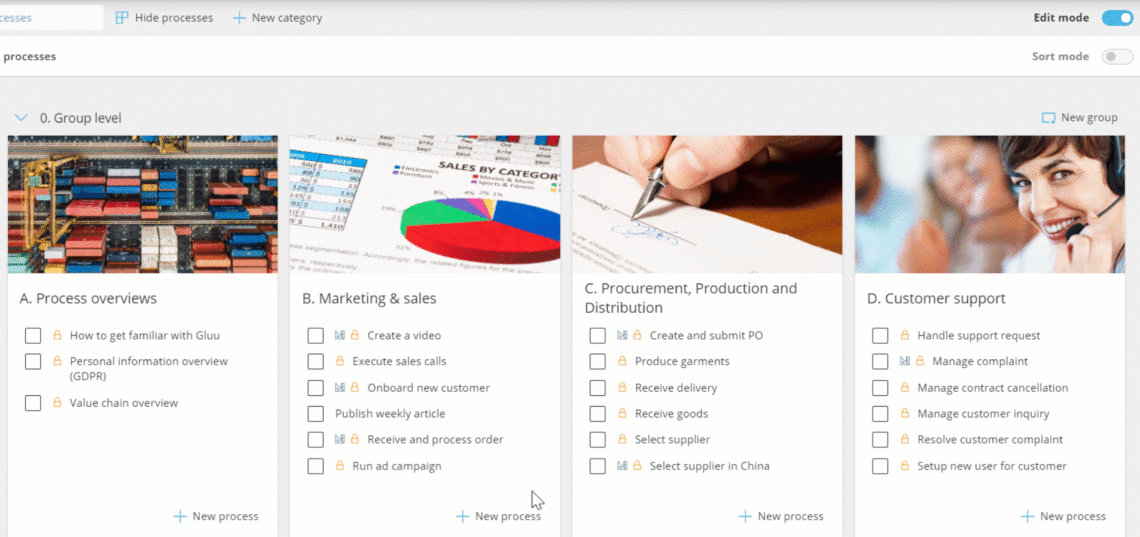
Manage a process hierarchy #
If you want to reuse a mapped process or create a similar one, clone it instead of starting from scratch. Users need process management rights to clone.
There are two ways to clone a process in Gluu:
- From the process page.
- From the process group page.
Clone a process #
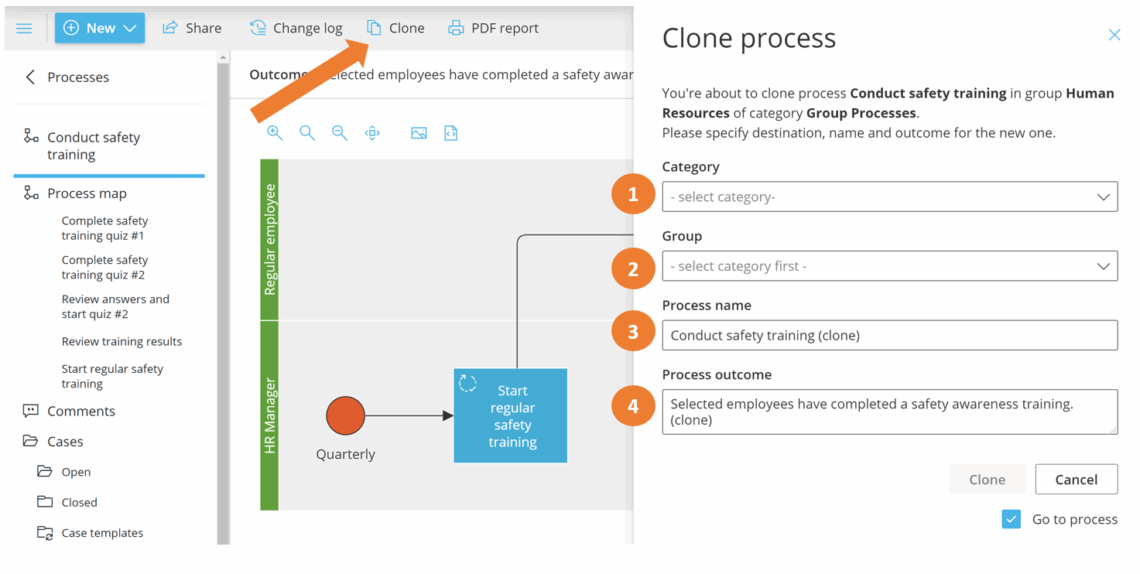
Open the process map you wish to clone and set its placement and details.
- Open the target process.
- Click Clone to open the side drawer.
- Select the Category.
- Select the Group.
- Enter a new Process name.
- Enter a new Process outcome.
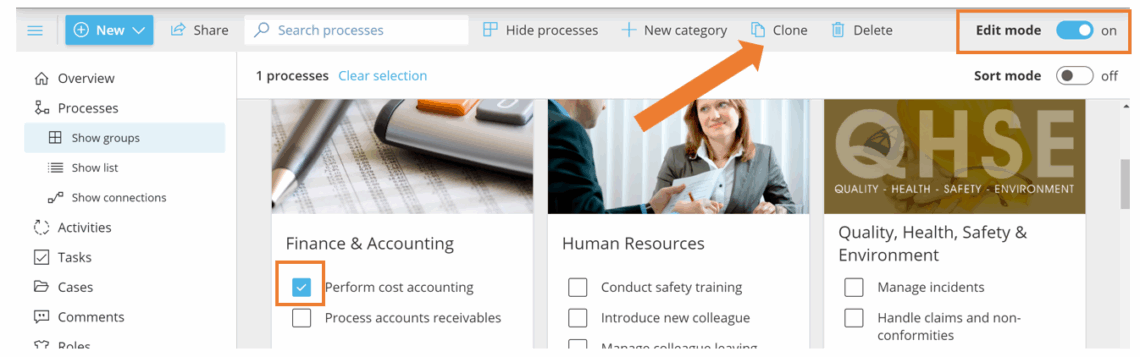
You can also clone from the Show groups page in edit mode.
- Open Show groups and turn on Edit mode.
- Select the process you wish to clone.
- Click Clone.
- Select the placement (category and group), then give it a new name and outcome.
Looking for information on how to clone processes between accounts? Learn more here: Transfer data between Gluu accounts
Move processes between groups #
You can move a process to a new group in edit mode.
- Turn on Edit mode.
- Open the process you want to move.
- Change the Group.
- Save.
Sort categories, groups and processes by name and/or number #
Categories, groups and processes are sorted numerically and alphabetically. Add numbers if you want a specific sequence, or rely on automatic alphabetical sorting.
TIP! If you prefer automatic numbering, you will find that option in account settings.
You can:
- Change the process order within a group.
- Move processes from one group to another.
- Change the group order.
- Change the category order.
Keep in mind that if you use the sorting mode, all your new processes will no longer be recorded numerically, but will always be added at the end of the list.
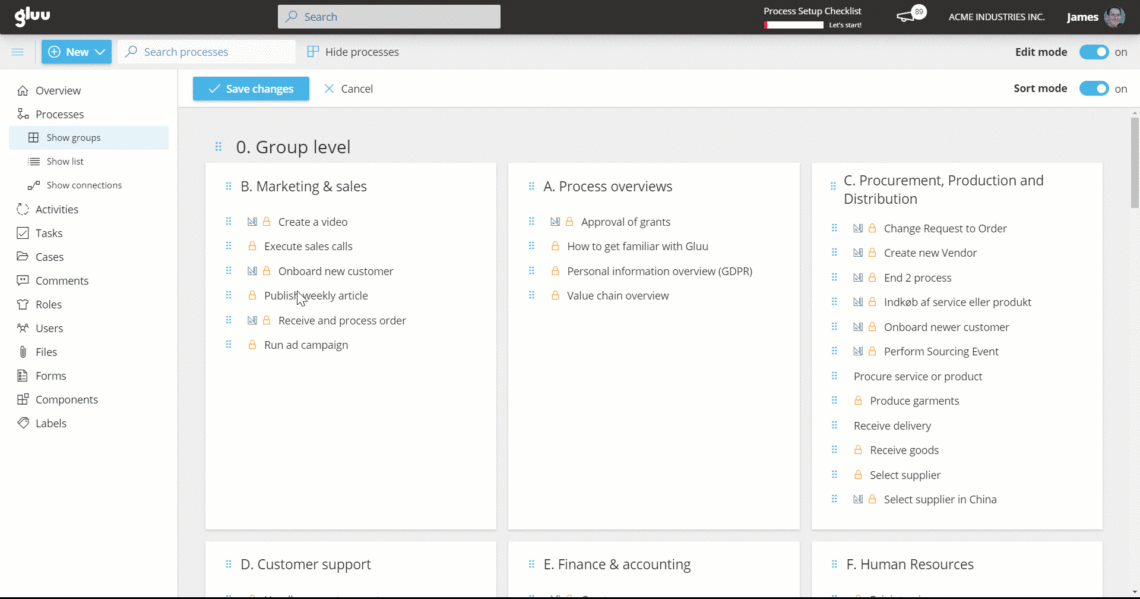
Bulk edit processes #
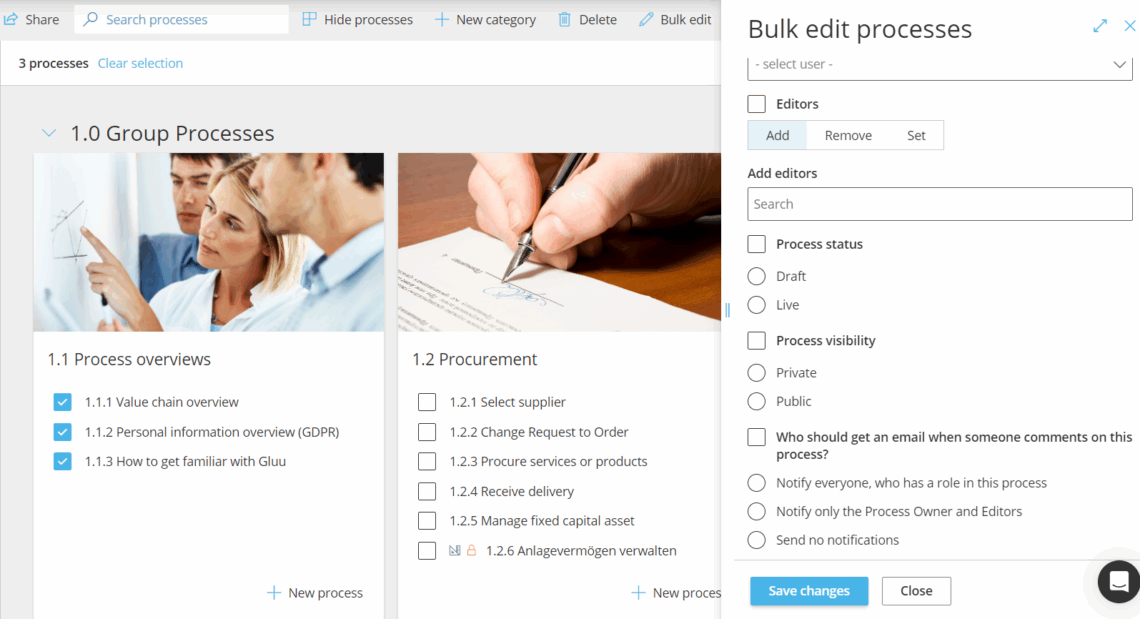
Use bulk edit in edit mode to update multiple processes at once.
- Turn on Edit mode on the process overview page.
- Select 2 or more processes.
- Click Bulk edit in the top gray menu.
- Update Owner, Editors, Process status, Process visibility, or Notifications.
- Save.