Goal: Use extra custom fields to add and collect meta data and/or specify relevant data you want to record on processes, activities, roles and users.
You can specify extra fields to collect more relevant data according to your requirements.
Maybe you want to add which IT systems are used with your processes, maybe you have certain HR requirements that you want to reflect on your roles in Gluu etc. Extra fields let you add anything to processes, activities, roles and users that you want, allowing you to customize to meet the needs of your organization.
Video intro #
TIP! You need to be the account manager or have manage account permissions to create or remove fields in Gluu. Your account also needs the Enterprise Customisation add-on.
Setting up fields #
Fields can be added to different objects by the user:
- Process
- Activity
- User
- Role
Fields types to choose from:
- Text
- Date
- Yes/No
- List
- Number
Whenever you add a field, the field is locked to the object and type you selected when you created it, and it cannot be changed at a later time. If you decide you need a field for a different object and/or in a different type, you have to create a new field with the desired characteristics.
Field types #
Text #
Free text fields are fields where the users can type anything they want. We recommend that you only use this type sparingly as data discipline is paramount if the data is to be useful.
That is very difficult to maintain across multiple users in most organisations. Use one of the other more specific types instead to limit the options and avoid free text. The “custom list” or “Gluu Components” options in the “List” type are often good alternatives.
List #
This is a multi-value field. The options must be specified from a “custom list” or “Gluu components”.
If you choose “custom list”, you can define a fixed list of options needed for your users to choose from on a dropdown list. They will not be able to type anything in the field, only to choose from the list.
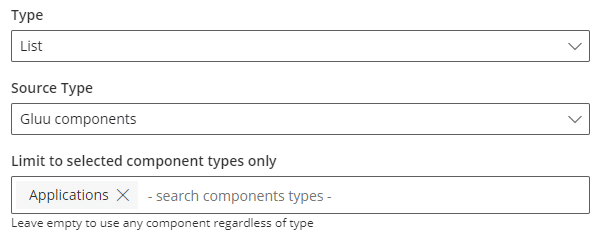
If you choose “Gluu components“, you can designate a component type (or several types) as the source of you list, meaning that your users can choose from any component in that type, but not from components in other types. If you do not specify a type, the user can choose from all components in your account.
Both options allow the user to add multiple items from the list to the field.
A multi select field with a components source would look like this:
Want to learn more about components? Take a look at this article: Shared components
Date, yes/no and number #
These are pretty self-explanatory and simple fields. They limit user options to help ensure the correct information is collected.
Protected Fields #
Protected fields are limited to certain types. These fields are protected and values cannot be seen until you click to reveal the fields.
Protected fields will show like this:
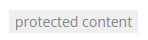
until you click to reveal the content, if you have the needed permission.
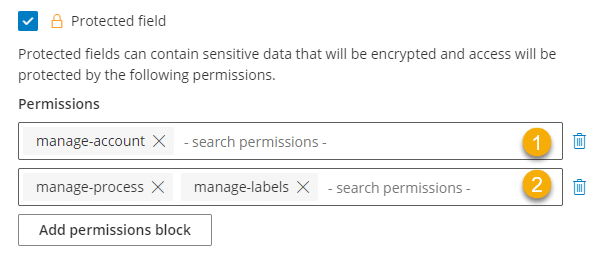
- You need to have one of the condition (1 or 2) to see the field. (1) is for account managers and block (2) is for users that must have both “manage processes” and “manage labels”.
- Permissions can be changed but a protected field cannot be changed to unprotected after it has been created.
Video guide (detailed) #
Showing fields #
Create sections #
You need to add fields to a section in order for them to be visible on the object you choose and available for your users to add information to.
A section is just a collection of fields defined by you. Only fields linked to the same objects (role, user, process, activity) can be grouped together.
Fields are NOT shown to the users if they are not added to a section.
View fields #
You find the fields and add information to them in the same place. See below where to look for the on different objects.
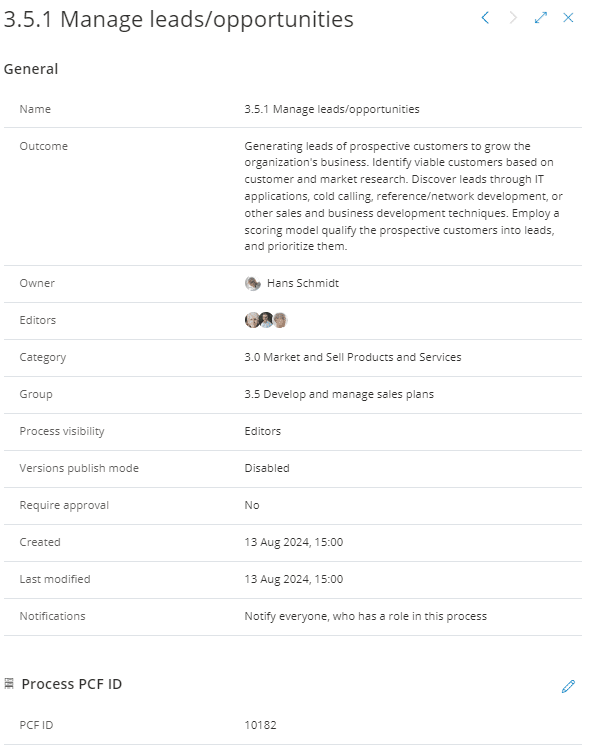
Processes and activities have fields shown in the info view you get when clicking the info icon:
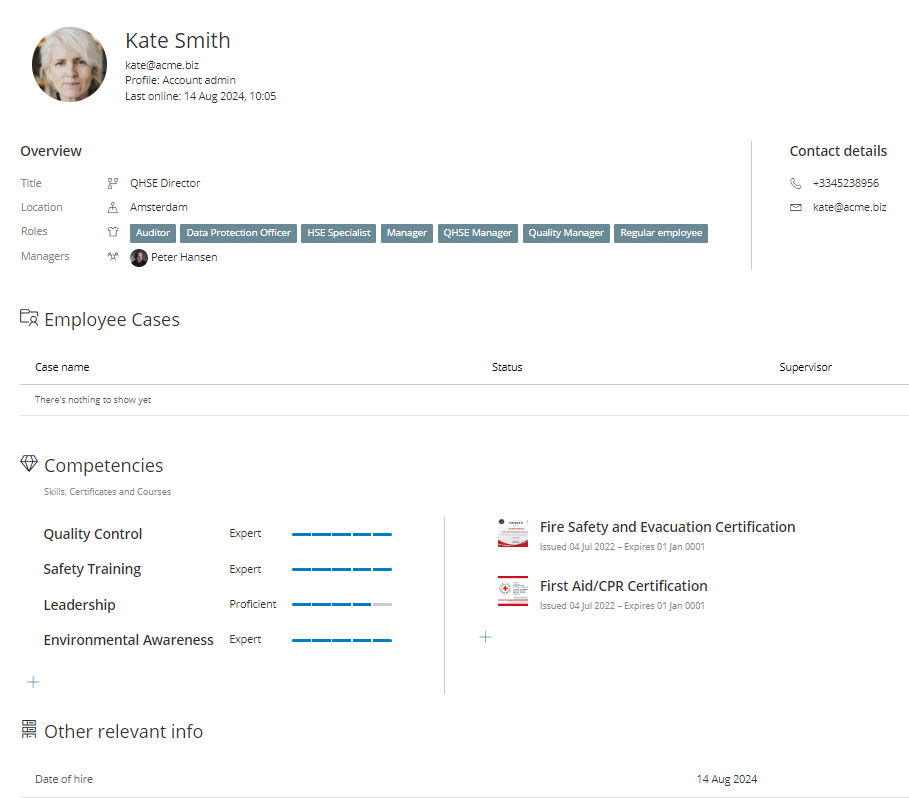
User extrafields are shown on the user profile page, found in the user list by clicking the arrow next to the user name:
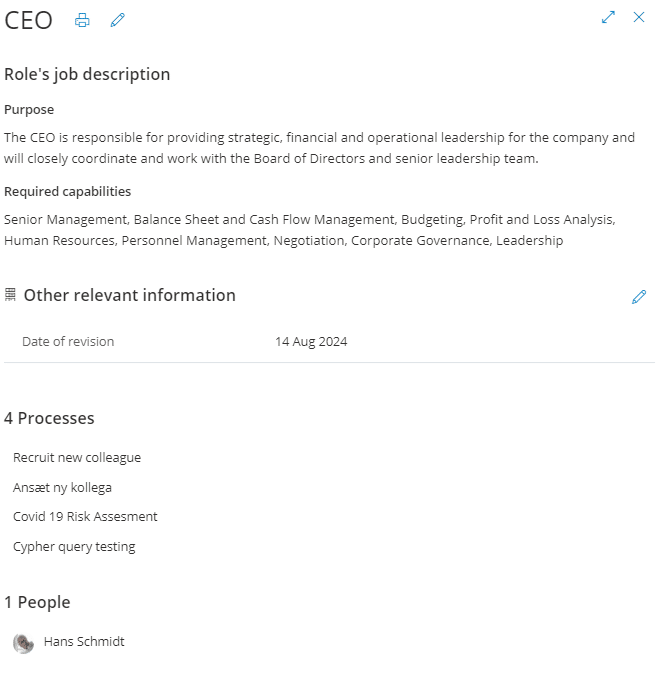
Role extra fields are shown in the role info view you get when clicking the role: