
Goal: Create a clear process map with roles, activities, and work instructions in one flow.
The single-page editor lets you map a process and write work instructions without switching screens. Tell the Assistant what you want in the diagram and it will create a simple activity flow with a start and an end.
When you’re done with the wizard, open the Editor to add advanced notation with BPMN 2.0 elements.
Preparation #
Who can do this: Users with permissions to ‘Manage processes’ can create processes in the hierarchy (step 1). Process Owners and Editors can edit specific processes (from step 2).
Before you start:
- Agree on the process name and outcome (1–2 sentences).
- List the roles involved.
- (Optional) Collect procedures or links you want to include.
1. Create the process #
Click the arrow next to “New process” and choose “Process”.
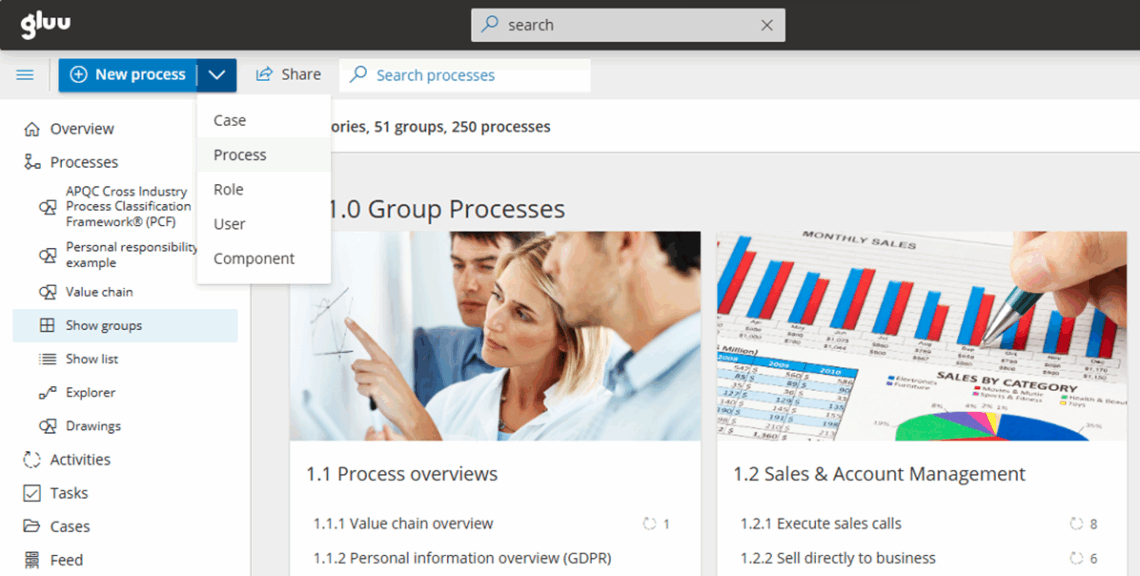
Choose the process location in your process hierarchy.
Enter “Process name” and a short “Outcome”.
Select a starting process (or leave it to start with an event).
Click “Create” to open a blank diagram (uncheck “Go to process” if you’re only building the hierarchy now).
2. Add roles (swimlanes) #
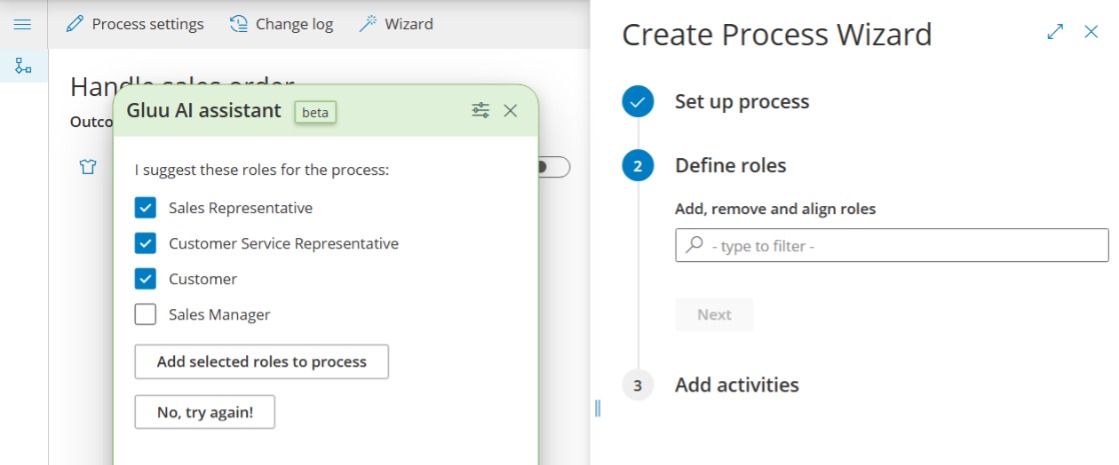
Click “Define roles”.
Select the roles suggested (or add new if needed).
Order roles by importance or activity volume.
Click “Next”.
3. Map the flow with activities #
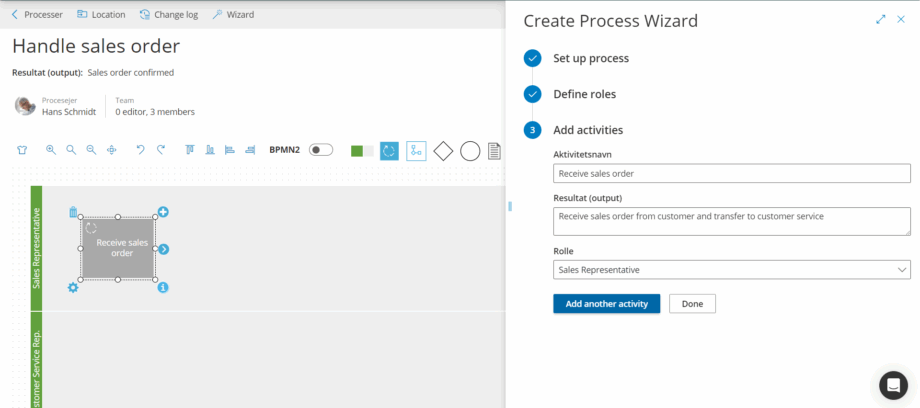
Select the Assistant’s suggested activities for each role.
Edit activity names and outcomes if needed.
Order activities in the required sequence by dragging and dropping up and down.
Select an ending process (or end with an event).
Click “Done” to create a draft diagram.
(You can reopen the wizard anytime if you prefer it over the editor.)

4. Add work instructions #
You can skip this step if you don’t want to add work instructions. However, combining process drawings and work instructions can help you make diagrams much simpler since specific how-to information will be available inside the activity as work instructions.
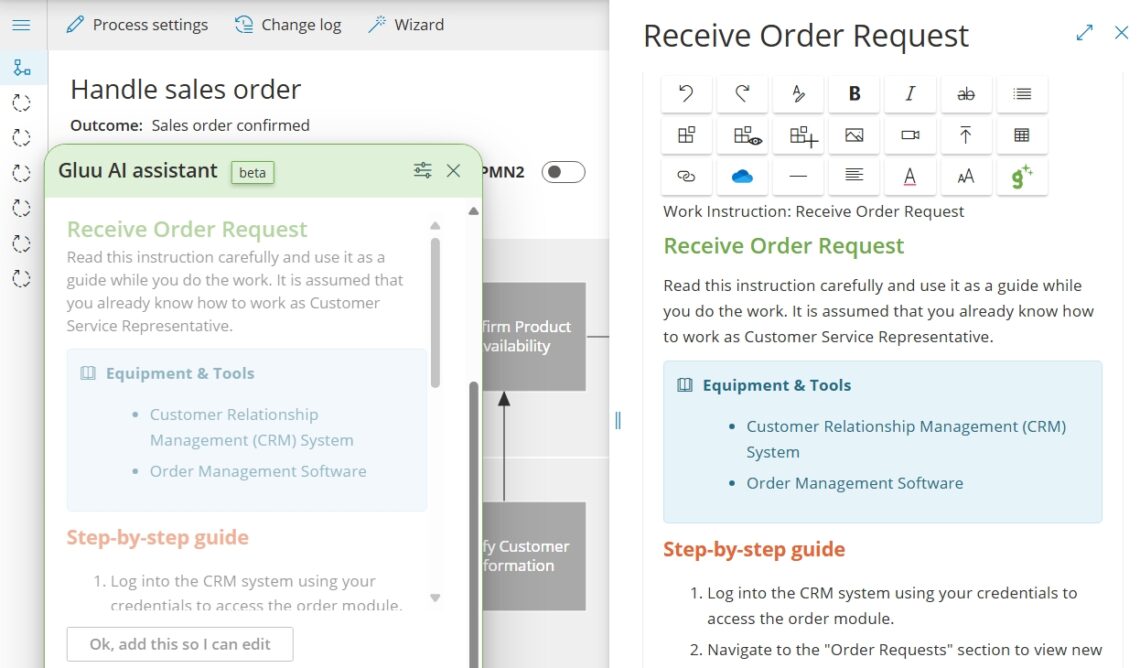
Click an activity to open its details. Add instructions in one of three ways:
- Manual — Write from scratch with the toolbar.
- Rewrite and enrich — Add notes and visuals, click the Gluu Assistant icon, then choose “Rewrite instruction text”.
- Automated — Click the Gluu Assistant icon for “Why” and “How” suggestions.
Repeat until all activities turn blue (your map gradually becomes a usable guide for business users).
5. Save as draft #
Turn off “Edit mode” to save as a draft and invite editors to collaborate.
Each publish creates a new version that you can view or restore later.
6. Next steps #
Learn how to publish and maintain a process.
Video guide #
It’s all presented in this short guide:


