
Goal: Use process and activity links to build a process overview that shows how your processes relate—without changing ownership or edit rights.
This article shows how to create a process overview with process and activity links. Use it to supplement your process hierarchy with dedicated overviews of:
- How processes are related to functions.
- End-to-end processes.
- Processes with high risk.
- Processes that involve personal data (GDPR).
- Processes critical to ISO standards you follow.
Before you start #
- Plan: Process mapping, and so process overviews, are available on all plans.
- Role: You need the Manage processes permission to create overviews.
- Setup: Have the processes you want to link already mapped in your process hierarchy.
How to start #
This is just another form of process mapping, except you map with processes rather than activities.
- Go to your account’s Processes page.
- Select the category and group where you want the overview.
- Create a new process and name it (e.g., “Marketing overview”).
- In the editor, draw the flow using only the Process shape — this is the shape that links to an existing process in your hierarchy rather than creating a new activity. You can find it in the Gluu standard notation toolbar. Read more about the editor.
- Use arrows to show how processes link into end-to-end flows.
- Publish the overview process when ready so other users can find it.
Your process overview can now present relationships and confirm that processes support overall company objectives.
Examples #
GDPR overview #
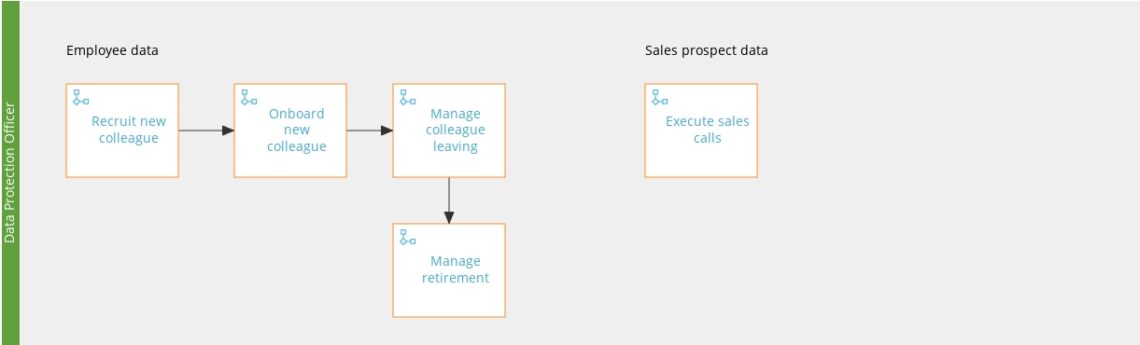
Information security overview #
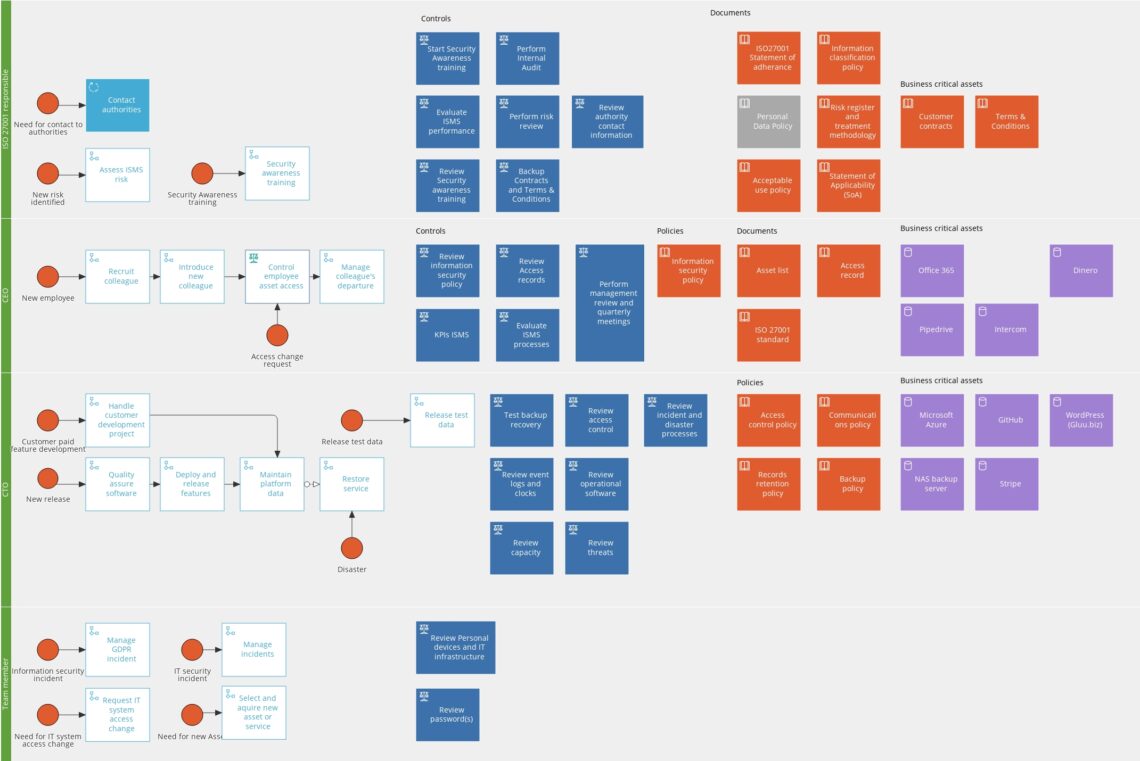
Marketing flow overview #

Value chain overview #
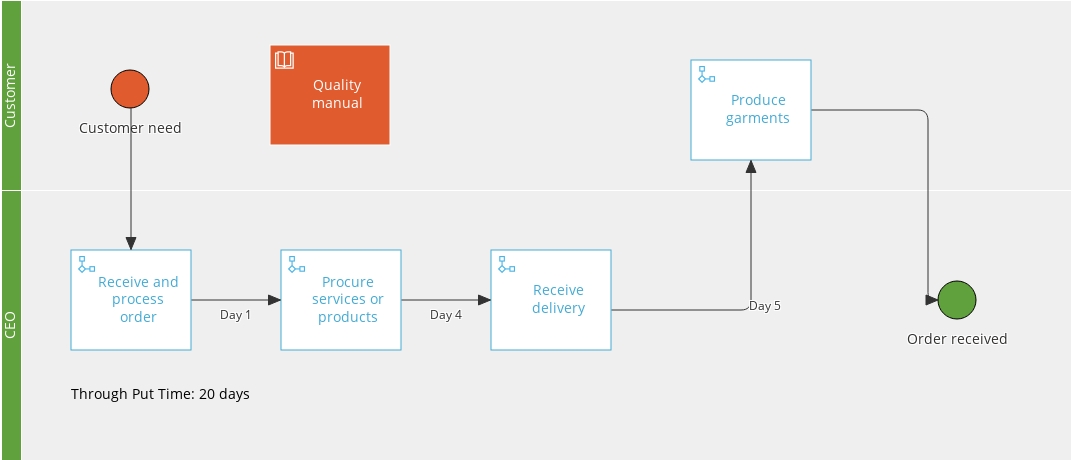
FAQ – Process overviews #
You need the Manage processes permission group. This gives you the ability to create processes anywhere in the hierarchy and edit any process or work instruction. It is assigned by your account administrator under Account settings > Permission Groups.
The Process shape links to an existing process in your hierarchy — clicking it in the published overview takes users directly to that process. An Activity shape creates a new standalone activity with a work instruction. For process overviews, you use only the Process shape so that the overview reflects your real process structure rather than adding new content.
No. Linking to a process in an overview does not change who owns or edits that process. The overview is simply a visual representation of how processes relate. Each linked process continues to be managed independently by its own owner and editors.
Yes. A common approach is to create one overview per cross-cutting concern — for example, a GDPR overview, an ISO overview, and a value chain overview. Each is a separate process in your hierarchy that uses Process shapes to map the relevant subset of your process landscape.
A newly created process is private by default — visible only to you and any editors you add. To make the overview accessible to other users, open Process settings and change the visibility to Members (visible to users with a role on the process) or Public (visible to all users). Then publish the process.


