
Goal: Control visibility, manage owners/editors, and recover or restore versions to keep processes accurate and usable.
Edit owner / editors #
Each process can be managed by a separate group of users. By default the process is owned by the original creator but ownership can easily be updated:
- Open the relevant process or activity.
- Select “Responsibilities”.
- Turn on Edit mode.
- Search and add users or adjust existing ones.
- Click “Save changes”.
Process visibility #
To change process visibility go to ‘Process settings.’
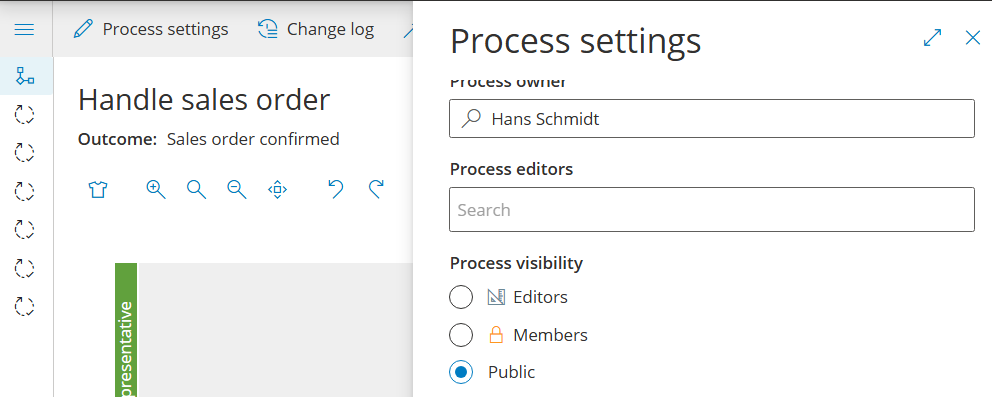
Which user groups can see your process:
- Editors: Default for new processes. Visible to owner and editors only.
- Members: Visible to users with one or more process roles.
- Public: Visible to all users (see permission and visibility basics).
Processes can also be in different states:
- Frozen: Visible to participants; no edits allowed. Use Freeze when you want users to complete long-running cases on the current version while you prepare a new one.
- Deleted: Viewable only by users with “Manage processes”. Restorable for a limited time.
Auto-saves #
Gluu auto-saves while you edit and keeps a temporary backup. Changes are stored long term when you exit Edit mode.
Publish a process #
Publishing makes your process visible to users and creates a versioned snapshot. To publish:
- Open the process in Edit mode.
- Click Make version (top right of the editor).
- Follow the wizard: optionally name the version, add approvers, and notify colleagues of the change.
- The process goes live once published (or once all approvals are received, if approvals are required).
Read more: Manage versioning · Work with process approvals
Change log #
Open the Change log from the toolbar to view backups and previous versions. The Change log shows every revision saved since the process was created — use it to see who changed what and when, compare versions, and restore earlier content.

Restore from earlier saves #
Requires the Versioning add-on.
- Activate Edit mode.
- Open “Change log”.
- Preview the backup/revision/version for the page you’re on.
- Click “Select attributes to restore”.
- Choose which attributes to restore (selected = previous; deselected = current).
Activities that exist only in one version are kept. You can still delete them later in the editor.
Restore a specific activity #
Requires the Versioning add-on.
- Turn Edit mode on (process diagram).
- Click the activity restore icon.
- Choose the activity to restore.
- Place it in the correct position.
FAQ – Publish and maintain a process #
Turning off Edit mode saves your changes as a draft — the process is only visible to owners and editors. Publishing (via Make version) creates a formal version and makes the process live for all users with access. Each published version is saved in the Change log and can be viewed or restored.
A frozen process is visible to its participants but cannot be edited. Use Freeze when you want users to continue completing long-running cases on the current version while you prepare a new version in parallel. Once the new version is ready, you can unfreeze or replace the frozen process.
Yes, but this requires the Versioning add-on. With the add-on enabled, open the Change log in Edit mode and use ‘Select attributes to restore’ to choose which parts of an earlier version to bring back. Without the add-on, the Change log shows history but the restore button is not available.
No. A deleted process is hidden from regular users but remains viewable by users with the ‘Manage processes’ permission. It can be restored for a limited time. If you do not restore it within that period, it is permanently removed.
The current Process Owner and any user with the Manage processes permission can update the owner and editors of a process. Go to the process, select Responsibilities, turn on Edit mode, and make your changes.
Yes. Open Process settings and enable Require approval. You can set this to Auto (publishes automatically once all approvers approve) or Manual (you publish when ready after approvals are complete). You can also set account-wide approvers in Account settings. Approvals are part of the Versioning add-on. Read more in Work with process approvals.


