
Goal: Request, track, and complete approvals for a new process version—so changes go live only after the right people have reviewed them.
In the article we’ll cover some basic setup and then provide a step-by-step guide.
Process approvals happen as part of versioning in Gluu so read our article on versioning before you start. ‘Versioning’ is a Gluu add-on that must be enable on your account before you can use approvals.
Before you start #
- Plan: The customizable approval flow requires the Versioning add-on. It is not included in the Core, Essential, or Advanced plan on its own.
- Role: Only Owners or Editors can request approval on a process. Approvers are added per process or set account-wide in Account settings.
- Setup: No special setup once the Versioning add-on is enabled—configure the approval type from Process settings or Account settings.
Approval basics #
Approvals help ensure a new process version is reviewed before it’s published to users. Each process can be set to require approval or not. You can also enforce account-wide approvers (e.g., Quality Manager) across multiple processes. A process can have three versioning and approval settings:
- Disabled – no approvals required.
- Automatic – the version publishes automatically when all approvers approve.
- Manual – approvals are required, and you choose when to publish.
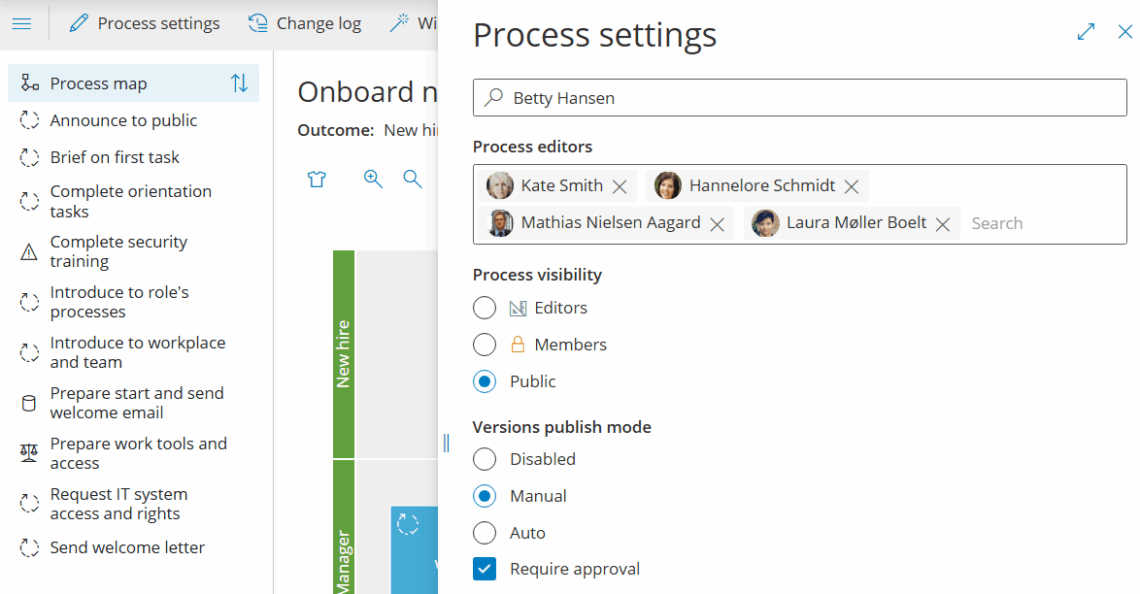
Setup approval defaults #
This is how you set up the different types of approvals on the level of the process, or the full account (admin users only):
Automatic release after approval #
- Open Process settings.
- Select Auto and check Require approval.
- When all approvers approve, the version publishes automatically and notifications follow your process notification settings.
You’re done once Require approval is checked with Auto selected—new versions will now publish automatically once approved.
Manual release after approval #
- Open Process settings.
- Select Manual and check Require approval.
- After all approvals are complete, publish the version manually when you decide (e.g., after training or when new rules start).
You’re done once Require approval is checked with Manual selected—you’ll be able to publish approved versions whenever you choose.
Account-wide approval #
- Open Account settings.
- Choose the role that must approve across all processes with Require approval enabled.
- These approvers are added automatically and cannot be removed at process level. So no new versions are published before the account-wide approver approves it.
Note that the last option can lead to significant bottlenecks and delays in your process updates. This should only be used in highly regulated environments.

You’re done once the account-wide approver role is set and applied to all processes with approval required.
With the setup done, let’s continue with approvals in practice.
Approvals step-by-step #
1. Request approval #
This can be done by Owners or Editors only.
- Enter Edit mode and create a new version.
- Add approvers. Owners/editors are included by default—you can add others.
- Send notifications to approvers.
- Wait for approvers to complete their approvals. The version publishes automatically (Auto) or when you decide (Manual).
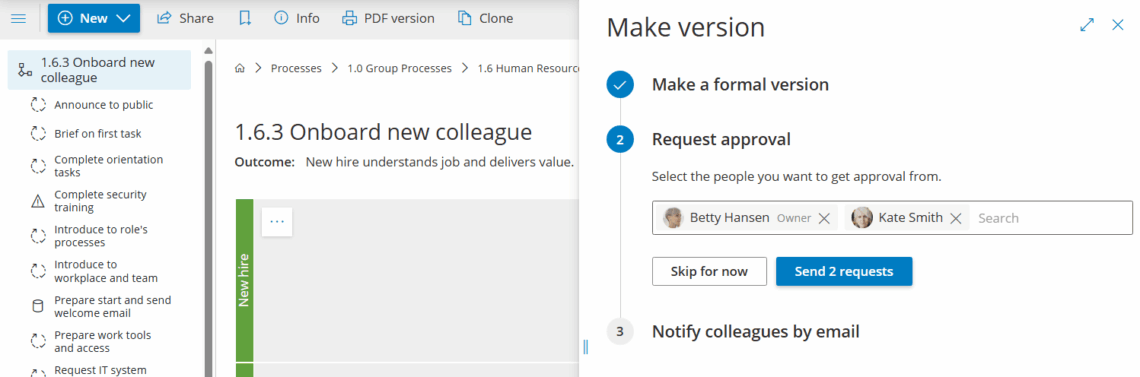
You’re done once notifications are sent and approvers have been added to the new version.
2. See approval request #
Approvers receive a request on the process and in their activity feed. Processes that require review by the user show as this:

3. Review and approve #
Reviewers can click to view a “version changes” summary, before/after comparisons, who else must approve, and current status:
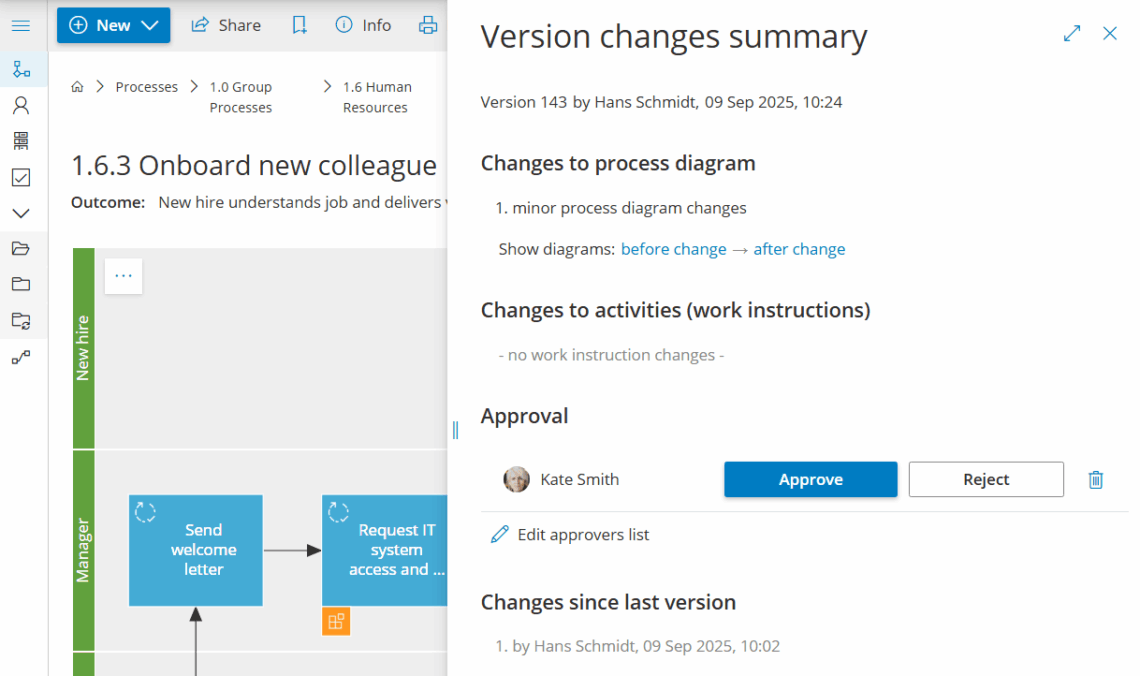
You’re done once you’ve reviewed the changes and submitted your approval.
4. Track approval status #
On the process #
- Open the process and view Revisions/Versions.
- See which changes await approval and by whom.

You’re done once you can see which approvers still need to act on the pending version.
Add pending reviews to dashboard #
- Go to your personal dashboard.
- Click the cogwheel (top-right) → add Processes to review.
- (Optional) Drag it to the top for faster access.
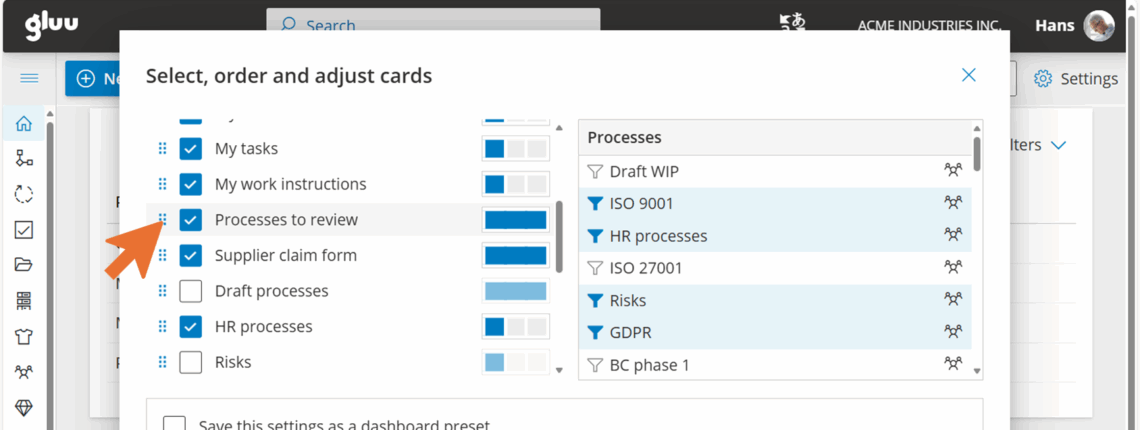
You’re done once the Processes to review widget appears on your dashboard.
Approval and versioning list #
Or use the approval and versioning list that gives you a complete overview of the status of all process approvals. You can filter the list based on your needs and use the saved filters to create specific overviews on your overview page, e.g. the list of pending approvals for processes you own.
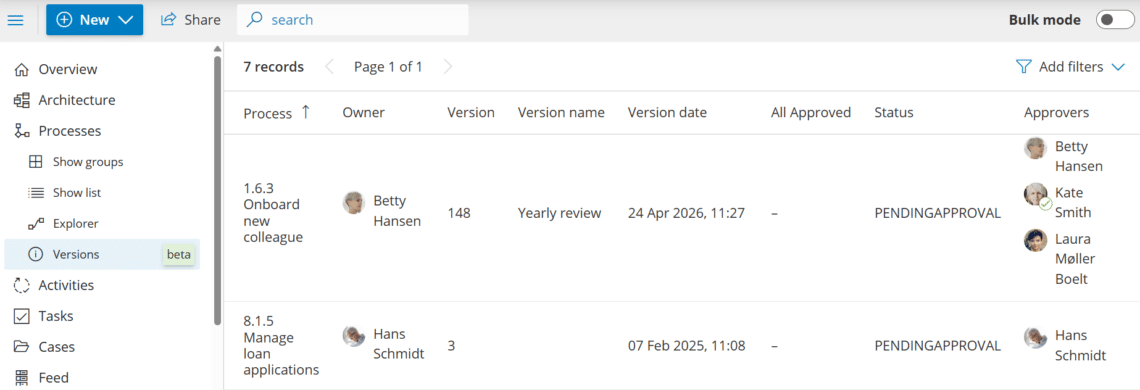
You’re done once you can see a full overview of process approvals, filtered to what you need.
FAQ – Process approvals #
Process approvals require the Versioning add-on. It is not included in the Core, Essential, or Advanced plan on its own—contact Gluu to have it enabled on your account.
With Automatic, the new version publishes on its own as soon as all approvers have approved it. With Manual, approvals still have to be completed, but you decide exactly when to publish—useful when you need to time the release around training or a new rule taking effect.
Only Owners or Editors can create a new version and request approval. Owners and editors are added as approvers by default, and you can add other approvers as needed.
It adds a chosen role as a required approver across every process that has Require approval enabled, and this approver can't be removed at the process level. Because it applies broadly, it can create bottlenecks and should generally be reserved for highly regulated environments.
Open a process and check Revisions/Versions to see what's pending, or add the Processes to review widget to your personal dashboard for quick access. You can also use the approval and versioning list with saved filters for a complete, filterable overview.


