
Goal: Create competencies, assign them to users and roles, use certificates with expiry, and match skills to process needs.
Add-on requirement: All features in this article require the HR Manager add-on. Competencies, certificate tracking, and printing user CVs are not available on any base plan (Core, Essential, or Advanced) without it. Contact Customer Success to enable the add-on on your account.
Managing competencies in context of processes helps verify if employees have the actual skills and competencies to execute the process. E.g. servicing a high voltage transformer station requires a certificate to work with high voltage equipment. This can be added to a role as a requirement.
Related: Manage process roles. With the HR Manager add-on you can also print an employee CV — open a user’s profile page and click Print CV to generate a role and skills overview.
Before you start #
- Plan: All competency features require the HR Manager add-on. They are not available on any base plan (Core, Essential, or Advanced) without it.
- Role: Users with access to the Competencies, Roles, and Users pages can create competencies and assign them; check with your account administrator if a page is not visible.
- Setup: Contact Customer Success to enable the HR Manager add-on before setting up competencies.
Video intro #
Create and manage competencies #
- Go to the Competencies page.
- Click New to add a competency.
- Describe the competency clearly.
- Save and review in the overview list.
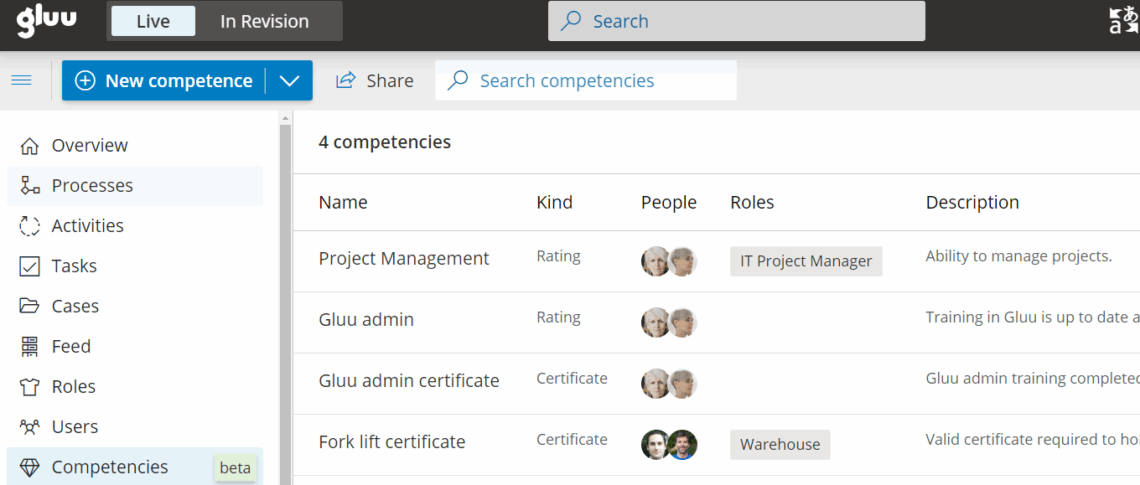
You’re done once the competency appears in the overview list, ready to assign to users and roles.
Assign competencies to individual users #
- Open Users and select the user.
- Go to the user’s Competency profile.
- Add competencies and set a level (1–5).
- Save.
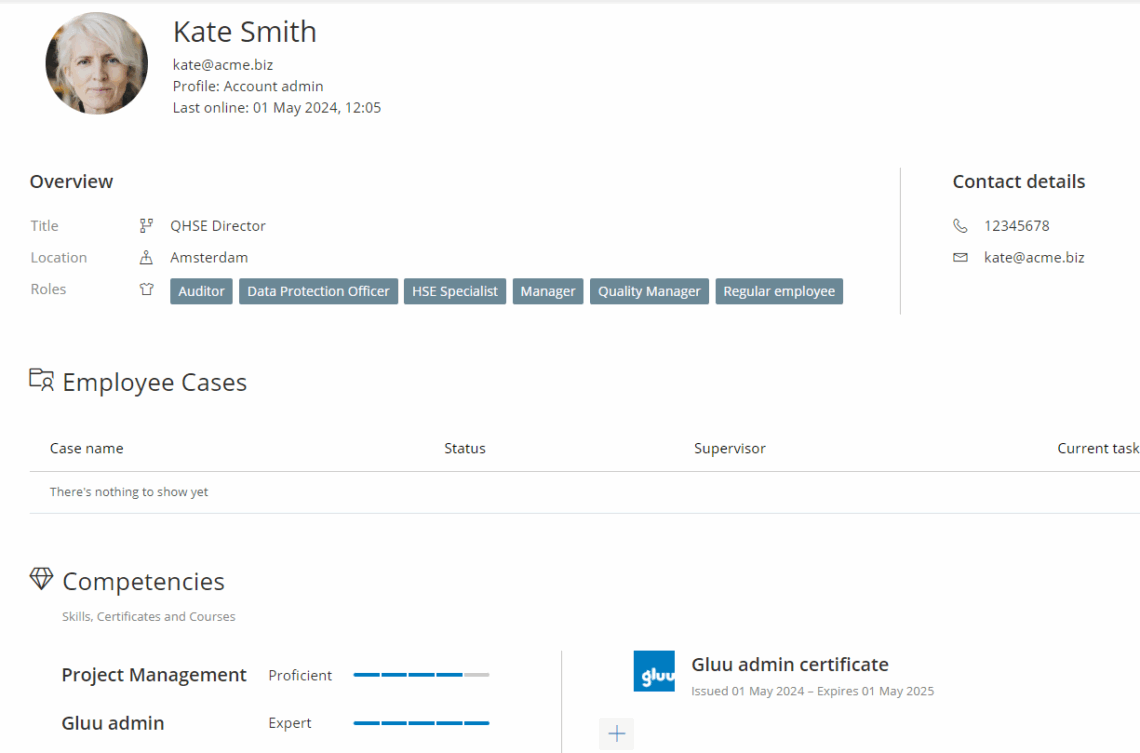
You’re done once the user’s competency profile shows the competencies and levels you added.
Use certificates #
A certificate is a special type of competency with an issue date and an expiry date — useful for regulated skills like safety certifications or licences that must be renewed periodically.
- Add the certificate competency to the user.
- Set Issue and Expiry dates.
- Assign managers/supervisors if relevant.
- Review expiring certificates periodically.
Tip: Access a user’s competency profile via the arrow next to their name on the Users page.
You’re done once the certificate shows its issue and expiry dates on the user’s competency profile.
Assign competencies to roles #
- Open the Roles page and select a role.
- Add competencies (and certificates) required for the role.
- Open the role to compare required competency levels against the actual levels of users assigned to that role — gaps indicate training or hiring needs.
- Plan training or hiring to close gaps.
The Gluu Assistant can also help to suggest competencies when a role is updated.
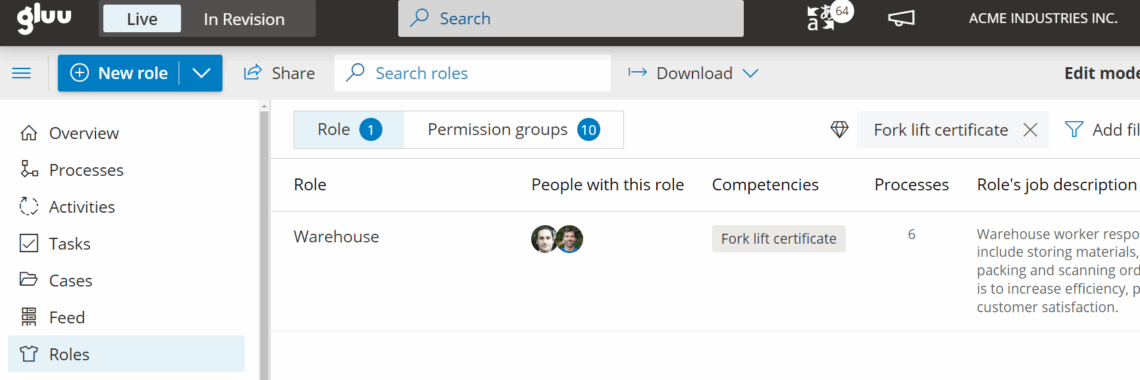
You’re done once the role shows its required competencies alongside the actual levels of assigned users, so you can spot gaps.
FAQ – Competencies #
Yes. All competency features — creating competencies, assigning them to users and roles, certificate tracking, and printing user CVs — require the HR Manager add-on. This add-on is not included in any base plan (Core, Essential, or Advanced). Contact Customer Success to enable it on your account.
A competency is a skill or capability that can be rated on a scale of 1 to 5. A certificate is a special type of competency that has an issue date and an expiry date — for example, a safety certification or a regulated licence. Both can be assigned to users and required on roles, but certificates add the ability to track renewal dates and flag when they are about to expire.
Open the Roles page and select the role. The role detail view shows the required competencies alongside the actual levels of users assigned to that role. Where a user’s level is lower than the requirement — or a competency is absent — this indicates a gap to address through training or hiring.
Open the Users page, click the arrow next to the user’s name to open their profile, and click Print CV. The CV shows the user’s assigned roles and their competency levels. This feature requires the HR Manager add-on.
Gluu tracks certificate expiry dates on user competency profiles. Review expiring certificates periodically by opening each user’s Competency profile. For automated expiry notifications, check with your account administrator — this may depend on your account configuration and notification settings.
Yes. When editing a role, click the Gluu Assistant icon and select ‘Suggest competencies’. The Assistant generates suggestions based on the role name and your account context. You review and select which competencies to add — nothing is applied automatically. This feature requires the HR Manager add-on for the competencies themselves, and the Essential plan or above for the AI Assistant.


