
Goal: Request, track, and complete approvals for a new process version—so changes go live only after the right people have reviewed them.
In the article we’ll cover some basic setup and then provide a step-by-step guide.
Process approvals happen as part of versioning in Gluu so read our article on versioning before you start. ‘Versioning’ is a Gluu add-on that must be enable on your account before you can use approvals.
Approval basics #
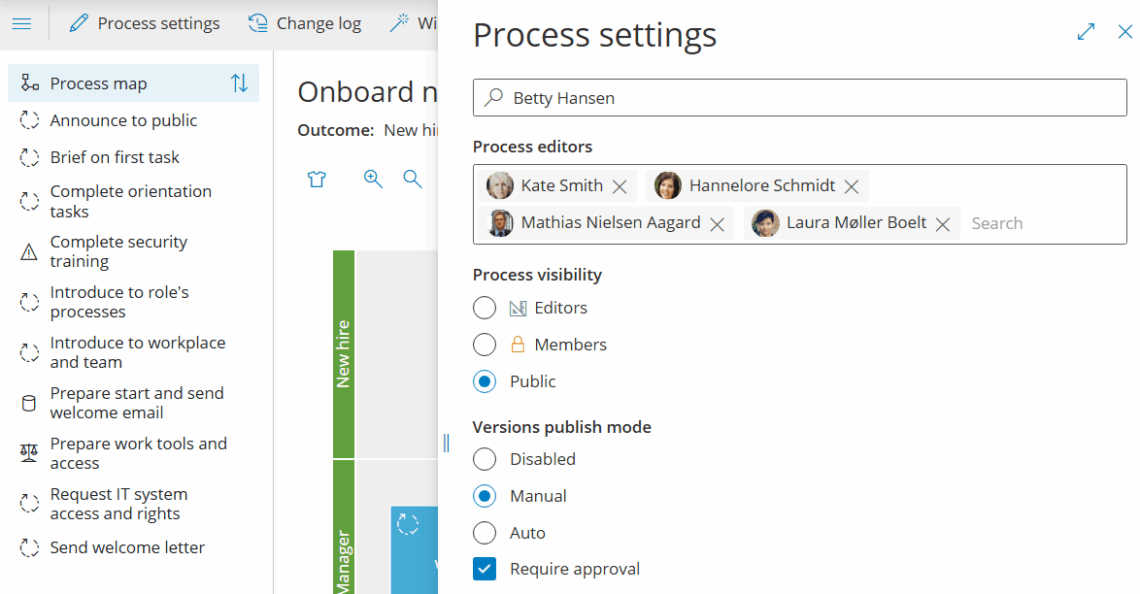
Approvals help ensure a new process version is reviewed before it’s published to users. Each process can be set to require approval or not. You can also enforce account-wide approvers (e.g., Quality Manager) across multiple processes. A process can have three versioning and approval settings:
- Disabled – no approvals required.
- Automatic – the version publishes automatically when all approvers approve.
- Manual – approvals are required, and you choose when to publish.
Setup approval defaults #
This is how you set up the different types of approvals on the level of the process, or the full account (admin users only):
Automatic release after approval #
- Open Process settings.
- Select Auto and check Require approval.
- When all approvers approve, the version publishes automatically and notifications follow your process notification settings.
Manual release after approval #
- Open Process settings.
- Select Manual and check Require approval.
- After all approvals are complete, publish the version manually when you decide (e.g., after training or when new rules start).
Account-wide approval #
- Open Account settings.
- Choose the role that must approve across all processes with Require approval enabled.
- These approvers are added automatically and cannot be removed at process level. So no new versions are published before the account-wide approver approves it.
Note that the last option can lead to significant bottlenecks and delays in your process updates. This should only be used in highly regulated environments.

With the setup done, let’s continue with approvals in practice.
Approvals step-by-step #
1. Request approval #
This can be done by Owners or Editors only.
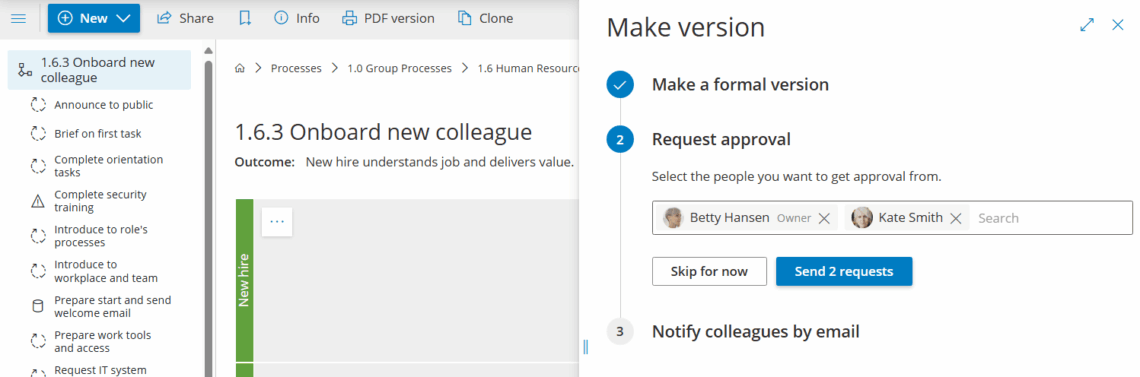
- Enter Edit mode and create a new version.
- Add approvers. Owners/editors are included by default—you can add others.
- Send notifications to approvers.
- Wait for approvers to complete their approvals. The version publishes automatically (Auto) or when you decide (Manual).
2. See approval request #
Approvers receive a request on the process and in their activity feed. Processes that require review by the user show as this:

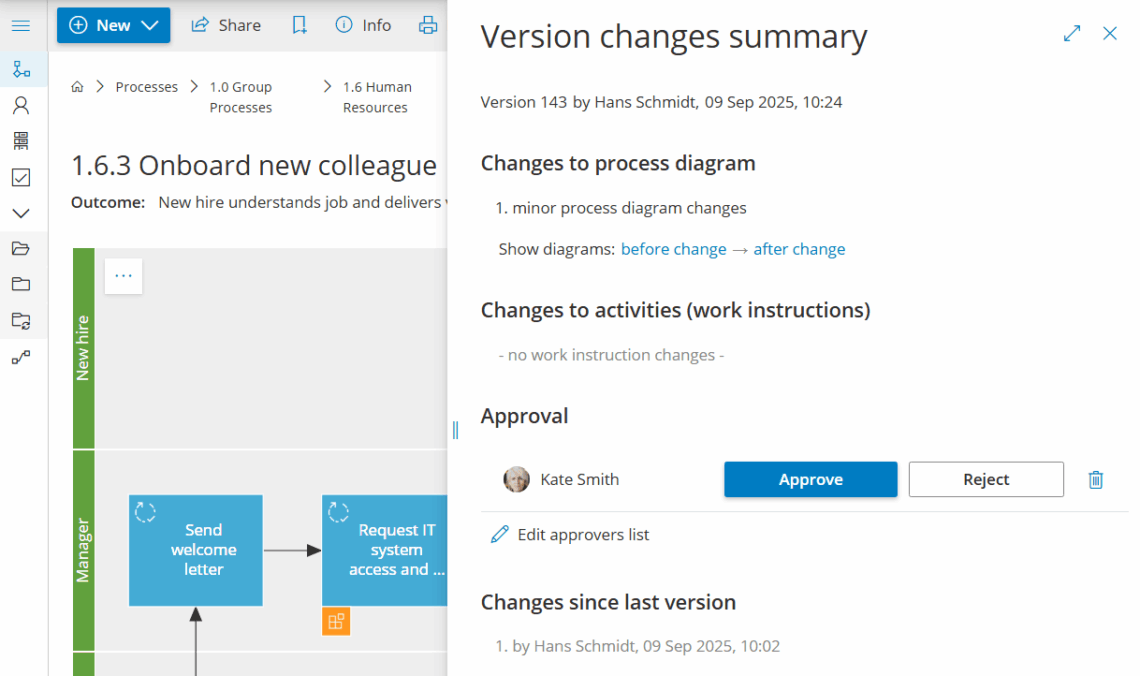
3. Review and approve #
Reviewers can click to view a “version changes” summary, before/after comparisons, who else must approve, and current status:
Add pending reviews to dashboard #
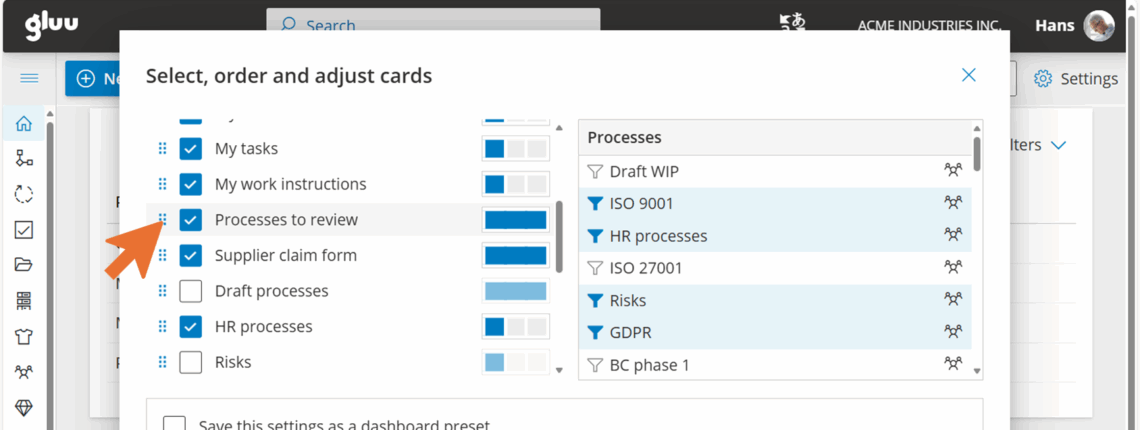
- Go to your personal dashboard.
- Click the cogwheel (top-right) → add Processes to review.
- (Optional) Drag it to the top for faster access.
4. Track approval status #
- Open the process and view Revisions/Versions.
- See which changes await approval and by whom.


