
Goal: Understand revisions vs. versions, view and compare changes, and choose the right versioning setup (disabled, auto, manual, approval).
Change and versioning basics #
Let’s explain some basic terminology.
Every edit is saved as a revision. Revisions are created automatically while you edit and whenever you exit edit mode after changes. A version is a named, formal snapshot you choose to publish to users.
Create versions for significant changes (content or flow) so users are notified and your history stays clear—without creating noise for minor edits.
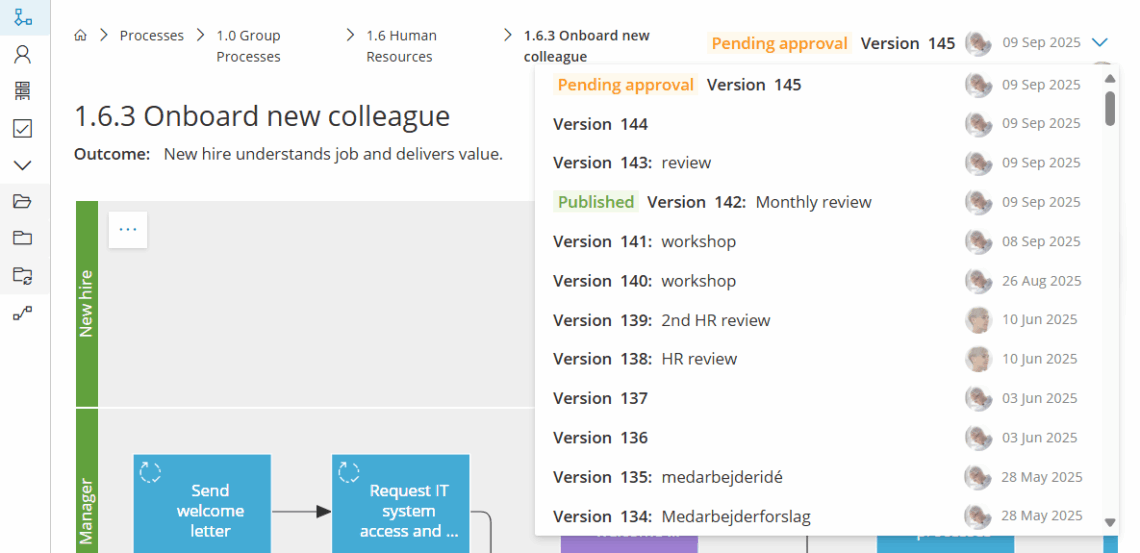
Versioning states #
- Published – the version that is live and shown to all users.
- Pending approval – a version in review by selected approvers.
- Version XXX – a version that is not in process.
Set versioning options #
- Disabled – no formal versions, only revisions.
- Auto – a new version is created automatically after changes to the diagram.
- Manual – you create versions when you decide.
- Require approval – versions go live only after approvals.
Read Work with approvals for how to manage any processes that require formal approvals before publishing.
View revisions and versions #
- Open the process (or an activity) and enter Edit mode.
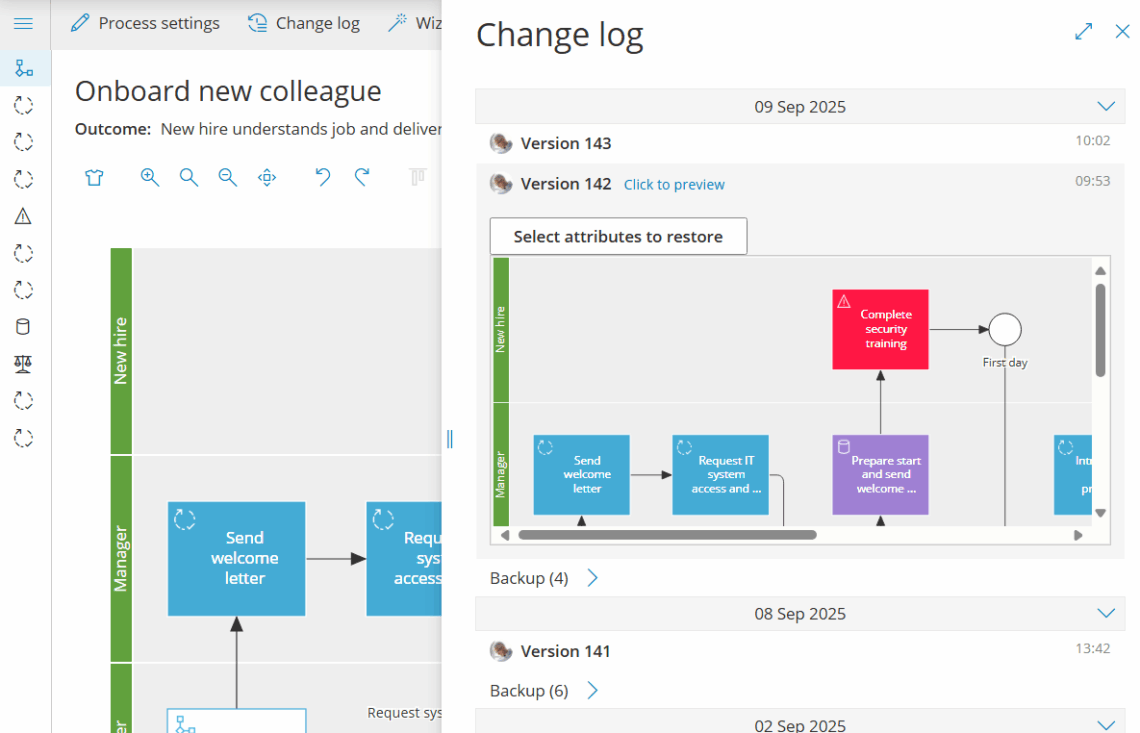
- Open the Change log
- Select an item to preview the process/activities as they were at that time.
Compare and roll back #
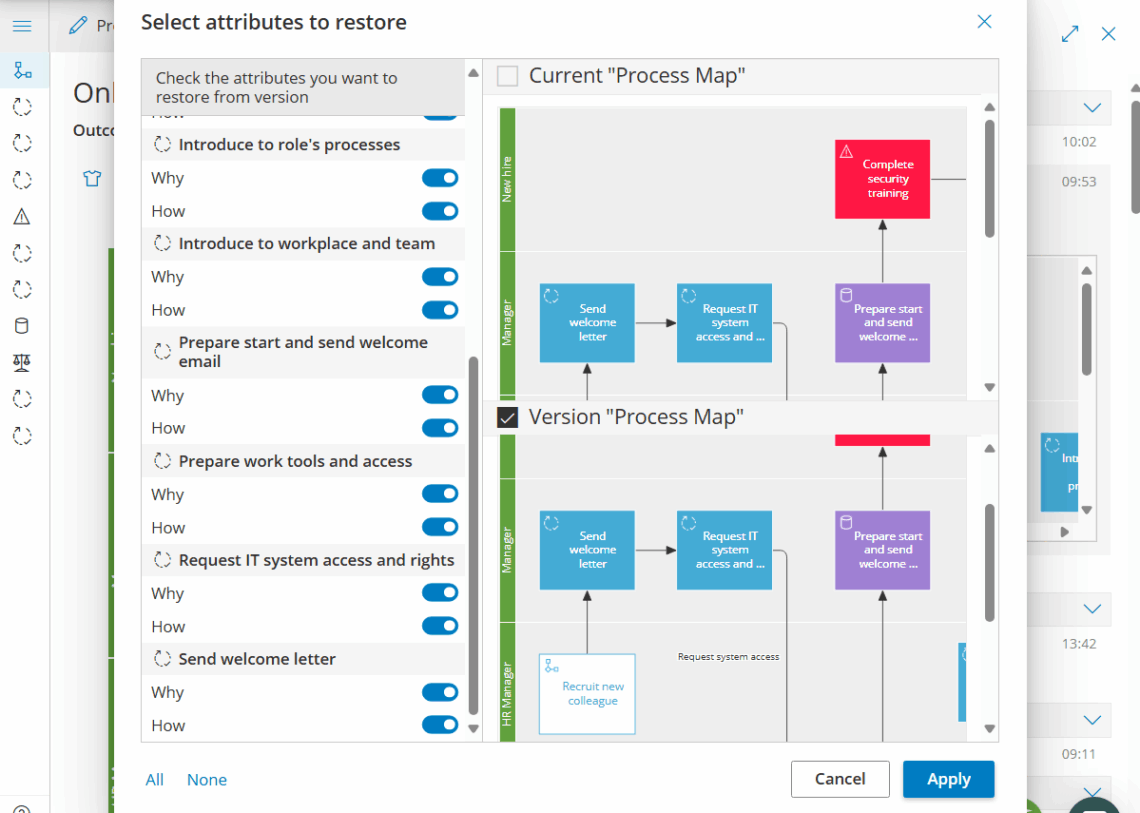
Click Select attributes… to compare versions and decide which attributes you want to restore (if any). Once you click ‘Apply’ then the current process map will automatically be replaced with the older revision.
Create a version #
First ensure the process is set to Manual versioning.
1. Start wizard #
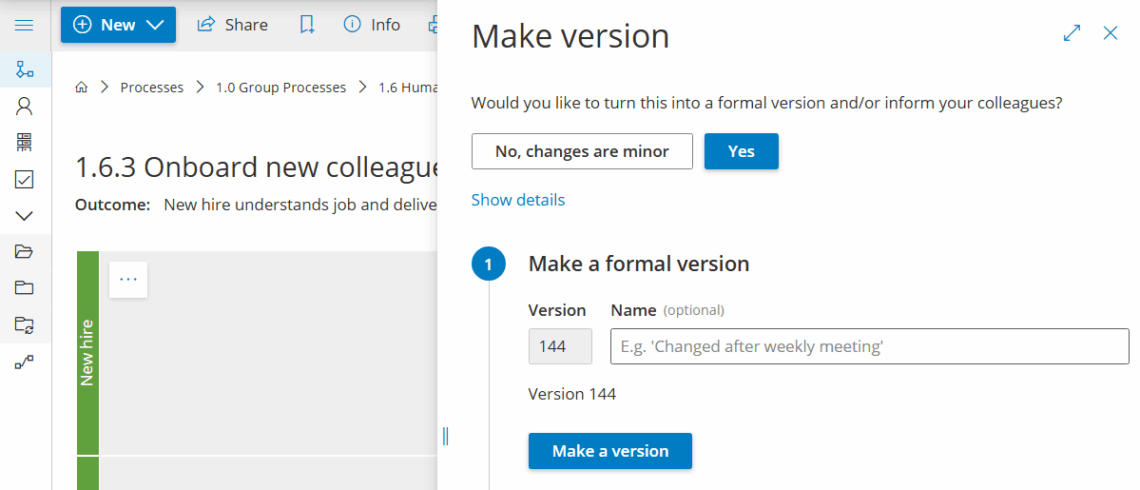
Open the process in Edit mode and click Make version (top right):

Now, complete the wizard step by step.
2. Name version #
Give it an optional name, if a number isn’t enough.
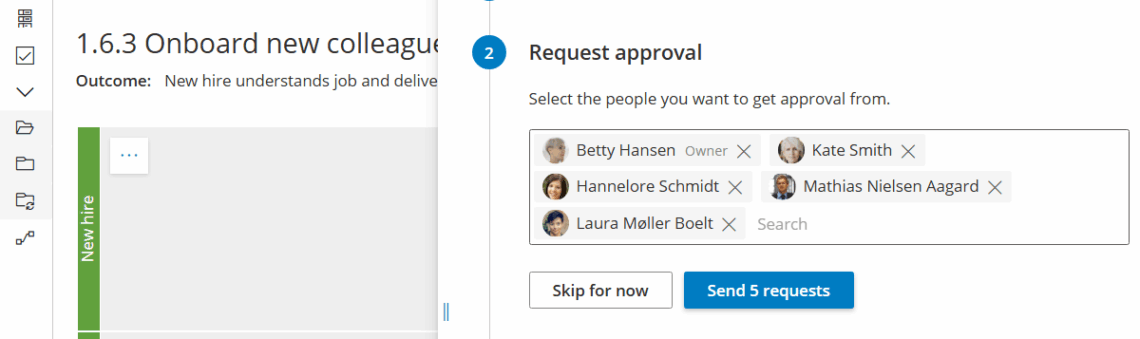
2. Set approvers (optional) #
Set approvers (if this is required and set up for the process, or the account).
Gluu lists Owner and all Editors as default but you can remove and add users.
Click ‘Send request’ to send approval requests by email with links to the process.
3. Notify colleagues when published #
Notify colleagues once the new version is published. Select and deselect to target exactly the people (and role members) that may be impacted by the change.
Then adjust the standard text that summarizes the changes.


