
Goal: Use the Gluu mobile app work instructions to access guides, complete tasks and forms, and share comments from anywhere.
The work instructions, cases, tasks, forms and comments you add in Gluu are available in our Android and iOS apps. Users log in with the same username and password as the web browser and see activities and tasks linked to their roles.
Intended use #
Gluu’s native mobile apps for Android and Apple are built as a simple way to access work instructions, complete tasks and registrations, and capture issues and ideas on the road, factory floor or building site. The app is designed for business users that work inside processes to complete tasks on time and in the right way. Users that want to work with processes have to visit the web application.

1. Download and access the app #
- Download the iOS or Android app.
- Open the app.
- Log in with the same username and password you use in the web browser.

2. View and complete tasks and forms #
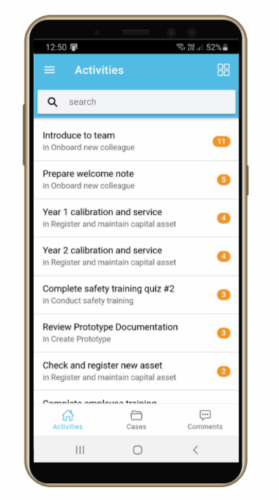
- Sign in to see activities connected to your role(s).
- Use the activities list where items with active tasks appear first (recurring and case tasks), then others alphabetically.
- Tap the 4-squares icon (top right) to view activities by process.
- Tap an activity to see tasks, work instructions and comments.

Read work instructions and watch any uploaded videos.
- Tap Instructions to open the work instruction.
- Follow steps and watch videos if available.

3. Ask questions and comment #
- Open an activity.
- Tap Comments.
- Read the latest comments.
- Reply to a comment or add a new comment.
Comments can be shown to everyone with the role or to the process editor team, depending on process notification settings: Managing change and comment notifications by process.

4. Fill in forms and add photos #
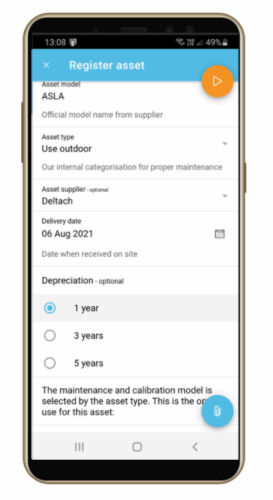
- Open a task that includes a form.
- Fill in the form fields.
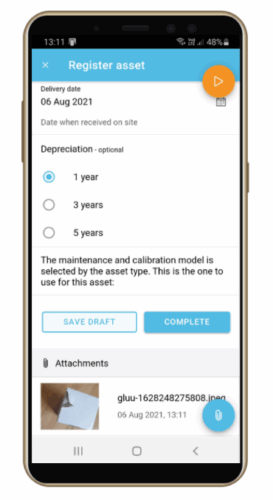
- Tap the attachment icon to take photos or upload images.
- Review your entries and attachments.
- Tap Complete to submit (stored in a non-deletable format).
TIP! Swipe an image left to delete it if it’s irrelevant.
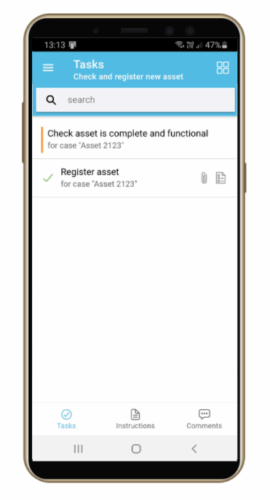
TIP! In the task list, swipe left to set a task to “In progress”. Swipe right to complete it.
5. Work with cases #
- Open Cases from the menu.
- Review running cases relevant to your role.
- Complete case tasks assigned to you.
- Tap the + button (bottom left) to start a new case.
- Select a case template.
- Name the case and start it.


