
Goal: Speed up process work with built-in, no-prompt AI—create or rewrite work instructions, suggest tasks, enrich roles, translate content, and control access in admin.
The Gluu Assistant is your process co-pilot. It uses tested, built-in prompts that blend best practices with your account data—so you don’t have to write prompts. The latest generation adds advanced features and admin controls while keeping you in charge of content and versioning.
How to start it #
- Click the Gluu Assistant in the bottom-right corner on any page.
- Review the suggestions for that page (context-aware).
- Select a suggestion and follow the on-screen steps.

What it can do #
Right now we have designed prompts that allow you to complete the following tasks with simple clicks:
- Add missing categories and groups in your process hierarchy.
- Create or enrich roles (purpose, responsibilities, competencies).
- Draft and rewrite work instructions (Why/How) to your template.
- Suggest actionable tasks based on instruction content.
- Translate instructions while respecting your account language.
Create a new work instruction #
- Open the relevant activity page.
- Click the Gluu Assistant.
- Select “Suggest instruction text”.
- Review the proposed Why/How and context.
- Click “Add” to insert the instruction.
- Edit details as needed (you stay in control).
Rewrite an existing work instruction #
- Open the activity with an existing instruction.
- Click the Gluu Assistant.
- Select “Rewrite instruction text”.
- Review how your notes, media and links were blended.
- Click “Apply” to replace or update the instruction.
Generate tasks from an instruction #
- Open the activity instruction.
- Click the Gluu Assistant.
- Select “Suggest tasks”.
- Review task suggestions derived from the instruction.
- Select the tasks you want to add.
- Click “Add” to create the tasks for case execution.
Translate instructions (account language aware) #
- Open the activity instruction.
- Click the Gluu Assistant.
- Select “Translate” and choose a language.
- Review the translation.
- Save so users with that language see it automatically.
Versioning and approvals still apply, of course.
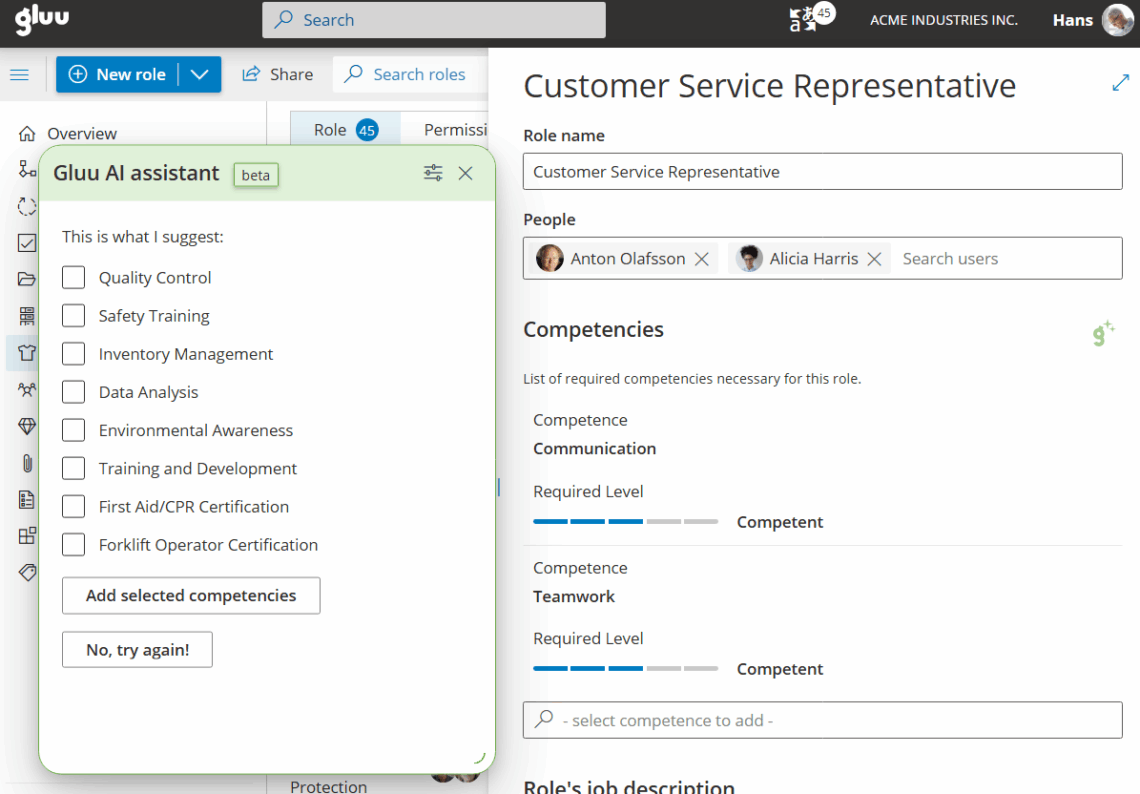
Add or enrich a role #
- Open Roles and select or create a role.
- Click the Gluu Assistant.
- Select “Describe role purpose”.
- Review and add the proposed purpose.
- Select “Suggest responsibilities”.
- Review and add responsibilities.
- Select “Suggest competencies”.
- Choose relevant competencies from your account list.
- Set competency levels as needed.
- Save the role.
Manage the Gluu Assistant (admins) #
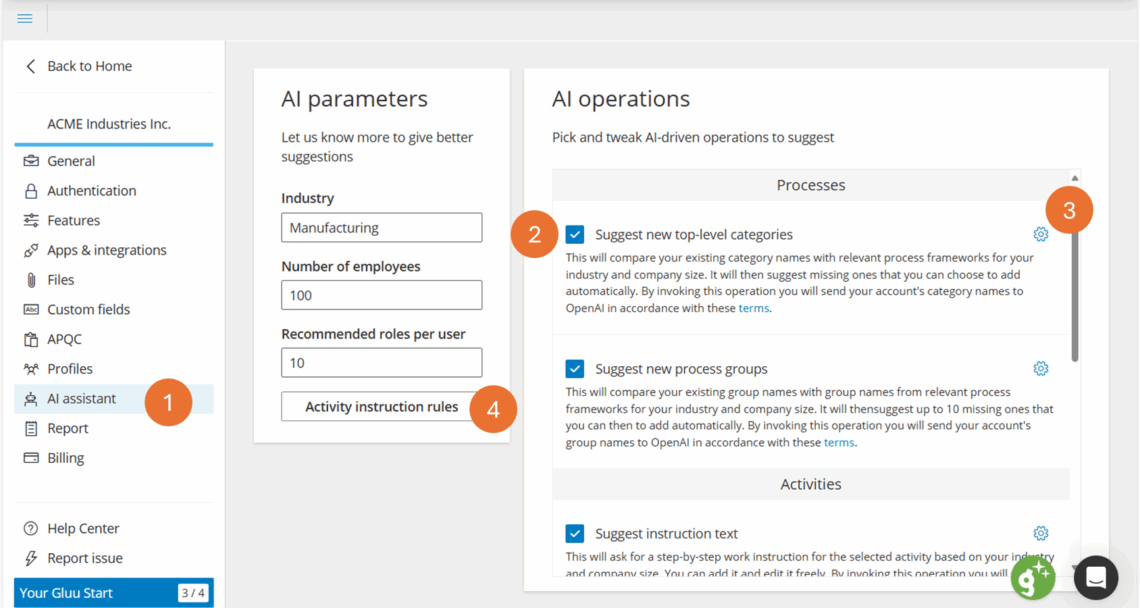
Admins can configure how AI behaves and who can use which prompts.
- Go to “Manage account”.
- Click “AI assistant” to open the AI control panel.
- Toggle individual prompts on/off to show or hide them.
- Click the cogwheel to enable prompts for specific permission groups.
- Review the prompt descriptions and enterprise terms link for OpenAI.
Set work instruction templates (admins) #
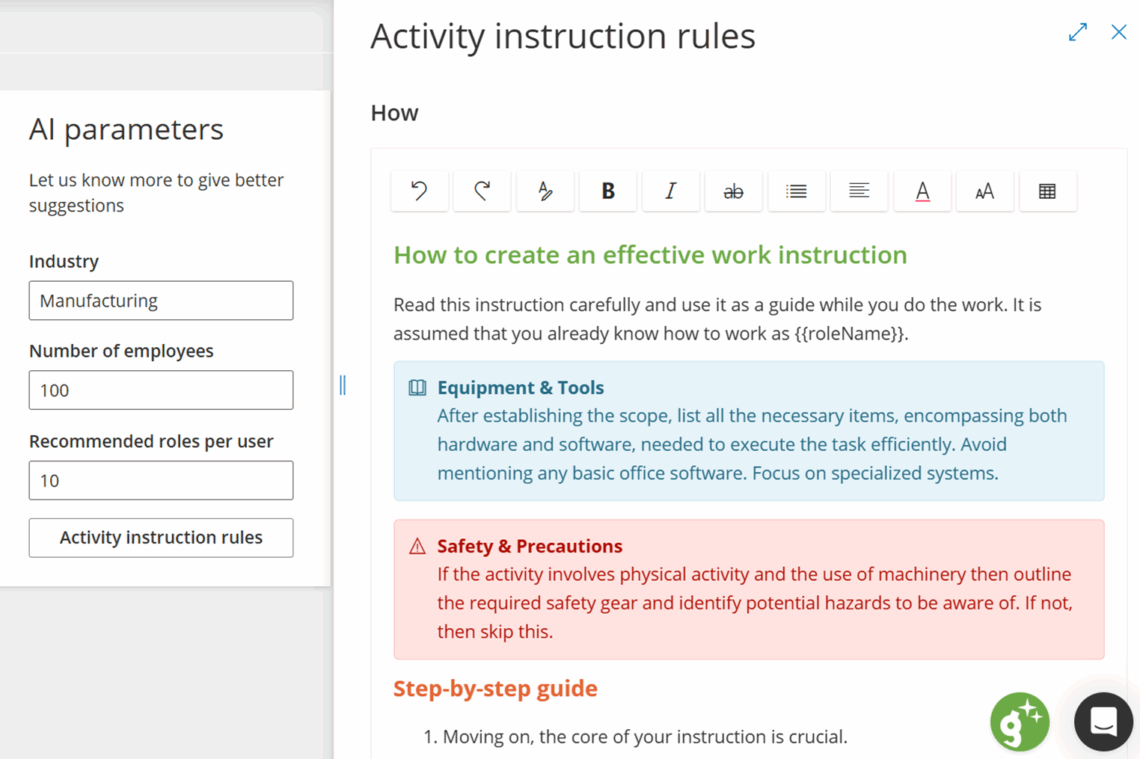
- Click “Activity Instruction Rules”.
- Edit the structure (e.g., Why ≤100–150 chars, How steps) and helper text.
- Save to apply the template to future AI output.
- Use the rewrite option to align existing instructions without losing content.
Data security #
The Gluu Assistant uses OpenAI’s LLM under Enterprise Privacy, meaning your data isn’t used to train models. Avoid adding highly sensitive personal data to instructions. Your company’s versioning, approvals and ownership apply to all AI-assisted content.
Video introduction #
Tips: Use the Assistant as a checklist to spark ideas; standardize with templates for consistency; map tasks from instructions for measurable execution; and manage prompts by permission to keep control.


