
Gluu works with your existing identity provider from day one — no setup required. This guide explains how to tighten access control, connect Microsoft Azure AD or Google Workspace, manage permissions, and keep user data in sync.
What works out of the box #
Every Gluu account comes with four login paths enabled by default. Users can sign in with email and a one-time passcode, email and password, Microsoft account, or Google account — all on the Core plan, with no configuration needed.
So why configure SSO at all? Because the real value comes when you restrict access. Locking users to Microsoft or Google sign-in means Gluu automatically inherits your identity provider’s MFA, conditional access, and offboarding rules. Your IT team stays in control without touching Gluu settings.
Restricting who can log in #
Plan requirement: The Authentication panel described in this section is available on the Advanced plan only.
The Authentication panel in your account settings gives you three checkboxes: Gluu login/password, Google auth, and Microsoft auth. Uncheck any method to disable it. Most security-conscious customers uncheck “Gluu login / password” entirely, so every user must authenticate through Microsoft or Google.
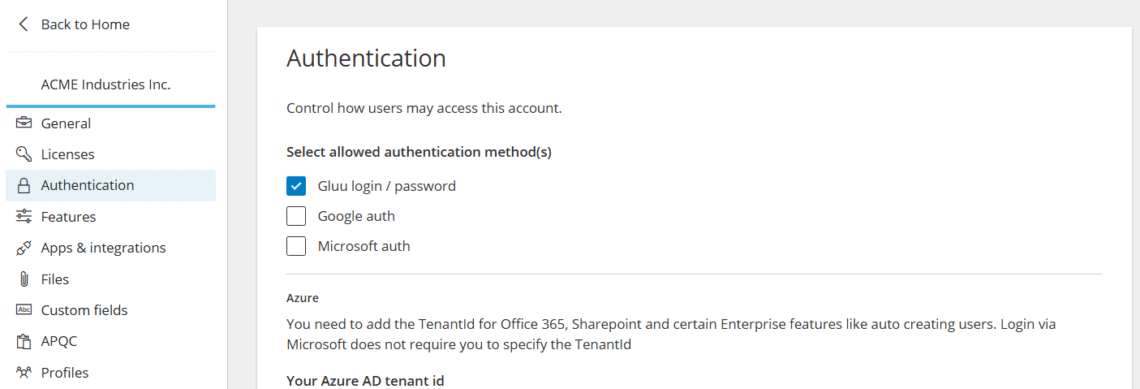
This means your IdP’s MFA and conditional-access policies apply automatically. You manage access through your own security stack — Gluu simply honors the decision your identity provider returns.
Lock Microsoft login to your Azure AD tenant #
By default, any Microsoft account can sign in. To restrict login to your own organization, enter your Azure AD Tenant ID in the Authentication panel. This single step also unlocks Office 365 and SharePoint integrations, and enables optional auto-provisioning for new users.
Azure AD App Role gating #
Need an extra layer of control? Gluu supports up to three App Role checkboxes, each mapped to a role you define on the Gluu Enterprise App in your Azure AD tenant. Check more than one and they become AND-combined — a user must hold all checked roles to sign in. This lets you require compound membership like “Gluu Users” AND “Finance Department”.
Note: Provisioning rights based on Azure AD groups (assigning Gluu permission groups automatically from AD group membership) requires the Enterprise Security add-on, on top of the Advanced plan. Basic Tenant ID restriction and App Role gating do not require this add-on.
Per-user login provider overrides #
Running a mixed account with internal employees and external partners? The Custom Authentication Providers panel lets you pin a specific login provider to individual users. Internal staff sign in through Microsoft; external consultants through Google. Gluu also supports Okta for organizations standardized on it — contact Customer Success to enable it.
Connecting with Microsoft Azure Active Directory #
Gluu is deeply integrated with the Microsoft ecosystem. When a user clicks “Sign in with Microsoft,” Gluu redirects them to the Microsoft login page. After Microsoft verifies their identity — including any MFA your tenant requires — Gluu trusts the returned token and signs them in.
Most importantly, no separate Gluu password is needed. The user’s existing corporate credentials do the work.
Optional: restricted tenant registration #
Some IT teams prefer to register Gluu as an Enterprise Application in their own Azure AD tenant. This gives direct control over consent, conditional-access policies, and app roles. The process involves registering the app in the Azure Portal, configuring the redirect URI, granting User.Read permissions, and sharing the Tenant ID and Client ID with Gluu’s Customer Success team.
Gluu also supports SAML, available on request for organizations that require it alongside OIDC.
Connecting with Google Workspace #
For organizations on Google Workspace, the flow mirrors Microsoft. Users click “Sign in with Google,” authenticate through their existing corporate account, and Gluu accepts the verified token. No pre-configuration is needed.
Want to prevent personal Google accounts from signing in? Contact Customer Success with your verified domain. Gluu can restrict access to employees with an @yourcompany.com account only — a recommended step for any organization that standardizes on Google Workspace.
Controlling permissions inside Gluu #
Login restriction and permissions inside Gluu are two separate layers. Your identity provider controls who gets in at the door. Gluu permission groups control what those users can see and do once inside.
Gluu offers two complementary access models. Process-based access grants users or groups access to specific processes only — ideal for process owners. Role-based permission groups give fine-grained control across the entire platform for every user type from Admin to Read-Only Viewer.
Note: Role-based permission groups require the Enterprise Security add-on. They are not included in any base plan. Read more about permission groups.
Because permission groups are assigned inside Gluu by an administrator (or in bulk via the REST API), they are not synced live from Azure AD or Google. The best practice is to use Azure AD App Role gating as a first-pass access gate, then use Gluu permission groups to set the right level of access once users are inside.
How users get created #
By default, a user must exist in Gluu before they can sign in. There are three standard ways to create users: an admin invites them one-by-one (Core plan and above), a bulk import from the Gluu UI (Essential plan and above), or a Customer Success bulk import using a structured data template — the fastest option for large organizations.
When the Azure AD Tenant ID is configured, Gluu can also auto-create a user record on first Microsoft login. Name and email are taken from the Microsoft profile. Combine this with App Role gating to limit auto-creation to a specific group — for example, only members of the “Gluu Users” AD group are auto-provisioned.
How offboarded users are blocked #
Offboarding is handled at the identity provider level. When an employee leaves, your IT team disables or deletes their account in Azure AD or Google Workspace. From that moment, their authentication token is no longer valid, and Gluu rejects any login attempt automatically. No action is needed inside Gluu.
This is the core security advantage of SSO over standalone credentials. One offboarding action in your HR or IT system cascades to every connected application immediately. Gluu administrators can also manually deactivate users directly, and when a user is deleted from the Gluu account, their personal data is anonymized in line with GDPR.
Importing and maintaining user data via the API #
Gluu exposes an open REST API for programmatically managing users and profile fields. This is especially useful during initial rollout and for keeping Gluu in sync with your HR system on an ongoing basis.
Gluu works with your existing identity provider from day one — no setup required. This guide explains how to tighten access control, connect Microsoft Azure AD or Google Workspace, manage permissions, and keep user data in sync.
What works out of the box #
Every Gluu account comes with four login paths enabled by default. Users can sign in with email and a one-time passcode, email and password, Microsoft account, or Google account — all on the Core plan, with no configuration needed.
So why configure SSO at all? Because the real value comes when you restrict access. Locking users to Microsoft or Google sign-in means Gluu automatically inherits your identity provider’s MFA, conditional access, and offboarding rules. Your IT team stays in control without touching Gluu settings.
Restricting who can log in #
Plan requirement: The Authentication panel described in this section is available on the Advanced plan only.
The Authentication panel in your account settings gives you three checkboxes: Gluu login/password, Google auth, and Microsoft auth. Uncheck any method to disable it. Most security-conscious customers uncheck “Gluu login / password” entirely, so every user must authenticate through Microsoft or Google.
This means your IdP’s MFA and conditional-access policies apply automatically. You manage access through your own security stack — Gluu simply honors the decision your identity provider returns.
Lock Microsoft login to your Azure AD tenant #
By default, any Microsoft account can sign in. To restrict login to your own organization, enter your Azure AD Tenant ID in the Authentication panel. This single step also unlocks Office 365 and SharePoint integrations, and enables optional auto-provisioning for new users.
Azure AD App Role gating #
Need an extra layer of control? Gluu supports up to three App Role checkboxes, each mapped to a role you define on the Gluu Enterprise App in your Azure AD tenant. Check more than one and they become AND-combined — a user must hold all checked roles to sign in. This lets you require compound membership like “Gluu Users” AND “Finance Department”.
Note: Provisioning rights based on Azure AD groups (assigning Gluu permission groups automatically from AD group membership) requires the Enterprise Security add-on, on top of the Advanced plan. Basic Tenant ID restriction and App Role gating do not require this add-on.
Per-user login provider overrides #
Running a mixed account with internal employees and external partners? The Custom Authentication Providers panel lets you pin a specific login provider to individual users. Internal staff sign in through Microsoft; external consultants through Google. Gluu also supports Okta for organizations standardized on it — contact Customer Success to enable it.
Connecting with Microsoft Azure Active Directory #
Gluu is deeply integrated with the Microsoft ecosystem. When a user clicks “Sign in with Microsoft,” Gluu redirects them to the Microsoft login page. After Microsoft verifies their identity — including any MFA your tenant requires — Gluu trusts the returned token and signs them in.
Most importantly, no separate Gluu password is needed. The user’s existing corporate credentials do the work.
Optional: restricted tenant registration #
Some IT teams prefer to register Gluu as an Enterprise Application in their own Azure AD tenant. This gives direct control over consent, conditional-access policies, and app roles. The process involves registering the app in the Azure Portal, configuring the redirect URI, granting User.Read permissions, and sharing the Tenant ID and Client ID with Gluu’s Customer Success team.
Gluu also supports SAML, available on request for organizations that require it alongside OIDC.
Connecting with Google Workspace #
For organizations on Google Workspace, the flow mirrors Microsoft. Users click “Sign in with Google,” authenticate through their existing corporate account, and Gluu accepts the verified token. No pre-configuration is needed.
Want to prevent personal Google accounts from signing in? Contact Customer Success with your verified domain. Gluu can restrict access to employees with an @yourcompany.com account only — a recommended step for any organization that standardizes on Google Workspace.
Controlling permissions inside Gluu #
Login restriction and permissions inside Gluu are two separate layers. Your identity provider controls who gets in at the door. Gluu permission groups control what those users can see and do once inside.
Gluu offers two complementary access models. Process-based access grants users or groups access to specific processes only — ideal for process owners. Role-based permission groups give fine-grained control across the entire platform for every user type from Admin to Read-Only Viewer.
Note: Role-based permission groups require the Enterprise Security add-on. They are not included in any base plan. Read more about permission groups.
Because permission groups are assigned inside Gluu by an administrator (or in bulk via the REST API), they are not synced live from Azure AD or Google. The best practice is to use Azure AD App Role gating as a first-pass access gate, then use Gluu permission groups to set the right level of access once users are inside.
How users get created #
By default, a user must exist in Gluu before they can sign in. There are three standard ways to create users: an admin invites them one-by-one (Core plan and above), a bulk import from the Gluu UI (Essential plan and above), or a Customer Success bulk import using a structured data template — the fastest option for large organizations.
When the Azure AD Tenant ID is configured, Gluu can also auto-create a user record on first Microsoft login. Name and email are taken from the Microsoft profile. Combine this with App Role gating to limit auto-creation to a specific group — for example, only members of the “Gluu Users” AD group are auto-provisioned.
How offboarded users are blocked #
Offboarding is handled at the identity provider level. When an employee leaves, your IT team disables or deletes their account in Azure AD or Google Workspace. From that moment, their authentication token is no longer valid, and Gluu rejects any login attempt automatically. No action is needed inside Gluu.
This is the core security advantage of SSO over standalone credentials. One offboarding action in your HR or IT system cascades to every connected application immediately. Gluu administrators can also manually deactivate users directly, and when a user is deleted from the Gluu account, their personal data is anonymized in line with GDPR.
Importing and maintaining user data via the API #
Gluu exposes an open REST API for programmatically managing users and profile fields. This is especially useful during initial rollout and for keeping Gluu in sync with your HR system on an ongoing basis.
FAQ – SSO configuration guide #
For most setups — entering a Tenant ID or unchecking login methods — no. An admin with access to Account settings can do this independently. For more advanced configurations such as restricted tenant registration, SAML setup, or Okta integration, contact Gluu Customer Success to complete the process.
If you have disabled Gluu password login entirely and rely solely on Microsoft or Google authentication, users will be unable to log in during an identity provider outage. If business continuity requires fallback access, consider keeping the Gluu login method enabled for a small set of administrators.
Deleted users cannot log in and no longer appear in user pickers, but their historical comments, edits, and process attributions remain intact as part of your organisation’s knowledge record. Personal profile information is anonymised in line with GDPR.
Yes. The per-user login provider override lets you assign a different login method to individual users. External partners can sign in with Google or a Gluu password while your internal employees use Microsoft — all within the same account.
The REST API requires the API & Connectors add-on. It is not included in any base plan (Core, Essential, or Advanced). Contact Customer Success to discuss enabling it for your account.
In the Azure Portal, go to Azure Active Directory → Overview. Your Tenant ID is shown under Basic information. Copy it and paste it into the Authentication panel in your Gluu account settings.


